
Search Configuration for OpenText Content Server
Before you begin
Shinydocs Streamlined Search can authenticate users through OTDS using either Kerberos or OAuth 2.0 with OpenID Connect (OIDC). While both options are supported, we recommend using OAuth 2.0 with OIDC for greater flexibility, compatibility with modern identity providers like Microsoft Entra ID (Azure AD), and easier support for cloud and hybrid environments.

Select which authentication mechanism your organization would like to use, you only need to configure one (either OAuth - recommended or OTDS via Kerberos)
OAuth 2
Prepare
This setup uses OTDS as your broker to your OIDC provider, meaning Shinydocs Search will authenticate against OTDS via OIDC and OAUTH 2.
If you do not have this setup configured in your organization already, please KB0797287 from OpenText for more information. This will need to be completed before proceeding. Please contact OpenText support for more information/assistance.
OTDS Configuration
This section documents how to setup OTDS to be an OAuth client for Integrated search, so users can connect and search against Content Server.

Remember to note your Client Id and Secret made during this process, you will need it later!
Login to the OTDS Admin portal.
In the side bar click on OAuth Clients to add a new OAuth client.
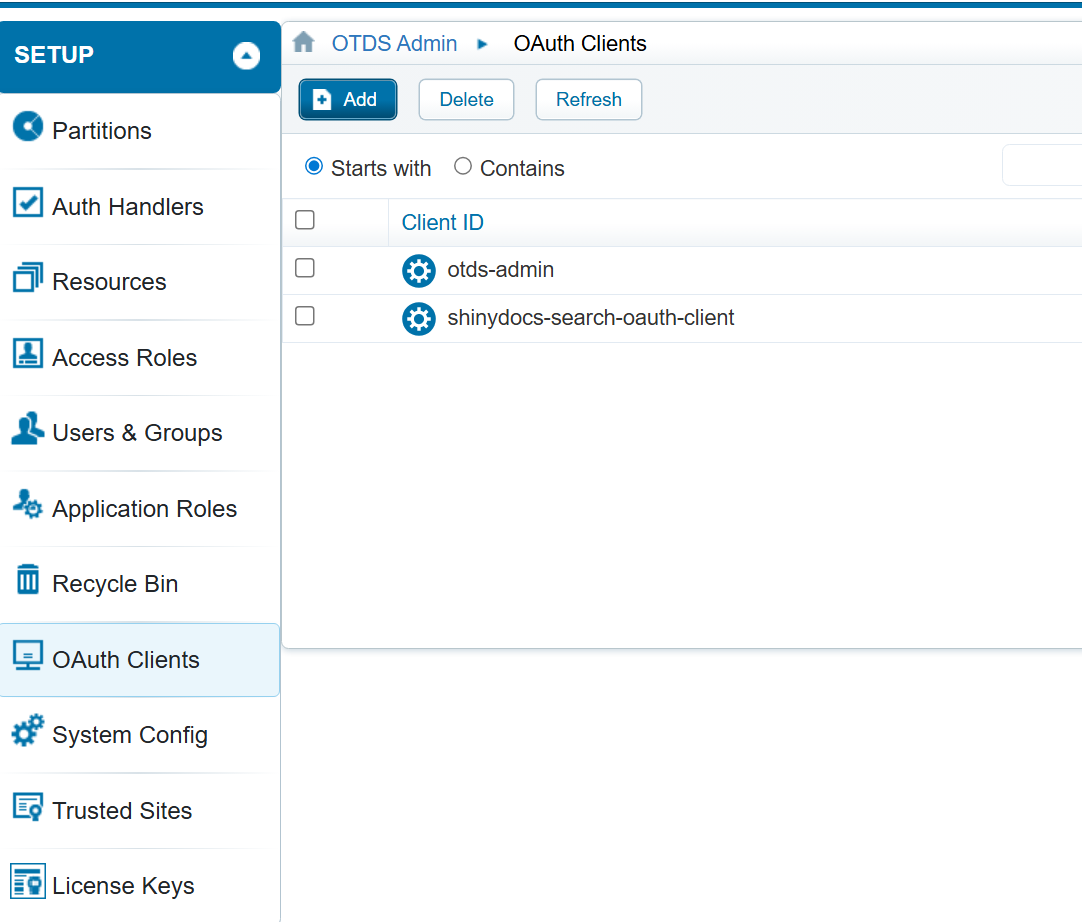
Add an OAuth Client for Shinydocs Integrated Search
Click the Add Button to add a new OAuth Client
General Section - fill in the following fields
Client Id - This is an arbitrary name, however it should be unique and descriptive.
Display Name - This is an arbitrary name, however it also should be unique and descriptive
Confidential should be checked.
Authentication Method should be Client Secret
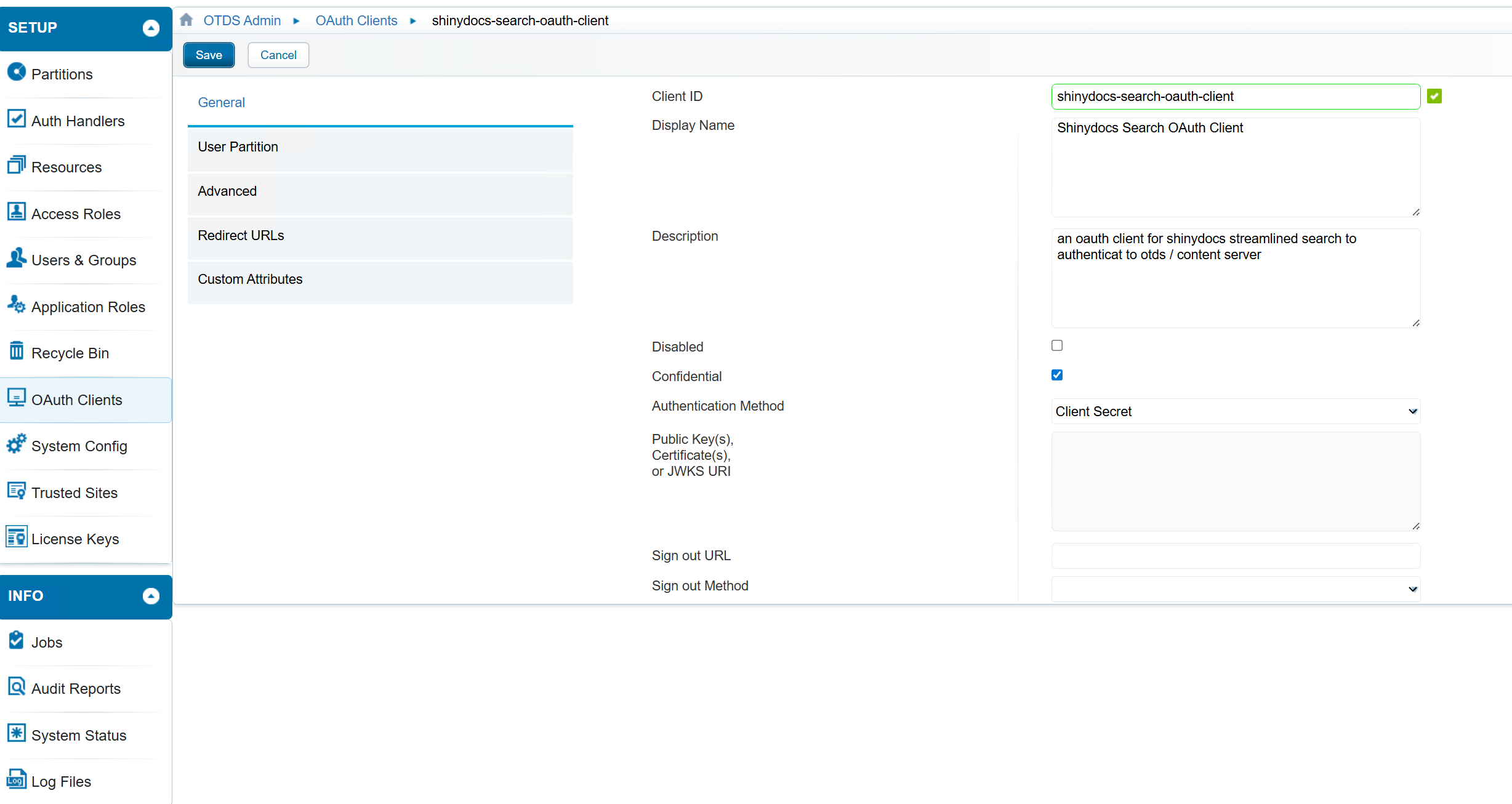
Adding an OAuth Client
User Partition - fill in the following fields
Global or User Partition. - If all your users are from the provided OAuth source, you can select Global. However, if you have a mix of authentication sources, all different, you may want to restrict it to the user partition from the source you wish to use. If so, specify the partition name in the User Partition. In the screenshot below, the partition setup for users from Entra Id is called entraid.
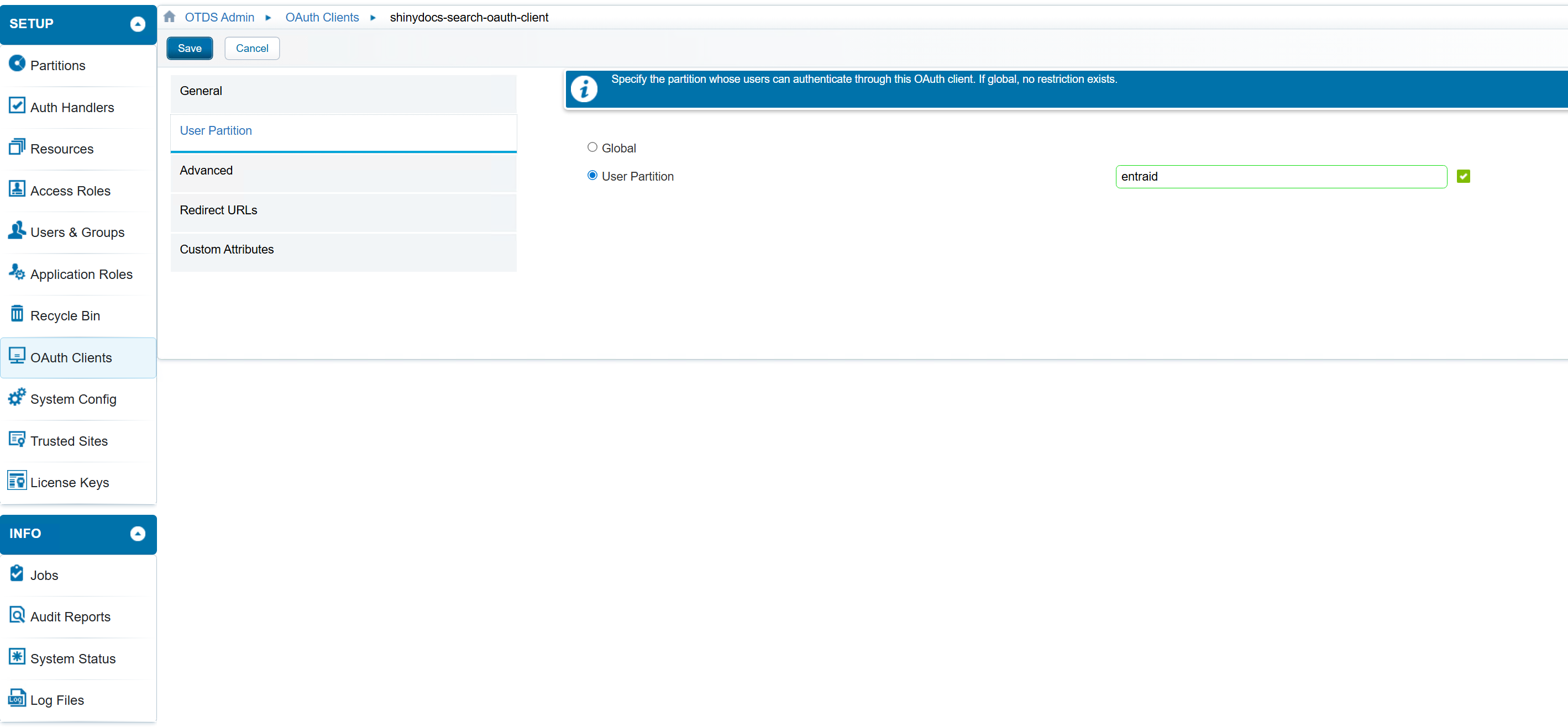
User Partition Selection
Advanced - fill in the following fields
Grant Refresh Token - checked
Permissible Scopes - openid
Default Scopes - openid
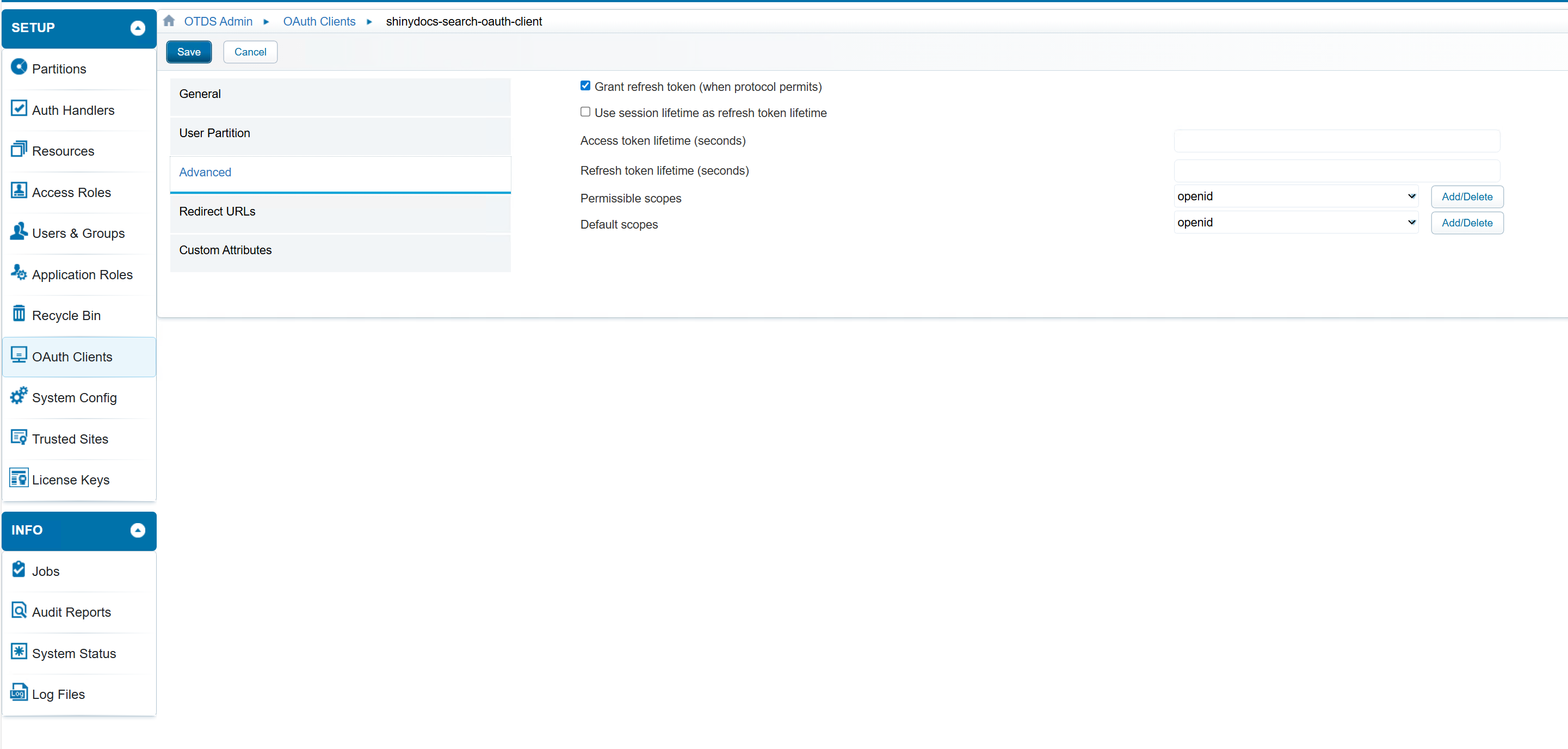
Advanced Configuration
Redirect Urls - these are permitted redirect urls that OTDS will redirect to once the user is authorized.
This should be the hostname of the integrated search with the path /oauth/authorized on the end of the url: e.g. https://search.example.cloud:9701/oauth/authorized where search.example.cloud:9701 is the host that is running control center and integrated search.
Custom Attributes - nothing to fill in there
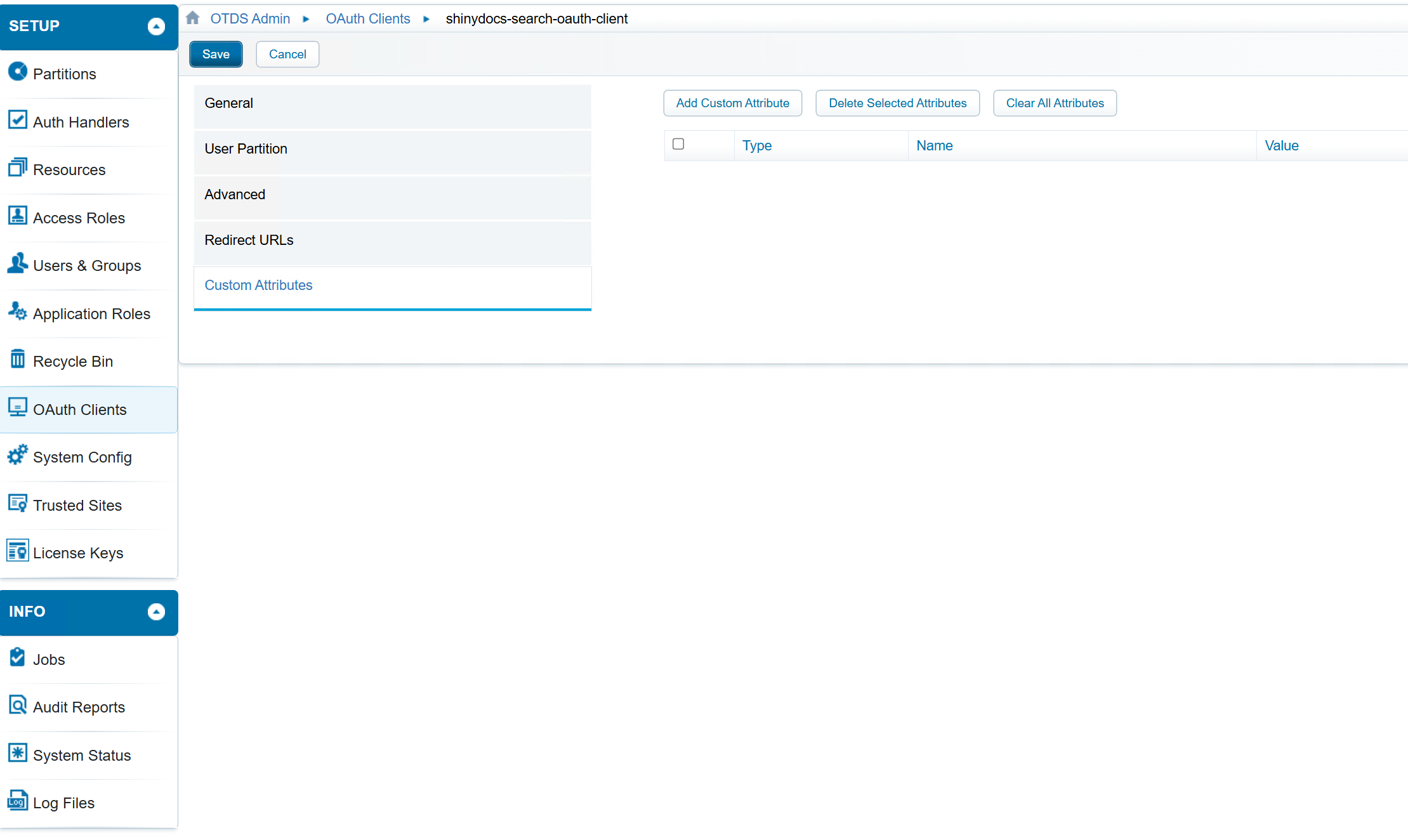
Click Save
Upon save, a popup will appear showing you the Generated Client Secret. Copy this value, and put it in a safe place. You will need this later to setup integrated search.
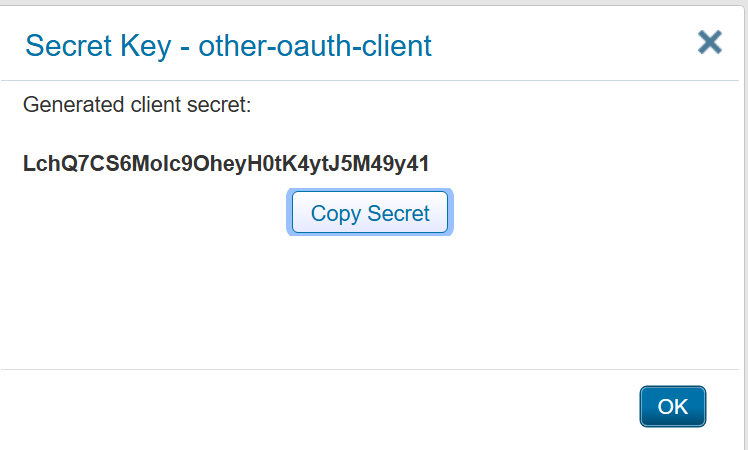
Shinydocs Streamlined Search Setup for OpenText Content Server via OAuth/OIDC
In Shinydocs Control Center, either adding a new source or editing an existing source:
Select Protected - OAuth 2 for Search Authentication Type.
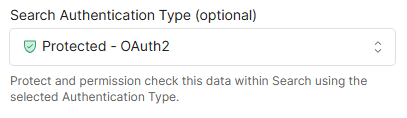
Fill out the following information that you would have gathered during this setup
Client Id
This is the
client idfrom Entra/Azure
Client Secret
This is the
client secretfrom Entra/Azure
Login/Authorize Endpoint
e.g. https://acme.net/otdsws/oauth2/auth
Token Endpoint
e.g. https://acme.net/otdsws/oauth2/auth
Revoke Token Endpoint (optional)
e.g. https://acme.net/otdsws/oauth2/auth
Redirect URL
This is the URL OTDS will use to redirect users back to Integrated Search after login. It should just be the fully qualified domain name for Integrated Search (e.g.,
https://search.example.cloud:9701). The system will automatically append the correct path for OTDS authentication. Make sure this matches the hostname of the redirect URL you set in OTDS earlier.
Enable Content Server Shortcuts (optional)
Open Content Server as an administrator.
Select Admin from the top navigation.
Navigate to Content Server Administration > Core System > Presentation > Configure Document Function.
[Recommended] Check Enable Document Overview Pages.
[Optional] Configure additional options based on organizational requirements.
Save changes.
For further details, refer to the embedded PDF for information on on-click behaviour for documents in OpenText Content Server.
Application_Note_-_On-click_behavior_for_documents_on_OpenText_Content_Server.pdf
OTDS (via Kerberos)
Configure Content Server, Active Directory, and SPNs
1. Setup the Service Account
Configure Shinydocs Search Service Account:
Account Requirements:
The "Shinydocs Control Center" process must run as a domain user account or a group-managed service account (GMSA). For more details on GMSA, refer to the Microsoft documentation.
Grant Permissions to the Service Account:
Add the account to the local Administrators group on the server where Shinydocs Pro is installed.
Alternatively, configure the following specific permissions:
Read access to the server.
Add the account to the local "Users" group.
Full Control on the Shinydocs Search folder (default path:
C:\Program Files\Shinydocs Professional\ControlCenter).Read access to the Shinydocs Search service certificate (default certificate:
localhost.localdomain).
Grant Certificate Permissions
On the Shinydocs Pro server, open certlm.msc.
Navigate to Certificates - Local Computer > Personal > Certificates.
Locate and select
localhost.localdomain.From the menu bar, choose Action > All Tasks > Manage Private Keys.
Click Add and select the service account.
Under "Allow", checkmark Read, then click Apply.
2. Active Directory User Setup
Configure Delegation
Open Active Directory Users and Computers.
Locate the Shinydocs Service Account.
Right-click the account and select Properties.
Go to the Delegation tab and:
Choose Trust this user for delegation to specified services only.
Select Use Kerberos only.
Add SPNs for Delegation
Click Add to open the delegation window.
Select Users or Computers and search for the target service account.
Add the required SPNs associated with the service.
Click Apply to save changes.
3. Setting Service Principal Names (SPNs)
SPN Configuration Steps
Open a command prompt or PowerShell with administrative rights.
Determine the hostnames of the Shinydocs Search servers:
For single-instance setups, use the machine hostname (e.g.,
search.example.local).For load-balanced clusters, include all machine hostnames and the load balancer's DNS name (e.g.,
search01.example.local,search02.example.local,search.example.local).
Run the following commands to add SPNs:
CODEsetspn -S HTTP/<hostname> <domain\service_account>Repeat for each hostname.
4. Authorization to OTDS (SPNs)
Set SPNs for OTDS Hosts
Run either of the following commands for each OTDS-related hostname:
OTDS Hostname:
CODEsetspn -S HTTP/<otdsHostName> <domain\service_account>OTDS Fully Qualified Domain Name (FQDN):
CODEsetspn -S HTTP/<otdsHostName.fqdn.com> <domain\service_account>OTDS Load Balancer:
CODEsetspn -S HTTP/<otdsloadbalancer> <domain\service_account> setspn -S HTTP/<otdsloadbalancer.fqdn.com> <domain\service_account>
Troubleshooting
Kerberos logging can be enabled by editing the following registry key:
HKEY_LOCAL_MACHINE\SYSTEM\CurrentControlSet\Control\Lsa\Kerberos\Parameters
Registry Value: LogLevel
Value Type: REG_DWORD
Value Data: 0x1
If the Parameters subkey does not exist, create it.
Further details at:https://docs.microsoft.com/en-us/troubleshoot/windows-server/identity/enable-kerberos-event-logging
The logging events will show in the System event log, in the Windows event viewer.
Ensure the SPNs have been replicated through the domain.
Ensure that the OTDS server is running as the content server user account created above, and negotiate authentication is enabled within OTDS.
Review the OTDS logs, otds.log, directory_access.log for any errors during authentication.
Shinydocs Streamlined Search Setup for OpenText Content Server via OTDS
In Shinydocs Control Center, either adding a new source or editing an existing source:
Select Protected - OTDS for Search Authentication Type.
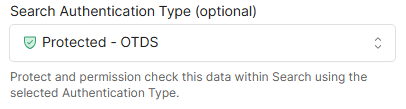
Enter your OTDS Server URL
Enable Content Server Shortcuts (optional)
Open Content Server as an administrator.
Select Admin from the top navigation.
Navigate to Content Server Administration > Core System > Presentation > Configure Document Function.
[Recommended] Check Enable Document Overview Pages.
[Optional] Configure additional options based on organizational requirements.
Save changes.
For further details, refer to the embedded PDF for information on on-click behaviour for documents in OpenText Content Server.
Application_Note_-_On-click_behavior_for_documents_on_OpenText_Content_Server.pdf