
Configure Shinydocs Pro Control Center access for Microsoft Sources (OneDrive, Teams, SharePoint Online, Exchange Online)
By integrating with Microsoft Azure, the Shinydocs Pro software can operate with Microsoft SharePoint Online and/or Exchange Online — maintaining secure and compliant access to this cloud application with policy-based access controls.
The following document describes how to enable Azure authentication for Microsoft SharePoint Online.

Note that this process does require certificates, which are used by Azure to prove the Shinydocs application’s identity when requesting a token. You need two files, a .cer file with the public key which you upload to Azure, and a .pfx file with the private key that you add to the Shinydocs software.
These files are often provided by an organization’s IT or Network team.

A self-signed certificate can be used but is not advised depending on your organization’s infrastructure and security policies.
For the Microsoft PowerShell script to create a self-signed certificate, please visit https://learn.microsoft.com/en-us/sharepoint/dev/solution-guidance/security-apponly-azuread
Table of Contents
Requirements
Internet access to reach Microsoft Online
If the server cannot have direct internet access, ensure firewall rules are setup to allow HTTPS traffic to the following on port 443:
Azure/Entra permission to create application registrations and grant admin consent
A certificate used to authenticate (Azure requires the .cer and Shinydocs Pro requires the .pfx)
Create the self signed certificate for Azure
If you already have a process internally for creating these certificates, please follow your organizations best practices. If not, you can use the script below.
Register Shinydocs Software with Azure
The first step of the process is to register your Shinydocs software with Azure, so that it can access SharePoint Online or Exchange Online data.

You only need to register one application for Shinydocs software. Permissions to supported repositories can be configured the one registration.
Open Microsoft Azure.
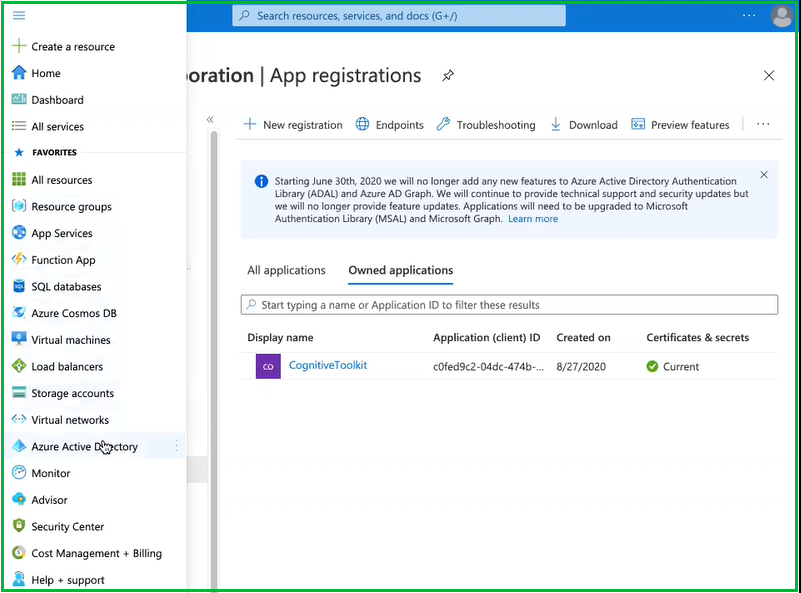
In the upper left corner dropdown menu, navigate to Azure Active Directory.
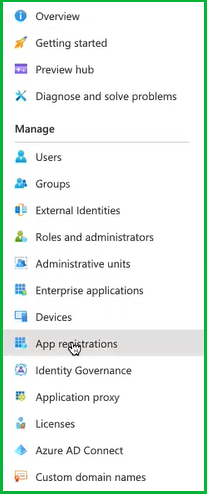
From the sidebar menu, select App registrations
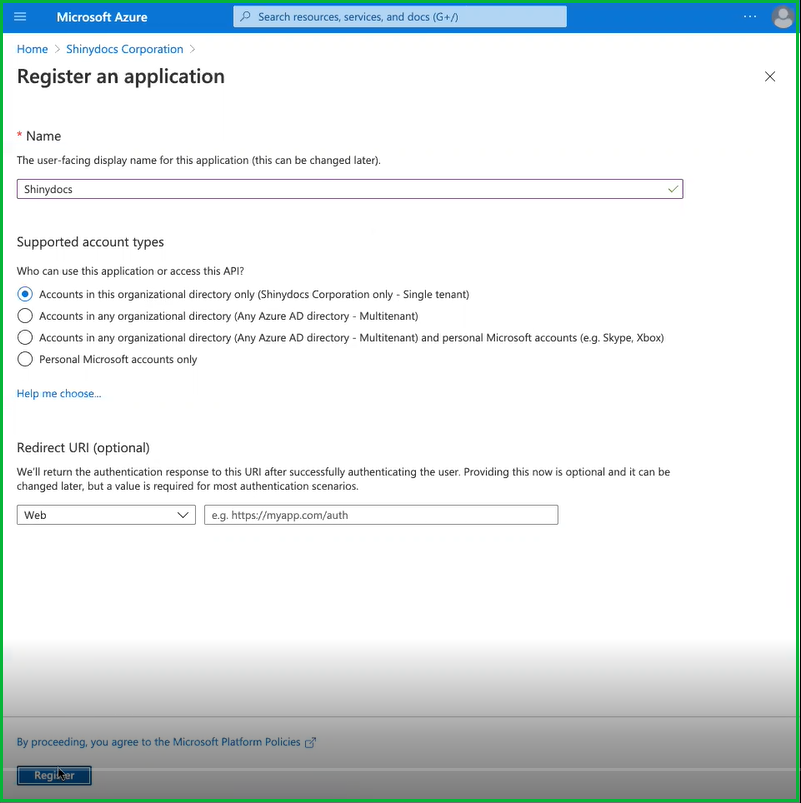
Select + New registration

Enter a name for the application. In this case, we used “Shinydocs Pro” as the application name.
Select who, within your organization, can use or access the application. In most cases, the first option (Single tenant) will be selected (see below).
The optional Redirect URl is not needed in this case.
Select Register to continue.
Upload Authentication Certificate to Azure
These steps require a .cer file.
From the sidebar menu, select Certificates & secrets
Select Certificates
Select Upload certificate
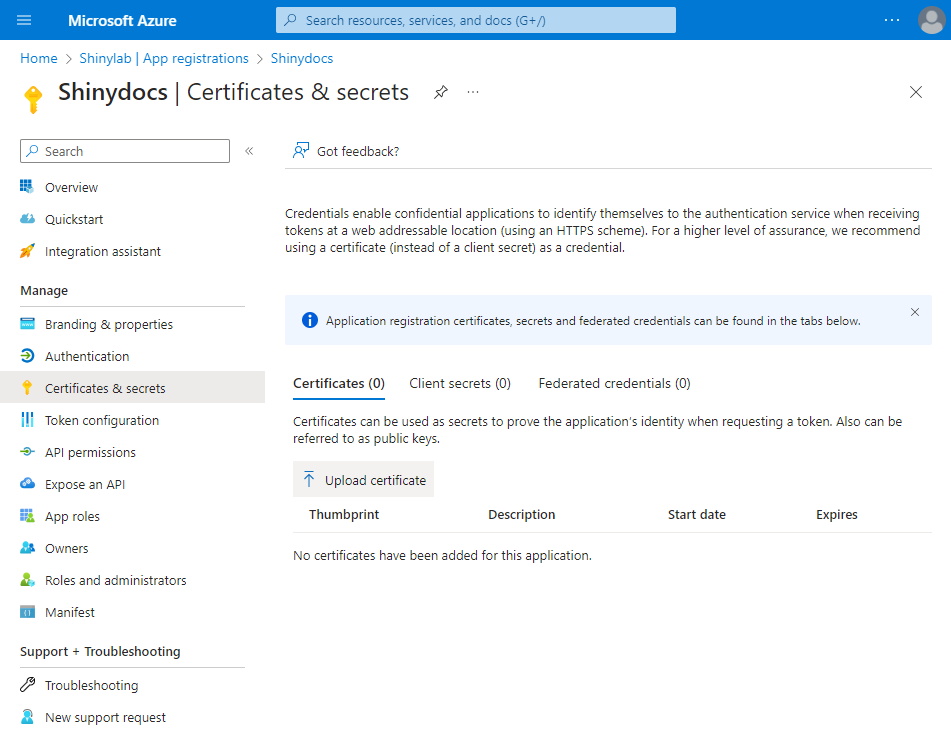
Select the folder icon to browse for your certificate (.cer). Optionally, add a description to let other administrators know what this certificate is used for.
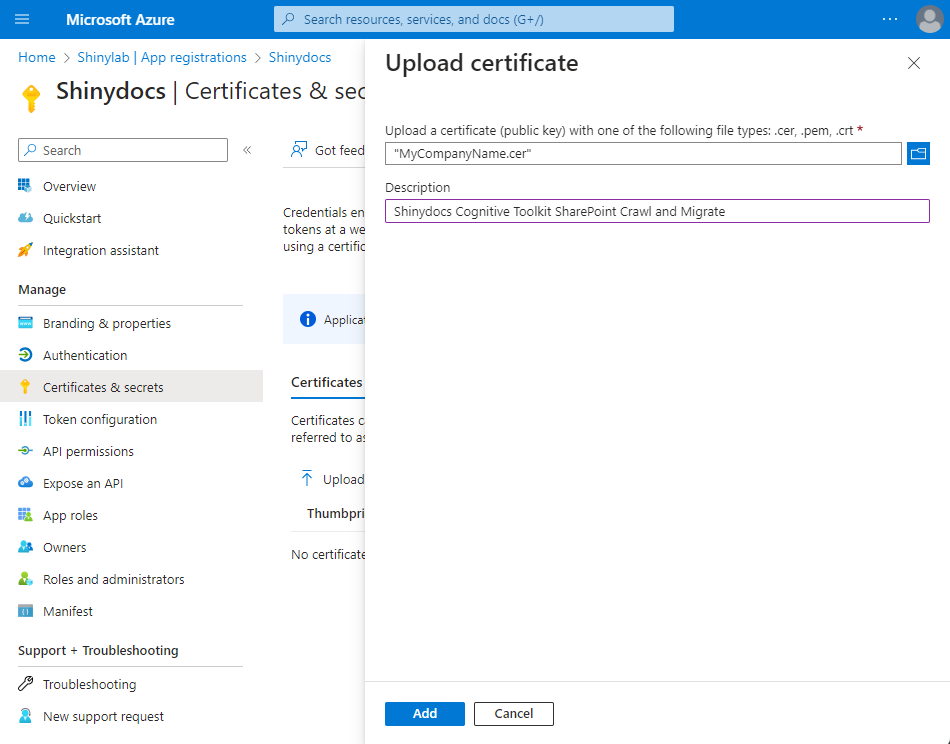
Select Add
Verify that the certificate was uploaded successfully by confirming the certificate is shown Certificates
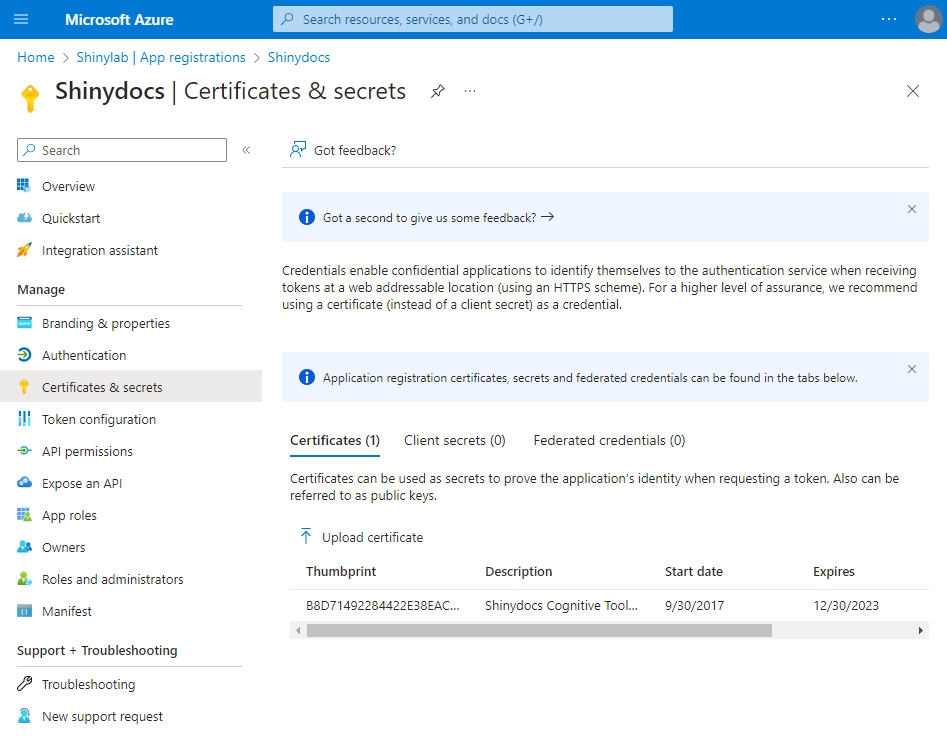
Still in Certificates & secrets, click the Client secrets tab.
Click + New client secret
In the Add a client secret panel, add a description of your choice
Set it to expire in 12 months or longer.
This is a good time to schedule a reminder for the expiry, as Shinydocs Pro will also need the new secret key when this one expires.Click Add.
Copy the secret key to a safe location, as you will not be able to retrieve it later.
In the left-hand menu, open Overview
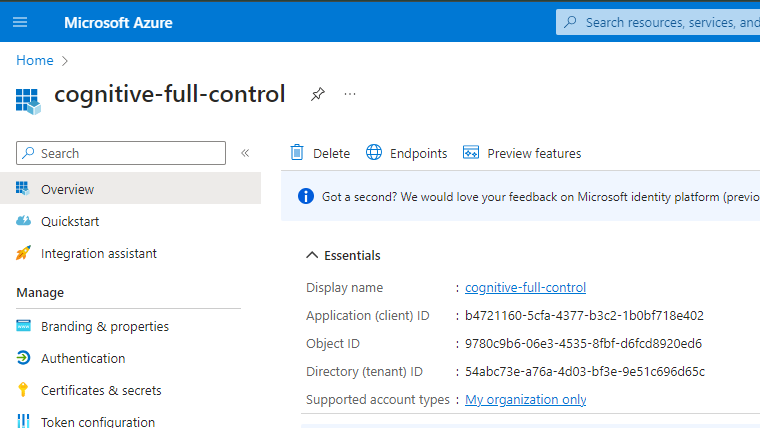
Note/save the following information for configuring Shinydocs Pro in later steps.
- Application (client) ID: ___________________________________________________
- Directory (tenant) ID: ___________________________________________________
- Secret key: ___________________________________________________
Authentication
Still in the Azure portal Shinydocs application registration, now you will set up the redirect URIs for authentication.
Navigate to the Authentication tab in the application registration
Web > Redirect URIs
This set up will be for the server running Shinydocs Pro Search using it’s hostname. You can update these settings later when/if you set up your fully qualified domain name in your DNS.
Click Add URI, and add the following
https://<shinydocs pro server host name>/azuread/successe.g.
https://shinyvm/azuread/success
https://<shinydocs pro server host name>/api/v1/oidc/signin-callbacke.g.
https://shinyvm/api/v1/oidc/signin-callback
https://localhost/azuread/successhttps://localhost/api/v1/oidc/signin-callback
Source-specific permissions
If you connect to more than one Microsoft content source, there will be overlapping permissions due to the design of SharePoint, Teams, etc.
Your Shinydocs Control Center app registration only needs one copy of the permission.
Permissions for SharePoint Online Content
Now that the Shinydocs Application has been registered with Azure, it’s time to apply permissions to access content within SharePoint Online.
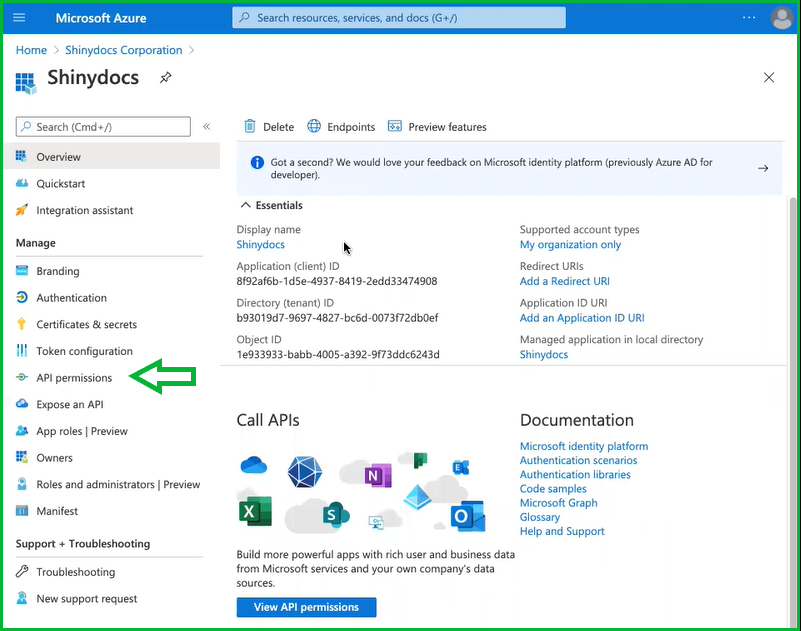
From the sidebar menu, select API permissions
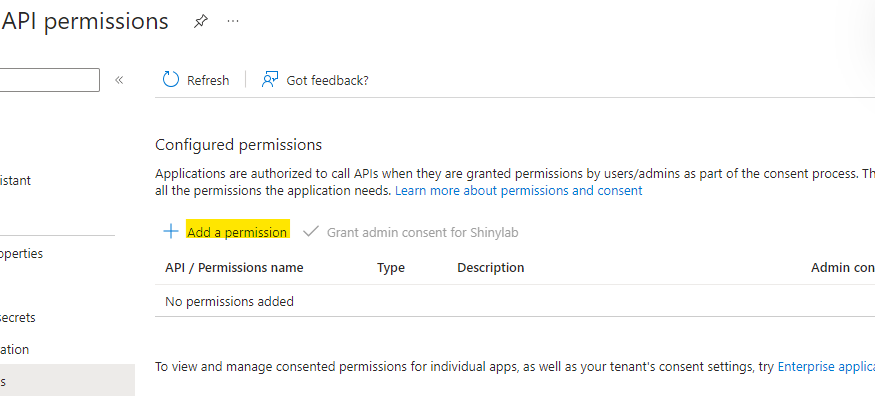
Select + Add a permission
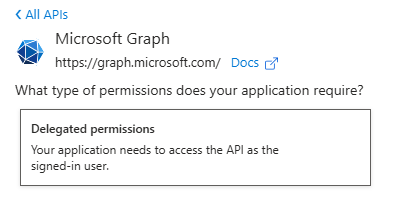
Select Microsoft Graph:

Then, select Delegated permissions
Add the following delegated permissions
User.Read
Type:Delegatedoffline_acccess
Type:Delegatedopenid
Type:Delegatedprofile
Type:DelegatedSites.Read.All
Type:Delegated
Click Add permissions
Back in API permissions page, click + Add a permission again. Select SharePoint:
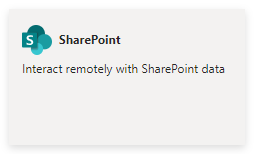
Then select Delegated permissions
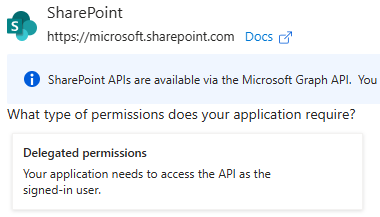
Add the following permission:
Allsites.Read
Type:Delegated
Click Add permissions
Now, we are going to set application level permission. Back in API permissions page, click + Add a permission again. Select SharePoint
Then, select Application permissions
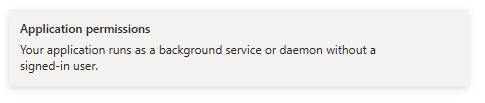
Add the following permission:
Sites.Read.All
Type:ApplicationNext, select Grant admin consent for [Tenant Name].

Select Yes to grant consent for the requested permissions for all accounts in [Directory Name].

At the top of the page, there will be a notification that admin consent for the requested permissions was successfully granted.
Permissions for Exchange Online
Now that the Shinydocs Application has been registered with Azure, it’s time to apply permissions to access content within Exchange Online.
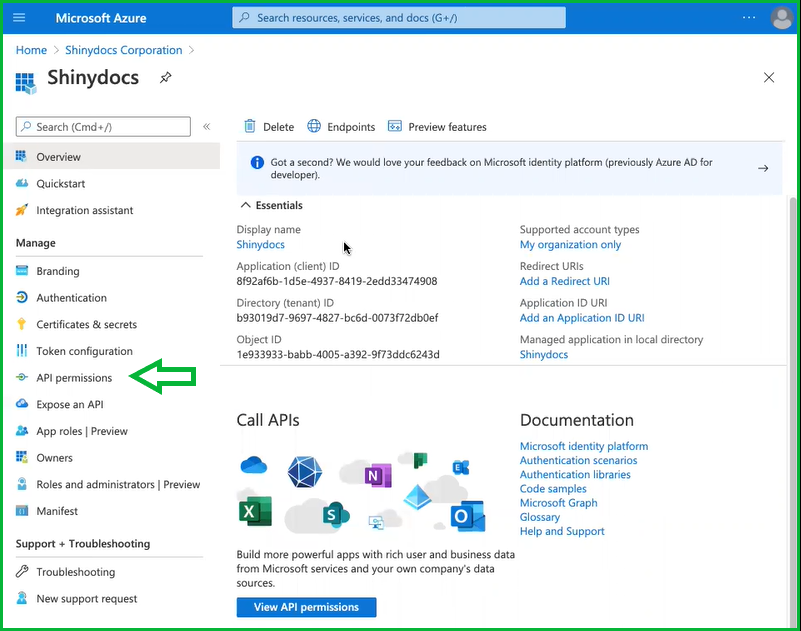
From the sidebar menu, select API permissions
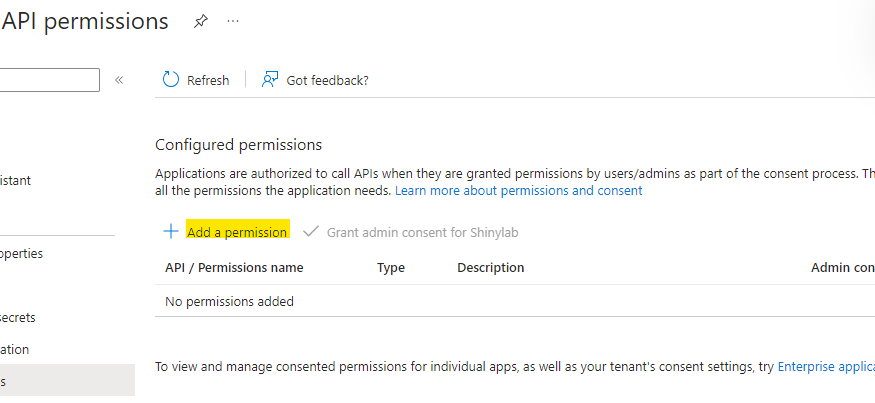
Select + Add a permission
Select Microsoft Graph:
Select Application permissions
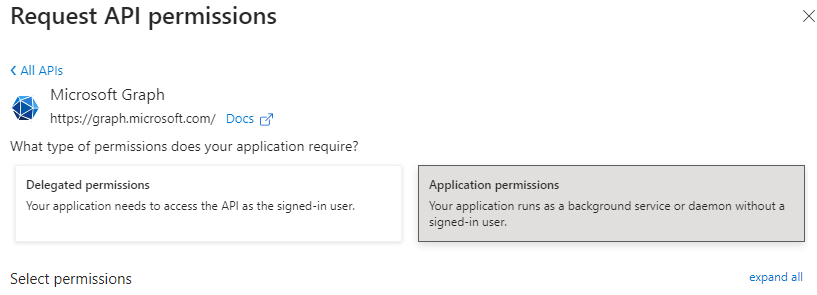
Add the following Application permissions:
User.Read.All
Type:ApplicationMail.Read
Type:Application
Click Add permissions at the bottom of the page.
The API permissions should now be updated to include Graph.

Click Add permissions again > Graph > Delegated
Add the following Delegated permissions:
Directory.AccessAsUser.All
Type:Delegatedemail
Type:DelegatedEWS.AccessAsUser.All
Type:DelegatedFiles.Read.All
Type:DelegatedGroup.Read.All
Type:DelegatedMail.Read.All
Type:DelegatedMail.Read.Shared
Type:Delegatedoffline_access
Type:Delegatedopenid
Type:Delegatedprofile
Type:DelegatedUser.Read
Type:Delegated
Click Add permissions at the bottom of the page.
Next, select Grant admin consent for [Tenant Name].

Select Yes to grant consent for the requested permissions for all accounts in [Directory Name].

At the top of the page, there will be a notification that admin consent for the requested permissions was successfully granted.
Permissions for Teams
Now that the Shinydocs Application has been registered with Azure, it’s time to apply permissions to access content within Teams.
From the sidebar menu, select API permissions
Select + Add a permission
Select Microsoft Graph:

Select Application permissions
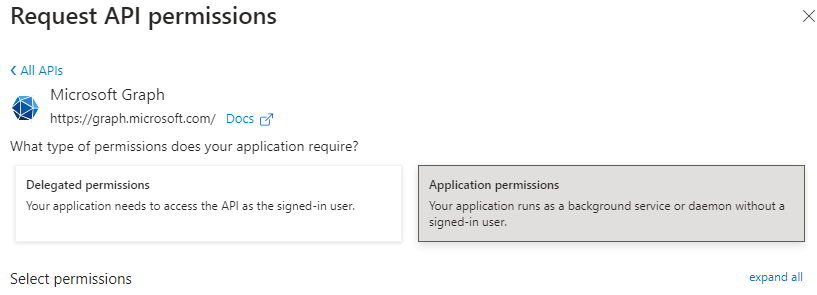
Add the following Application permissions:
Channel.ReadBasic.All
Type:ApplicationChannelMember.Read.All
Type:ApplicationChannelMessage.Read.All
Type:ApplicationChannelSettings.Read.All
Type:ApplicationChat.Read.All
Type:ApplicationChat.ReadBasic.All
Type:ApplicationChatMessage.Read.All
Type:ApplicationFiles.Read.All
Type:ApplicationTeam.ReadBasic.All
Type:ApplicationUser.Read.All
Type:Application
Click Add permissions at the bottom of the page.
Click + Add a permission again > Graph > Delegated
Add the following Delegated permissions:
offline_access
Type:Delegationopenid
Type:Delegationprofile
Type:DelegationUser.Read
Type:DelegationFiles.Read.All
Type:DelegationSites.Read.All
Type:DelegationDirectory.Read.All
Type:DelegationChannel.ReadBasic.All
Type:DelegationChannelMember.Read.All
Type:DelegationChat.Read
Type:DelegationGroup.Read.All
Type:DelegationTeam.ReadBasic.All
Type:DelegationTeamSettings.Read.All
Type:Delegation
Click Add permissions at the bottom of the page.
Next, select Grant admin consent for [Tenant Name].
Select Yes to grant consent for the requested permissions for all accounts in [Directory Name].
At the top of the page, there will be a notification that admin consent for the requested permissions was successfully granted.
Permission to access OneDrive
Now that the Shinydocs Application has been registered with Azure, it’s time to apply permissions to access content within OneDrive.
From the sidebar menu, select API permissions
Select + Add a permission
Select Microsoft Graph:
Select Application permissions
Add the following Application permissions:
Files.Read.All
Type:ApplicationDirectory.Read.All
Type:Application
Click Add permissions at the bottom of the page.
Click + Add a permission again > Graph > Delegated
Add the following Delegated permissions:
offline_access
Type:Delegationopenid
Type:Delegationprofile
Type:DelegationUser.Read
Type:DelegationFiles.Read.All
Type:DelegationDirectory.Read.All
Type:Delegation
Click Add permissions at the bottom of the page
Next, select Grant admin consent for [Tenant Name].
Select Yes to grant consent for the requested permissions for all accounts in [Directory Name].
At the top of the page, there will be a notification that admin consent for the requested permissions was successfully granted.
Configure Shinydocs Control Center
The following configurations are performed in the Shinydocs Control Center’s + Add source feature.
SharePoint Online
These steps can be followed once Shinydocs Pro has been installed.
You will need the .pfx file from your certificate.
Moving the .pfx after setting the Certificate file location will cause any related tasks to fail.
If the .pfx file is moved, you will need to update the Certificate file location to the new path.
In Shinydocs Control Center (either in quick-start or + Add source):
Select Microsoft SharePoint Online as your new or existing source
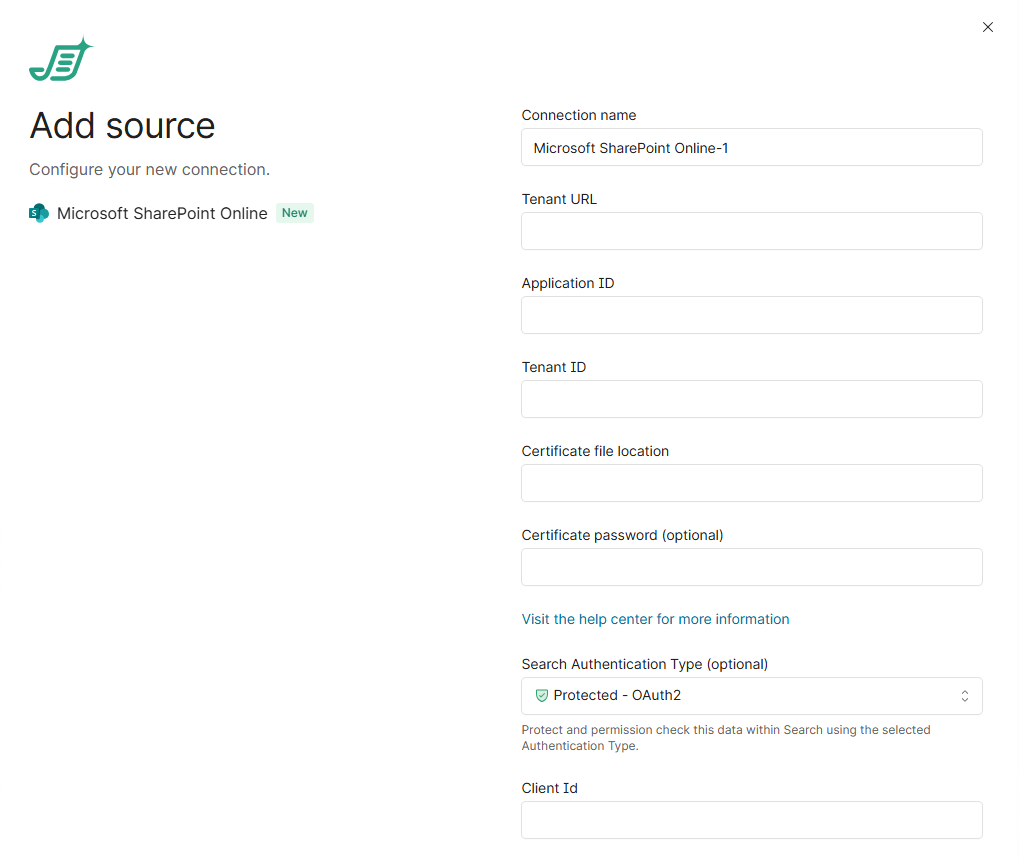
Tenant URL: enter the root URL of the Sharepoint site (https://acmecorp.sharepoint.com/)
Application ID: enter the Application (client) ID previously noted
Tenant ID: enter the Directory (tenant) ID previously noted
Certificate file location: enter the path of the .pfx file
Do not use double quotes around the path
Certificate password: enter the password for the .pfx file. If your .pfx file does not have a password, leave this field blank
Search Authentication Type: select Protected - OAuth2
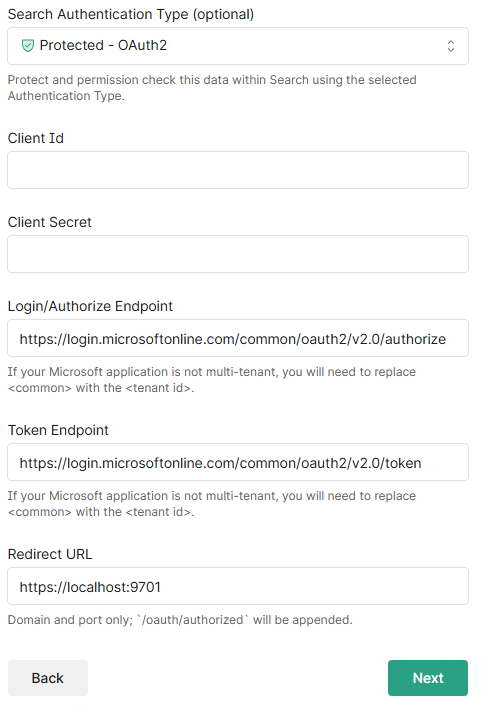
Enter the Client ID from your application registration
Enter the Client Secret (key) from your application registration
For Login/Authorize Endpoint, replace “common” with your Tenant ID
e.g.
https://login.microsoftonline.com/42abc123-a76a-4j03-bf1e-4e51c696d65d/oauth2/v2.0/authorize
For Token Endpoint, replace “common” with your Tenant ID
e.g.
https://login.microsoftonline.com/42abc123-a76a-4j03-bf1e-4e51c696d65d/oauth2/v2.0/token
Click Next. A validation check is performed to make sure the information entered is correct. If an error occurs, the error should indicate the issue at hand.
Site, if you want to crawl specific sites, enter the URL for the site like this:
CODEhttps://acmecorp.sharepoint.com/sites/ACMEhomeOtherwise leave it blank to analyze all sites.
Click Start Analysis
Congratulations! You should now be crawling your organization’s SharePoint content.
Exchange Online
These steps can be followed once Shinydocs Pro has been installed.
You will need the .pfx file from your certificate.
Moving the .pfx after setting the Certificate file location will cause any related tasks to fail.
If the .pfx file is moved, you will need to update the Certificate file location to the new path.
In Shinydocs Control Center (either in quick-start or + Add source):
Select Microsoft Exchange Online as your new or existing source
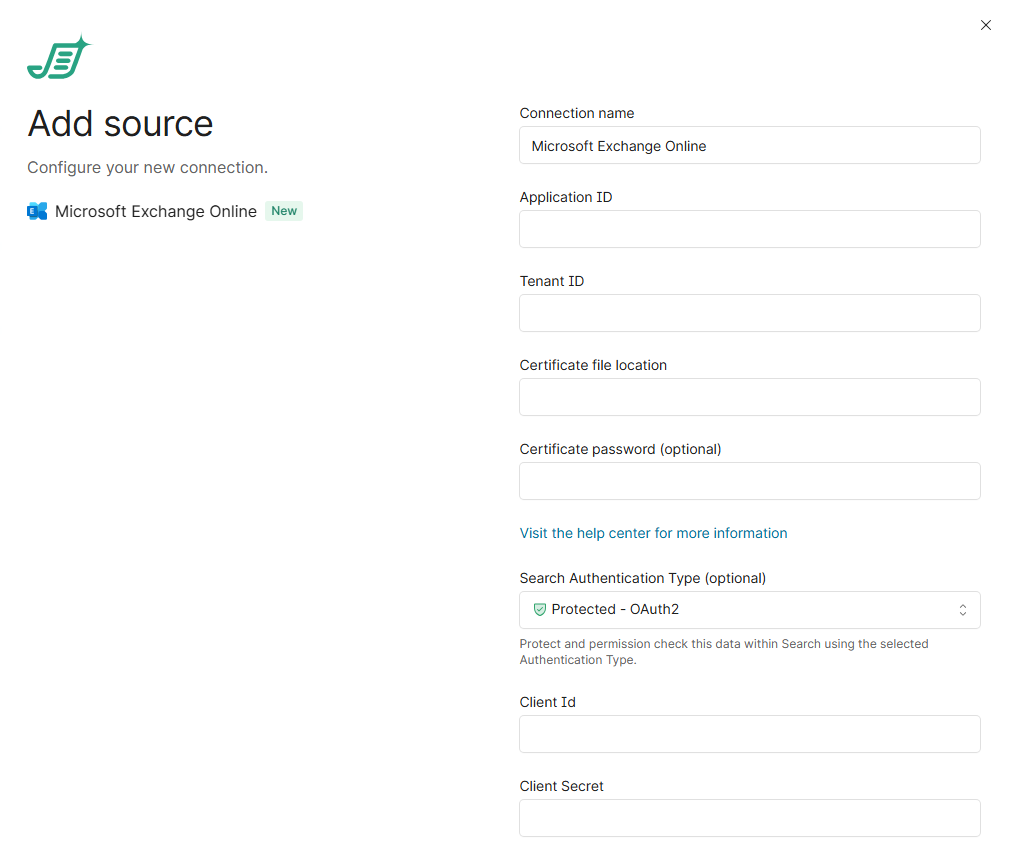
Application ID: enter the Application (client) ID previously noted
Tenant ID: enter the Directory (tenant) ID previously noted
Certificate file location: enter the path of the .pfx file
Do not use double quotes around the path
Certificate password: enter the password for the .pfx file. If your .pfx file does not have a password, leave this field blank
Search Authentication Type, select Protected - OAuth2
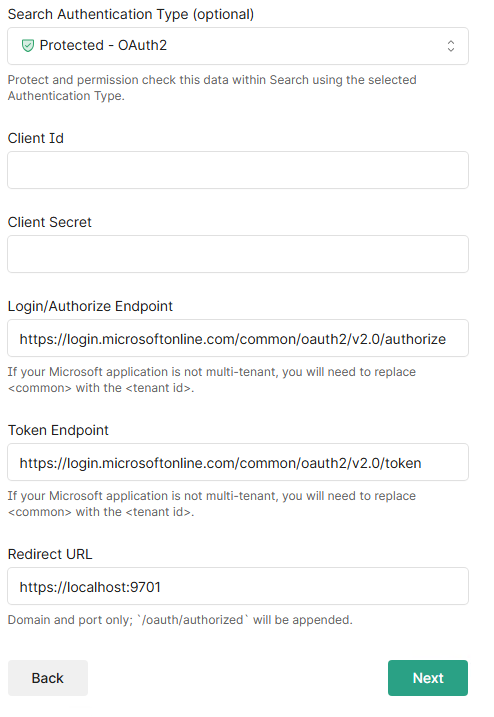
Enter the Client ID from your application registration
Enter the Client Secret (key) from your application registration
For Login/Authorize Endpoint, replace “common” with your Tenant ID
e.g.
https://login.microsoftonline.com/42abc123-a76a-4j03-bf1e-4e51c696d65d/oauth2/v2.0/authorize
For Token Endpoint, replace “common” with your Tenant ID
e.g.
https://login.microsoftonline.com/42abc123-a76a-4j03-bf1e-4e51c696d65d/oauth2/v2.0/token
Click Next. A validation check is performed to make sure the information entered is correct. If an error occurs, the error should indicate the issue at hand.
Email addresses, if you want to crawl a specific account(s), enter the email addresses like this:
CODEsketchum@shinydocs.comOtherwise leave it blank to analyze all accounts.
Click Start Analysis
Congratulations! You should now be crawling your organization’s Exchange email content
Teams
When crawling a specific user(s), only the users Direct Messages (DMs) will be analyzed. For a complete analysis, leave the user field empty.
These steps can be followed once Shinydocs Pro has been installed.
You will need the .pfx file from your certificate.
Moving the .pfx after setting the Certificate file location will cause any related tasks to fail.
If the .pfx file is moved, you will need to update the Certificate file location to the new path.
In Shinydocs Control Center (either in quick-start or + Add source):
Select Microsoft Teams as your new or existing source
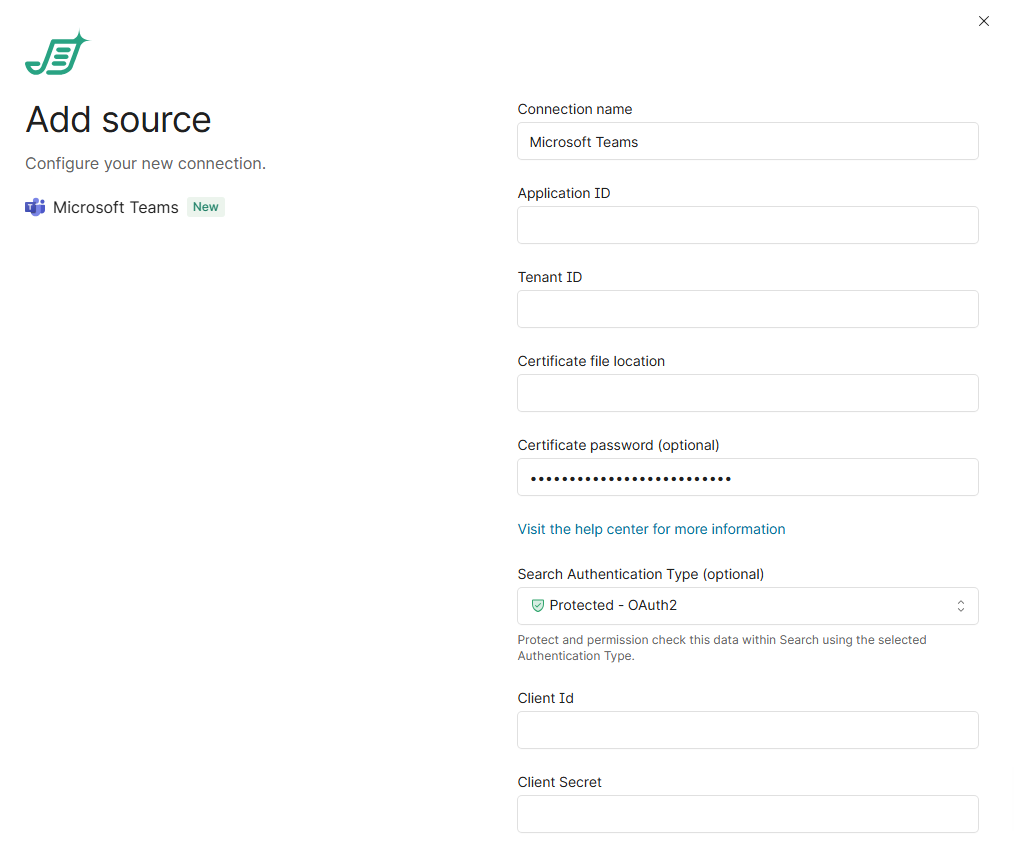
Application ID: enter the Application (client) ID previously noted
Tenant ID: enter the Directory (tenant) ID previously noted
Certificate file location: enter the path of the .pfx file
Do not use double quotes around the path
Certificate password: enter the password for the .pfx file. If your .pfx file does not have a password, leave this field blank
Search Authentication Type: select Protected - OAuth2
Enter the Client ID from your application registration
Enter the Client Secret (key) from your application registration
For Login/Authorize Endpoint, replace “common” with your Tenant ID
e.g.
https://login.microsoftonline.com/42abc123-a76a-4j03-bf1e-4e51c696d65d/oauth2/v2.0/authorize
For Token Endpoint, replace “common” with your Tenant ID
e.g.
https://login.microsoftonline.com/42abc123-a76a-4j03-bf1e-4e51c696d65d/oauth2/v2.0/token
Click Next. A validation check is performed to make sure the information entered is correct. If an error occurs, the error should indicate the issue at hand.
User Ids or Teams Ids, if you want to crawl a specific account(s), enter the email address like this:
CODEsketchum@shinydocs.comOtherwise leave it blank to analyze all accounts.
Click Start Analysis
Congratulations! You should now be crawling your organization’s Microsoft Teams content
OneDrive
These steps can be followed once Shinydocs Pro has been installed.
You will need the .pfx file from your certificate.
Moving the .pfx after setting the Certificate file location will cause any related tasks to fail.
If the .pfx file is moved, you will need to update the Certificate file location to the new path.
In Shinydocs Control Center (either in quick-start or + Add source):
Select Microsoft OneDrive as your new or existing source
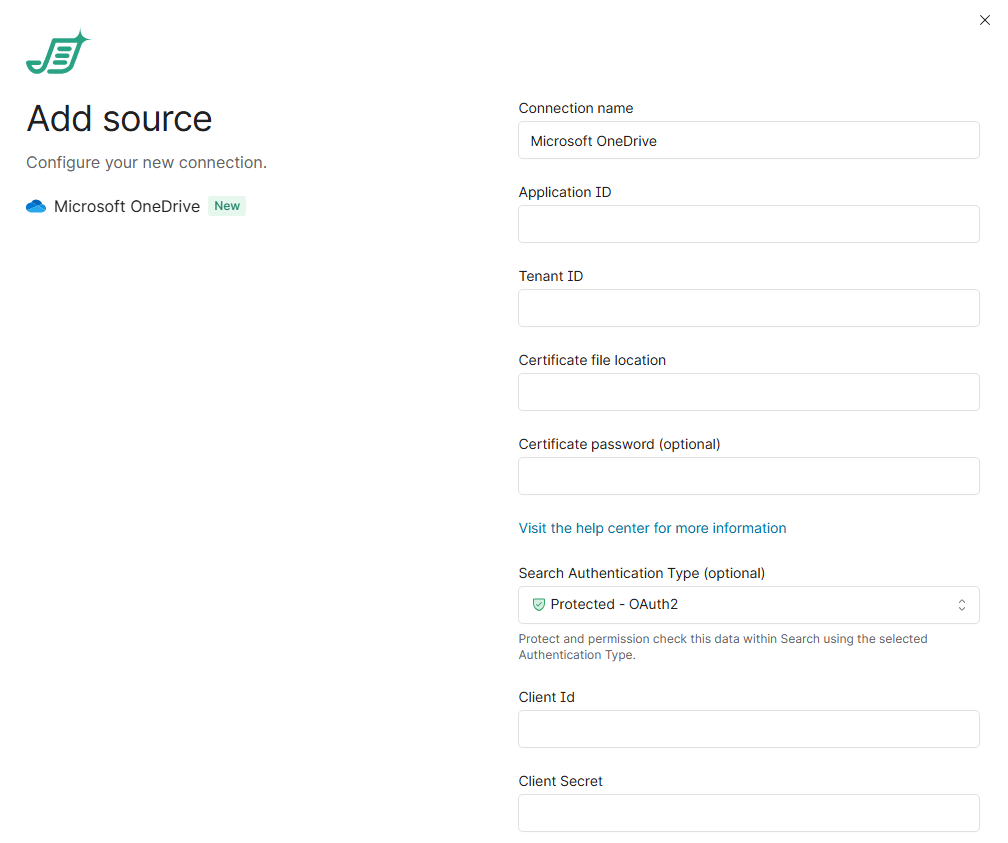
Application ID: enter the Application (client) ID previously noted
Tenant ID: enter the Directory (tenant) ID previously noted
Certificate file location: enter the path of the .pfx file
Do not use double quotes around the path
Certificate password: enter the password for the .pfx file. If your .pfx file does not have a password, leave this field blank
Search Authentication Type: select Protected - OAuth2
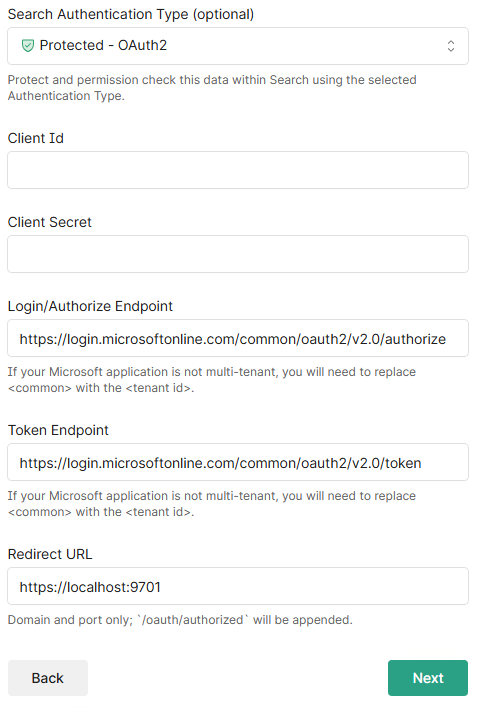
Enter the Client ID from your application registration
Enter the Client Secret (key) from your application registration
For Login/Authorize Endpoint, replace “common” with your Tenant ID
e.g.
https://login.microsoftonline.com/42abc123-a76a-4j03-bf1e-4e51c696d65d/oauth2/v2.0/authorize
For Token Endpoint, replace “common” with your Tenant ID
e.g.
https://login.microsoftonline.com/42abc123-a76a-4j03-bf1e-4e51c696d65d/oauth2/v2.0/token
Click Next. A validation check is performed to make sure the information entered is correct. If an error occurs, the error should indicate the issue at hand.
User Id, if you want to crawl a specific account(s), enter the email address like this:
CODEsketchum@shinydocs.comOtherwise leave it blank to analyze all accounts.
Click Start Analysis
Congratulations! You should now be crawling your organization’s Microsoft OneDrive content.