
Search Configuration for Box

Box™ by Box Inc. has API limits that can incur costs to your organization. While the Shinydocs Pro uses these API calls efficiently, depending on the volume of your data, you may go over your API limit. Please consult with your Box representative for more information.
Requirements
Access to Box URL from server running Shinydocs Pro (internet connection required)
Example:
http://box.com
Access to your organization’s Box Dev Console
Your account must have MFA enabled in Box to use client secret authentication
Steps
Log in to Box at Box Developer Console.
Go to My Platform Apps.
Click Create Platform App.
Select Custom App:
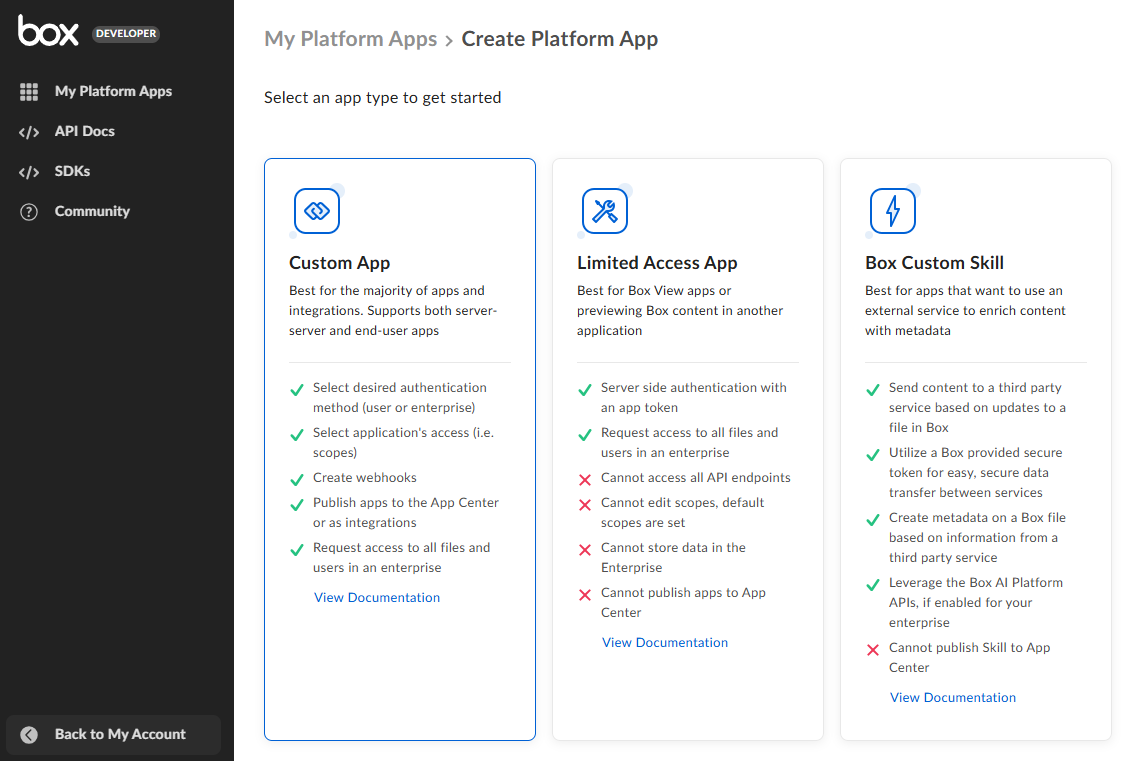
Fill out the custom app details:
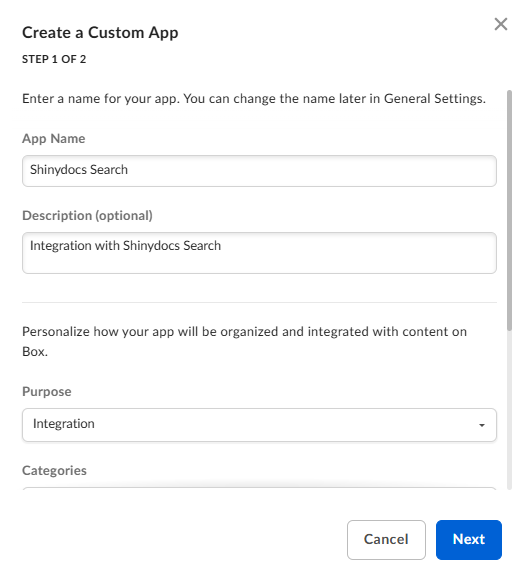
App Name: Shinydocs Search
Description: Integration with Shinydocs Search
Purpose: Integration
Categories: Productivity
Which external systems are you integrating with?: Shinydocs Search
Who is building this application: Partner
Please specify: Shinydocs
Click Next.
In Step 2 of 2, select User Authentication (OAuth 2.0):
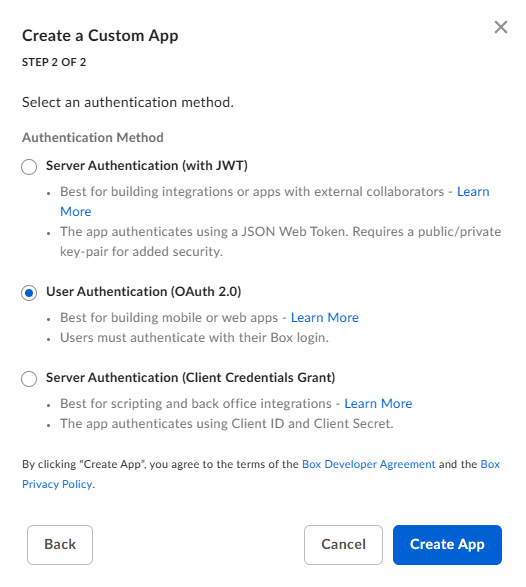
Click Create App.
You will now be in the Shinydocs Search app configuration
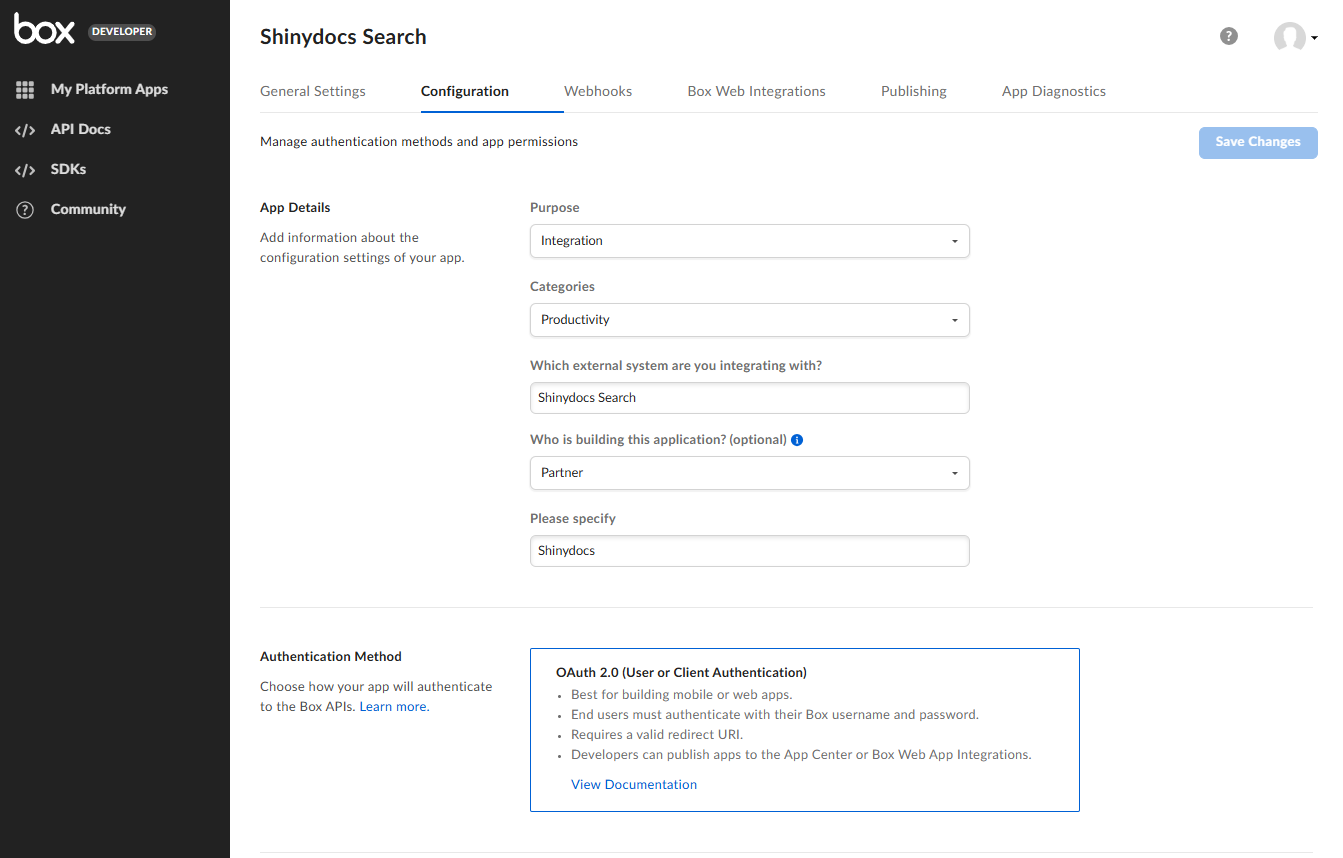
Scroll down to the OAuth 2.0 Credentials section
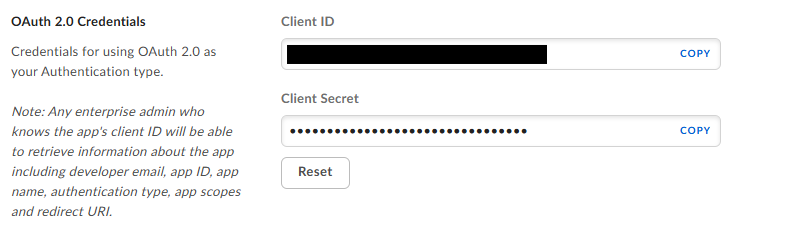
Note the Client ID and Client Secret, you will need these later.
Scroll down further to OAuth 2.0 Redirect URIs
Add the following URIs:
https://localhost:9701/oauth/authorizedhttps://<hostname>:9701/oauth/authorized
Replace<hostname>with the machine name Shinydocs Pro is installed on.(optional)
https://<FullyQualifiedDomainName>/oauth/authorized
Replace<FullyQualifiedDomainName>with the machine name Shinydocs Pro is installed on.
Click Save Changes in the top-right of the page.
Configure source in Shinydocs Pro Control Center
With the application registered in Box, you can now configure Shinydocs Control Center to use OAuth for real-time permission checking in Shinydocs Enterprise Search.
Either when adding a new Box source or editing and existing source (via edit button on the source ):
):
You can choose this setting when creating a source, or update it later by editing the connection from the Sources page (see images below).
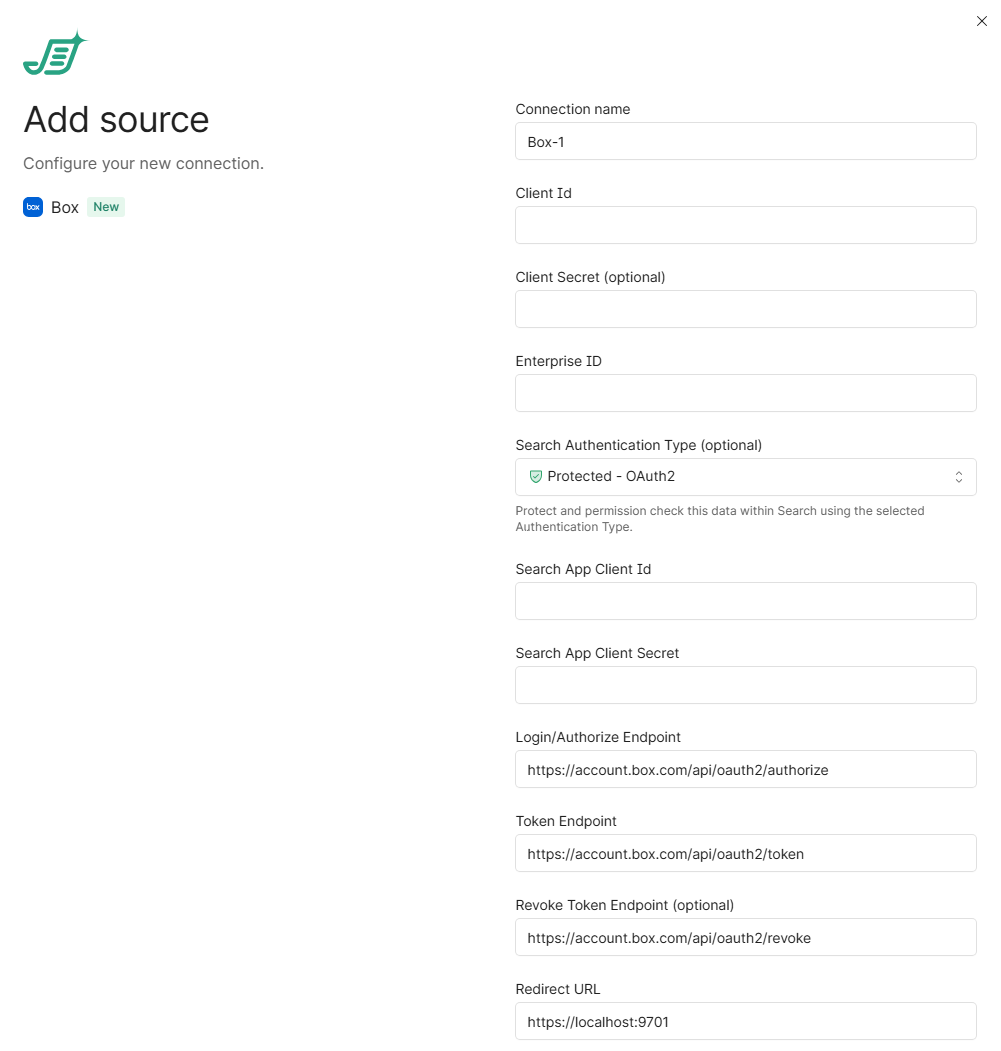
Adding a new Box source
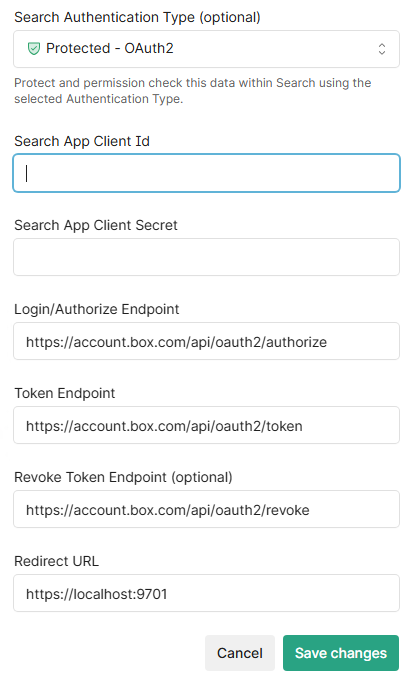
Adding Search configuration to an existing Box source
Either in Edit connection or Add source, select Protected - OAuth2 in Search Authentication Type
Enter the Client ID from your application registration
Enter the Client Secret (key) from your application registration
Login/Authorize Endpoint: Use the default value
Token Endpoint: Use the default value
Revoke Token Endpoint: Use the default value
Redirect URL: Start with
https://<hostname>:9701
Replace<hostname>with the machine name Shinydocs Pro is installed on
Click Save changes