
Shinydocs Pro Control Center Guide
Welcome. We can’t wait for you to get started.
After installing the Shinydocs Pro software package, your default browser will open to https://localhost:9701/quick-start , the landing page for new installations for Shinydocs Pro.
Getting started
User Menu
The user menu found in the top right corner of the web app, it provides quick access to key settings. From this menu, administrators can view the account in use , change the appearance and language of the app, and access additional options. These settings are stored in the browser for the administrator.
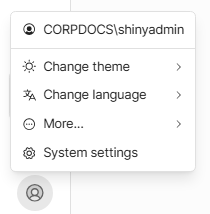
 | User menu |
 | Language Default: System preference |
 | More:
|
 | System Settings |
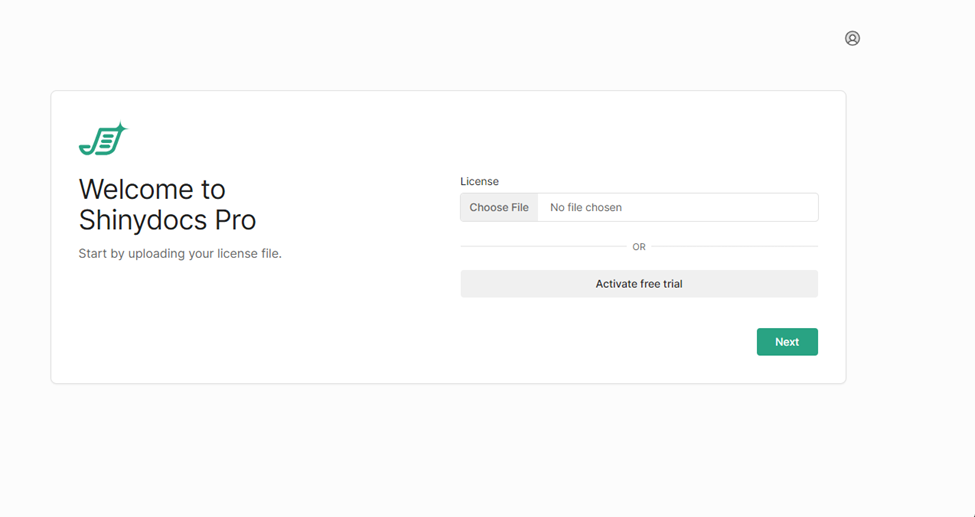
Add Your License
Your license file (.xml) will have been sent to your organization previously.
Select Choose File.
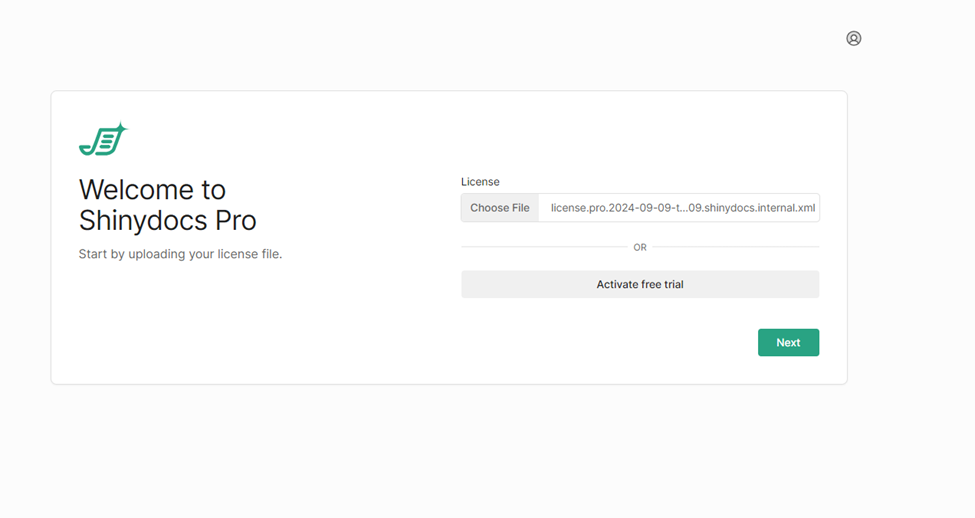
In the browse window, find your Shinydocs license file (.xml) and select Open.
Select Next to upload the license to the application.
If the activation was done successfully, you will proceed through the setup.
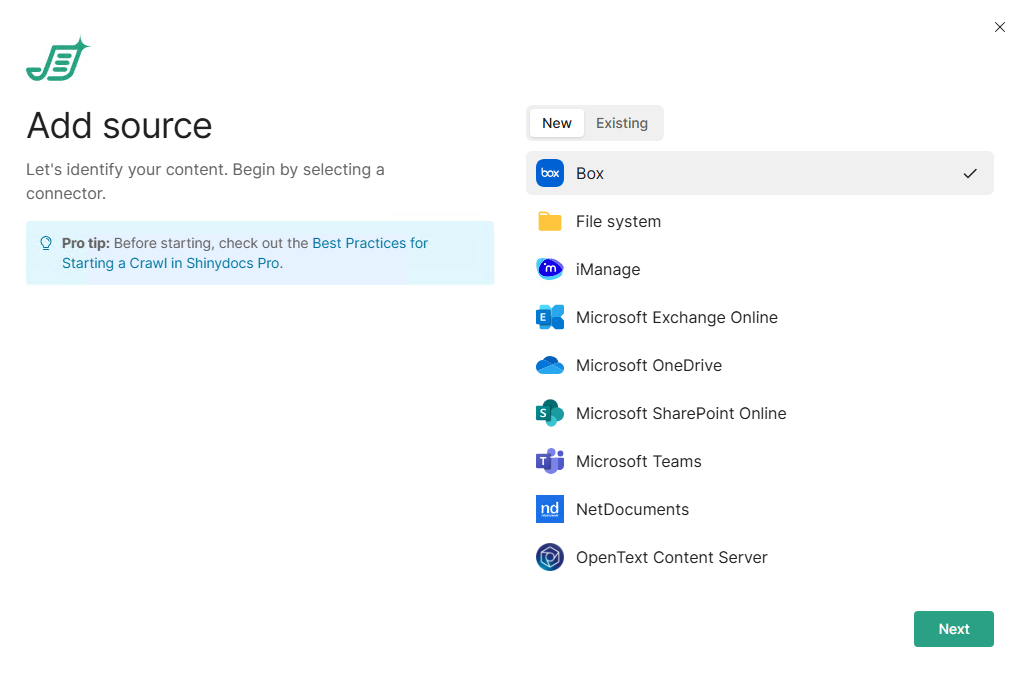
Now you can configure your data source that will be analyzed. Each supported source type will require slightly different information based on the connector. Follow our 🛠️Configure Content Sources article for detailed information on each.
With your first source selected, click Next.
Configure the connection
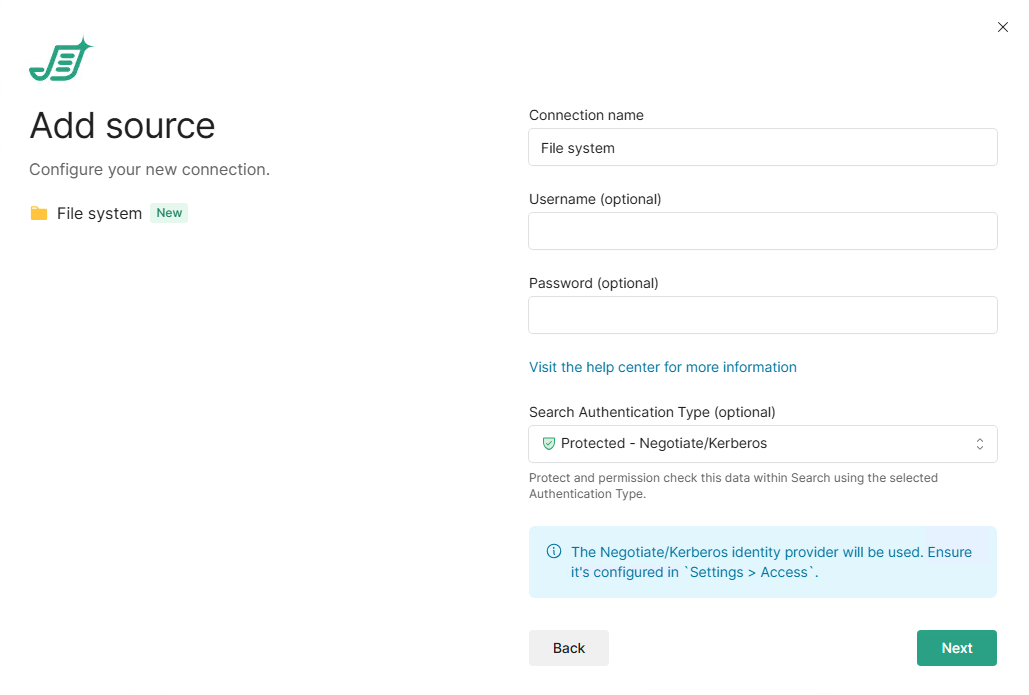
Here, you can configure the connection to the source. Each source has it’s own requirements (username, password, api keys, etc.). File system for example, a service account is generally required to access the data, use the service account credentials (domain\user). If you do not provide credentials, it will run as the computer on the network (Local System).
Click Next.
Enter the UNC (preferred) or local path (for testing) that you want to analyze.
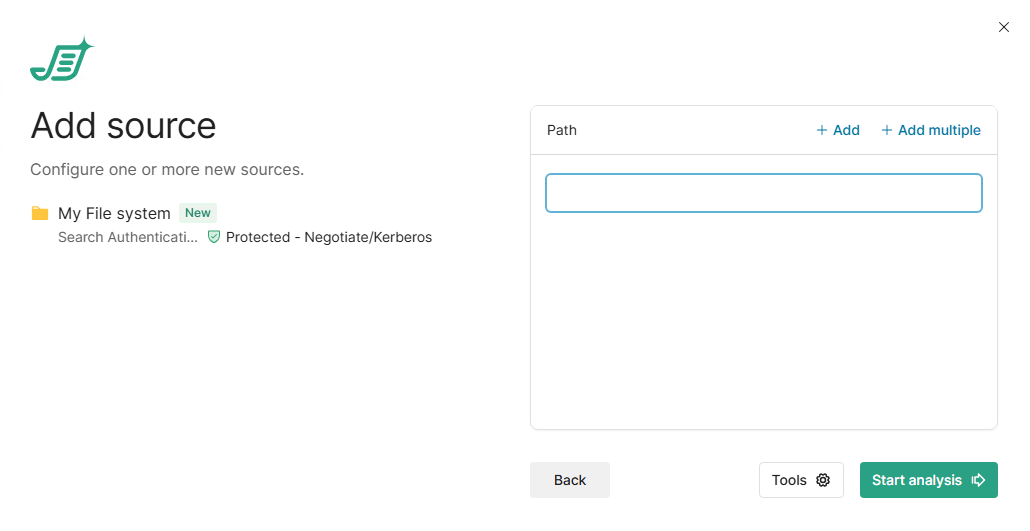
+ Add – Add another row (to analyze more than one path).
+ Add multiple – Opens a dialog window to allow you to paste multiple file paths (one path per line).
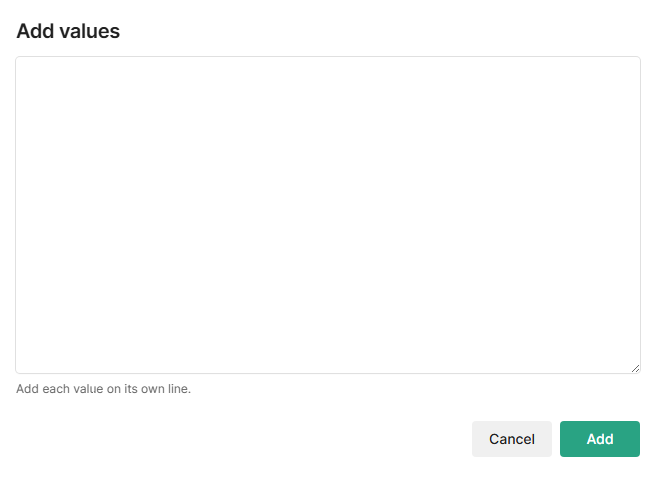
Copy and paste paths into the input box
Tools – Toggle which analysis you would like performed. Many are dependent on Extracting digital and image content.
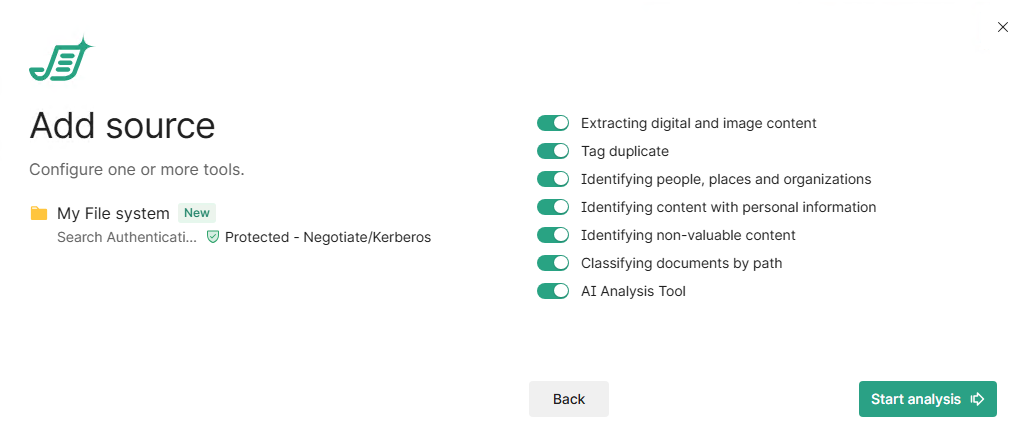
The Tools button may be hidden on your version. Please contact Shinydocs Support for assistance in enabling that option. AI Analysis Tool is a licensed feature, please contact Shinydocs sales if you are interested.
Select Start analysis and Shinydocs Control Center will start to analyze the provided file share
If the account you provided credentials for does not have access to the provided shares, or the credentials entered are invalid, you will get an error message indicating the problem.
Congratulations, your data is now being analyzed! The application will take you to the Overview tab. You will see the following while it starts to gather data from your configured source.
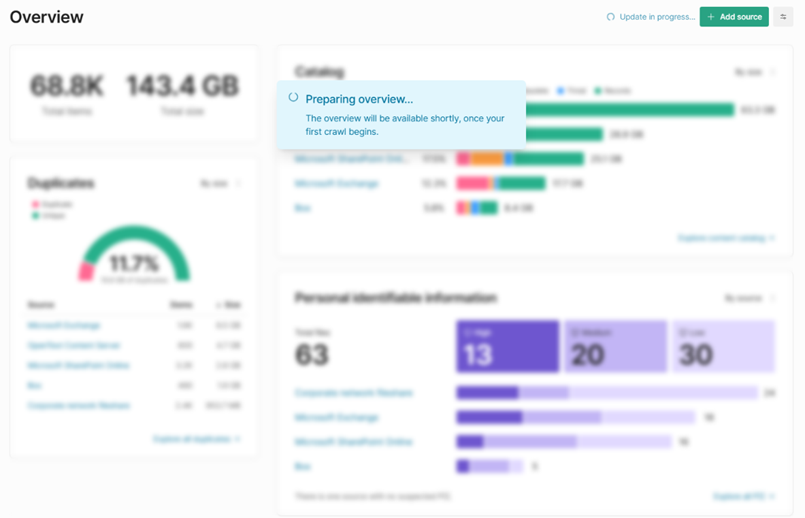
Once there is data to display from your source, the page will update automatically with the information analyzed so far.
Once the data source analysis is finished (you can check the progress in Sources), Shinydocs Pro will check the source daily (default 8 pm local time) for new, modified, or deleted files and update accordingly.
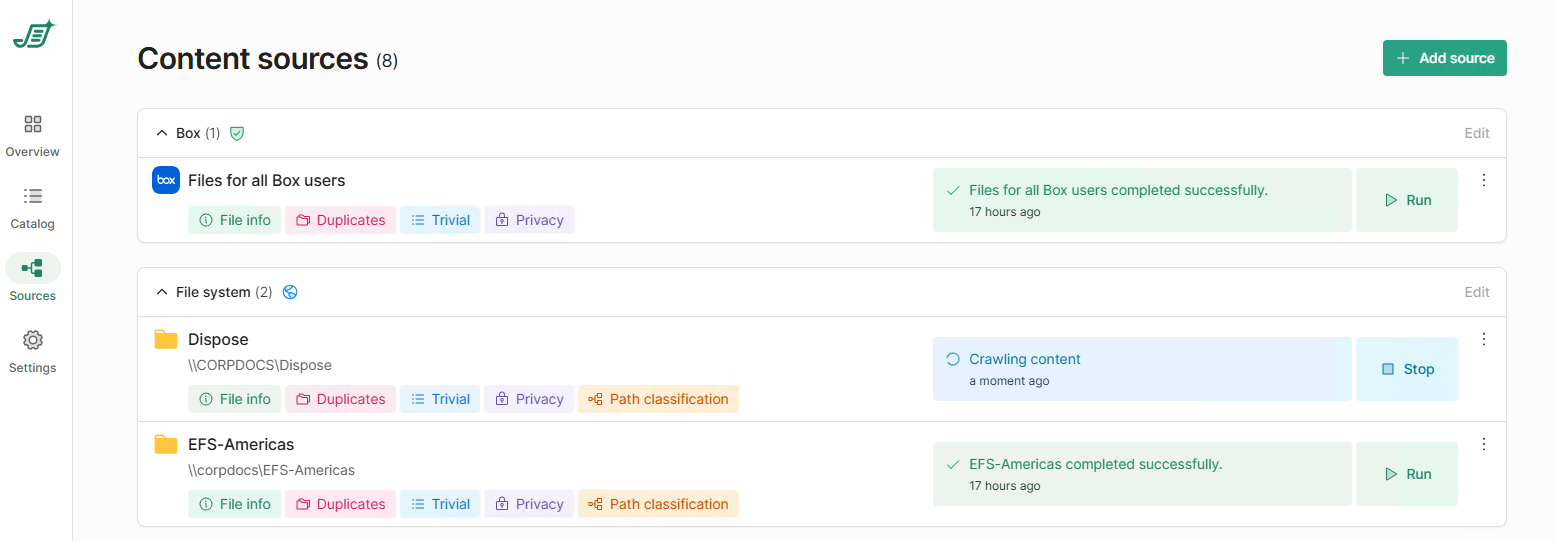
Sources page
Overview of Shinydocs Control Center
 Overview | Data overview of all analyzed data, including total items, total size, ROT, duplicates and Personal identifiable information. |
 Catalog | The catalog page offers a detailed overview of the content analyzed. It displays file names, types, source folders, sizes, creation dates, and last modified dates. The ROT (Redundant, Obsolete, or Trivial) and PII (Personally Identifiable Information) columns help identify files that may require special handling. You can filter, sort, take action or report on the content to efficiently manage your documents. |
 Sources | Detailed view of your configured data sources. You will find links to our in-depth dashboards as well as advanced information like how long a process took to complete, when it is scheduled to run, and the ability to modify the schedule. |
 Settings | Control Center’s application settings. Here you can view detailed app activity for auditing, configure remote agents, configure email notifications, manage your license, access the application logs, and change important service information for the search engine and dashboards. |
 Search | A direct link to the included Shinydocs Search, allowing users to search across the analyzed data, even if they are from different sources. All secured by your organizations existing permissions in each source respectively. |
 Queue | The queue dynamically displays the current operations running (crawls, reports, etc.) and those that are pending. |
 User menu | Access the user menu. |
Overview page
The overview tab shows all your analyzed data at a glance. From here, you can see:
Total items crawled.
Total size of items crawled.
Duplicates versus unique items.
How many and how much redundant, obsolete, and trivial data exists overall.
How many items contain personally identifiable information (PII) by severity.
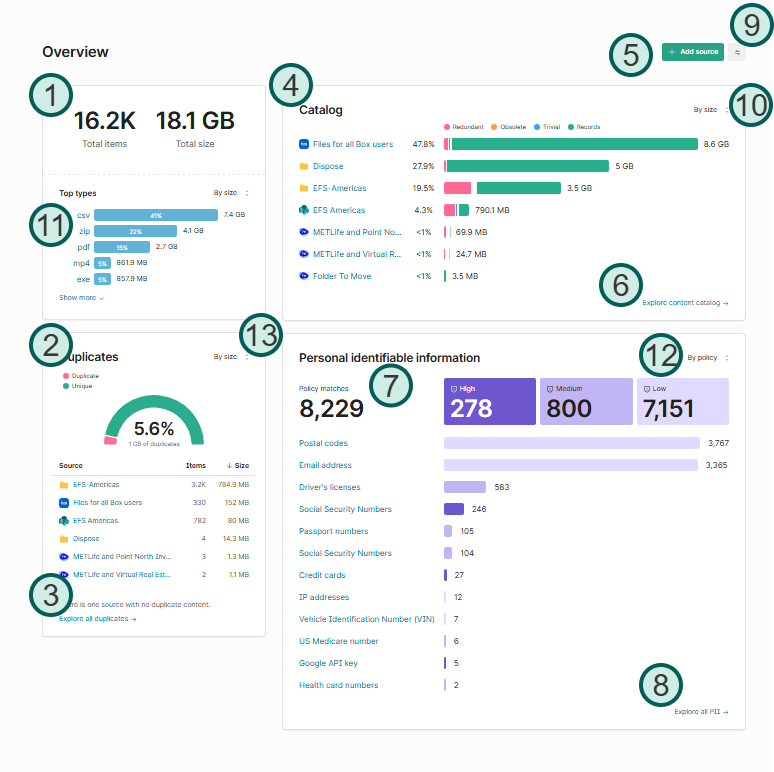
Points of interest
1 | Data totals | Total number of items and size of all crawled data. |
2 | Duplicates versus unique items | How many true, binary duplicates exist in your data versus unique (non-duplicated) files. |
3 | Explore all duplicates | Opens the Data catalog view to explore your duplicate items. |
4 | Catalog | Simplified view of files that would be considered records, redundant, obsolete, or trivial. |
5 | + Add source | Add a new source to Shinydocs Control Center for analysis. |
6 | Explore content catalog | Opens the Catalog to explore all your data. |
7 | Personal identifiable information (PII) | Overview of items that potentially contain PII. There are three categories based on importance. |
8 | Explore all PII | Opens the Data catalog view to explore all your data that may contain PII. |
9 | Display options | Opens Overview display options |
10 | Visualization options | Each visualization has these options, allow you to change the visualization by source or other ways depending on the visualization. |
11 | Top types | Shows a breakdown of the most common document types under analysis in Shinydocs Pro. |
12 | PII options | Change the view of PII between by policy and by source. |
13 | Duplicates options | Change the view of duplicates by size or by count. |
Catalog
Your data catalog is where you can explore your data with helpful filters to drill into your data.
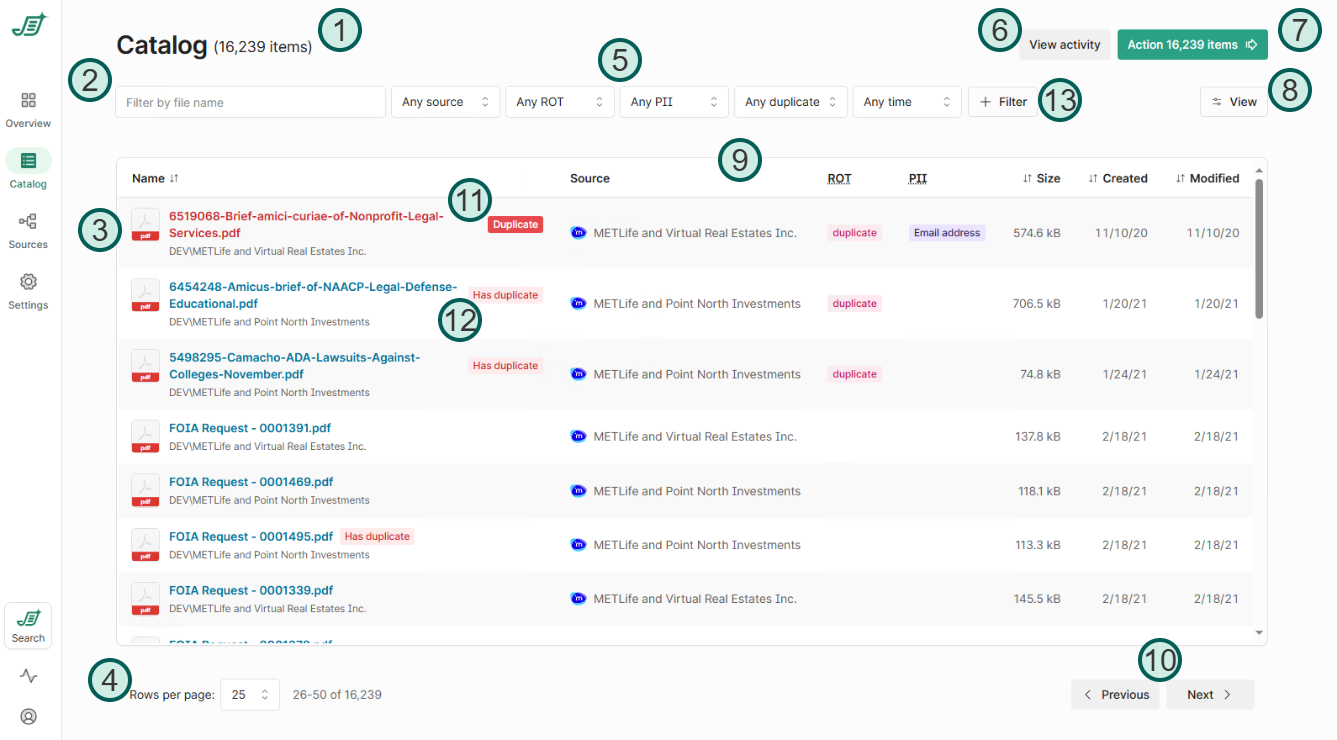
Points of interest
1 | Total items found | Displays the total number of items found. This number will change based on applied filters. |
2 | File name filter | Allows you to filter items based on their file name. |
3 | Item view | Displays the items indexed that match your filter (or all items if there is no filter). You can see the file name, size, source, source type (File system, SharePoint Online, etc.), item creation and modified date and time. |
4 | Rows per page & page number | Allows you to adjust the number of rows displayed per page and shows the current page number. |
5 | Filters | Filter the item view to see items within the scope of your filter. |
6 | View activity | Allows you to view recent activities related to the items. |
7 | Action | Provides an option to perform actions on the items in view. Current actions supported are:
|
8 | View options | Enables you to add additional columns of metadata Shinydocs Pro has captured. |
9 | Metadata columns | Displays specific metadata for each item, such as file size, creation date, modified date, and any identified PII. Can be customized with View options. |
10 | Page navigation | Navigation between different pages of the item view, including going to the next or previous page. |
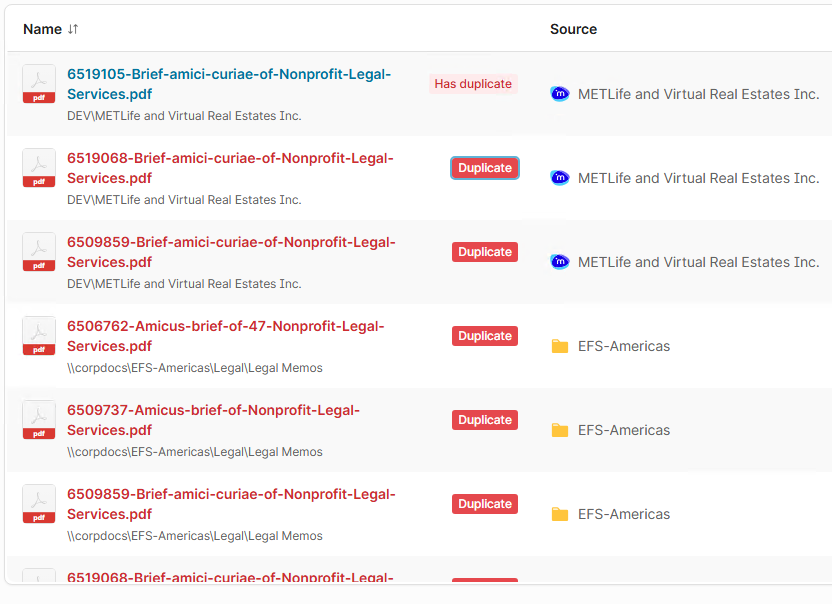
11 | Duplicate chip | Indicator that the file is a duplicate of another file. You can click the chip to view all other duplicates of that file and the original, which will have the Has duplicate chip. |
12 | Has duplicate chip | Indicator that file is an original file with duplicates. You can click the chip to view all duplicates of this file. Has duplicate indicates that this file is the earliest by create date and is therefor the original |
13 | Filter menu | Manage the filters available in Filters section. ! - field exists !! - field does not exist |
Duplicates view
When browsing the catalog, when you find a duplicate, you can click on the red Duplicate tag to bring up all duplicates of that file. The item with the tag Has duplicate is the original (by creation date)
View activity
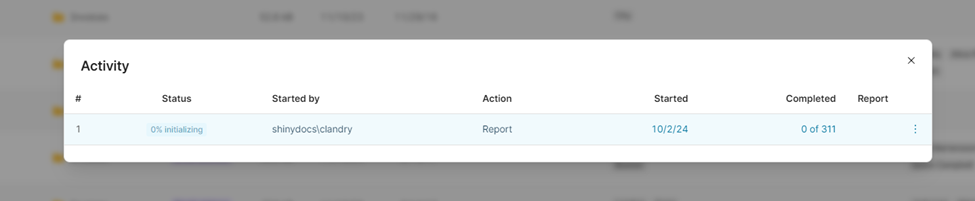
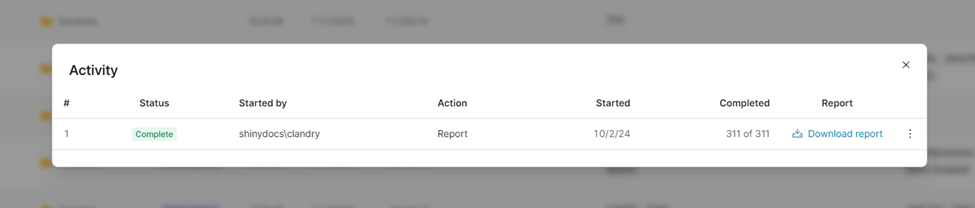
Clicking the View Activity button opens the Activity dialog. Here, you can see the current and past actions taken on your content. The dialog tracks Report and Dispose actions. Every action generates a report.
In the Activity dialog, you can:
Download the CSV report
Cancel an ongoing activity
Apply the same filters to the catalog view that were used when the action was submitted
Action
Clicking the Action button opens up two options: Report and Dispose.
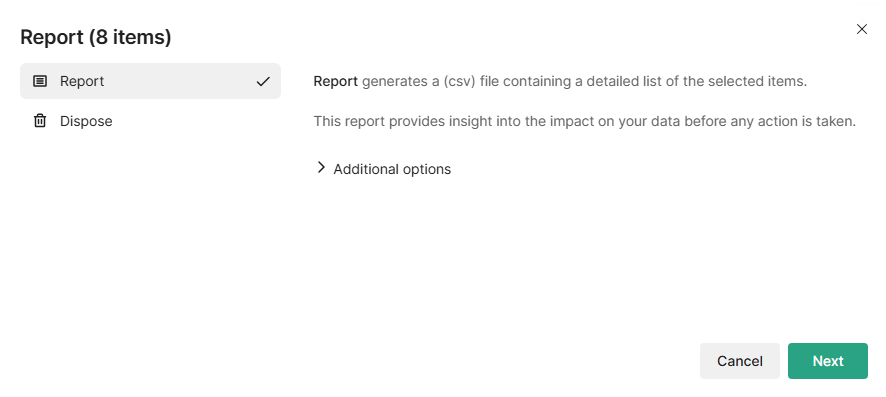
Report: Generates a CSV file with a detailed list of items in the current catalog view. This report provides a summary of your data before any changes are made.
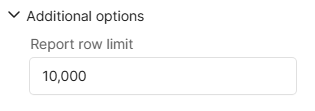
Additional options
Select the drop down for additional options to change the report’s maximum row count before it rolls over
Dispose: Removes files from their original location. You must provide a reason for disposal, such as expired retention policies or compliance requirements. You can also verify that the content hasn't changed before proceeding. Once a disposal is confirmed, the action cannot be undone.
Additional options
Select the drop down for additional options to change the report’s maximum row count before it rolls over
Sources
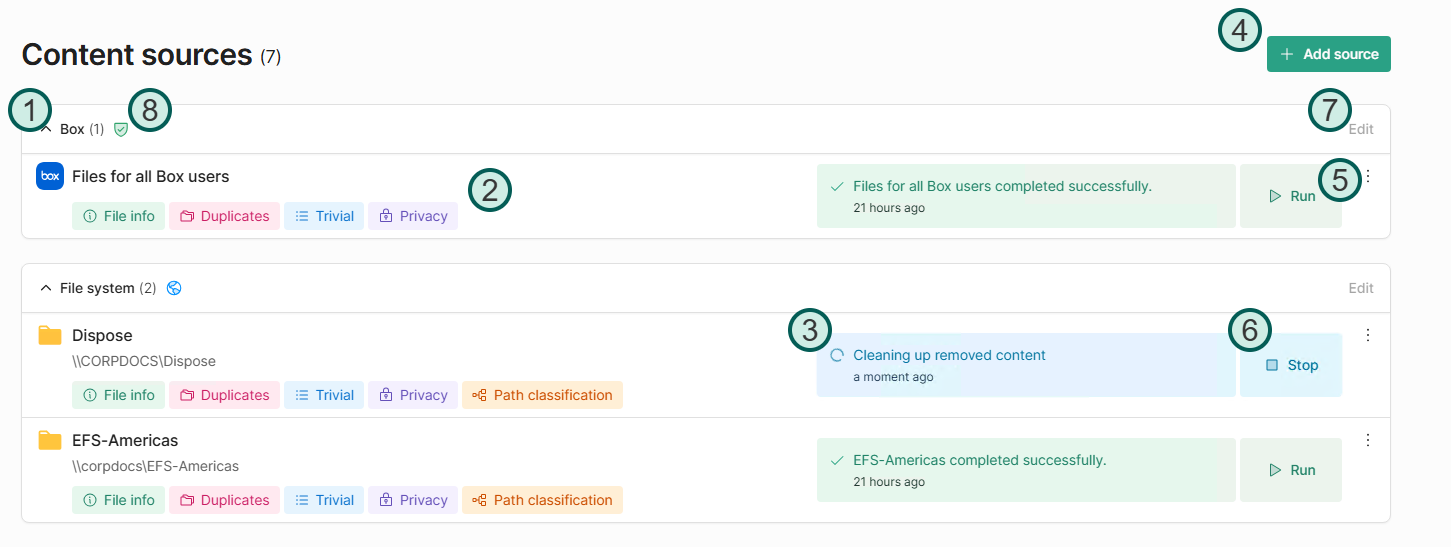
The "Sources" tab is designed to be a central view for detailed information about your configured data sources. It offers quick access to important dashboards such as File Info, Duplicates, Trivial, and Privacy. Additionally, users can view details of each step in the document analysis process and generate reports for each source.
Points of interest
1 | Data source | Each data source has a card with useful info about the current status. |
2 | Dashboard & visualization quick links | Click to open respective dashboard view of the data source. |
3 | Status of document analysis processes | Displays the status of document analysis in the source. |
4 | + Add source | Add a new source to Shinydocs Control Center for analysis. |
5 | Addition options | Click to view advanced options:
Analysis tools Sync dashboards Delete |
6 | Run/Stop | Allow you to force an analysis run on the source (if the application is not busy on another source, otherwise it will be queued). If a source is currently being analyzed, you can also stop it. |
7 | Edit connection | Edit your connection name, username, password and Search configuration. 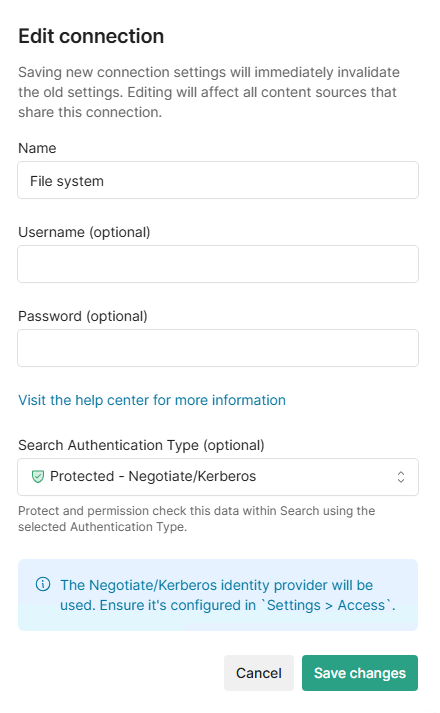 |
8 | Search status |
|


Dashboards and visualizations

Click any of the icons to view the corresponding dashboard for that source, in a new tab.
File info
General overview of the file information found for the source. Here you can find total files, extension breakdown, file creation and modification trends over the last 3 years.
Duplicates
Specifically tuned to display relevant information about duplicates in your source. Explore which extensions have the most duplicates, largest duplicates, as well as duplicate creation trends.
Trivial
Discover non-essential data within your organization to free up space and minimize clutter. Sometimes, non-essential data is called "junk", which is data that's ideal for cleanup. A single file might match several criteria for being considered non-essential and will be counted multiple times. View detailed information about trivial data, the rules defining trivial data, folders with the most trivial data, and creation trends.
Privacy
Scour your data for sensitive information. View detailed breakdowns of how much data in your source has potentially personal data such as email addresses, Social Security/Insurance numbers (USA & Canada), drivers licenses, and more.
Path classification
Powerful out-of-the-box keyword classifications to automatically identify fundamental insights into how your file share content is or could be classified. The classification follow a class-subclass structure:
Business function
Content type 1
Record code
Content type 2
Record code
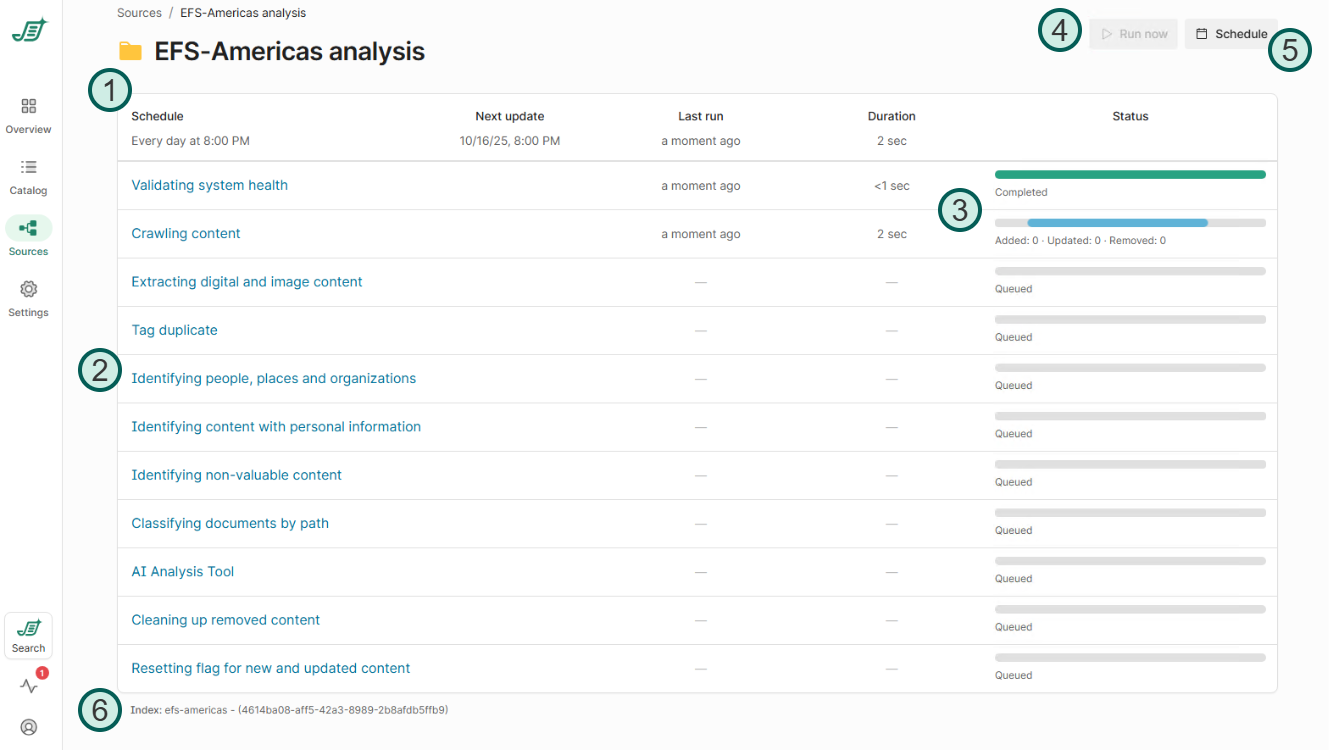
Analysis tools
Points of interest
1 | Schedule information | Displays the current schedule information for the source including when it will next run. |
2 | Analysis operations | Shows each step of the analysis process that runs on schedule. Click on the process to see past runs of the tool. |
3 | Status | Displays the progress of the current operations. Items may be skipped if they are not valid for the operation. |
4 | Run now | Allow you to force an analysis run on the source (if the application is not busy on another source, otherwise it will be queued). |
5 | Schedule | Opens the Schedule dialog, allowing you to edit the analysis schedule for that source.
|
Settings
Audit
View and filter all activities performed in Shinydocs Pro Control Center. Use the filters on the top to find specific audit information for given criteria.
Access
Configure Role Based Access (RBAC) within Shinydocs Pro. By default Negotiate is enabled. You can also use OIDC for Azure/Entra or OKTA. For information about how to set up internal access to Shinydocs Pro, check out our guide Access and Authentication in Shinydocs Pro .
Notifications
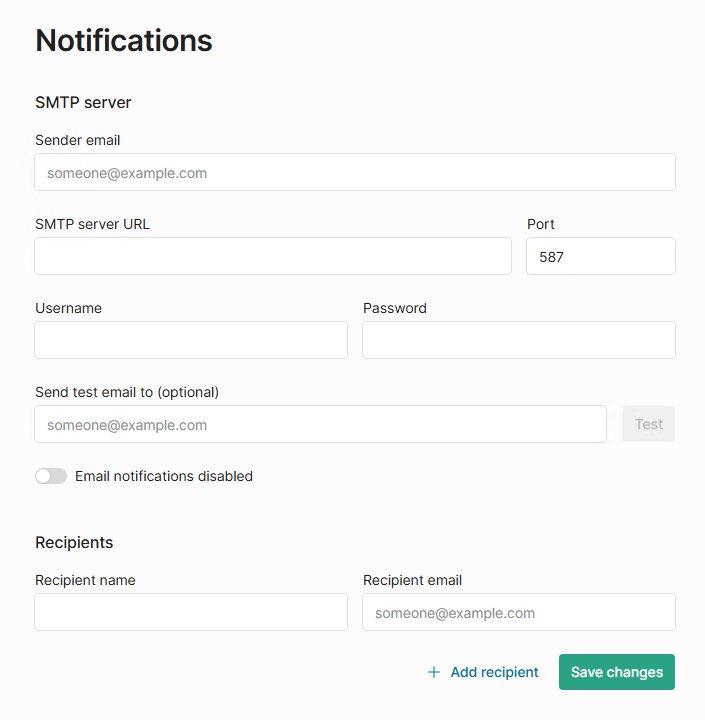
Add email accounts to get notifications of activity within Shinydocs Control Center.
Sender email | The email address that will appear as the sender in the email notification |
SMTP server URL | The URL of the SMTP (Simple Mail Transfer Protocol) server that will be used to send the email. |
Port | The port number used by the SMTP server to send emails. Common ports include 25, 465 (for SSL encryption), and 587 (for TLS/StartTLS encryption). The correct port depends on your SMTP server's configuration. |
Username | The username required to authenticate with the SMTP server. |
Password | The password associated with the username for SMTP server authentication. |
Send test email to | An optional field where you can enter an email address to receive a test email. This helps verify that the email notification setup is correct and functioning as intended before sending out real notifications. |
Recipients | Configure the recipients that will receive email notifications. |
Services
Caution: modifying these values could result in the application becoming inoperable. Make sure you know what you are doing here.
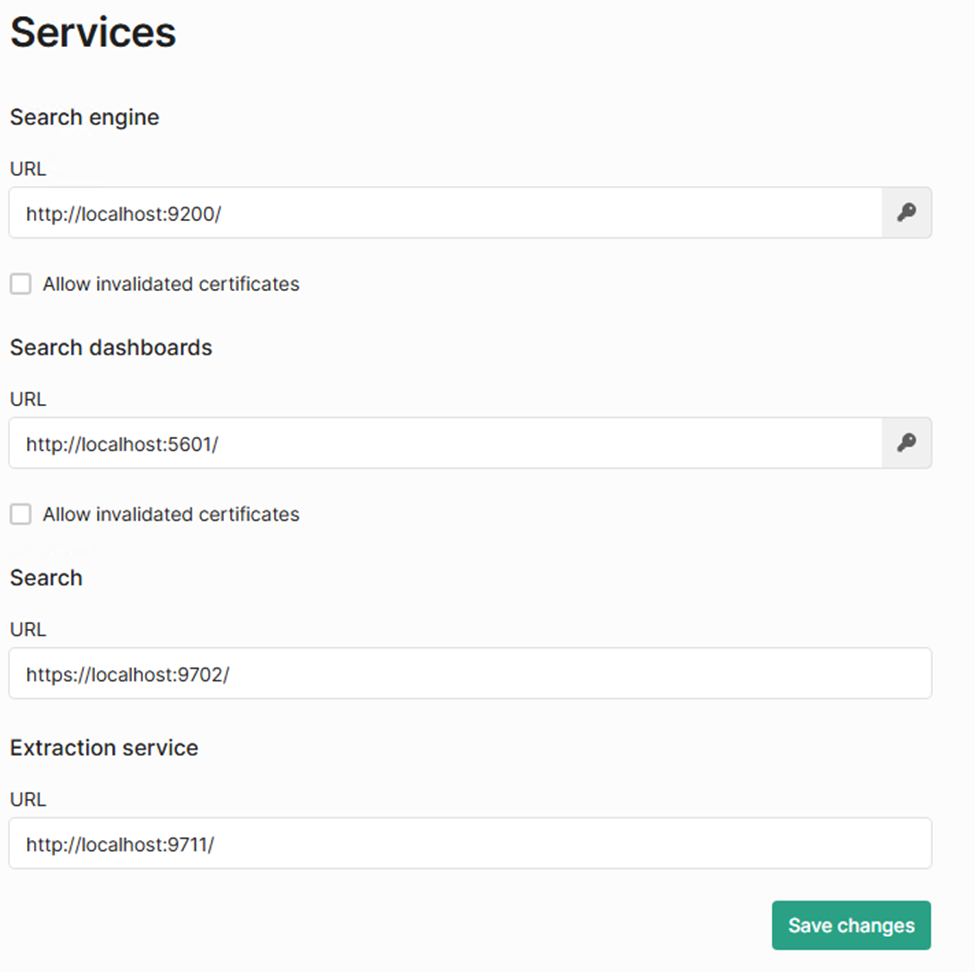
View and edit services used by Shinydocs Pro. On an initial installation, these settings should not need to be modified.
Click the  icon to edit authentication details.
Search Engine
URL | (default: http://localhost:9200/) The URL of the Search engine endpoint. This is the address the application will use to connect and communicate with the search engine. |
Username | (default: admin) The username required to authenticate with the Search engine. |
Password | (default: none) The password associated with the username for authentication with the Search engine. |
Allow invalidated certificates | This setting determines whether the application should connect to the Search engine even if it presents an SSL/TLS certificate that cannot be validated. |
Search dashboards
URL | (default: http://localhost:9200/) The URL of the Search engine endpoint. This is the address the application will use to connect and communicate with the Shinydocs dashboard service. |
Username | (default: admin) The username required to authenticate with the Shinydocs dashboard service. |
Password | (default: none) The password associated with the username for authentication with the Shinydocs dashboard service. |
Allow invalidated certificates | This setting determines whether the application should connect to the Shinydocs dashboard service, even if it presents an SSL/TLS certificate that cannot be validated. |
Search
default: https://localhost:9702/
The URL endpoint for Shinydocs Search service.
Extraction service
default: https://localhost:9711/
The URL endpoint for Shinydocs Extraction service.
Tagging
The Tagging page is where you can configure which ROT (Redundant, Obsolete, Trivial) and PII (Personally Identifiable Information) rules run on your data sources (global setting for all sources).
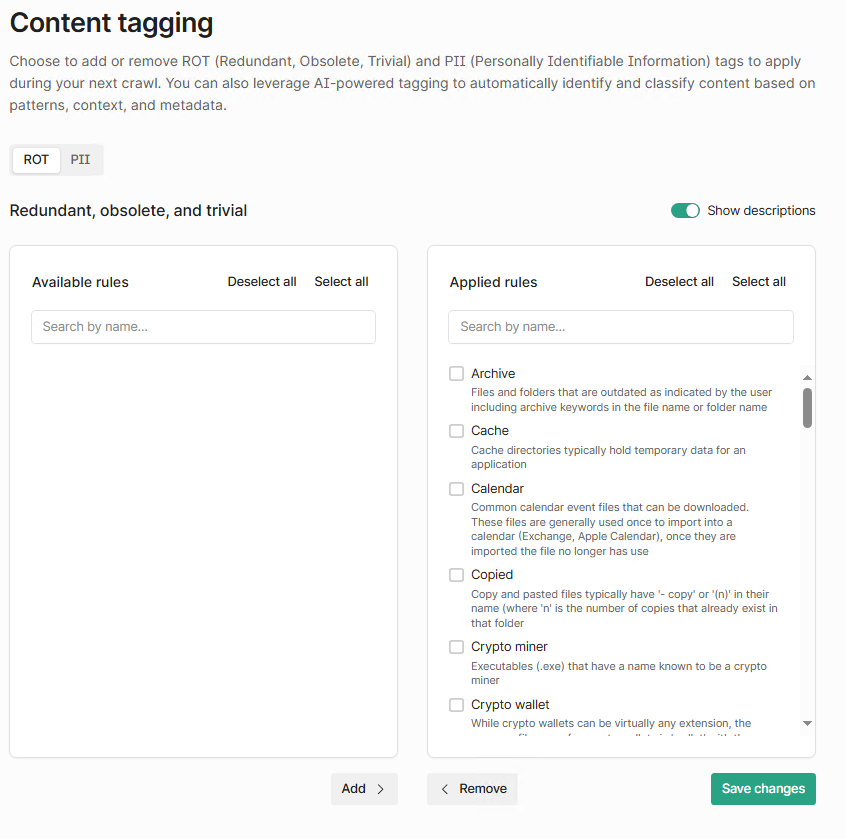
Available rules
Rules that are not being applied to your content (these rules are disabled).
Applied rules
Rules that are applied to your content (these rules are enabled)
All rules are enabled by default, any custom rule file will in the Available section. Select the checkboxes of the rules you wish to add or remove, and click on the associated Add or Remove button. Remember to save your changes!
License
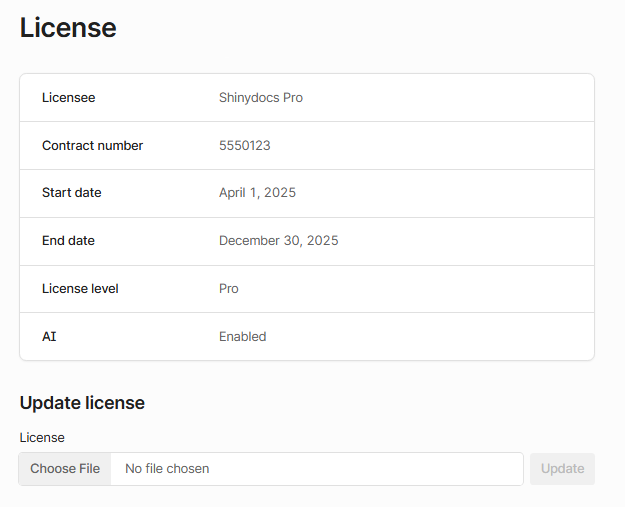
View your current license status for Shinydocs Pro or upload a new license.
Logs
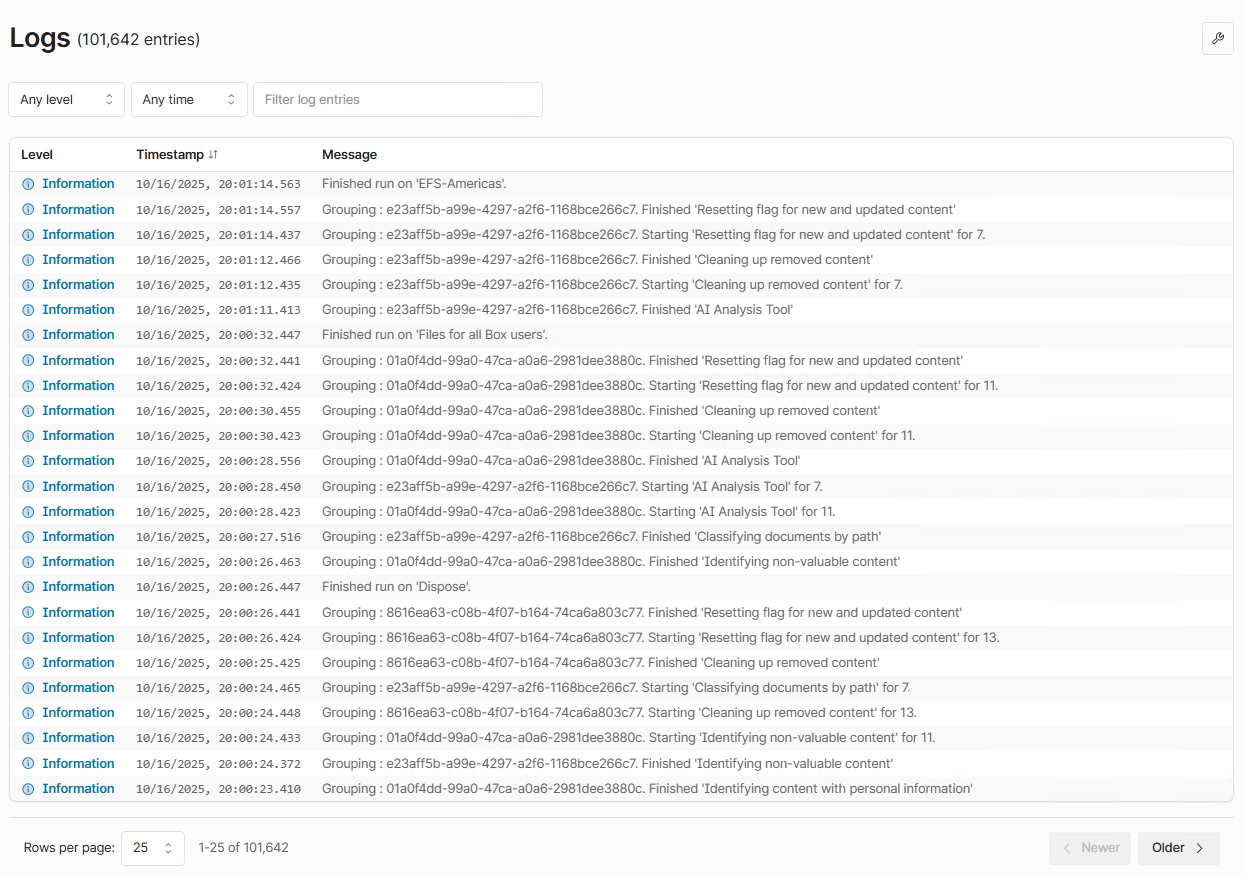
View Control Center logs for troubleshooting. Use the  button to download Control Center logs. If you are opening a help desk ticket with Shinydocs, be sure to include a copy of the log files.
Search
Instantly access Shinydocs Search, the perfect enterprise search tool for your organization. You will be able to search across your analyzed sources, including document content (for supported documents). Results are permission checked in real time with your data source, so users will only be able to see what they are permissioned to see (based on the source permissions).
For more information, please visit: 🔎Configure Search