

Unstructured content can feel like a maze. Years of growth, copied folders, and drifting naming habits make it hard to see what matters at a glance. Even so, the clues you need are already there. Hidden in those paths and patterns is the story of your clients and their matters, waiting to be brought into the light. With Shinydocs Pro as your tool, you turn that noise into something clear, searchable, and genuinely useful. You can aggregate reports based on clients, matters, and even find the time and date files were last modified for every client and every matter.
This guide shows you ways to pull client and matter values from your content.
Approach 1 - Regex pattern matching
When client & matter details are in your file path
Does this look familiar?
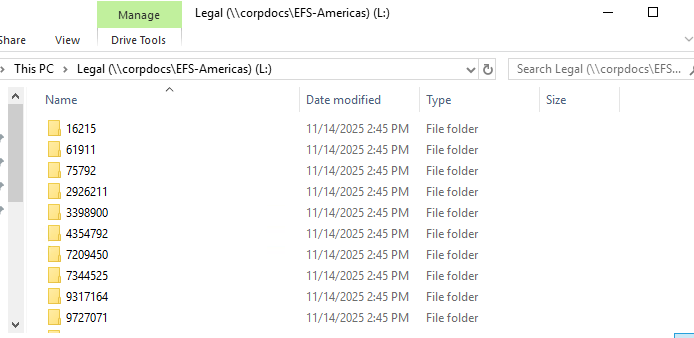
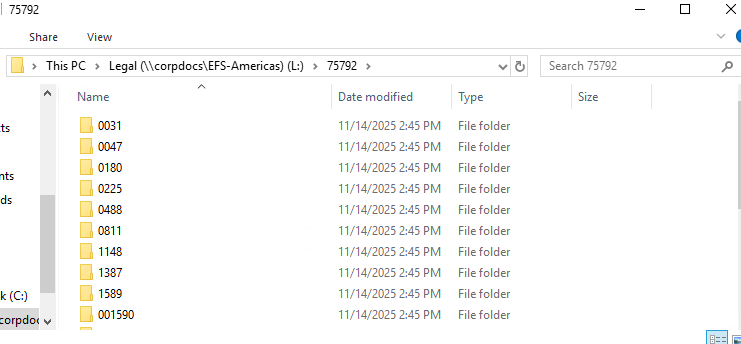
Shinydocs Pro stores file location information in the path (includes the file name) and parent (path without the file name) field for all of our connectors, leading to a seamless experience.
You can near-instantly realize these patterns in Shinydocs Pro for analysis or action. It’s time to get your content working for you.
Identify the pattern segments
Your content has a pattern in their file paths, all you need to do is identify how many levels deep the path the details live.
To pull client and matter values out of a path, you first need to understand where they sit in the folder structure that Shinydocs Pro captures.
Shinydocs Pro stores the folder path in the parent field. In the Shinydocs Search Engine (powered by OpenSearch), that value is stored as JSON, so a Windows path looks like this in the raw JSON:
"parent": "\\\\firmfs01\\Shared\\Legal\\Clients\\987654\\2201\\Discovery"
Visually, you can read that as a normal UNC path:
\\firmfs01\Shared\Legal\Clients\987654\2201\Discovery
You can think of this path as a list of segments separated by backslashes:
-
\\firmfs01Server -
SharedShare -
LegalRoot -
ClientsWorkspace or container -
987654Client number -
2201Matter number -
DiscoverySubfolder
In this example, the client is the fifth segment and the matter is the sixth segment.
What is Grok?
Not the AI chatbot. This Grok is part of the Shinydocs Search Engine, it’s a powerful regex-based extractor that runs in real time as content is ingested or updated in the index.
Your Grok pattern follows that same structure. Each folder before the client and matter is treated as “some folder name here,” and the client and matter segments are captured with named groups. Let’s build out the pattern:
|
Path segments (in JSON) |
Regex pattern |
|---|---|
|
\\\\firmfs01 |
|
|
\\Shared |
|
|
\\Legal |
|
|
\\Clients |
|
|
\\987654 |
|
|
\\2201 |
|
|
\\Discovery |
|
That gives use the regex pattern:
\\\\\\\\[^\\\\]+\\\\[^\\\\]+\\\\[^\\\\]+\\\\[^\\\\]+\\\\(?<path_client>[^\\\\]+)\\\\(?<path_matter>[^\\\\]+).*
You can break this reusable pattern down to the following:
-
Start with
\\\\\\\\[^\\\\]+ -
Add
\\\\[^\\\\]+for each segment that comes before the client or matter numbers -
Use
\\\\(?<path_client>[^\\\\]+)for the segment that represents the client number, name, etc. creating the index field “path_client” -
(optional) Add any additional
\\\\[^\\\\]+if there are segments between the client and the matter -
Use
\\\\(?<path_matter>[^\\\\]+)to capture the matter creating the index field “path_matter” -
End the pattern with
.*
You will need another variation of this patter to deal with files at the root of the path_matter segment
\\\\\\\\[^\\\\]+\\\\[^\\\\]+\\\\[^\\\\]+\\\\[^\\\\]+\\\\(?<path_client>[^\\\\]+)\\\\(?<path_matter>[^\\\\]+)
Note: we didn’t add the .* to the end.
Using tools like regex101: build, test, and debug regex are very helpful when building the regex
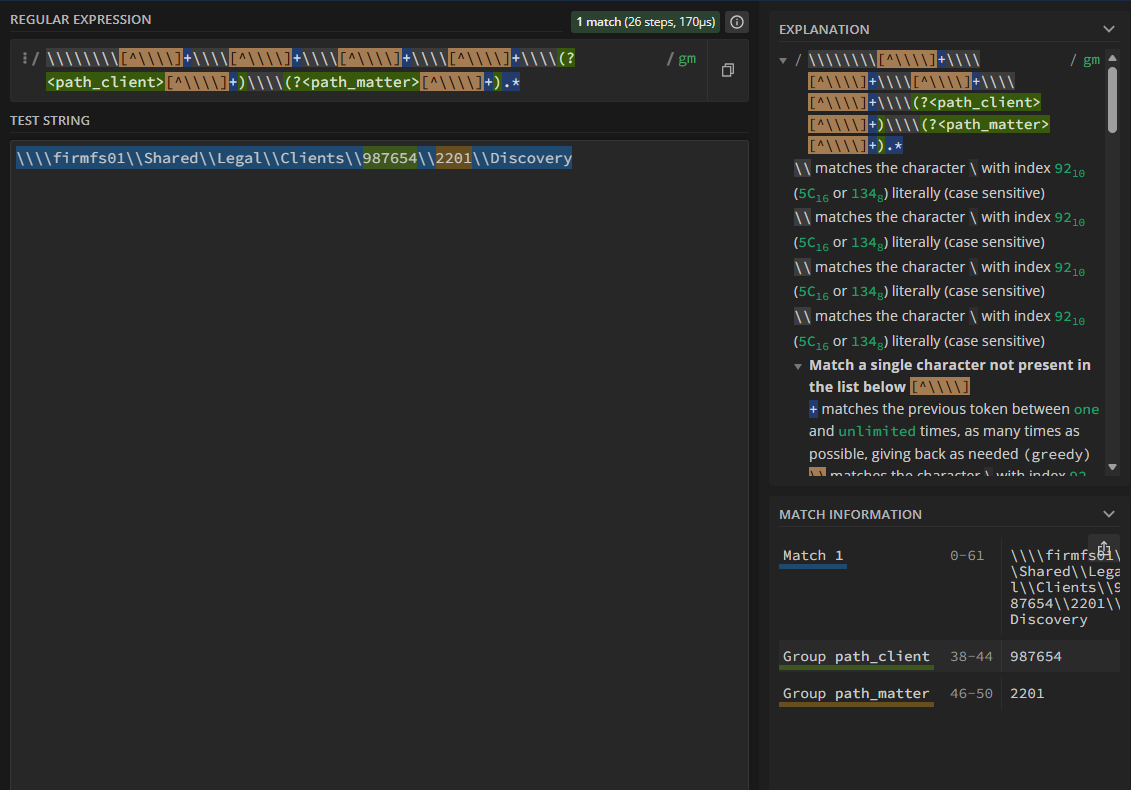
Now we have our patterns, it’s time to register them into a pipeline.
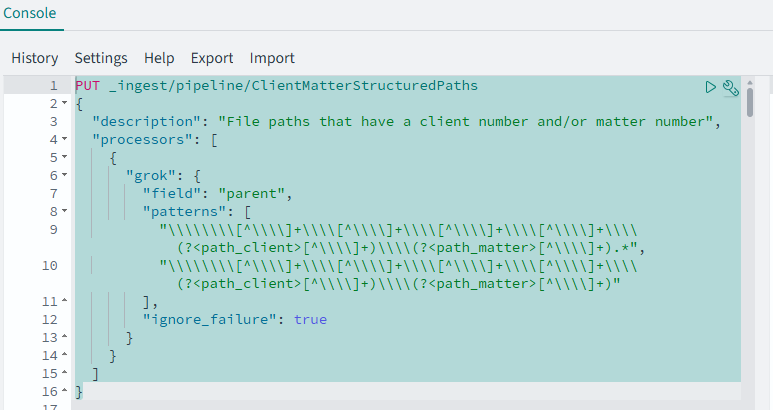
First, you will need to create the pipeline processor like this:
PUT _ingest/pipeline/ClientMatterStructuredPaths
{
  "description": "File paths that have a client number and/or matter number",
  "processors": [
    {
      "grok": {
        "field": "parent",
        "patterns": [
		      "\\\\\\\\[^\\\\]+\\\\[^\\\\]+\\\\[^\\\\]+\\\\[^\\\\]+\\\\(?<path_client>[^\\\\]+)\\\\(?<path_matter>[^\\\\]+).*",
		      "\\\\\\\\[^\\\\]+\\\\[^\\\\]+\\\\[^\\\\]+\\\\[^\\\\]+\\\\(?<path_client>[^\\\\]+)\\\\(?<path_matter>[^\\\\]+)"
        ],
        "ignore_failure": true
      }
    }
  ]
}
This will:
-
Create an ingest pipeline called
ClientMatterStructuredPaths -
The type of processor is
grok -
The field we want to match with our regex is called
parent -
The
two patternswe are looking for are defined -
ignore_failureis set totrueto prevent the pipeline from stopping
You can also add other regex patterns to this processor, say to capture parent paths with no matter number if you wanted.
Now, it’s time to register the pipeline:
-
Navigate to Dashboard’s dev tools (http://localhost:5601)
-
Click the burger menu (top left) and select Dev Tools
-
Paste the pipeline processor you have configured
-
Press the play/run button near the wrench button, if there were no problems, you will receive the following message in the right-side panel
JSON{ "acknowledged": true }-
If you get an error, it’s likely related to your regex pattern. Double check your \'s if you are using something like
\d, it needs to be\\dwhen registering (JSON).
-
-
The pipeline is now registered! Next, you need to apply it to an index, to do that, run the following command in Dashboard’s Dev Tools, replacing
indexNamewith the name of your indexPUT indexName/_settings { "index.default_pipeline": "ClientMatterStructuredPaths" }-
The name of your index can be found in the Shinydocs Control Center > Sources > Click your source
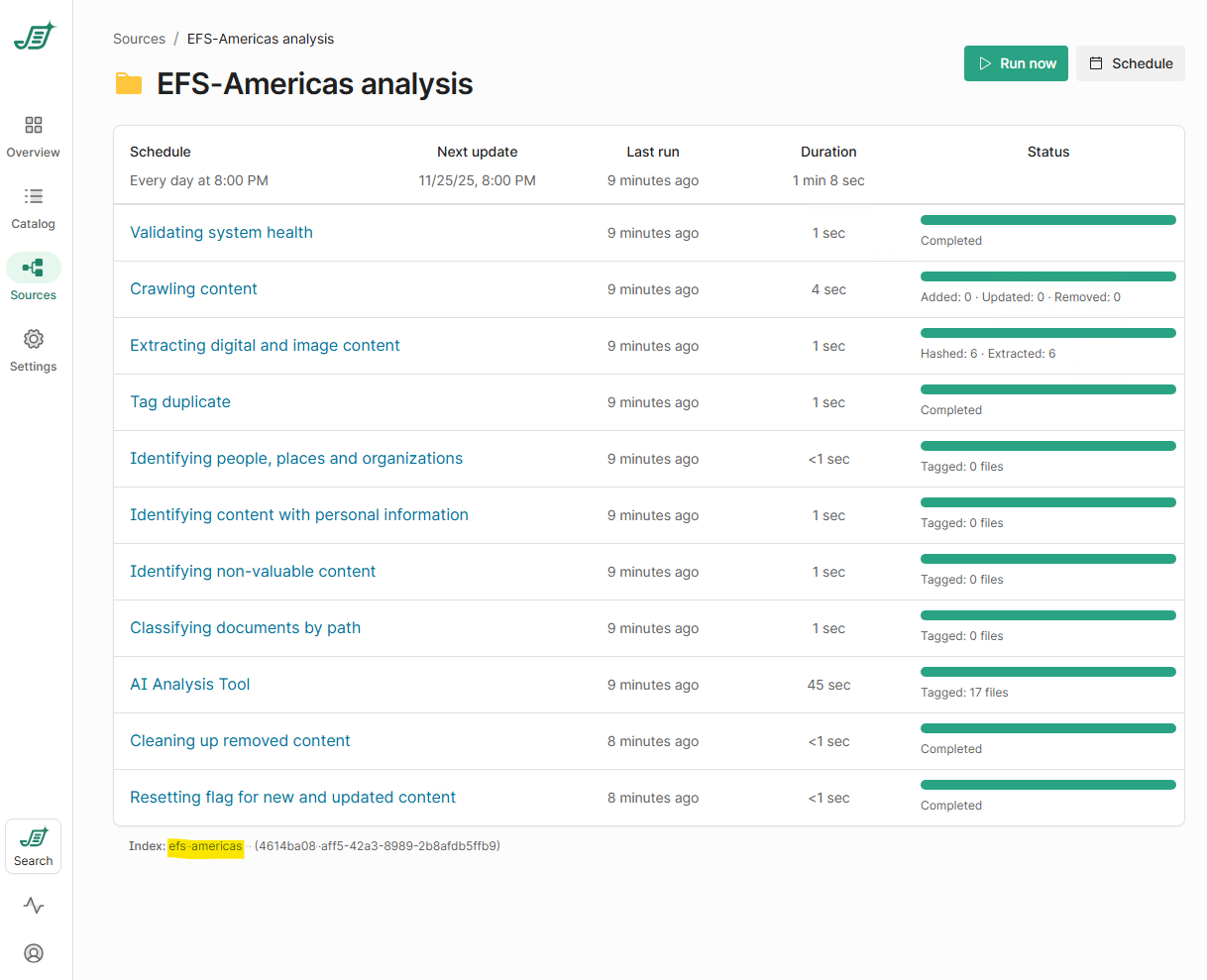
The index name in this case is efs-americas
-
-
Run the PUT command with the play/run button, you should receive
JSON{ "acknowledged": true } -
Great! Now this pipeline will run any time an item is touched in the index (new or modifications), but we also need to update the existing content in the index, to do that, we will send a blank update across all items, allowing them to be processed by the pipeline. To do this, run this command replacing
indexNamewith your index namePOST indexName/_update_by_query?wait_for_completion=false&conflicts=proceed -
Run the POST command with the play/run button. You should get a response with a “task” back
JSON{ "task": "xoV2W9AoSdyuAJCkMjpfLw:88589" } -
This task id can be used to monitor the progress of applying the pipeline to previously crawled content. To check the status:
-
Run the following to get info about the task using the task id in the _tasks api:
GET _tasks/xoV2W9AoSdyuAJCkMjpfLw:88589 -
You will get a response back like this:
{ "completed": true, "task": { "node": "xoV2W9AoSdyuAJCkMjpfLw", "id": 88589, "type": "transport", "action": "indices:data/write/update/byquery", "status": { "total": 10, "updated": 10, "created": 0, "deleted": 0, "batches": 1, "version_conflicts": 0, "noops": 0, ... -
completedwill betruewhen it is complete,falsewhile it is running -
status.totalshows the total number of items that will be updated -
status.updatedshow the number of items that have been updated
-
-
Even while this is running, you can check how it’s applying to your content in the Catalog of Shinydocs Control Center
-
Go to the Catalog page in Shinydocs Control Center
-
Click the + Filter button
-
Type in path and check Path client and Path matter
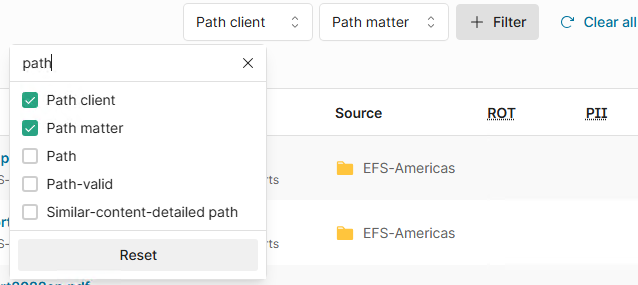
-
This will add filters for these two fields as well as enable the columns in the catalog
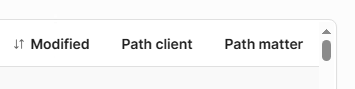
-
You can then filter for files with the tag applied by using the ! operator in the filter box
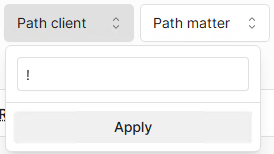
-
If your filter looks like this:
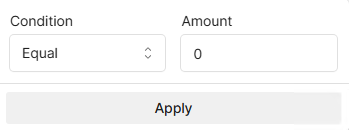
-
Set the condition to Greater and the Amount to 0
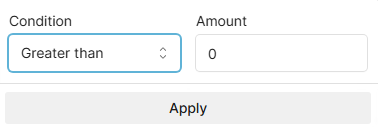
-
-
-
Your enrichment should be displaying in the catalog
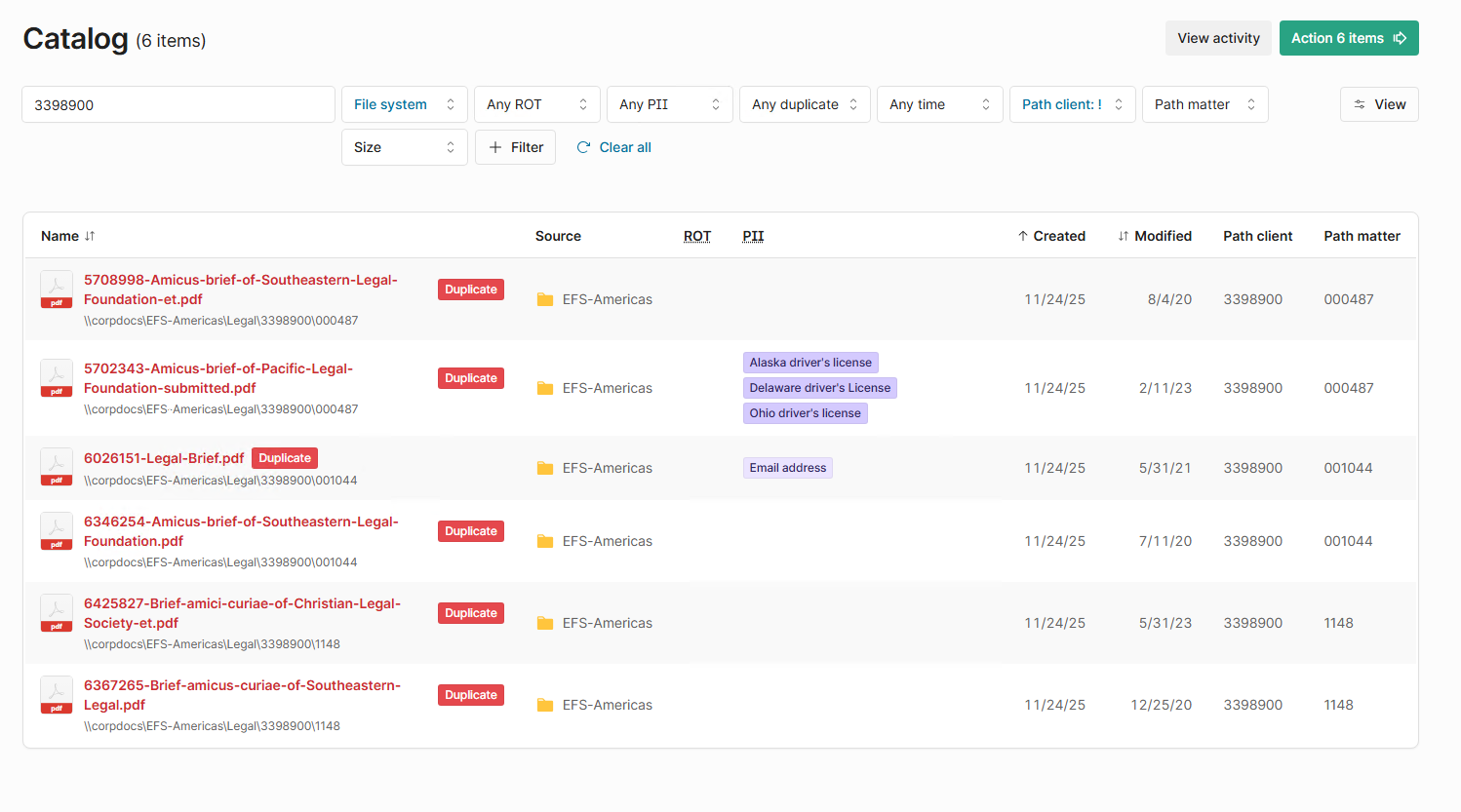
-
-
This pipeline that you have set up is a set and forget type of processor that you will only need to adjust when you pattern changes.
-
You can also apply the same pipeline to other indices by running steps 5 - 8 again with your other indices.
Approach 2 - Term matching with BulkDocumentEnricher (a CLI process)
This method works well when your content already carries some structure. If client and matter numbers appear in the metadata, the file name, the path, or even inside the text itself, and you have a list of known client numbers and matter numbers, term matching becomes a very direct way to find what you need.
You choose which metadata fields to search. You can also include the document's text through the fullText field. Shinydocs Pro then looks for your client and matter numbers across those sources and returns every file that contains a match.
How it works
BulkDocumentEnricher reads your spreadsheet one row at a time. For each row it builds a search query using the values from that row, runs the query against your index, and writes those same values onto every document that matches.
One row in, one search, one set of tags out.
Download BulkDocumentEnricher.cs (the runscript file): https://shinydocs.egnyte.com/dl/cVHbkFrRRgtT/BulkDocumentEnricher.cs_
Before you begin
-
Locate the CLI
CognitiveToolkit.exe ships with Shinydocs Pro and lives in the ControlCenter installation directory:
Example:
C:\Program Files\Shinydocs Professional\ControlCenter
Open a Command Prompt or PowerShell window in that folder, or add it to your PATH.
-
Activate the CLI
The CLI is licensed separately from Shinydocs Pro. Activate it:
CognitiveToolkit.exe Activate -p "C:\Shinydocs\License\ShinydocsProLicense.xml"
Activation applies to the Windows user running the command. If you plan to run this as a service account or scheduled task, activate while logged in as that account.
-
Save the script and query files somewhere convenient
Create a working folder such as C:\Shinydocs\Enrichment and place these three files in it:
|
File |
Purpose |
|---|---|
|
|
The script the CLI runs |
|
|
The search query template |
|
|
Your client and matter list |
You do not need to create the new fields in the index ahead of time. They are created automatically on the first run.
Step 1: Prepare your CSV
Use at least four columns. The header names matter, because they become the field names on your documents and they are referenced by the query file.

client_name,client_number,matter_name,matter_number
AB Soul Food Co.,12345,Product Labeling Compliance Review,1115347
Torchicken Express,45678,"Commercial Lease Unit 402, Riverside Square",1137283
Sable Eye Care,78901,Practice Acquisition - Dusk Optical Ltd.,1117231
Gen Garage & Automotive,98765,Workers' Compensation Claim – S.Okido,1190000
Rules to follow:
-
Avoid double quotes and backslashes inside your values. Those characters have meaning in JSON and can break the query.
-
Save as CSV, comma separated. Do not use tabs.
-
Wrap any value containing a comma in double quotes, as shown on the
Torchicken Expressrow. -
Apostrophes, ampersands, dashes, and accented characters are fine and need no special handling.
-
Every column named in the command must exist in the CSV, or the run stops immediately with an error listing the missing names.
Step 2: Understand the query file
The query file is a JSON search template. Anywhere you write {column_name} in curly braces, the script substitutes the value from the current CSV row before running the search.
Processing the Sable Eye Care row turns "query": "{client_number}" into "query": "78901".
Here is the recommended starting query. Save it as bde-query-clients-matters.json.
{
  "bool": {
    "should": [
      {
        "bool": {
          "must": [
            {
              "multi_match": {
                "query": "{client_number}",
                "fields": [
                  "fullText",
                  "path"
                ],
                "operator": "and"
              }
            },
            {
              "multi_match": {
                "query": "{matter_number}",
                "fields": [
                  "fullText",
                  "path"
                ],
                "operator": "and"
              }
            }
          ]
        }
      },
      {
        "bool": {
          "must": [
            {
              "multi_match": {
                "query": "{client_name}",
                "fields": [
                  "fullText",
                  "path"
                ],
                "fuzziness": "AUTO",
                "prefix_length": 2,
                "operator": "and"
              }
            },
            {
              "multi_match": {
                "query": "{matter_name}",
                "fields": [
                  "fullText",
                  "path"
                ],
                "fuzziness": "AUTO",
                "prefix_length": 2,
                "operator": "and"
              }
            }
          ]
        }
      }
    ],
    "minimum_should_match": 1
  }
}
Reading it from the outside in:
-
should holds two alternative ways to identify a document. A document only has to satisfy one of them.
-
minimum_should_match: 1 is what enforces that "at least one" rule.
-
The first block matches on numbers: both the client number and the matter number must be present.
-
The second block matches on names: both the client name and the matter name must be present.
-
must means every condition inside it has to be true. This is what stops a document from matching on the client alone.
-
fields is the list of places to search.
fullTextis the extracted document text.pathis the full file path, which includes the file name. -
operator: "and" requires every word in the value to be present. Without it, a matter named "Product Labeling Compliance Review" would match any document containing only the word "Review".
-
fuzziness: "AUTO" allows for small spelling differences, and prefix_length: 2 protects the first two characters from that leniency.
What you will likely change
|
You want to |
Change this |
|---|---|
|
Search additional metadata fields |
Add field names to each |
|
Search only file paths, not document text |
Remove |
|
Match on numbers only |
Delete the second |
|
Loosen name matching for typos and abbreviations |
Change |
|
Tighten name matching |
Remove the |
Note that fuzziness is deliberately left off the number clauses. Fuzzy matching on a number would let client 12345 match documents belonging to client 12346.
💡Test your changes against a small CSV of two or three rows before running the full list.
Step 3: Run the command
CognitiveToolkit.exe RunScript -p "C:\Shinydocs\Enrichment\BulkDocumentEnricher.cs" -u https://opensearch.example.com:9200 -i my-index --csv "C:\Shinydocs\Enrichment\clients-matters.csv" -q "C:\Shinydocs\Enrichment\bde-query-clients-matters.json" --column-names "client_name*,client_number*,matter_name*,matter_number*" -t 4
Arguments
|
Argument |
Required |
Description |
|---|---|---|
|
|
Yes |
Path to |
|
|
Yes |
URL of the index server, including scheme and port |
|
|
Yes |
Name of the index to update |
|
|
Yes |
Path to your CSV file |
|
|
Yes |
Path to your query JSON file |
|
|
Yes |
CSV columns to write onto matching documents |
|
|
No |
Parallel processes. Default is 1 |
|
|
No |
Documents per update request. Default is 1000 |
About the asterisk (*) in --column-names
The whole list is wrapped in double quotes and separated by commas with no spaces. Each column name is followed by an asterisk:
--column-names "client_name*,client_number*,matter_name*,matter_number*"
The asterisk means "store this as a single value." Without it, the field is stored as a list and new values are appended to whatever is already there. For client and matter data, a document belongs to one client and one matter, so the asterisk is what you want. Leave it off only when a document can legitimately carry several values in the same field.
Start with -t 4 and raise it if your index server has capacity. Each thread processes a separate CSV row, so higher thread counts mean more concurrent searches against your index.
Step 4: Check the results
Progress appears in the console as rows are processed, and a final count is written to the log when the run finishes.
In Shinydocs Pro, search for one of your client numbers and confirm the new fields appear on the matching documents. Numeric columns such as client_number are stored as numbers rather than text, so they can be used in range filters and aggregations.
Use the + Filter button in the Shinydocs Pro Catalog and search for the column header names (_ are automatically replaced with a space character in the UI)
Rerunning the same CSV is safe. Documents that already carry the correct values are left alone.