
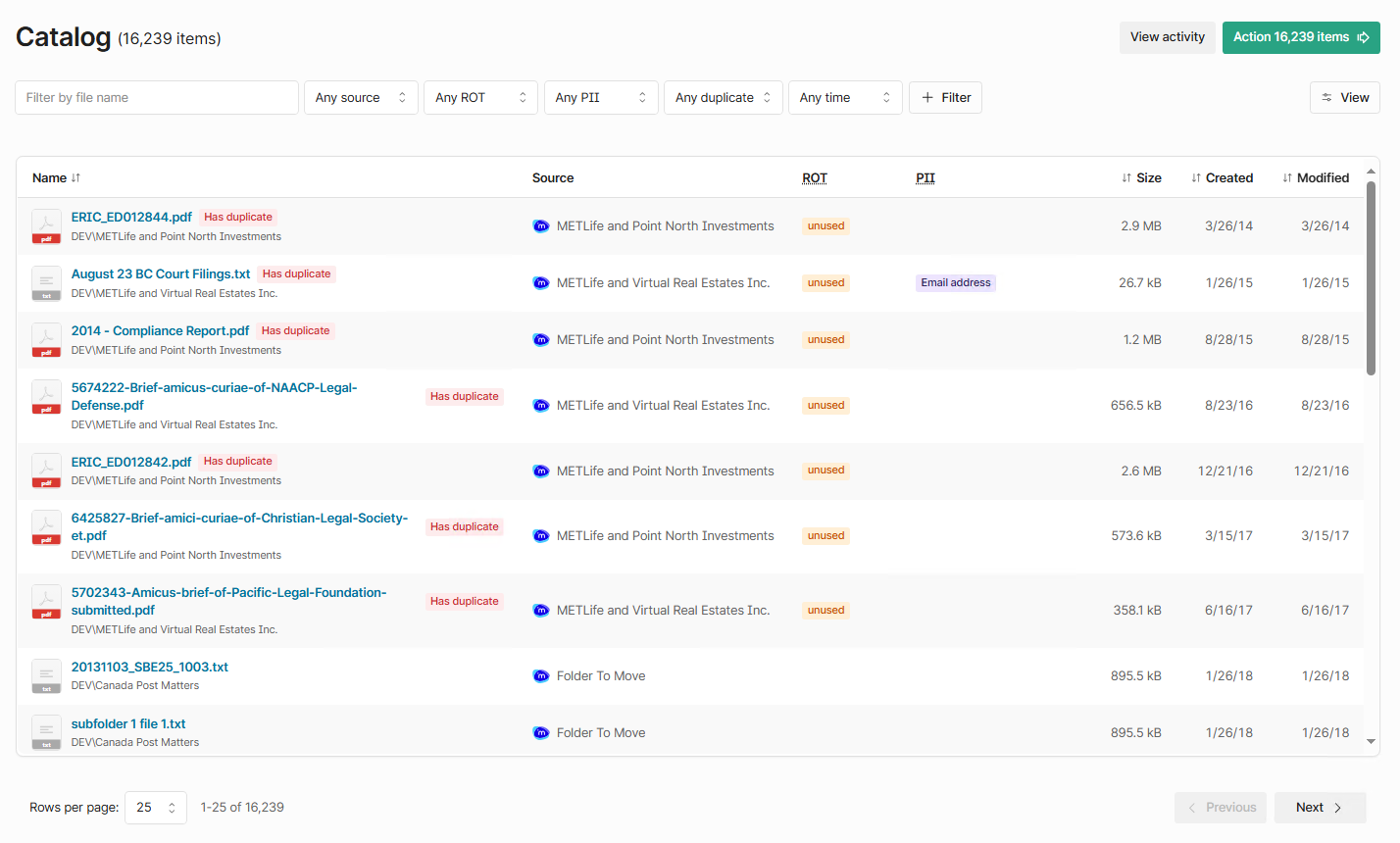
Opening the Catalog in Shinydocs Pro Control Center is a pivotable moment for your organization. All of your content, enriched by Shinydocs PII and ROT rules, is viewable and actionable on this page.
Get ready to dive in!
Getting to know the Catalog
The Catalog is the perfect place to review details of your analysis, it’s available as soon as you add a source.
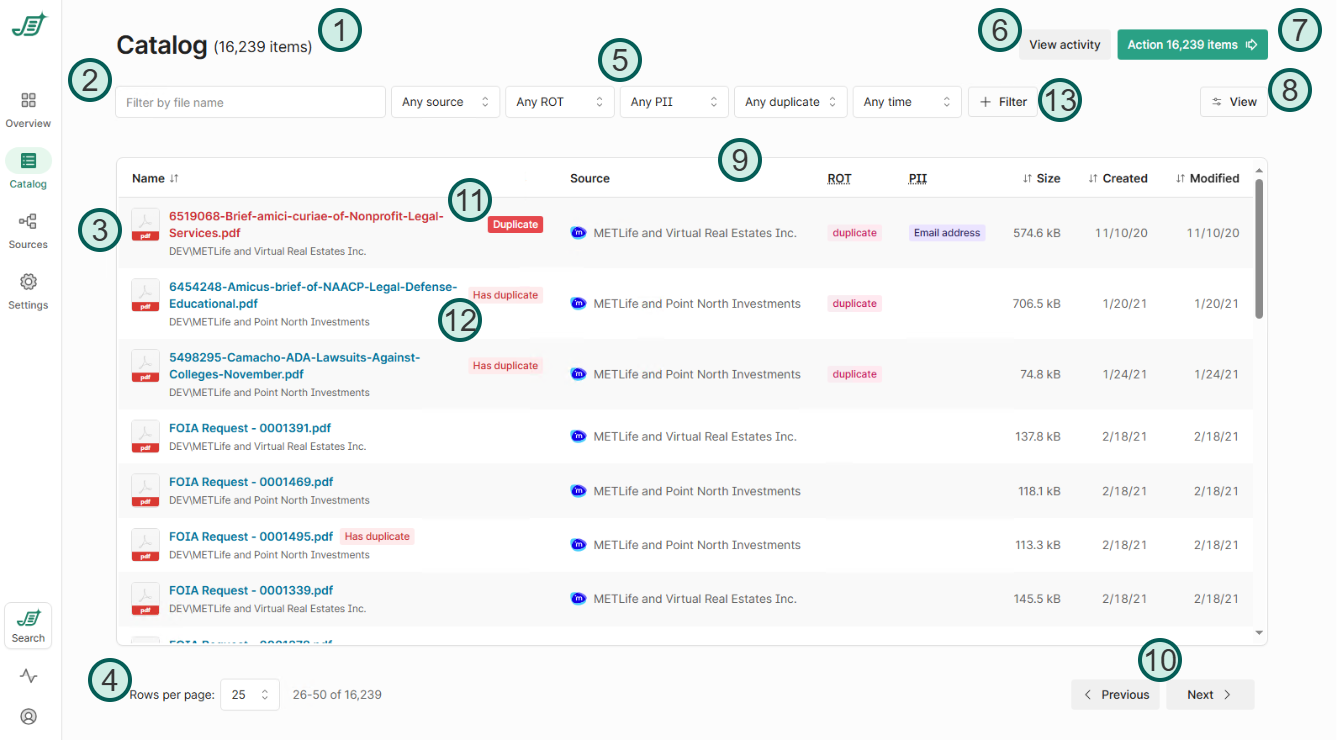
Points of interest
|
1 |
Total items found |
Displays the total number of items found. This number will change based on applied filters. |
|
2 |
File name filter |
Allows you to filter items based on their file name. |
|
3 |
Item view |
Displays the items indexed that match your filter (or all items if there is no filter). You can see the file name, size, source, source type (File system, SharePoint Online, etc.), item creation and modified date and time. |
|
4 |
Rows per page & page number |
Allows you to adjust the number of rows displayed per page and shows the current page number. |
|
5 |
Filters |
Filter the item view to see items within the scope of your filter. |
|
6 |
View activity |
Allows you to view recent activities related to the items. |
|
7 |
Action |
Provides an option to perform actions on the items in view. Current actions supported are:
|
|
8 |
View options |
Enables you to add additional columns of metadata Shinydocs Pro has captured. |
|
9 |
Metadata columns |
Displays specific metadata for each item, such as file size, creation date, modified date, and any identified PII. Can be customized with View options. |
|
10 |
Page navigation |
Navigation between different pages of the item view, including going to the next or previous page. |
|
11 |
Duplicate chip |
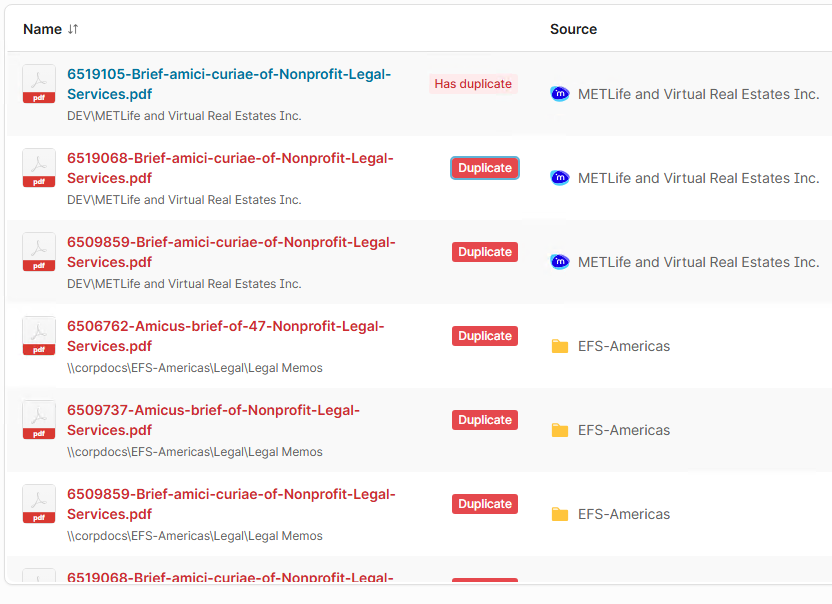
Indicator that the file is a duplicate of another file. You can click the chip to view all other duplicates of that file and the original, which will have the Has duplicate chip. |
|
12 |
Has duplicate chip |
Indicator that file is an original file with duplicates. You can click the chip to view all duplicates of this file. Has duplicate indicates that this file is the earliest by create date and is therefor the original |
|
13 |
Add filter menu |
Manage the filters available in Filters section. ! - field exists !! - field does not exist |
Duplicates view
When browsing the catalog, when you find a duplicate, you can click on the red Duplicate tag to bring up all duplicates of that file. The item with the tag Has duplicate is the original (by creation date)
View activity
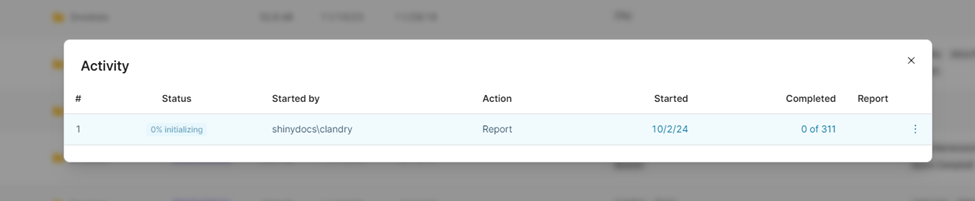
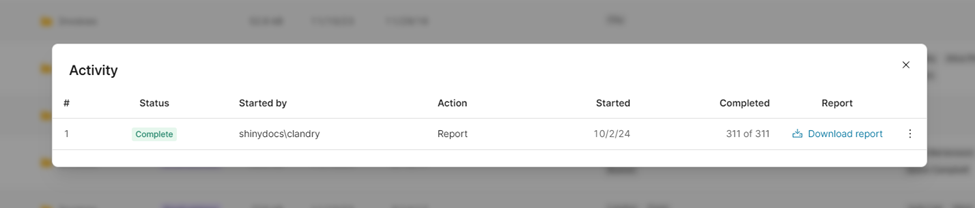
Clicking the View Activity button opens the Activity dialog. Here, you can see the current and past actions taken on your content. The dialog tracks Report and Dispose actions. Every action generates a report.
In the Activity dialog, you can:
-
Download the CSV report
-
Cancel an ongoing activity
-
Apply the same filters to the catalog view that were used when the action was submitted
Action
Clicking the Action button opens up two options: Report and Dispose.
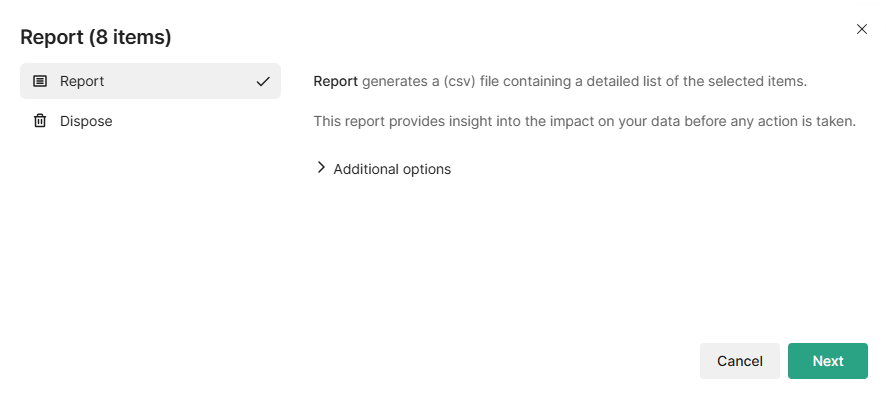
Report: Generates a CSV file with a detailed list of items in the current catalog view. This report provides a summary of your data before any changes are made.
-
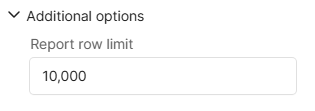
Additional options
-
Select the drop down for additional options to change the report’s maximum row count before it rolls over
-
Dispose: Removes files from their original location. You must provide a reason for disposal, such as expired retention policies or compliance requirements. You can also verify that the content hasn't changed before proceeding. Once a disposal is confirmed, the action cannot be undone.
-
Additional options
-
Select the drop down for additional options to change the report’s maximum row count before it rolls over
-
Filters
These filters help narrow down your report based on different criteria:
1. Source Filter
-
"Any Source" is the default option, which includes all sources.
-
You can select a specific source from the list if you want to focus on particular content.
2. ROT (Redundant, Obsolete, Trivial) Filter
-
Use this filter to find specific types of files based on their status, like:
-
Redundant: Duplicates, large disk images, email copies, etc.
-
Obsolete: Old drafts, archives, event logs, unused files, etc.
-
-
You can select specific types or click Select all to include everything in this category.
3. PII (Personally Identifiable Information) Filter
-
Use this filter to search for content containing PII.
-
Select specific PII rules to report on or choose All to include every type of PII in your report.
4. Duplicates Filter
-
This filter helps identify duplicate content.
-
Choose Duplicate to focus on duplicate items across your sources.
-
Choose Has Duplicate to focus on items that have duplicates.
5. Time Filter
-
You can filter results based on the modified date of the content.
-
Select the appropriate time frame from the drop-down list.
6. + Filter
-
Add any of the metadata fields Shinydocs Pro captures to the catalog view
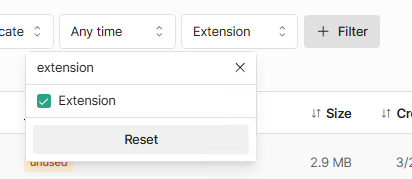
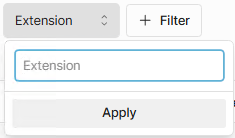
Adding the Extension field as a filter -
You can filter on these fields:
-
Once your field is added, select it in the filters row
-
You can type in a value to search for in that field
-
In the example of Extension, entering pdf is a an valid example
-
Click apply to filter the Catalog for your search term
-
-
You can also check if the field exists or does not exist
-
Entering
!means the field exists -
Entering
!!means the field does not exist -
For example, if you wanted to see all results where the field Author exists as a metadata field, you would:
-
Add the
Authorfilter -
Enter
!as the value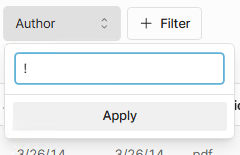
-
-
-
Creating Your Report in Shinydocs Pro Control Center
Once you've applied the filters you need, you can click on the green Action button in the top right. The number displayed in the button reflects the results in view of the catalog. This number also reflects the number of results given your current filters. Clicking the Action button will let you report on or dispose of the items in view of the catalog.

-
Click the green Action # items button in the top-right corner.
-
A prompt will appear asking you to choose between Report or Dispose. Select Report and confirm.
-
You can drop down Additional options to change the maximum rows of the CSV report.
-
-
Your export will be queued. To retrieve it:
-
Click on the

-
Download the report once it's ready.
-
Note: If the CSV files are large, they will be split into smaller files inside a zip file. Currently, only the CSV format is supported for exporting reports.