
Reputational risk rarely comes from a single catastrophic mistake. It usually comes from slow drift. Content gets copied, moved, forgotten, shared too broadly, or stored in places no one actively manages. Over time, sensitive content spreads into areas where controls are weak or unclear.
By running Shinydocs Pro against your content, you already have a detailed inventory of where sensitive content lives. Detection rules are applied automatically across your sources unless explicitly disabled, giving you immediate visibility into PII and other sensitive content without additional setup.
Define what “sensitive content” means to your organization
Shinydocs Pro includes over 70 out of the box rules for detecting common types of sensitive content, including personal identifiable information, regulated identifiers, credentials, and other high risk patterns.
These rules are managed centrally in Control Center > Settings > Tagging > PII.
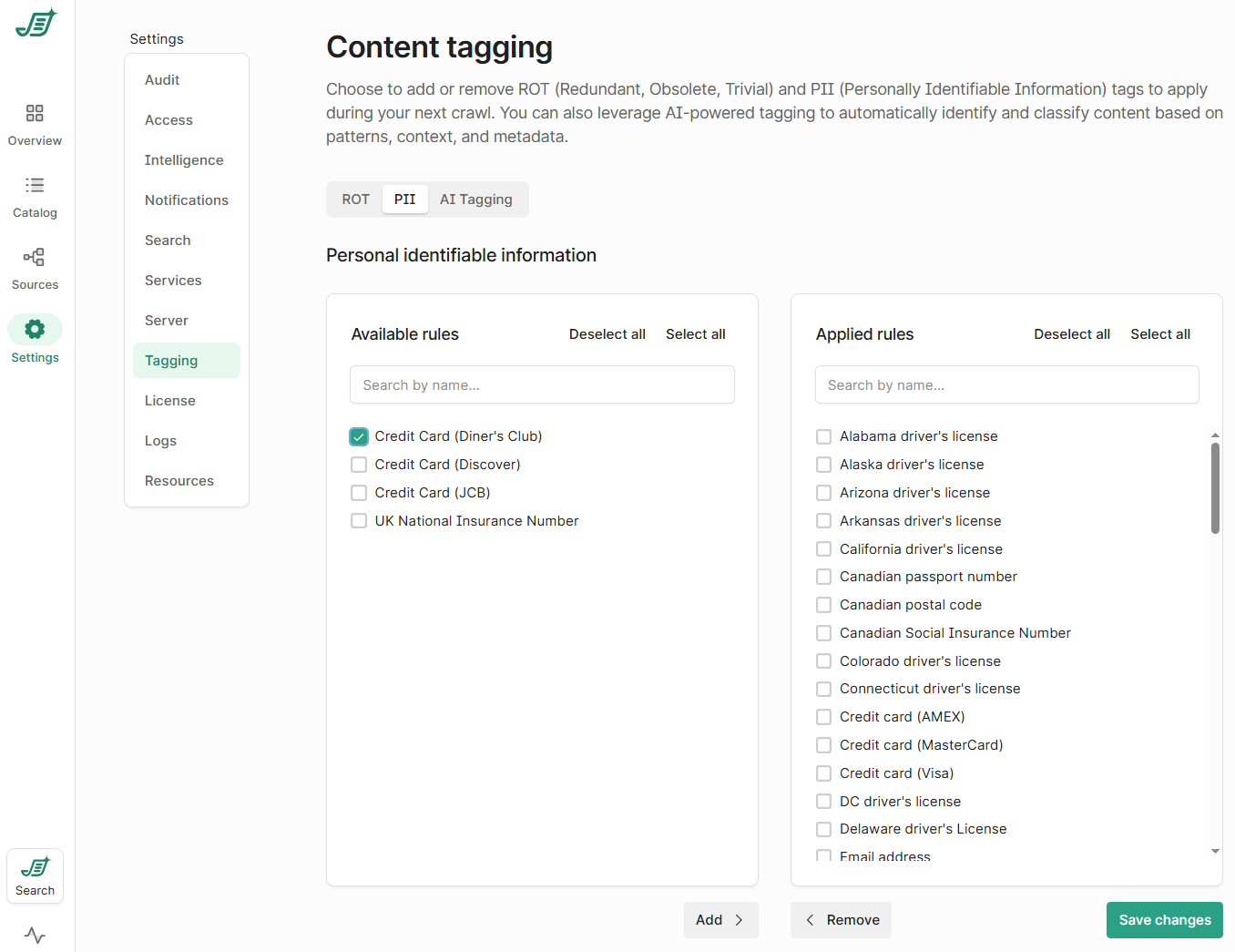
Here, administrators can review all built in sensitive content rules and enable or disable specific rules based on policy.
This ensures sensitive content is identified according to your standards, not a generic model.
Continuously discover sensitive content across all sources
Once rules are enabled, Shinydocs Pro scans content across connected systems and applies tags when sensitive content is detected.
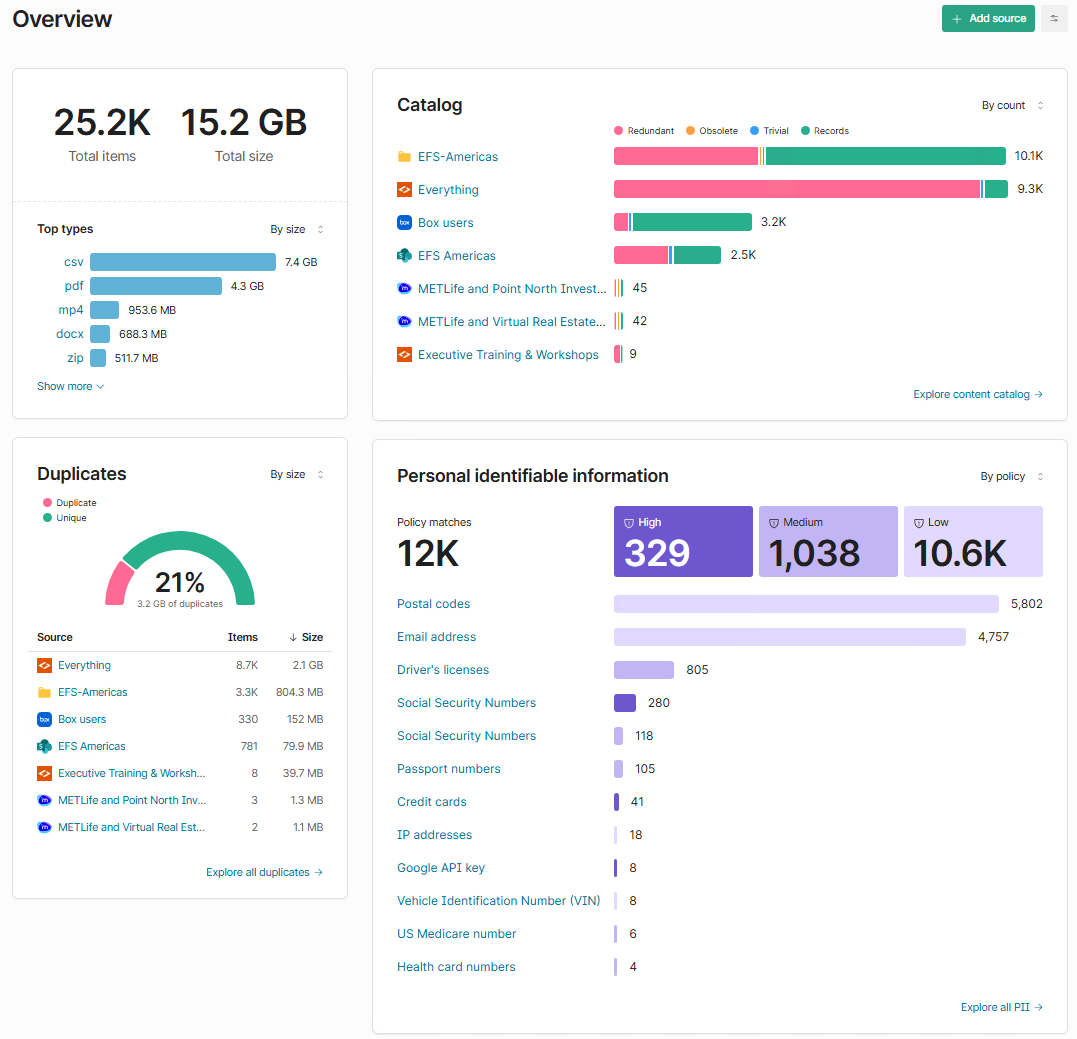
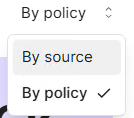
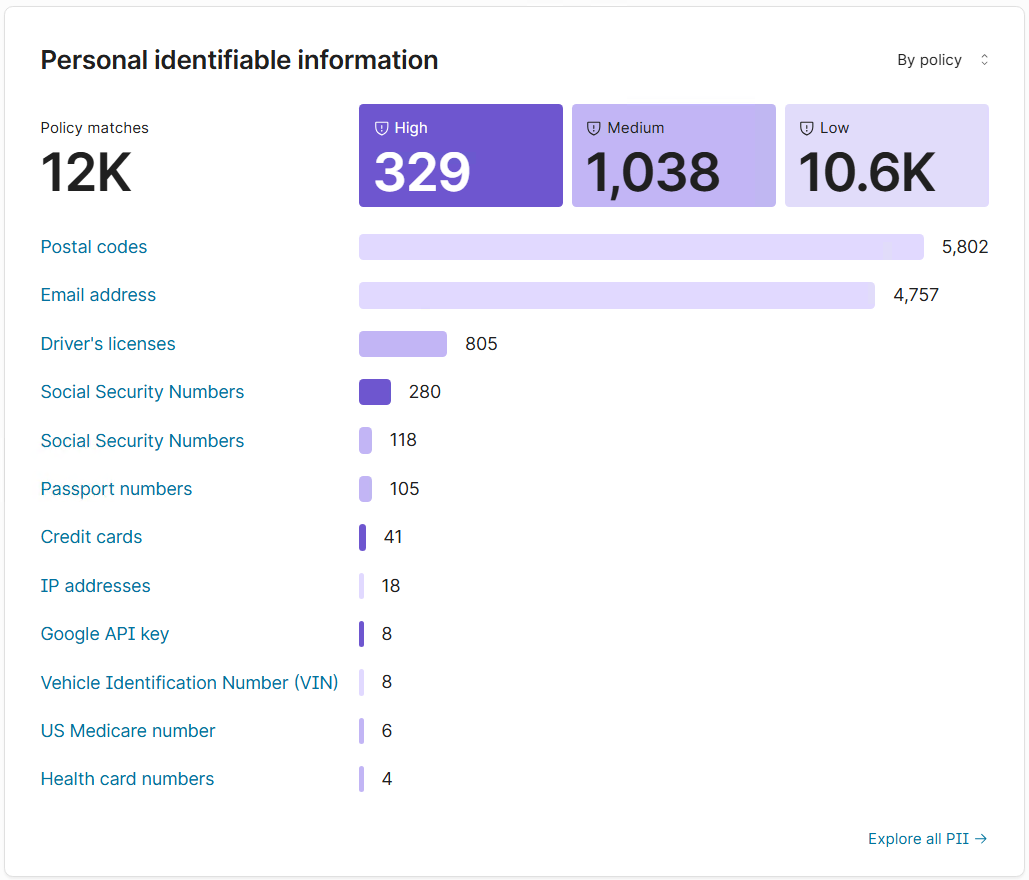
The Overview page provides an immediate, aggregated view of where sensitive content exists across your environment. You can change the perspective of where your most sensitive information lives by source or by policy, empowering you to know exactly where that content is.
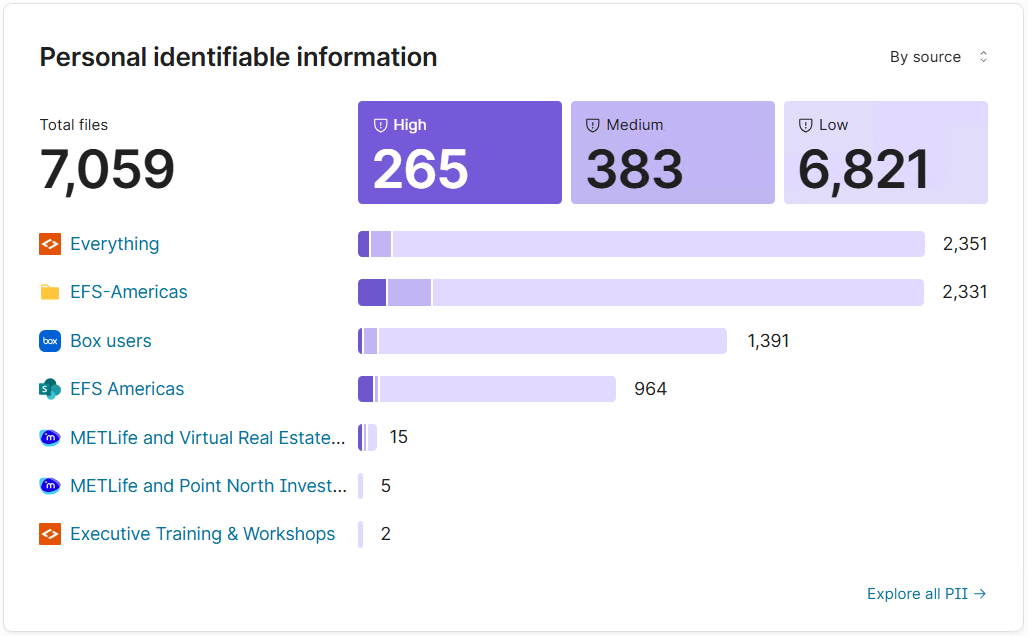
From this view, you can:
-
See total sensitive content matches
-
Understand severity distribution (High, Medium, Low)
-
Identify which sources contribute the most risk
-
Correlate sensitive content with duplicates, unused content, and file types
This answers a critical governance question quickly: where is our sensitive content actually living?
Act on sensitive content using the Catalog
The Catalog is where insight turns into action.
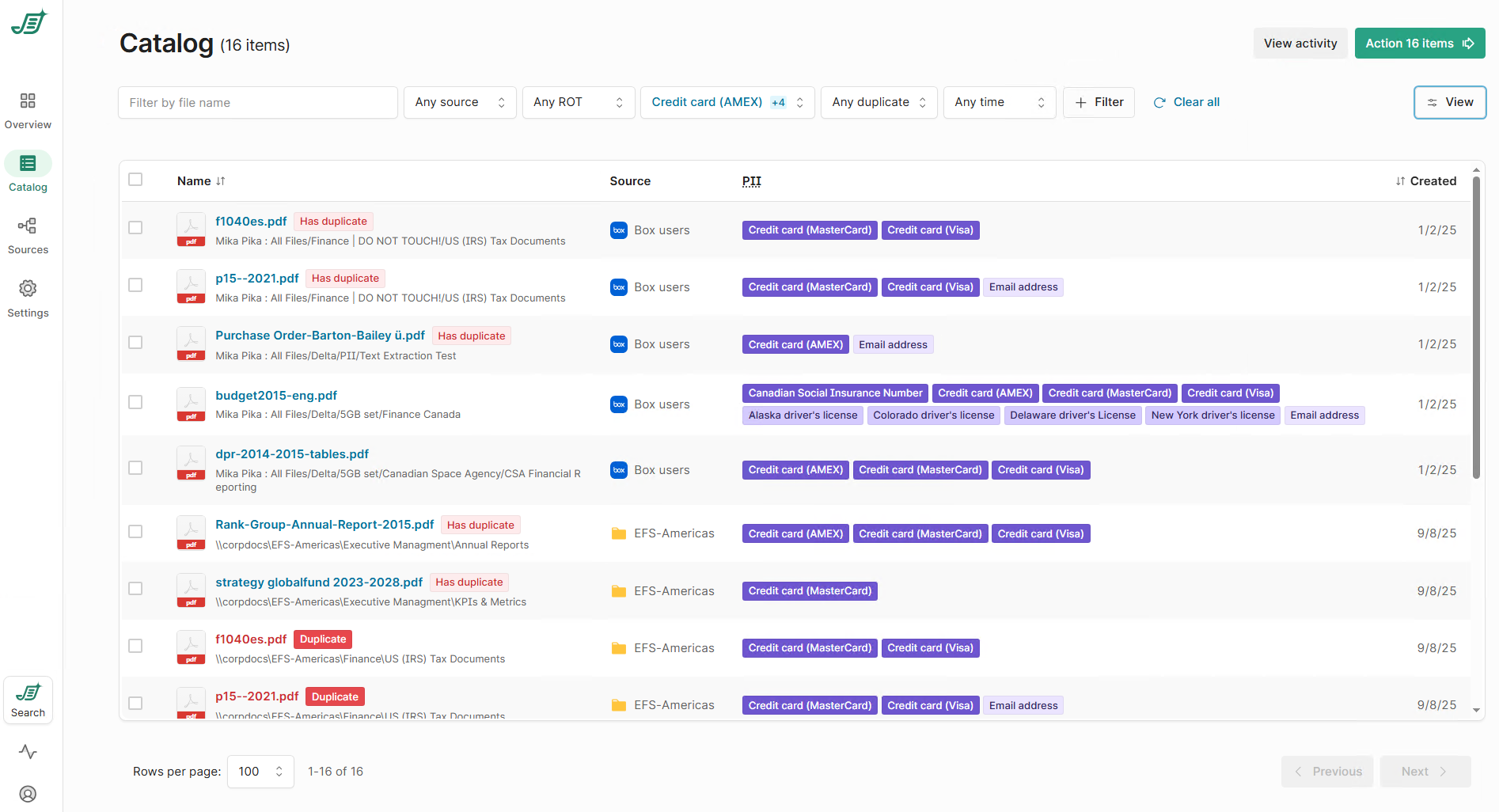
Within the Catalog, you can:
-
Filter content by specific sensitive content types like credit cards, social insurance numbers
-
Limit results to one source or span all sources
-
Combine sensitive content filters with ROT (Redundant, Obsolete, Trivial) and duplicate indicators
-
Select content to dispose of or generate reports
This allows you to take controlled, auditable action rather than exporting raw lists or relying on manual reviews.
Produce reports that demonstrate control
Using Catalog filters, you can generate reports that show:
-
Where sensitive content exists
-
Which policies were matched
-
Which sources are affected
-
What actions were taken
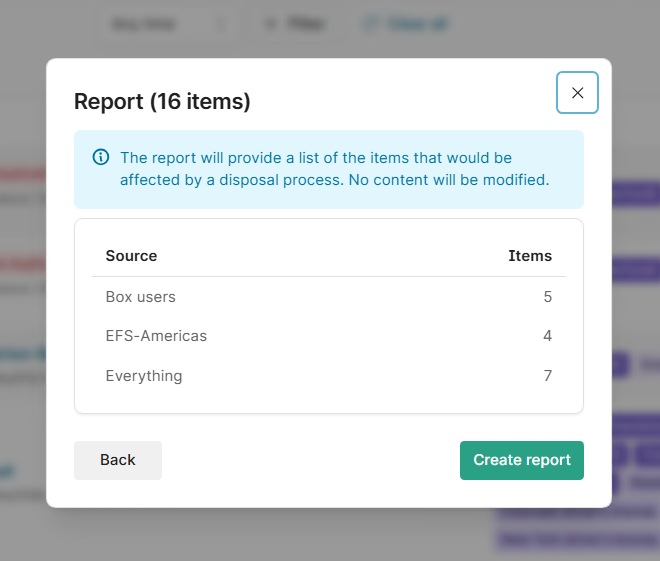
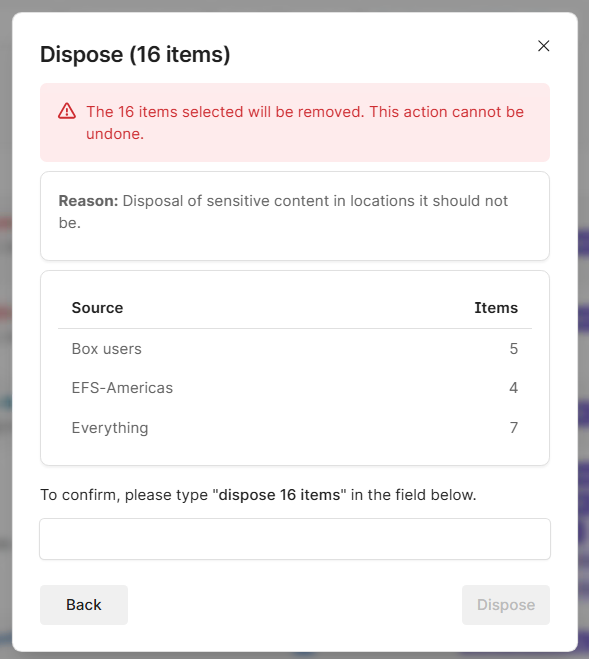
These reports support internal governance, audits, and leadership reporting without requiring custom queries or external tools.
The result is continuous, defensible proof that sensitive content is being identified, reviewed, and managed according to policy.
Customizing sensitive content detection rules
Shinydocs Pro ships with a broad set of out-of-the-box rules designed to detect the most common types of sensitive content. In many cases, these rules will cover what you need without any changes.
That said, your environment is unique. Naming conventions differ. Data formats vary. Regulatory definitions evolve. Shinydocs Pro is designed to let you adapt detection rules to match your reality.
Sensitive content detection rules are stored as JSON files on the Shinydocs Pro server. By default, they can be found at:
C:\Program Files\Shinydocs Professional\ControlCenter\Pii Rules\Potential PII
Your installation path may differ depending on how Shinydocs Pro was deployed.
Each JSON file represents a single rule. For example, the built-in MasterCard credit card rule defines its name, sensitivity level, regex pattern, and additional query logic to improve accuracy.
You are free to tailor these rules to your needs. Common customizations include:
-
Modifying an existing rule to better match how sensitive content appears in your files
-
Adjusting a regular expression to reduce false positives or capture additional formats
-
Changing query conditions to require more context before a match is flagged
-
Creating entirely new rules for organization-specific identifiers or patterns
You are not limited to the rules that ship with the product.
Creating a new sensitive content rule
To add a new rule, create a new JSON file in the same directory as the existing rules. Shinydocs Pro will automatically pick it up and make it available.
Below is a simple template showing the basic structure of a sensitive content detection rule. You can use this as a starting point and expand it as needed.
Shinydocs support is here to help! Reach out to us https://help.shinydocs.com/ for support.
{
  "Name": "Custom Sensitive Content Rule",
  "DisplayGroup": "Custom Rules",
  "Description": "Describe what this rule detects",
  "FieldName": "potential_pii",
  "FieldValue": "Custom Sensitive Content",
  "Sensitivity": 2,
  "RegexPattern": "",
  "LuhnValidate": "false",
  "RawQuery": {
    "bool": {
      "must": [],
      "should": [],
      "must_not": [],
      "filter": []
    }
  }
}
Sensitivity values:
0: Low
1: Medium
2: High
At a minimum, most rules define a name, sensitivity, and either a regular expression or query logic. More advanced rules combine both to improve accuracy.
Making rules available in Control Center
You can copy your JSON file to:
C:\Program Files\Shinydocs Professional\ControlCenter\Pii Rules\Potential PII
Your installation path may differ depending on how Shinydocs Pro was deployed.
Any new rules you create, as well as updated rules included in future Shinydocs Pro releases, will automatically appear in:
Control Center > Settings > Tagging > PII
From there, you can enable, disable, and manage them just like the built-in rules.
Let’s review
By using Shinydocs Pro in this way, organizations are able to:
-
Identify sensitive content wherever it exists
-
Understand exposure across systems and sources
-
Take action to reduce unnecessary risk
-
Demonstrate ongoing control without excessive manual effort
This shifts sensitive content management from a reactive exercise to a sustained operational practice.