
Before switching Content Server environments for Shinydocs™ Review and Workflow, ensure that the Shinydocs Service Module is installed on the new Content Server environment.
Switching Environments for the Workflow Service
Locating the Source file
-
Open the appsettings-workflow.json file located within the Shinydocs Workflow install directory (for example, C:\Program Files\Shinydocs\Automation Workflow)
-
Locate
ContentServerSettings -
The value for
SourceSettingsPathis the Source file path (for example,C:\\Users\\username\\Documents\\WorkflowPlugin\\contentserver.json)
Updating the Source file for Workflow
-
Navigate to the source file and open it using a text editor (for example, Notepad++)
-
Locate the
sourceConnectionSettingssection -
Update the
usernameandpasswordvalues to reflect the new Content Server environment -
Update the
contentServerUrlvalue to the new Content Server environment
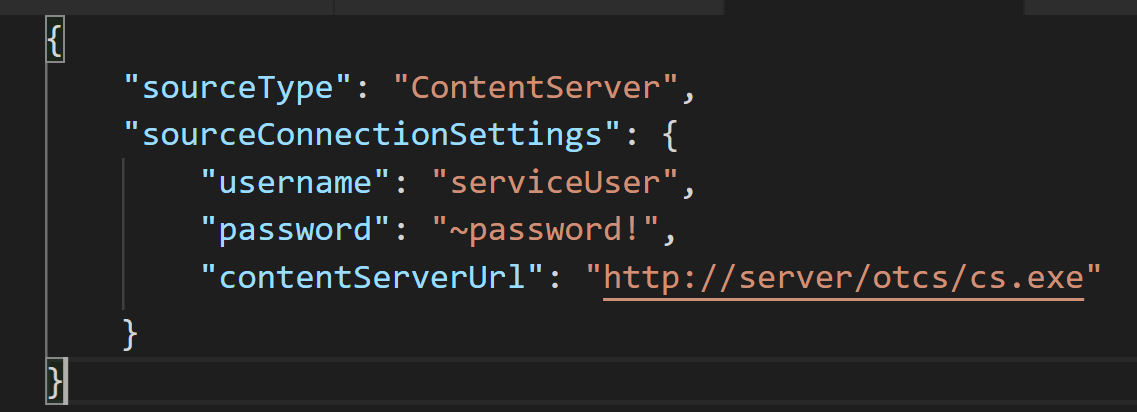
Updating settings in the appsettings-workflow.json file
-
Open the appsettings-workflow.json file with a text editor
-
In the
FolderIndexSettingssection, underContentServerSettings, update theNodeIdvalue to point at the nodeId of the root folder to index
Note: If it is a backup of the same database, the NodeId may not need to change.
-
In the
ClassificationIndexSettingssection, underContentServerSettings, update theNodeIdvalue to point at the classifications folder at which to start indexing
Note: If it is a backup/snapshot of the same database, the NodeId may not need to change.
Updating NodeIds in the AutomationScripts.dll.config file
If it is a backup/snapshot of the same database, NodeIds may not need to change.
-
Refer to the documentation for your Workflow Plugin for any required updates
-
If required, update NodeIds
-
Run Services.msc
-
Locate and restart the Shinydocs Workflow service
Switching Environments for the Review application
Updating settings in the appsettings-review.json file
-
Navigate to C:\inetpub\Review
-
Open the appsettings-review.json file using a text editor
-
Update the following Content Server settings:
-
ContentServerBaseUrl- the url to content server -
OTDSEndpoint- the otds url -
csRootNodeId- the top level folder used for folder brower, if it is a database snapshot it will likely be the same
-
-
Update the following settings if
AuthenticationtypeisContentServerUsernameAndPassword:-
CsUsername-username of the user connecting to content server (if the same user has access, it may not need to be changed) -
CsPassword- password for the user connecting to content server (if the same user has access, it may not need to be changed)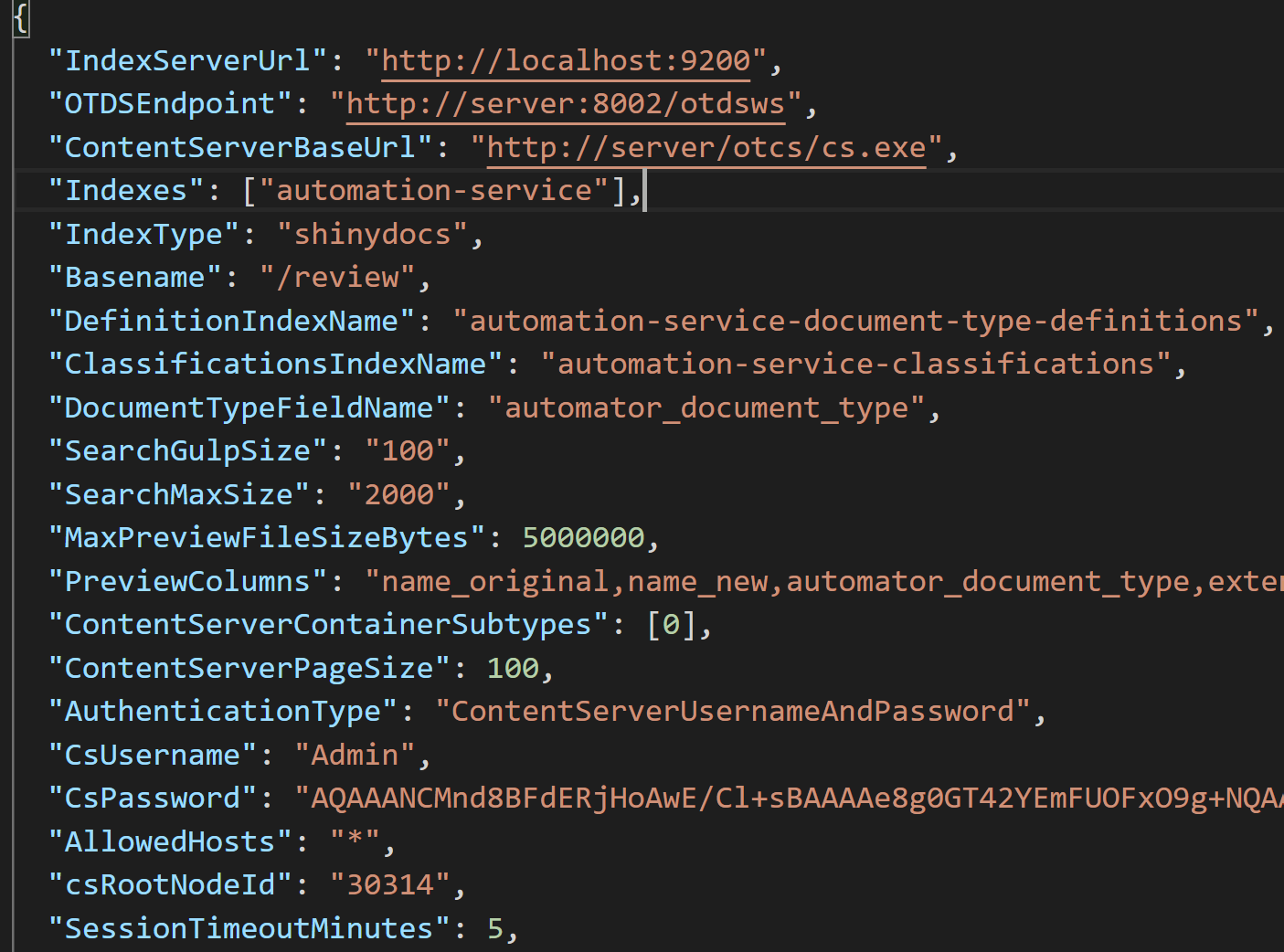
-
-
Restart IIS and test