
Getting Started with Search
Streamlined Search brings a faster, smarter, and more secure search experience right into Shinydocs Control Center. But before you can start using it, there are a few setup steps to know.
Enabling Search
Streamlined Search is not enabled by default. You can turn it on in Control Center > Settings > Search > Enable Streamlined Search.
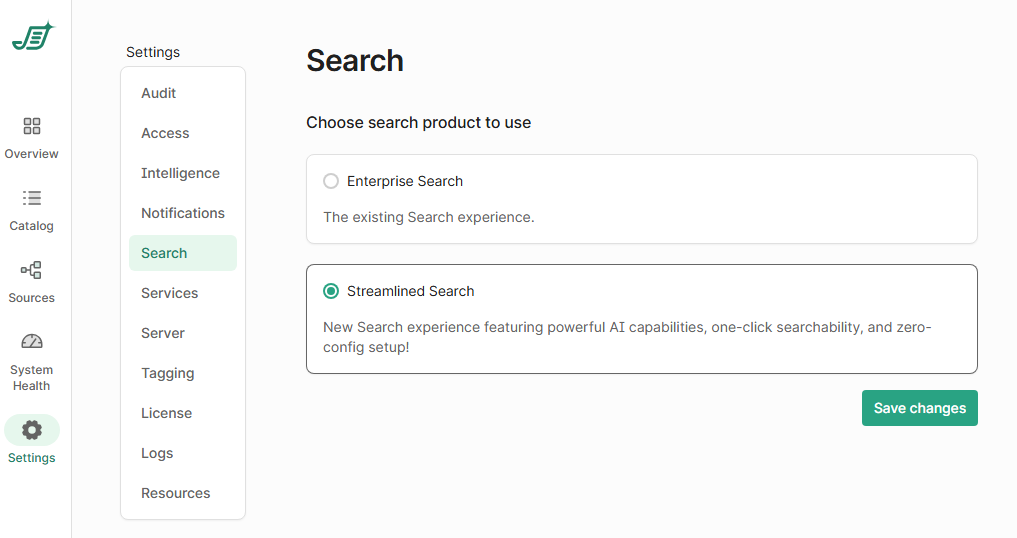
If you're an existing Shinydocs Enterprise Search customer, reach out to our support team for guidance on upgrading to Streamlined Search. They'll make sure your environment is ready for the transition.
Accessing Streamlined Search
Once enabled, you can access the search interface at:
https://localhost:9701/searchOr, replace
localhostwith your configured server name or FQDN.
Controlling What Appears in Search
Every connection you create in Control Center (such as File System, iManage, or Microsoft SharePoint) can be configured with a Search Authentication Type. This controls whether content from that connection appears in search and how access is handled:
 Hidden – Excludes the content from Streamlined Search results entirely.
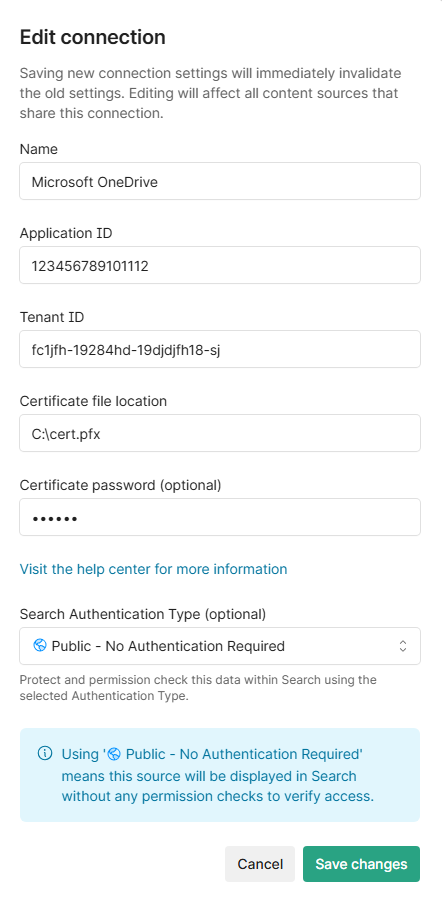
 Public – Content appears in search and no authentication is required to view it.
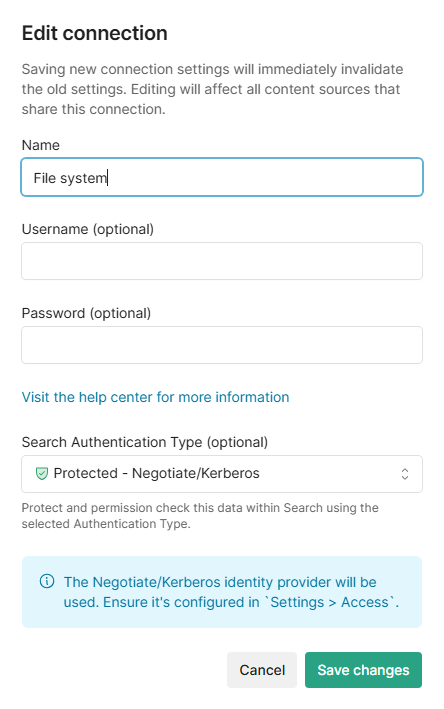
 Protected – Content is permission-checked in real time using your organization's authentication (Kerberos/OIDC) system. This option may require extra setup depending on the content source.
You can choose this setting when creating a source, or update it later by editing the connection from the Sources page (see images below).
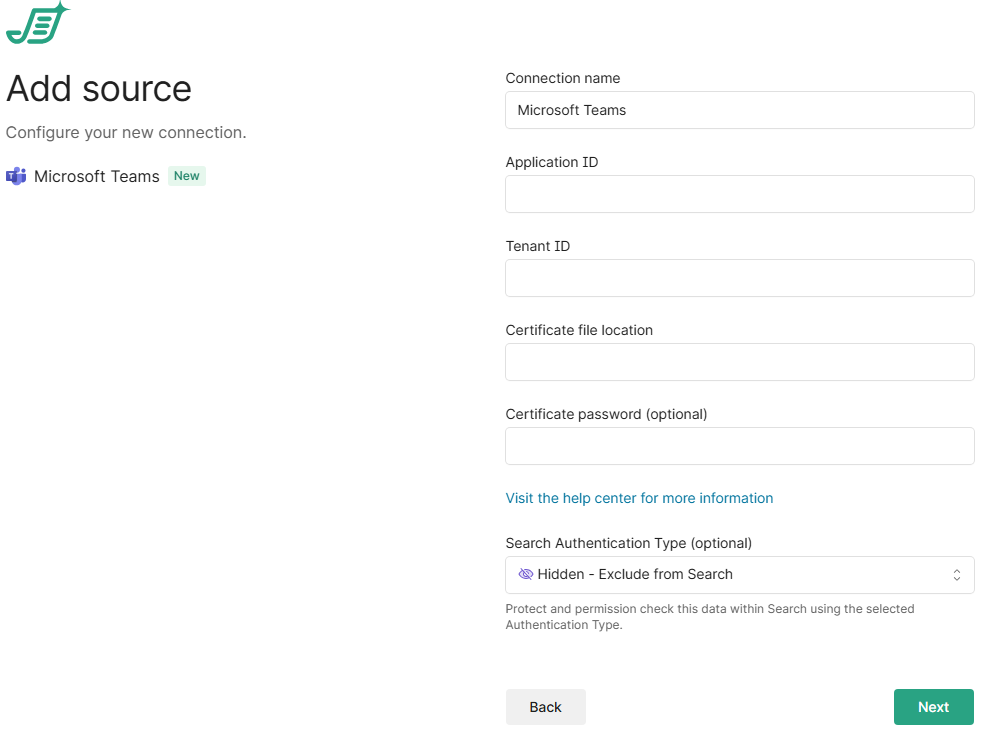
You can edit existing sources to change if and how they appear in Streamlined Search
Managing Access to Streamlined Search
Access is managed through the Access page in Settings.
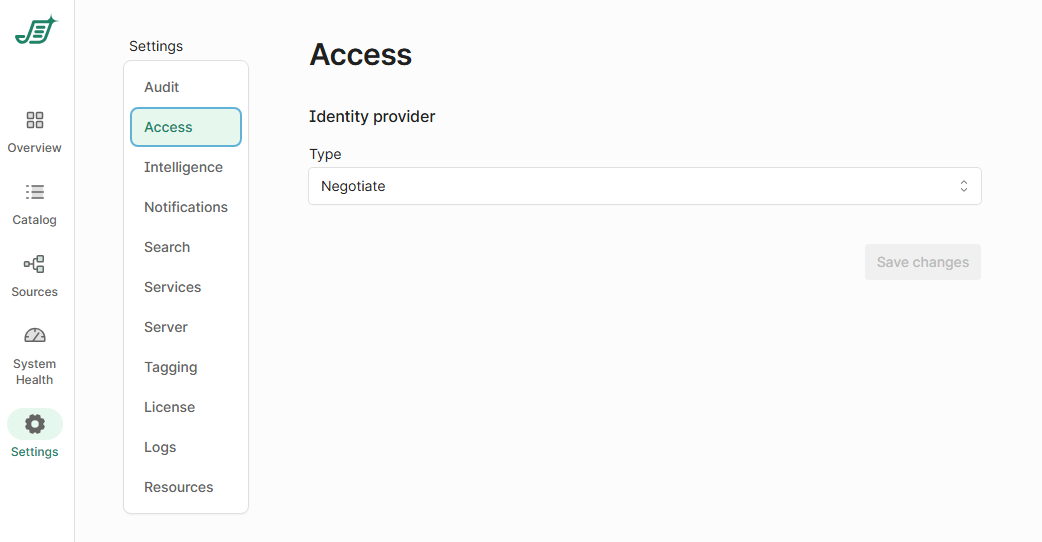
If access is set to Negotiate, anyone with valid organization credentials can use Streamlined Search.
You can set up specific groups to provide access to Shinydocs Control Center (admins) and Shinydocs Search (all users).
If using OpenID Connect (OIDC), you can define access to both Search and Control Center separately based on Active Directory roles.
Negotiate or OIDC setup is available here: Role-Based Access (RBAC) in Shinydocs Pro Control Center.