
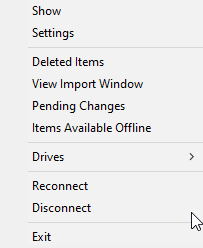
This menu is displayed when right-clicking on the green Shinydrive icon in the Windows taskbar.
|
Show |
Displays the Shinydrive Client Window. If you are logged in to Shinydrive, this window displays which user you are connected as. Reconnect, Disconnect, and Shutdown buttons are also available. |
|---|---|
|
Settings |
Displays non-registry settings for the Shinydrive Client and local cache info:
Clearing the client cache will disconnect the client. Cache Size: Displays the current size of the local Shinydrive cache
|
|
Deleted Items |
Displays if a delete action was unsuccessful. Users can re-attempt the action. |
|
View Import Window |
Opens a new window to show the progress of items currently being imported via Import to Records Management. |
|
Pending Changes |
Opens a new window to display any pending changes in Shinydrive (for example, document uploads, version uploads, or conflicts). |
|
Items Available Offline |
Opens a new window to display the items that are currently available offline for the user. |
|
Drives |
A flyout menu that displays the drives currently mounted in Shinydrive. Users can click on any of the drives listed to view the drive in Windows Explorer. |
|
Reconnect |
Reconnects Shinydrive to the Shinydrive Server. This will trigger a re-authentication. |
|
Disconnect |
Disconnects Shinydrive from the Shinydrive Server revealing the login window for Shinydrive. |
|
Exit |
Shuts down Shinydrive (shinydrive.exe). |