
Shinydocs Cognitive Analysis comes with a standard set of Visualizations. Periodically, Shinydocs releases a new set of Visualizations based on use cases and best practices. The following set of instructions will take you through the process of updating your existing visualizations to a new set supplied by Shinydocs – typically located in your download package with new versions of the Cognitive Analysis Toolkit.
Instructions
-
Before you begin, it’s a good idea to back up your Index, which is typically located here: C:\Shinydocs\indexer\data.
-
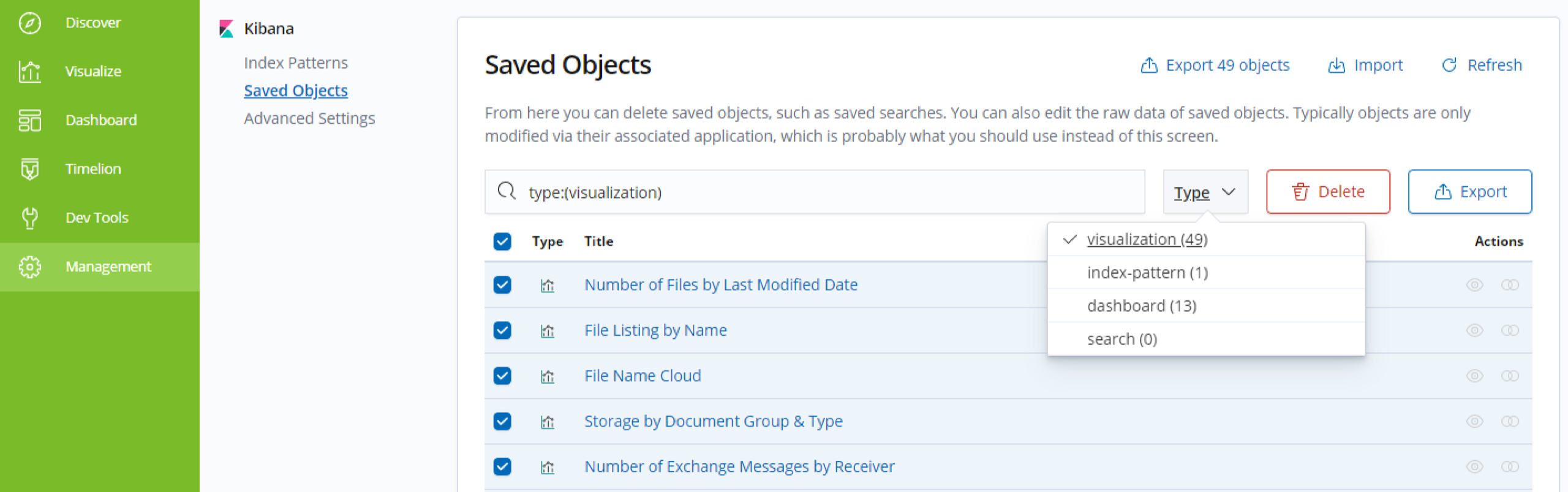
Delete your existing visualizations that were supplied by Shinydocs. If you have modified any of these, we recommend you use a unique prefix on their names, so you know not to delete those. Deleting is done via the Management/Saved Objects interface - select Type = visualization to start. Delete all of these (depending on the number of items per page listed, you may need to do this multiple times)
-
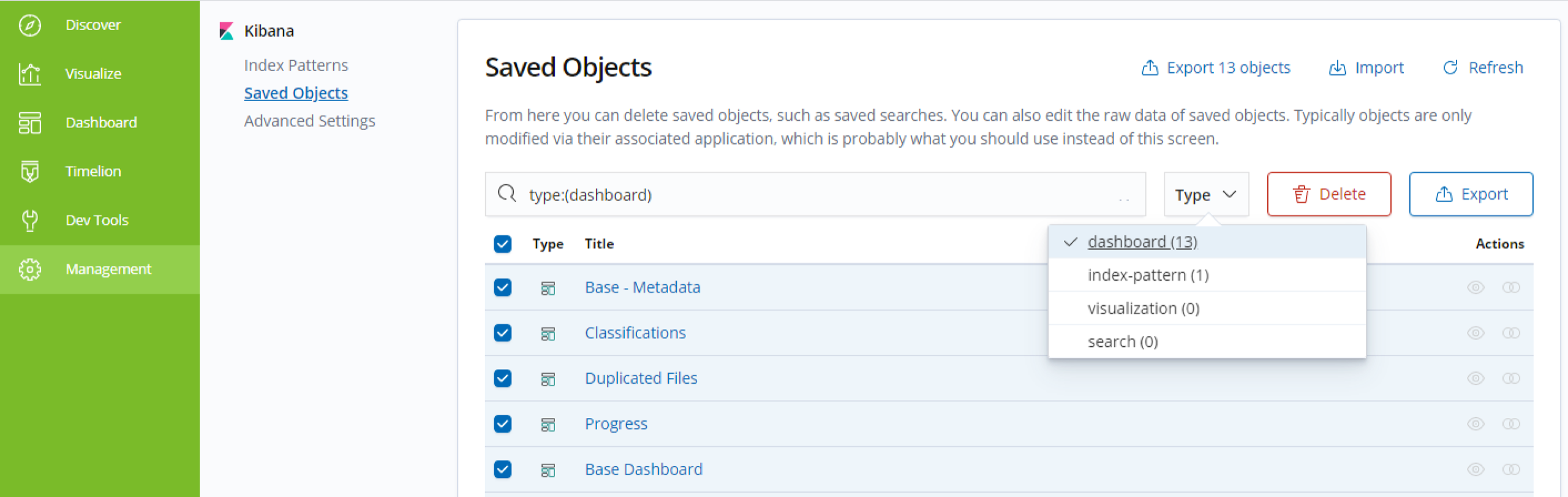
Delete your existing dashboards that were supplied by Shinydocs. If you have modified any of these, we recommend you use a unique prefix on their names, so you know not to delete those. Deleting is done via the Management/Saved Objects interface - select Type = dashboard to start. Delete all of these (depending on the number of items per page listed, you may need to do this multiple times).
-
Delete your existing index-pattern for your Shinydocs Index. Deleting is done via the Management/Saved Objects interface - select Type = index-pattern to start. Delete this object. Note: You need to delete, then re-add the index-pattern to ensure all new dashboards and visualizations are added correctly.
-
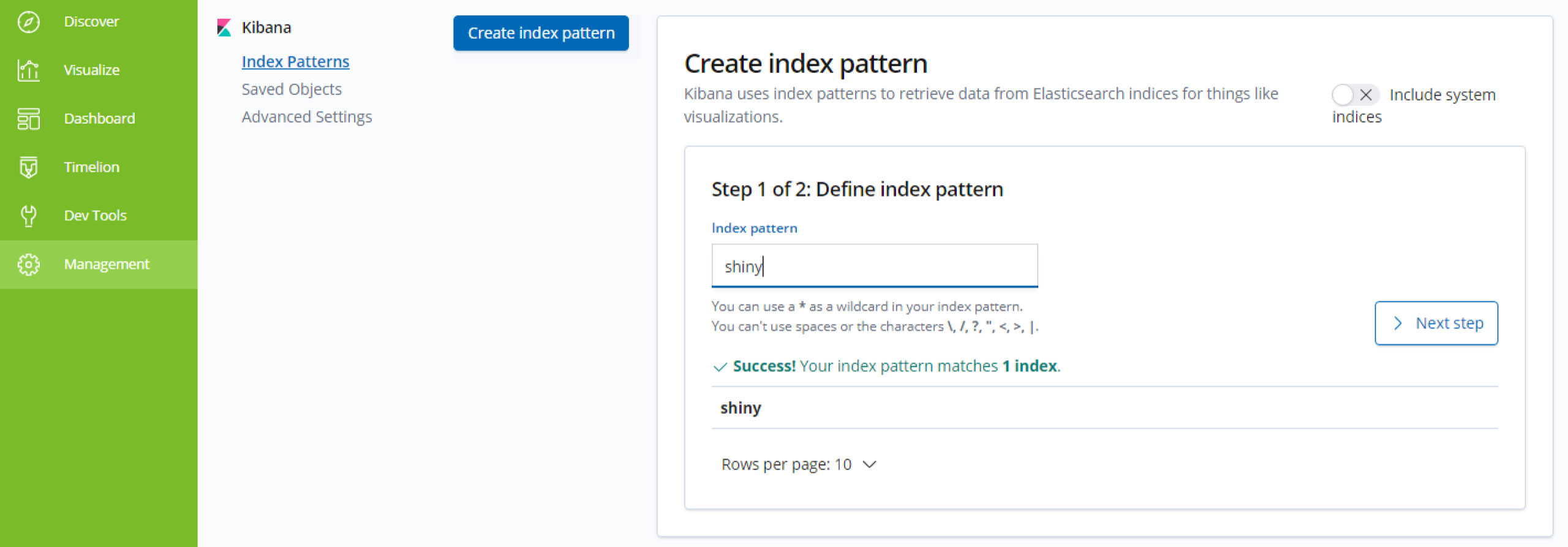
Create the index-pattern for your Shinydocs Index.
-
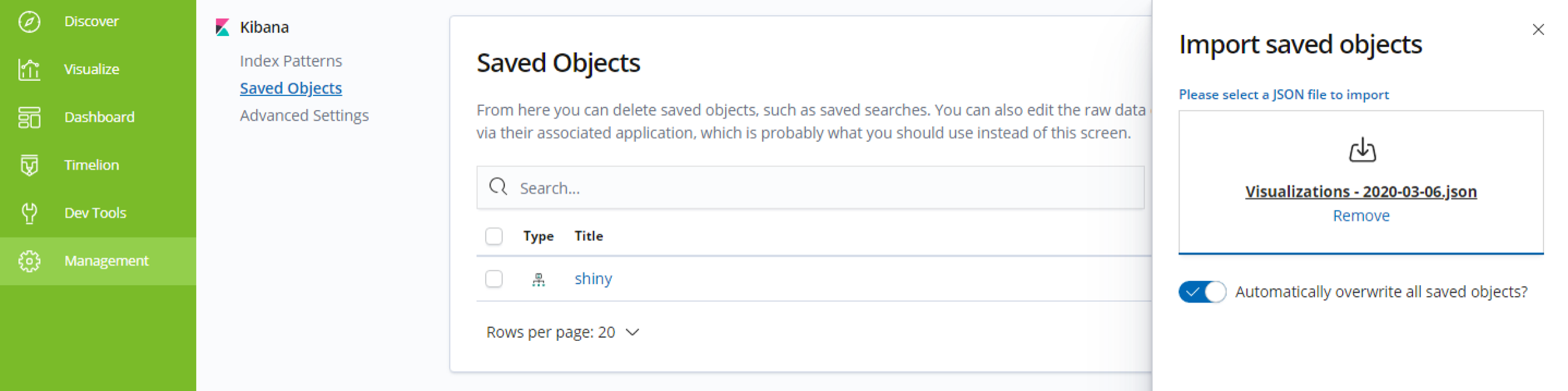
Import the provided Visualizations.json file (in this example, Visualizations - 2020-03-06.json)
-
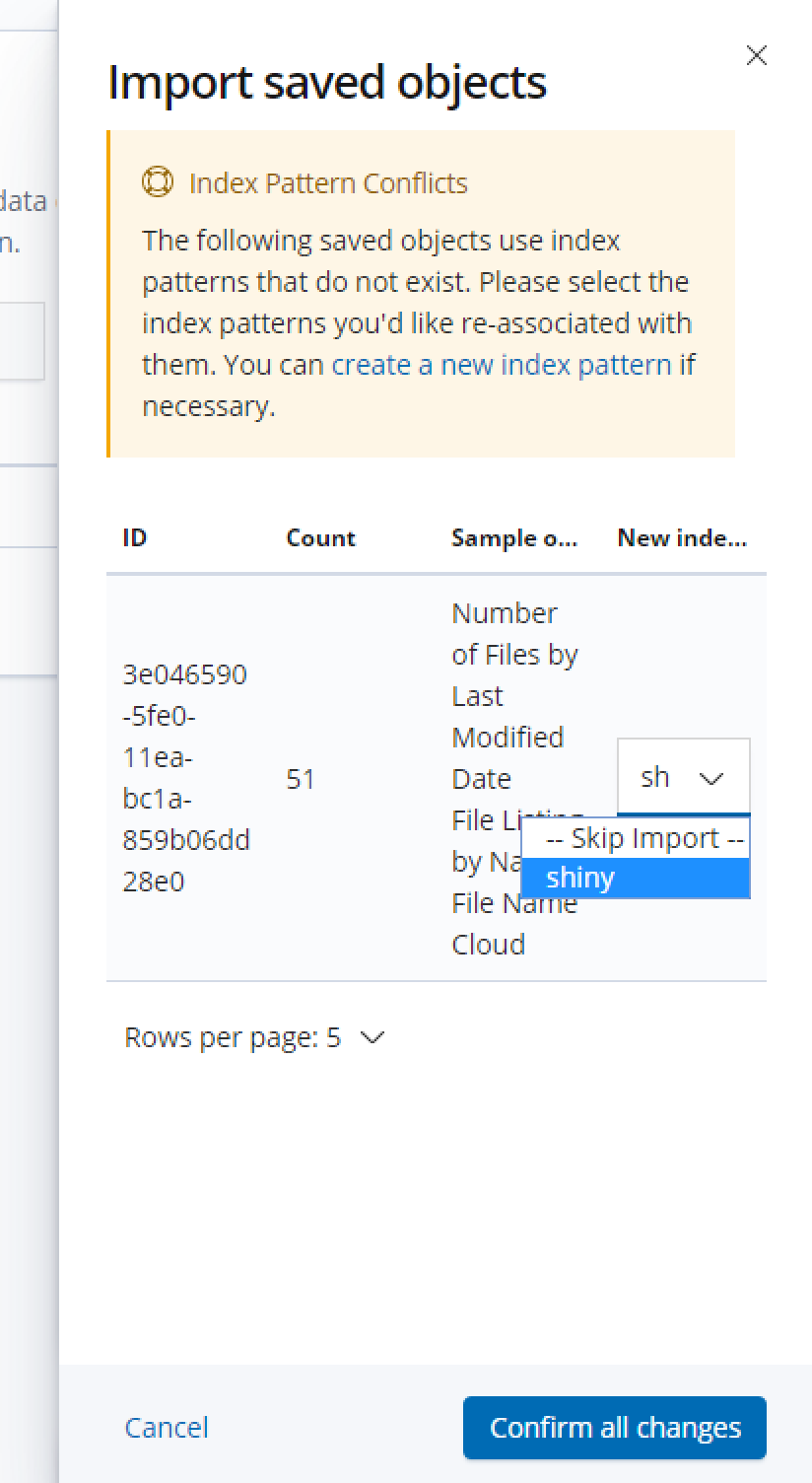
You will receive a notification about Index Pattern Conflicts - in the drop-down, select your Index name and then Confirm all changes
You are now ready to use the new Dashboards and Visualizations!