REMEMBER TO ALWAYS
-
Set the minimum and maximum to the same value
-
Only ever set the memory pool values to a maximum of half of the available system memory, up to a maximum of 31 GB
-
If you have a cluster of Search Engine nodes, this must be applied on each node.
Before you start
Before increasing the heap size of Shinydocs Search Engine, the service must be restarted for the changes to take effect.
-
Stop Shinydocs Control Center service to halt any active analysis
-
Stop Shinydocs Search Engine service
Steps
-
Open an administrative command prompt
-
Right-click Command Prompt and select "Run as administrator"
-
-
Navigate to the Shinydocs Search Engine bin directory to launch the Service Manager
-
If using a custom installation, go to your Search Engine
binfolder -
For default installations:
Run the following in the console window, which will automatically open the Service Manager:
"C:\Program Files\Shinydocs Professional\SearchEngine\bin\opensearch-service-mgr.exe" //ES//shinydocs-search-engine -
Custom install location:
-
Use
cdin the console window to change the directory the console is in
e.g.cd "C:\Program Files\Shinydocs Professional\SearchEngine\bin"-
If Shinydocs Professional is installed on another drive, you must tell the console window to change to that drive first
e.g.D:
-
-
Launch the service manager Run the following command:
opensearch-service-mgr.exe //ES//shinydocs-search-engine
-
-
-
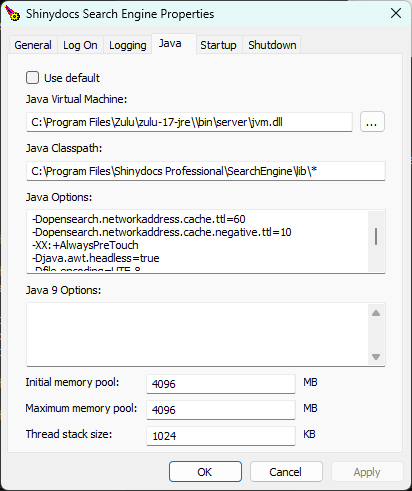
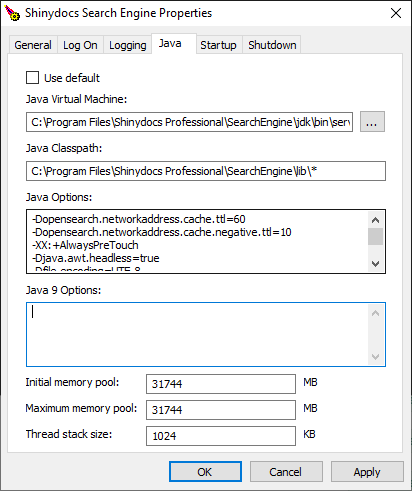
In the Java tab, increase the Initial memory pool and Maximum memory pool to the same value in MB. Here are the recommended values based on your systems memory.
(Total RAM / 2) - 1 GB
|
System RAM |
Initial/Maximum memory pool value (MB) |
|---|---|
|
16 GB |
|
|
32 GB |
|
|
64 GB |
|
-
Click OK to apply the changes
-
Start:
-
Shinydocs Search Engine service
-
Shinydocs Control Center service
-