
This article explains how to test the query (“RawQuery”) from custom PII and ROT rule files.
Review the below two articles for more information on PII and ROT.
Review the following article for more information on custom PII and ROT.
Before applying new custom rules or editing existing rules in Control Center, you may want to test the query portion of the rule file for the following reasons:
-
Verify that the syntax of the “RawQuery” is correct
-
Verify that your query will return the expected number of results against your data source(s)
-
Edit the query until the results against your data source(s) are satisfactory
Examples of existing rules:
Steps to test query:
In both examples above, we can test the query portion of rules to see what the results will be against your data source(s).
-
Open the PII or ROT rule (json file) you want to test the query for
-
you can open this in a text editing applications like Notepad, Notepad++, Visual Studion, etc.
-
-
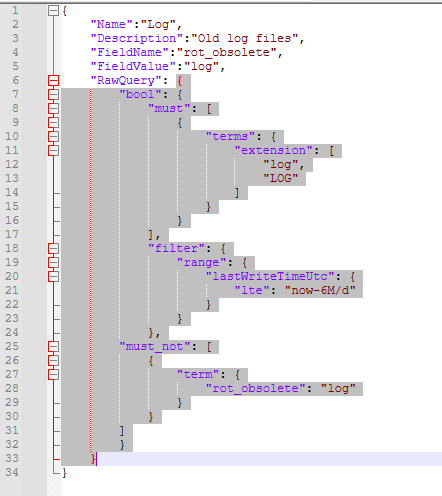
Copy the text from the “RawQuery” portion of the file
-
starting from the first brace (curly bracket) after
"RawQuery":, to the second last brace (curly bracket) of the text -
example below
-
-
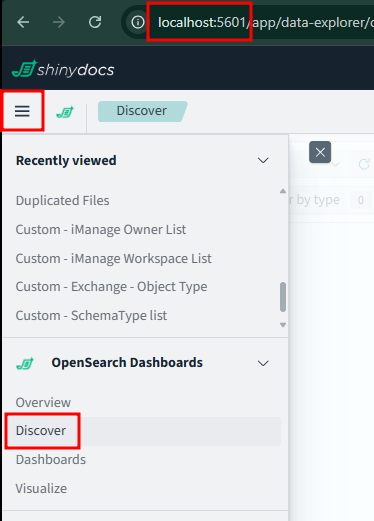
Login to OpenSearch Dashboards. The Default URL is http://localhost:5601/
-
Select the hamburger menu icon (from the top-left corner of the page), then select “Discover”
-
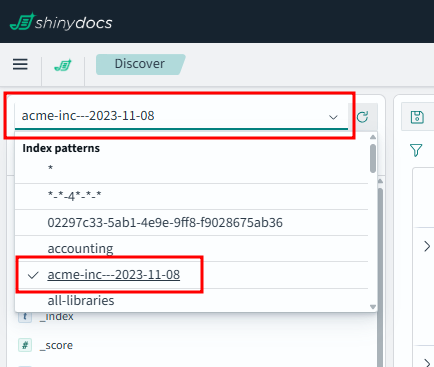
From the drop-down menu in the top-left corner of the page, select the data source you want to test your query against
-
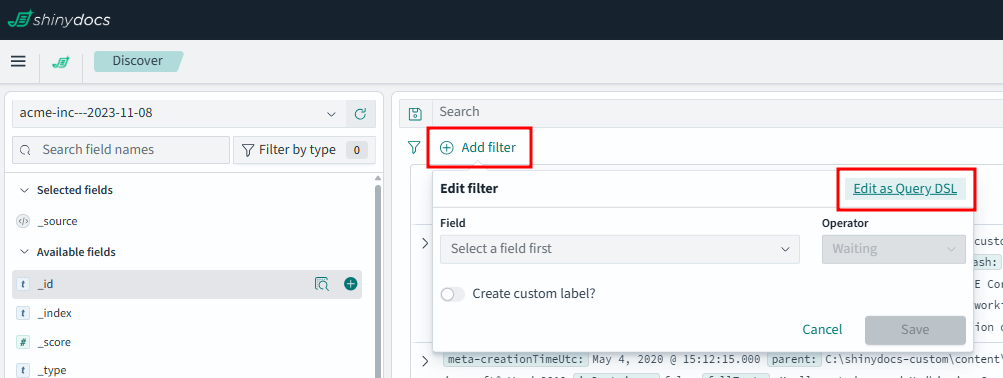
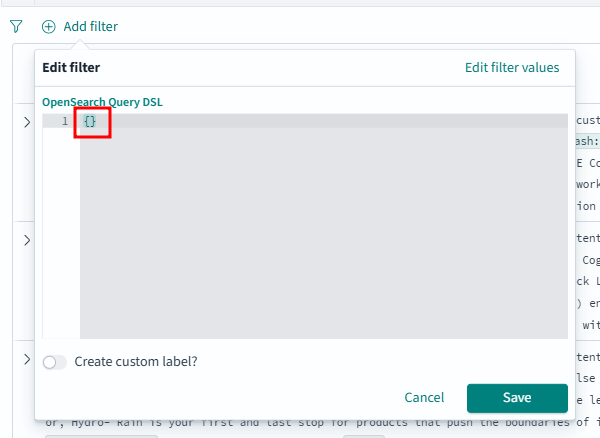
Select “Add Filter” and “Edit as Query DSL”
-
Remove the existing default braces (curly brackets)
-
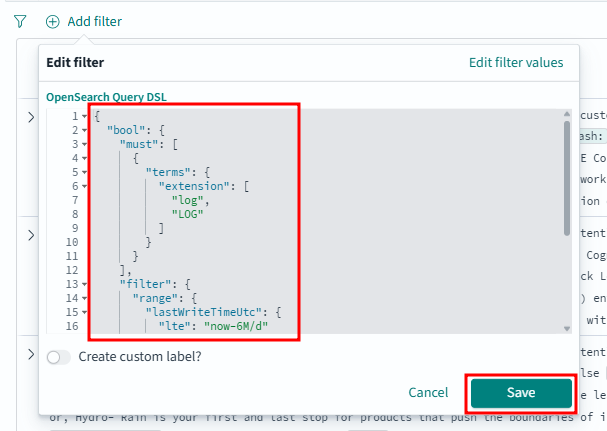
Paste the text you copied from the “RawQuery” portion of the file (in Step #2), then select “Save”
-
This should should show you the results of your query against whatever data source you selected

Review the results of your query to see if these align with your expectations.
Additional Options:
Adding columns
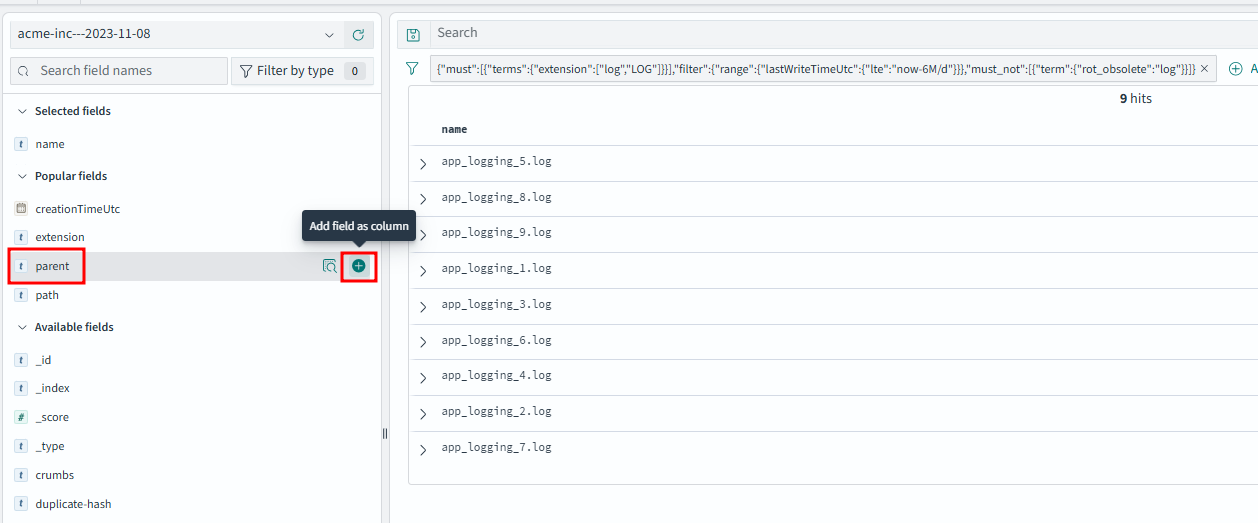
You can add the specific metadata fields as columns that you would like to see for your results, which may make it easier to review
-
On the left hand side of the page, select the “+” icon next to each of the metadata field names that you would like to display for your query results
-
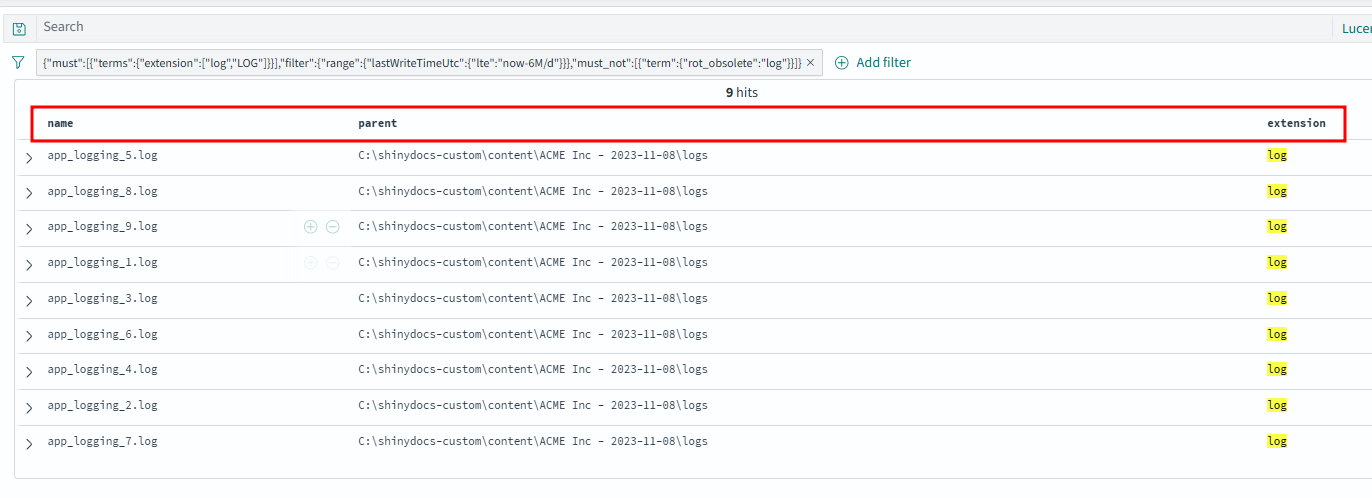
In the example below, we added the “name”, “parent” and “extension” metadata fields as columns
-
Since our example query above is only looking at “extension” = “log”, all of our results are .log files
-
Switch data sources
-
Delete filter
-
Edit filter
-
Aggregate pattern
Scenarios and considerations:
Below are some scenarios and considerations when testing out the queries for rules files:
-
Getting a filter/syntax error
-
Getting 0 results