
Personally identifiable information (PII) is any information that can identify a person, directly or combined with other information, such as a name with a social insurance number. Personal sensitive information (PSI) is PII that could cause harm if it were exposed, such as health, financial or government ID numbers.
Shinydocs Pro reads the text of your documents and flags the ones that may hold PII or PSI, so you can find, review and protect them. It ships with rules for government ID numbers, driver's licenses, passports, health card numbers, credit cards, bank and tax numbers, email and IP addresses, and API keys. See Default PII Rules for Shinydocs Pro for the full list.
Choose the rules
-
Go to Settings > Analysis and open the PII tab.
-
In Available rules, select the rules you want. Use the search box, or Select all.
-
Select Add. The rules move to Applied rules. To stop using a rule, select it in Applied rules and select Remove.
-
Select Save changes, check the list of changes, and select Save changes again.
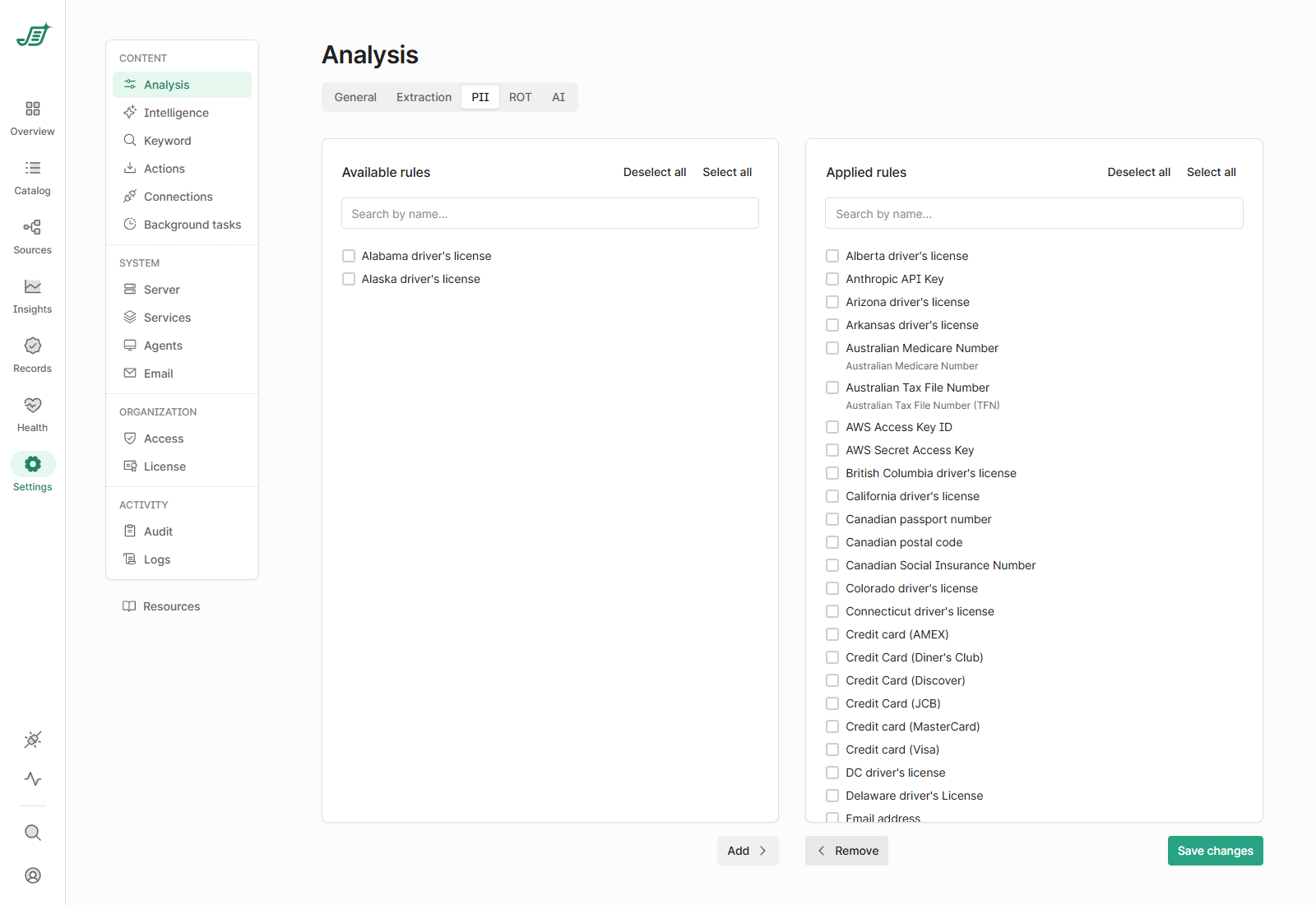
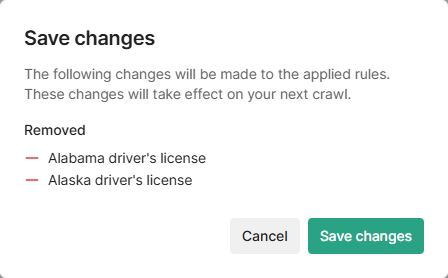
Applied rules are used by every source. The changes take effect the next time each source runs.
Turn on PII detection for a source
-
Go to Sources and open the source.
-
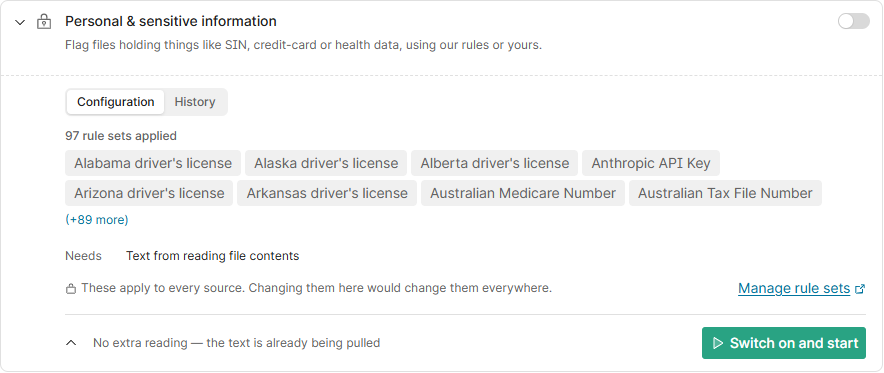
In Analysis, turn on Personal & sensitive information. It works on the text from Reading file contents, which must be on too.
-
Select Run now, or wait for the source's next scheduled update. PII detection starts as the text arrives.
Expand the card to see how many rule sets are applied, or select Manage rule sets to go to the PII tab.
Review the results
-
Overview shows how many files hold suspected PII, by sensitivity (High, Medium, Low), by source or by policy. Select Explore all PII to open them in the Catalog. See Getting to Know Overview.
-
Catalog: filter on PII (for example Any PII, or one rule) and combine it with other filters. The text that matched each rule is in the
pii_matchesfield. See Getting to Know Content Catalog.
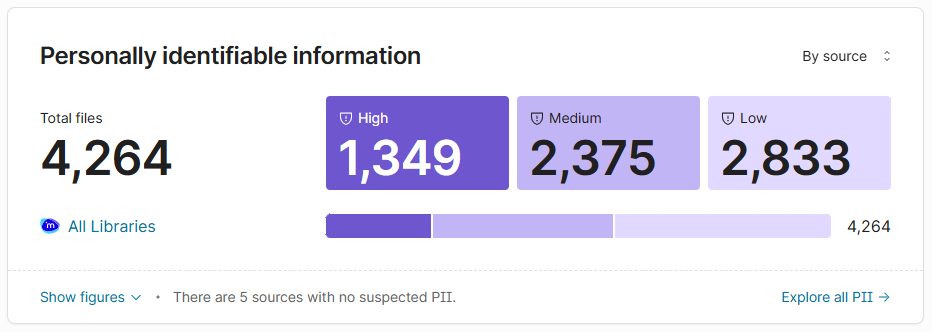
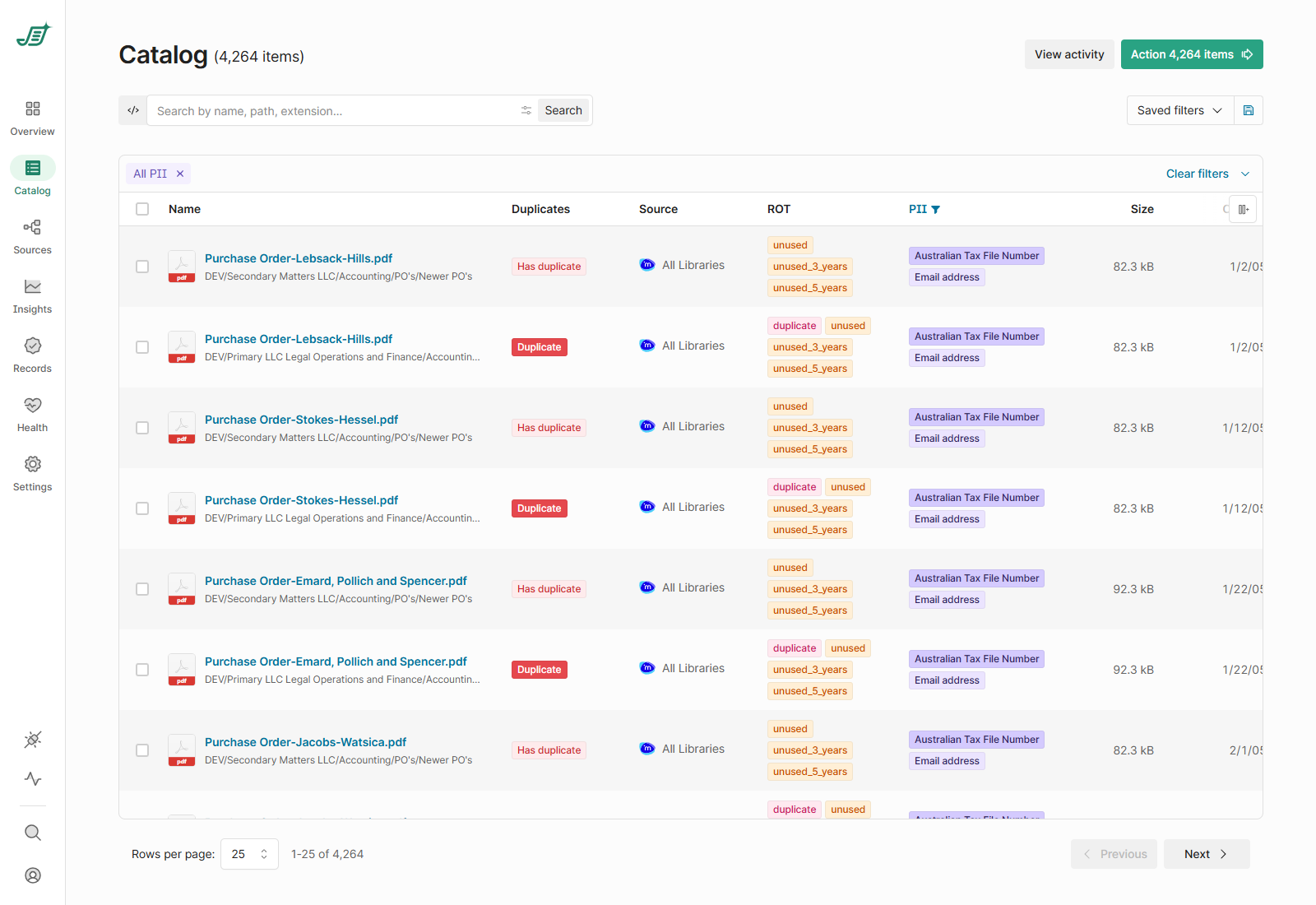
A match is a potential PII finding. Review the files before you act on them.
Keep files out of PII detection
In the Catalog, select the files, choose Tag and pick Exclude-from-PII-detection. Their existing PII results are removed and later runs skip them. Tagging in the Catalog needs the Tagging in Catalog feature flag.
Add your own rules
You can write rules for information specific to your organization, such as employee or client numbers. See Adding custom PII and ROT rules to Shinydocs Pro Control Center and Testing PII and ROT rules. Shinydocs can also help: contact us or your account executive.