
A connection holds the address and credentials Shinydocs Pro uses to reach a content repository, such as a file share, iManage or SharePoint. A source is the part of that repository you analyze. Several sources can share one connection, so you enter the credentials once.
Go to Settings > Connections to see your connections, what each connector can do, and which sources use them.
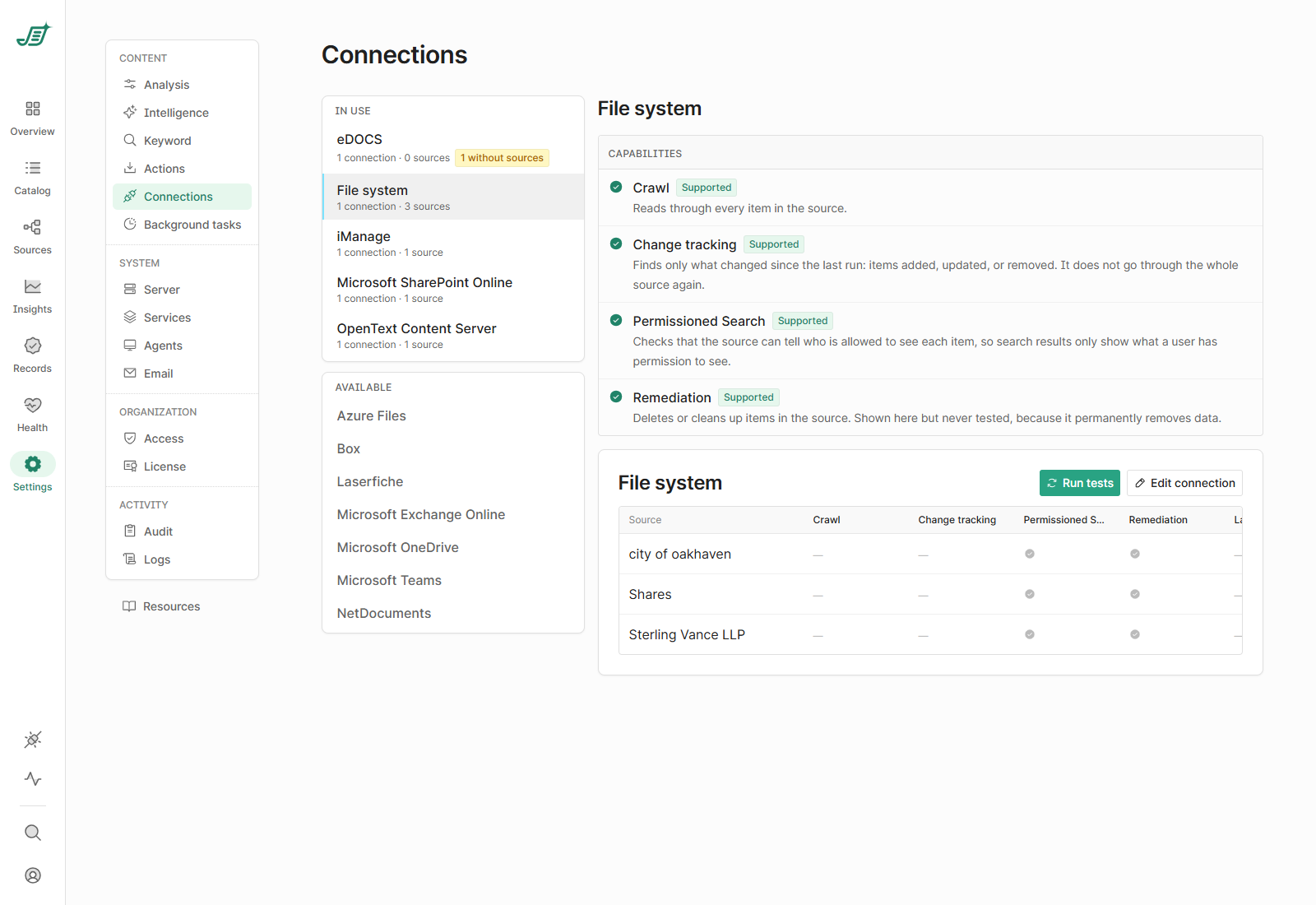
Connectors
The list on the left shows each connector type:
-
In use: connectors with at least one connection, with how many connections and sources they have. N without sources flags connections that no source uses.
-
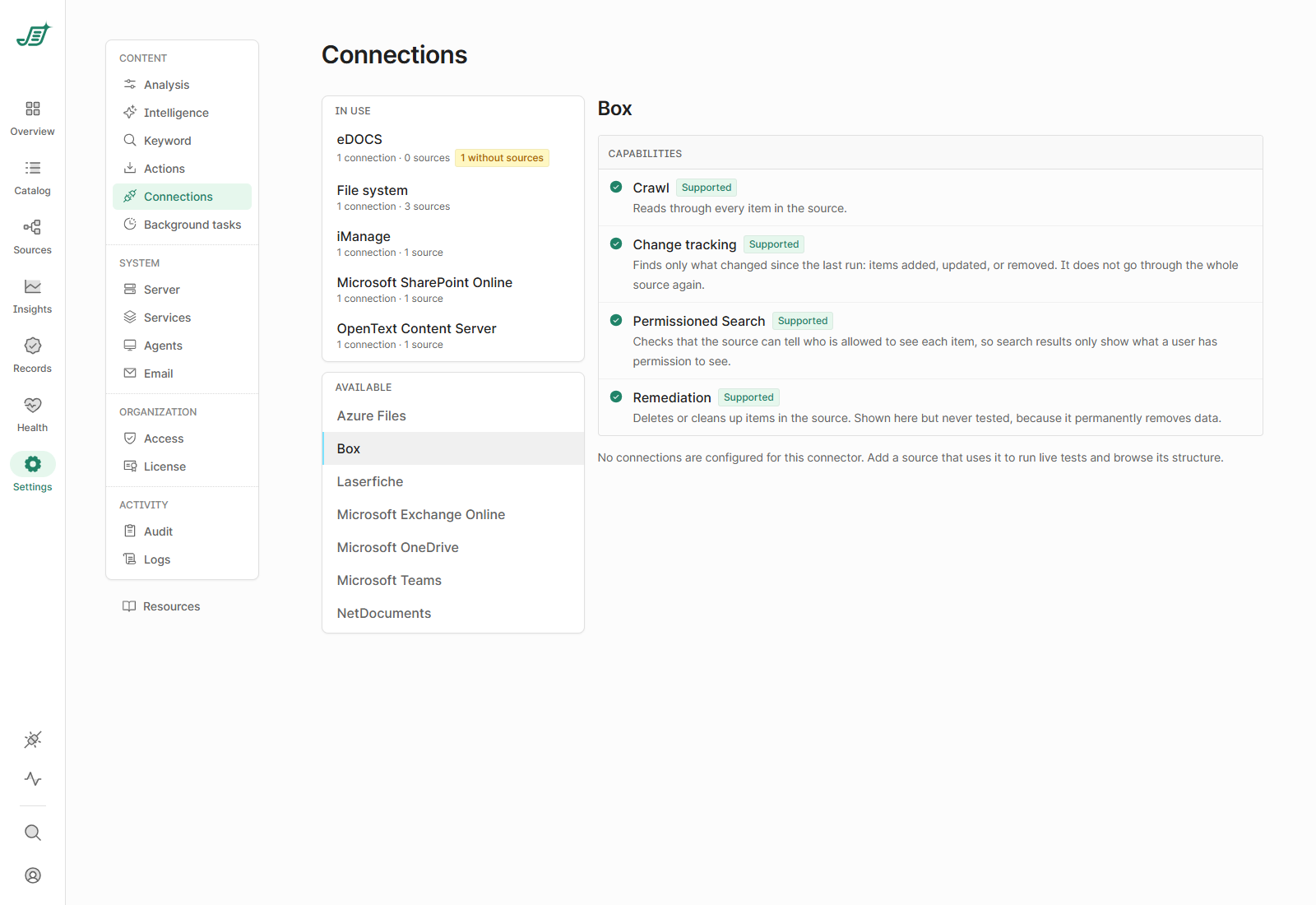
Available: connectors you haven't set up yet.
Capabilities
Select a connector to see what it supports:
|
Capability |
Meaning |
|---|---|
|
Crawl |
Reads through every item in the source. |
|
Change tracking |
Finds only what changed since the last run: items added, updated or removed, without going through the whole source again. |
|
Permissioned Search |
The source can tell who is allowed to see each item, so Shinydocs Search only shows each user what they have permission to see. |
|
Remediation |
Items can be deleted or cleaned up in the source. |
These come from the connector type. To check a connection really works, select Run tests: Shinydocs Pro tests Crawl and Change tracking against each of its sources through an online agent. Permissioned Search is checked from Shinydocs Search, as each signed-in user, and Remediation is never tested because it permanently removes data.
Add a connection
Connections are created when you add a source: go to Sources > Add source, choose the connector and enter its connection details. See the Shinydocs Pro Control Center Guide and your connector's setup page.
Edit a connection
-
Select the connector, then Edit connection.
-
Change the name or the connector's settings, and select Save changes.
Saving new connection settings immediately replaces the old ones, for every source that shares the connection.
Edit source next to each source opens that source's settings.
Delete a connection
You can only delete a connection that no source uses. Select it and choose Delete connection, then Delete. Its settings and credentials are removed; a source added later would need them entered again.
When you delete the last source that uses a connection, you're asked whether to keep the connection or delete it too.