
Welcome. We can’t wait for you to get started.
After installing the Shinydocs Pro software package, your default browser will open to https://localhost:9701/quick-start , the landing page for new installations for Shinydocs Pro.
Getting started
Add your license
Your license file (.xml) will have been sent to your organization previously.
-
Select Choose File.
-
In the browse window, find your Shinydocs license file (.xml) and select Open.
-
Select Next to upload the license to the application.
-
If the activation succeeds, setup continues to adding your first source.
Before publishing: the first-run license screens above were not re-checked for 26.5, because the test server was already set up. Confirm them on a fresh install or replace the two images.
To update a license later, go to Settings > License and select Update. The License page shows the licensee, contract number, start and end dates, license level, add-ons and limits.
Add your first source
-
Select Add source. It is on the Overview page and the Sources page.
-
On the New tab, select the connector for your content, then select Next. To add another source to a connection you already set up, use the Existing tab.
-
Name the connection and enter the account details the connector needs. Each connector needs different details; see Configure Content Sources for each one. For a file system, use a service account (domain\user). If you leave the username blank, Shinydocs Pro reads the share as the computer account (Local System).
-
Choose a Search authentication type. It sets how this content appears in Shinydocs Search:
-
Hidden – the content is left out of search results.
-
Public – the content appears in search with no sign-in check.
-
Protected – each result is permission-checked in real time against your organization’s authentication (Kerberos or OIDC). Some sources need extra setup for this.
-
-
Select Next. Control Center checks the connection before you continue. A source can only be added while an agent is online.
-
Enter what to analyze, for example the paths for a file system. Select More options for the connector’s advanced settings.
-
Select Start analysis.
The new source runs the analysis set for its connector under Settings > Analysis. To change what runs for this source, or to set or turn off its schedule, open the source page. Its progress shows on the Sources page. After the first run, each update picks up new, changed and deleted files.
Finding your way around
The navigation bar on the left gives you every part of Control Center.
|
Item |
What it does |
|---|---|
|
Overview |
All analyzed content at a glance: totals, top file types, duplicates, ROT and PII. |
|
Catalog |
Every analyzed file, with search, column filters, saved filters and actions such as Report and Dispose. |
|
Sources |
Your sources, grouped by connector, with each one’s Content Score, size, issues and analysis status. |
|
Insights |
Trends across all or selected sources, content issues by severity, and the Content Score. Insights replaces the earlier Reports page. |
|
Records |
System of Record: shows how much of your system of record has copies elsewhere. Shown only when your license includes the System of Record add-on. |
|
Settings |
Application settings. Shown only to Control Center administrators. |
|
System status |
Whether Control Center’s services and agents are responding. You can also choose to keep the status in the navigation bar. |
|
Activity |
Analysis, tagging and disposal jobs that are running now. |
|
Search |
Opens Shinydocs Search. |
|
User menu |
Theme, language and more options (see below). |
User menu
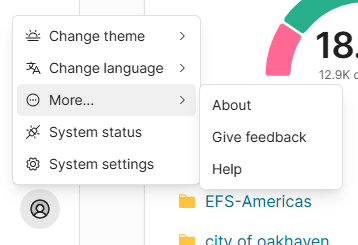
The user menu is at the bottom of the navigation bar. Your choices here are stored in your browser.
-
Change theme – Dark, Light, or follow your system setting.
-
Change language – Default: your system preference.
-
More – About (shows the software version), Give feedback and Help.
-
System status – the same status panel as in the navigation bar.
-
System settings – opens Settings.
Overview page
The Overview page shows all your analyzed content at a glance.
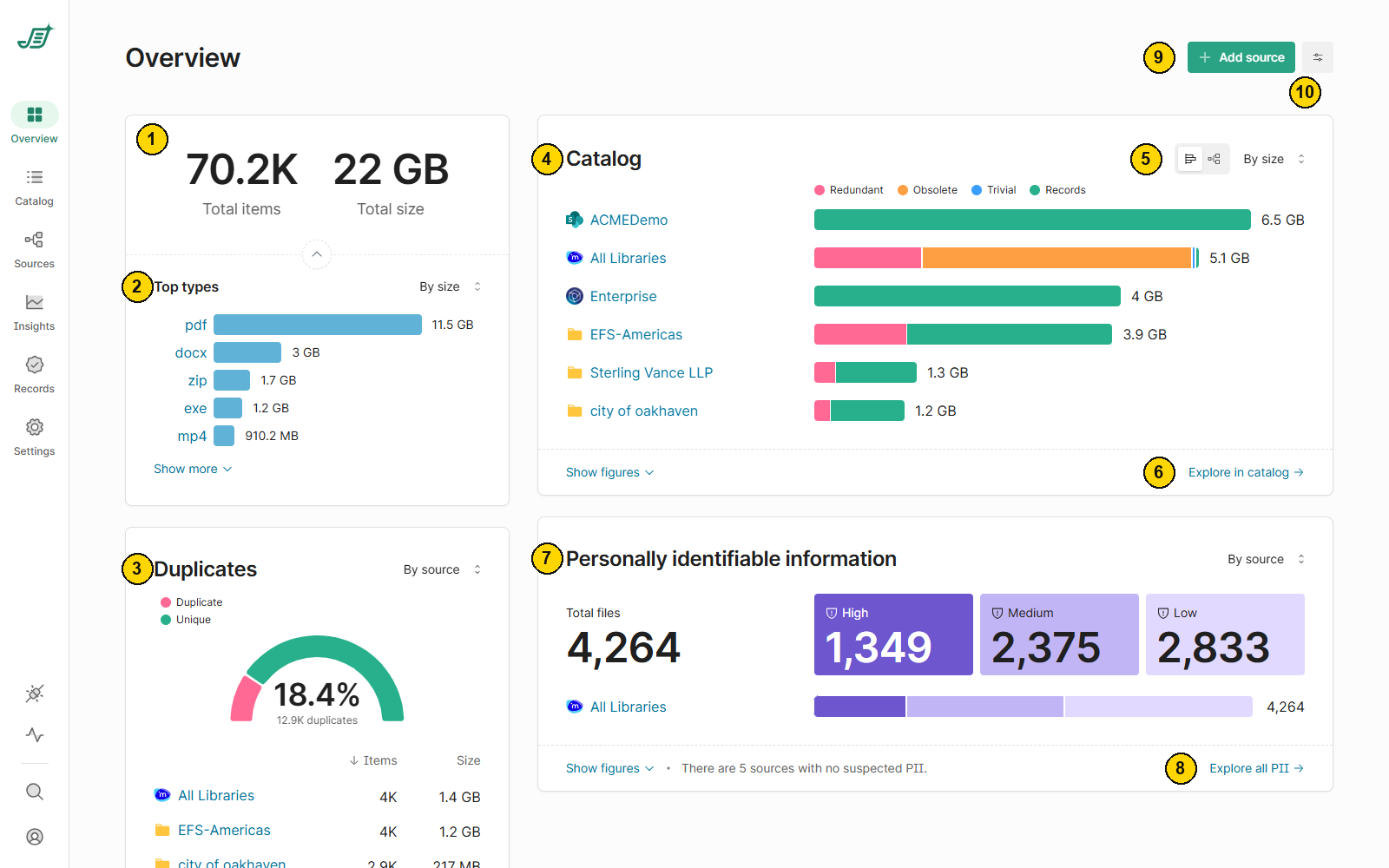
Points of interest
|
1 |
Totals |
Total number of items and total size of all analyzed content. |
|
2 |
Top types |
The most common file types, by size or by count. Select a type to open it in the Catalog, or select Show more to see more types. |
|
3 |
Duplicates |
Share of items that are exact (binary) duplicates, listed by source or by top files. Select Explore all duplicates to open them in the Catalog. |
|
4 |
Catalog |
Each source broken down into redundant, obsolete, trivial and records content. |
|
5 |
Chart options |
Switch between the bar chart and the ROT flow view, and sort by size or by count. |
|
6 |
Explore in catalog |
Opens the Catalog with the same view. |
|
7 |
Personally identifiable information |
Files that may contain PII, split into High, Medium and Low. Group by source or by policy. |
|
8 |
Explore all PII |
Opens the Catalog filtered to files that may contain PII. |
|
9 |
Add source |
Add a new source for analysis. |
|
10 |
Overview settings |
Display options for the Overview page. |
Select a source name anywhere on the Overview page to see that source only.
Catalog
The Catalog lists every analyzed file. Use it to search, filter and act on your content.
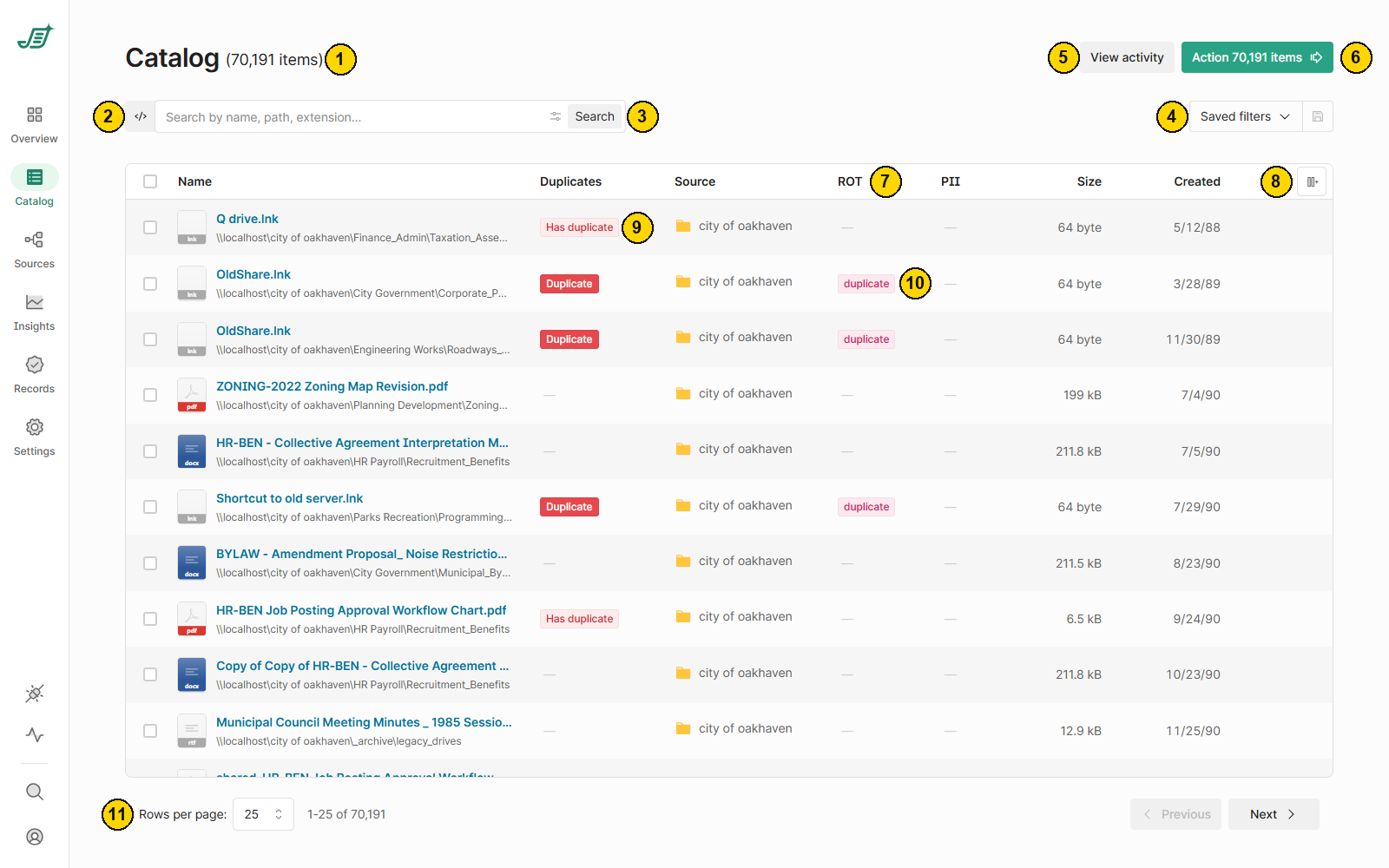
Points of interest
|
1 |
Item count |
The number of items that match your search and filters. |
|
2 |
Write a query |
Switches the search box to an advanced query. Advanced queries and filters work together. See Catalog - Advanced Search. |
|
3 |
Search |
Search by name, path or extension. Administrators choose which fields the Catalog searches under Settings > Keyword. |
|
4 |
Saved filters |
Reuse a saved set of filters, or save the current one. A saved filter can be changed in place with Update, Save as new, Revert and Undo. |
|
5 |
View activity |
Current and past actions on your content (see below). |
|
6 |
Action |
Opens the action dialog for the items in view, or for the rows you selected (see below). |
|
7 |
Column menu |
Select a column heading to filter, move or remove that column (see below). |
|
8 |
Columns |
Add columns for other metadata Shinydocs Pro has captured. |
|
9 |
Duplicate chips |
Duplicate marks a file that is a copy of another file. Has duplicate marks the original: the earliest copy by creation date. Select a chip to see the original and all its copies. |
|
10 |
Tags |
Select a tag, source or chip in a row to filter the Catalog by it. |
|
11 |
Rows per page |
Choose how many rows show on each page, and move between pages. |
Column menu
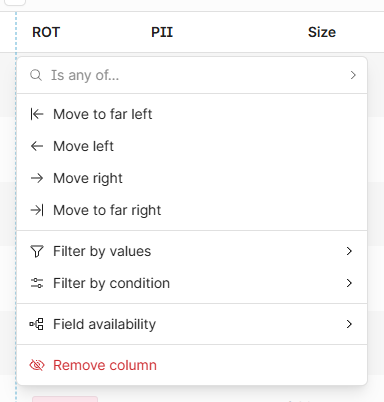
Select a column heading to open its menu:
-
Filter by values – show only rows whose value is any of the values you pick.
-
Filter by condition – filter with a condition such as is, is not, is empty, is not empty, or a number range.
-
Field availability – see which sources have this field.
-
Move left / Move right / Move to far left / Move to far right – reorder columns.
-
Remove column – hide the column.
The Name column stays in place while you scroll sideways.
Action
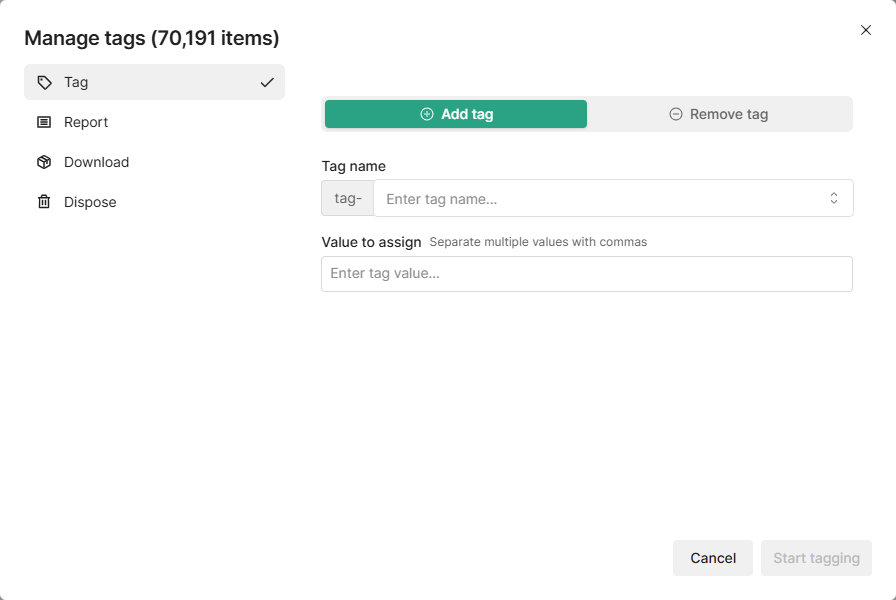
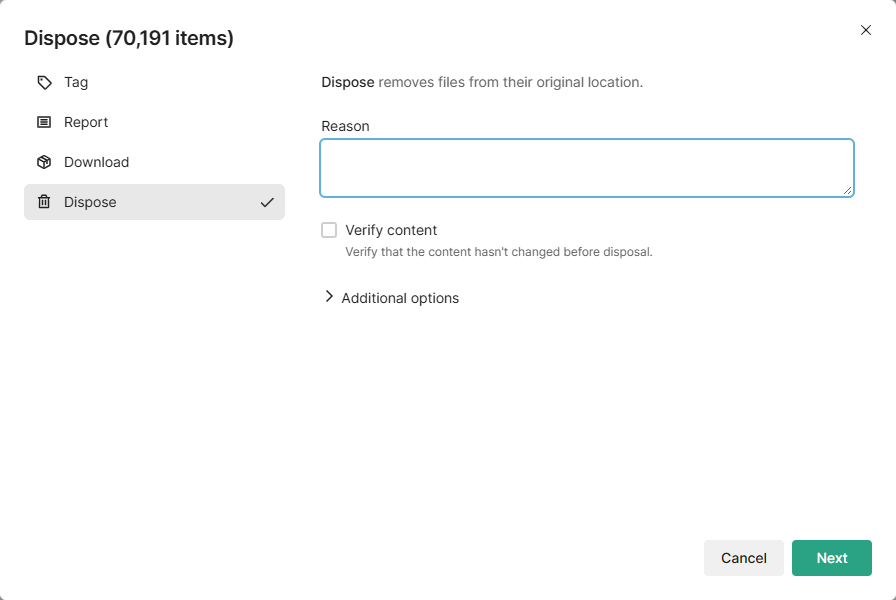
Select Action to act on every item in view, or only on the rows you selected. A dialog opens with a tab for each action. Which tabs you see depends on your license and settings. Each action starts only when you confirm it on its last step.
-
Tag – add or remove a tag on the items. Enter the tag name (tags start with
tag-) and the value to assign; separate several values with commas. Shown when tagging is turned on for your installation. -
Report – creates a CSV file listing the items, so you can review them before you change anything. Select Additional options for more report settings.
-
Download – packages the files as a zip file to download. Files are written to the download directory set under Settings > Actions, then packaged when the job finishes. You can be emailed when it completes (needs a mail server under Settings > Email) and convert files to PDF where possible. Needs the Document Mobility add-on.
-
Dispose – deletes files from their original location. You must give a reason, such as an expired retention policy. Select Verify content to check that the content hasn’t changed before it is deleted. Disposal cannot be undone. See Disposal in Shinydocs Pro.
View activity
View activity shows current and past actions. Every action creates a report. From the activity list you can:
-
Download the CSV report.
-
Cancel an action that is still running.
-
Apply the filters that were used when the action was submitted.
Sources page
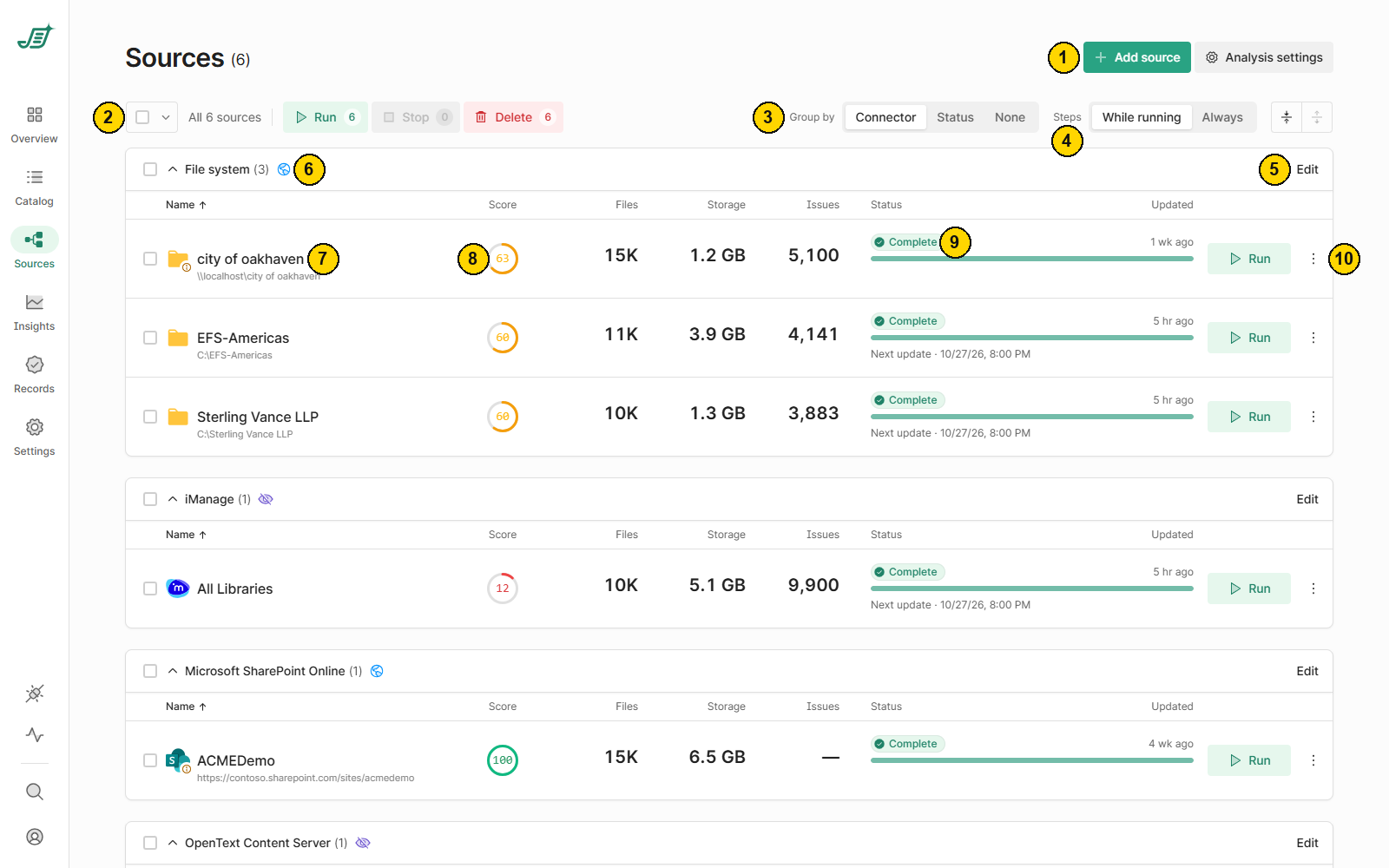
The Sources page lists every source, grouped by connector, with its Content Score, size, issues and analysis status.
Points of interest
|
1 |
Add source / Analysis settings |
Add a new source, or open Settings > Analysis to set the analysis for every source. |
|
2 |
Select and act on several sources |
Select sources (or select them by status), then Run, Stop or Delete them together. Deleting several sources asks you to type a confirmation. Available to administrators when advanced source controls are turned on for your installation; contact Shinydocs Support to turn them on. |
|
3 |
Group by |
Group sources by connector, by status, or not at all. |
|
4 |
Steps |
Show each source’s analysis steps only while it is running, or always. |
|
5 |
Edit connection |
Edit the connection’s name, account details and search authentication. |
|
6 |
Search authentication |
The icon shows whether the connection’s content is Hidden, Public or Protected in Shinydocs Search. |
|
7 |
Source name |
Opens the source page (see below). |
|
8 |
Score |
The source’s Content Score, from 0 to 100. Higher is better. See Insights. |
|
9 |
Status |
The current state of the source’s analysis: for example Queued (with the reason), Running, Complete, Complete with errors, or Interrupted. When a schedule is set, the next update time shows below. |
|
10 |
Run / more actions |
Run the source now (it is queued if Control Center is busy), stop it, or open more actions for the source. |
Source page
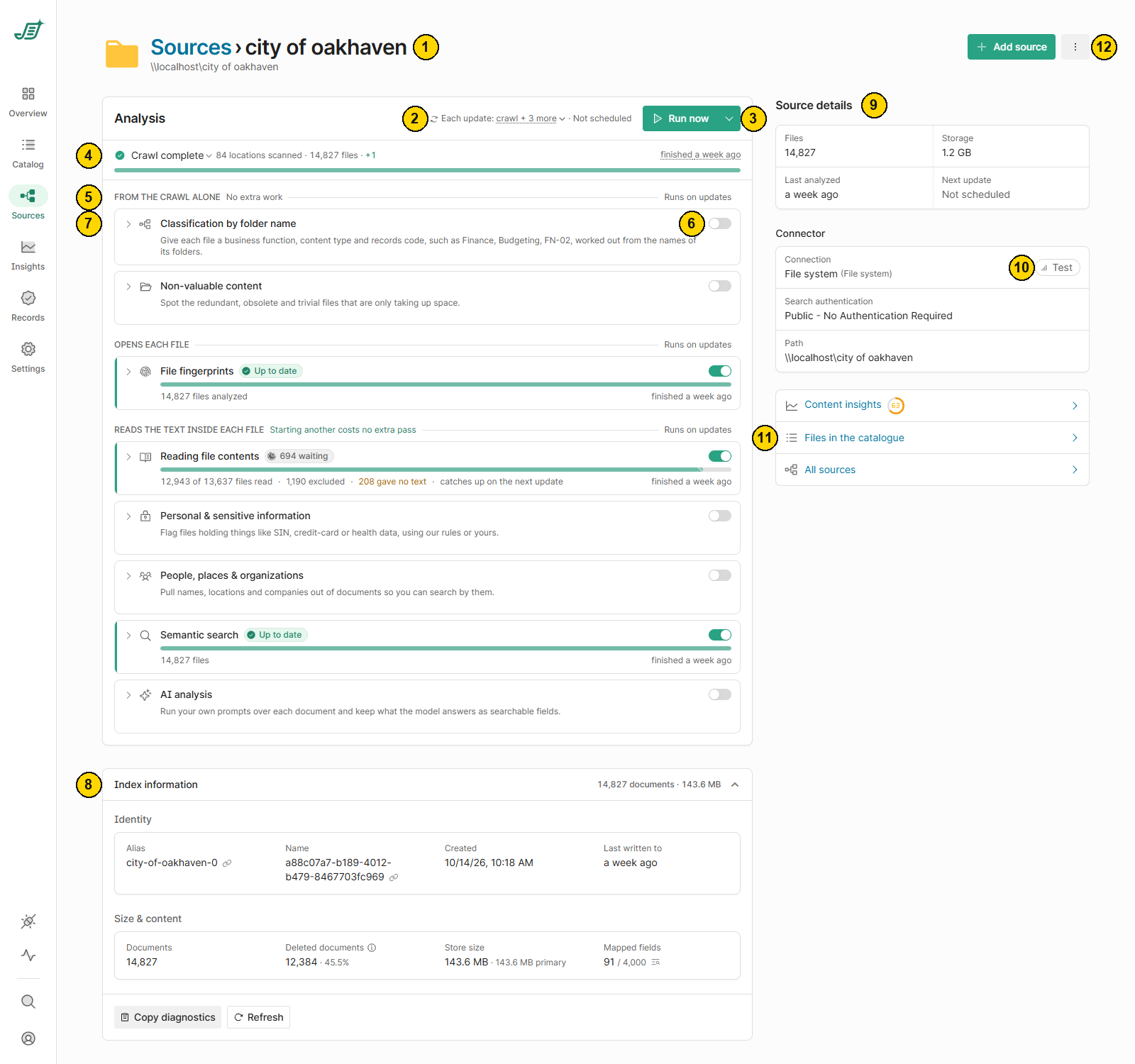
Select a source name to open its page. It shows the source’s analysis, live progress, run history and index details.
Points of interest
|
1 |
Source name and path |
The source and the location it analyzes. Select Sources to go back to the list. |
|
2 |
Each update |
What runs on each update (the crawl plus the analyses that are on) and when the next update is scheduled. |
|
3 |
Run now |
Start an update now. The arrow offers two more options (see below). |
|
4 |
Crawl |
Live crawl progress: locations scanned and files found. Expand it to see the crawl’s history. |
|
5 |
Analysis groups |
Analyses are grouped by how much work they take (see below). |
|
6 |
On / off |
Turn an analysis on or off for this source. |
|
7 |
Details and history |
Expand an analysis to see its settings and past runs, including whether each run was a full crawl, a retry or all files. |
|
8 |
Index information |
The source’s index: alias, name, dates, document counts, size and mapped fields. Use Copy diagnostics when you contact Shinydocs Support. |
|
9 |
Source details |
Files, storage, last analyzed and next update. |
|
10 |
Test |
Tests the connection and times each stage of the connector. Results are kept as a history. |
|
11 |
Links |
Open this source in Insights or the Catalog, or go back to all sources. |
|
12 |
More actions |
Edit the source, change its schedule, open its dashboards, or delete it (see below). |
Run options
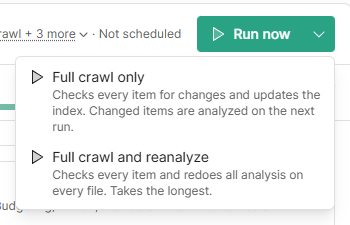
-
Full crawl only – checks every item for changes and updates the index. Changed items are analyzed on the next run.
-
Full crawl and reanalyze – checks every item and redoes all analysis on every file. Takes the longest.
Source menu
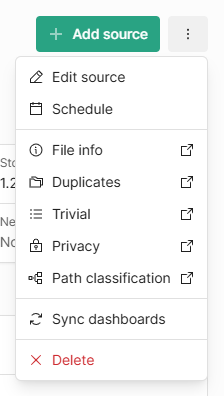
-
Edit source – change the source’s settings.
-
Schedule – set when the source updates, or turn its schedule off.
-
File info, Duplicates, Trivial, Privacy, Path classification – open the source’s dashboards in a new tab (see below).
-
Sync dashboards – use if the dashboards fall out of step with the source.
-
Delete – removes the source from Control Center. It does not change or delete anything in the source itself.
Dashboards
-
File info – total files, file types, and creation and modification trends.
-
Duplicates – which file types have the most duplicates, the largest duplicates, and duplicate trends.
-
Trivial – non-essential files that are good candidates for clean-up, the rules that found them, and the folders with the most. A file can match several rules and is counted once for each.
-
Privacy – how much of the source may hold personal data, such as email addresses, social security or insurance numbers and driver’s licenses.
-
Path classification – built-in keyword classifications based on folder names, in a business function › content type › record code structure.
Analysis groups
|
Group |
Analyses |
|---|---|
|
From the crawl alone
|
|
|
Opens each file
|
|
|
Reads the text inside each file
|
|
Not every analysis applies to every connector.
Insights
Insights shows how your content is changing over time, which issues matter most, and a Content Score for every source.
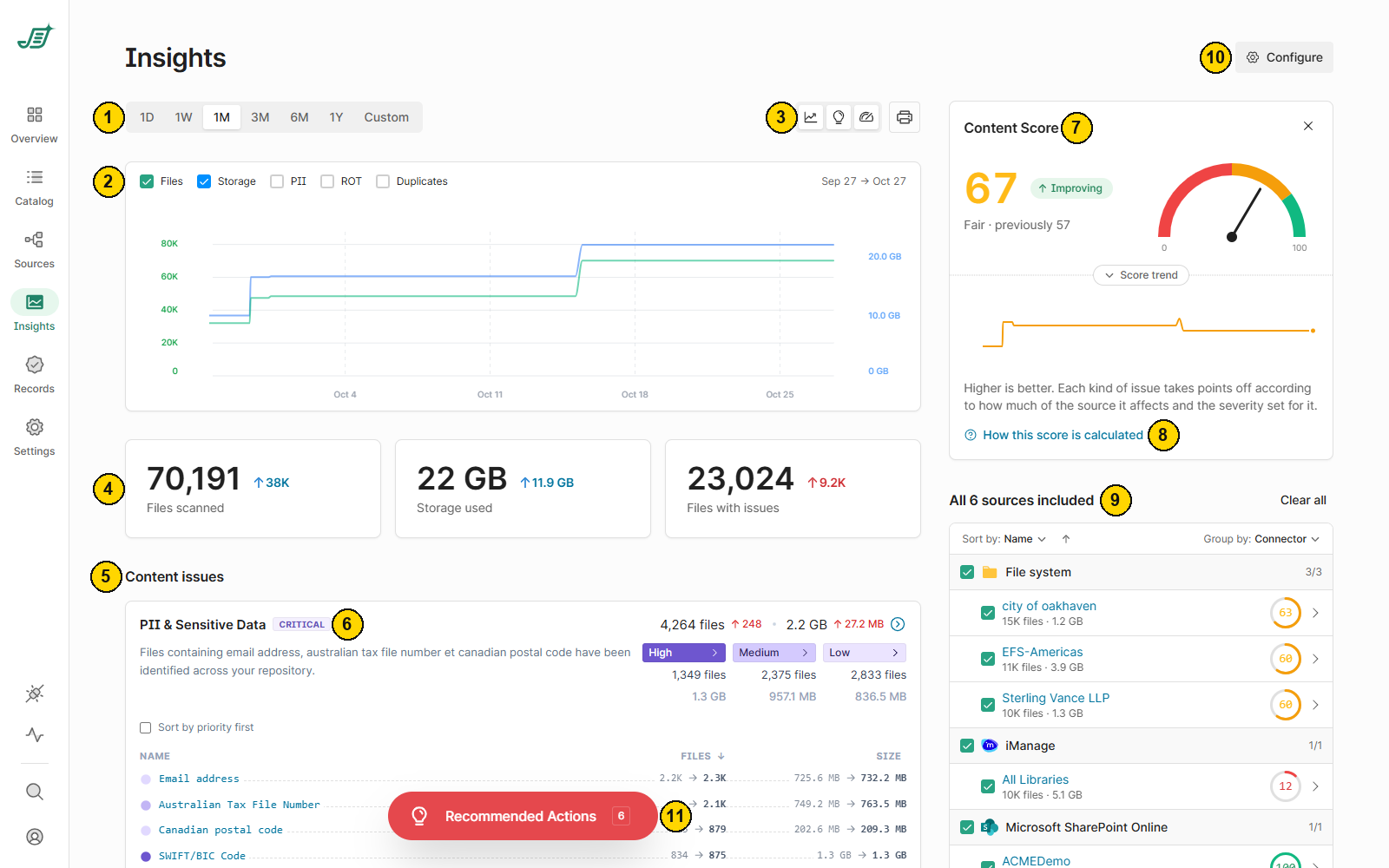
Points of interest
|
1 |
Date range |
1 day, 1 week, 1 month, 3 months, 6 months, 1 year, or a custom range. |
|
2 |
Chart |
Choose which trends to plot: files, storage, PII, ROT and duplicates. |
|
3 |
Panels and print |
Show or hide the graph, the recommended actions and the Content Score, or print the page. |
|
4 |
Totals |
Files scanned, storage used and files with issues, with the change over the date range. |
|
5 |
Content issues |
Each kind of issue (PII & sensitive data, duplicate files, redundant, obsolete and trivial data) with the files and size it affects, broken down by rule. |
|
6 |
Severity |
How serious each kind of issue is. Severity sets how many points an issue takes off the Content Score. |
|
7 |
Content Score |
A score from 0 to 100 for the selected sources, with its trend. Higher is better. |
|
8 |
How this score is calculated |
Explains the score. |
|
9 |
Sources included |
Choose which sources Insights covers. Each source shows its own score. |
|
10 |
Configure |
Set the severity of each kind of issue (see below). |
|
11 |
Recommended actions |
Suggested next steps to improve the score. |
Content Score and severity
Each kind of issue takes points off the score, based on how much of the source it affects and the severity set for it. Select Configure to change the severities. Every source that hasn’t set its own severity follows this configuration. The recommended severities are:
|
Issue |
Recommended severity |
|---|---|
|
PII & Sensitive Data |
Critical |
|
Duplicate Files |
High |
|
Redundant Data |
Medium |
|
Obsolete Data |
Low |
|
Trivial Data |
Low |
Select Restore to recommended to go back to these values. Severity changes take effect only after you select Save changes.
Records
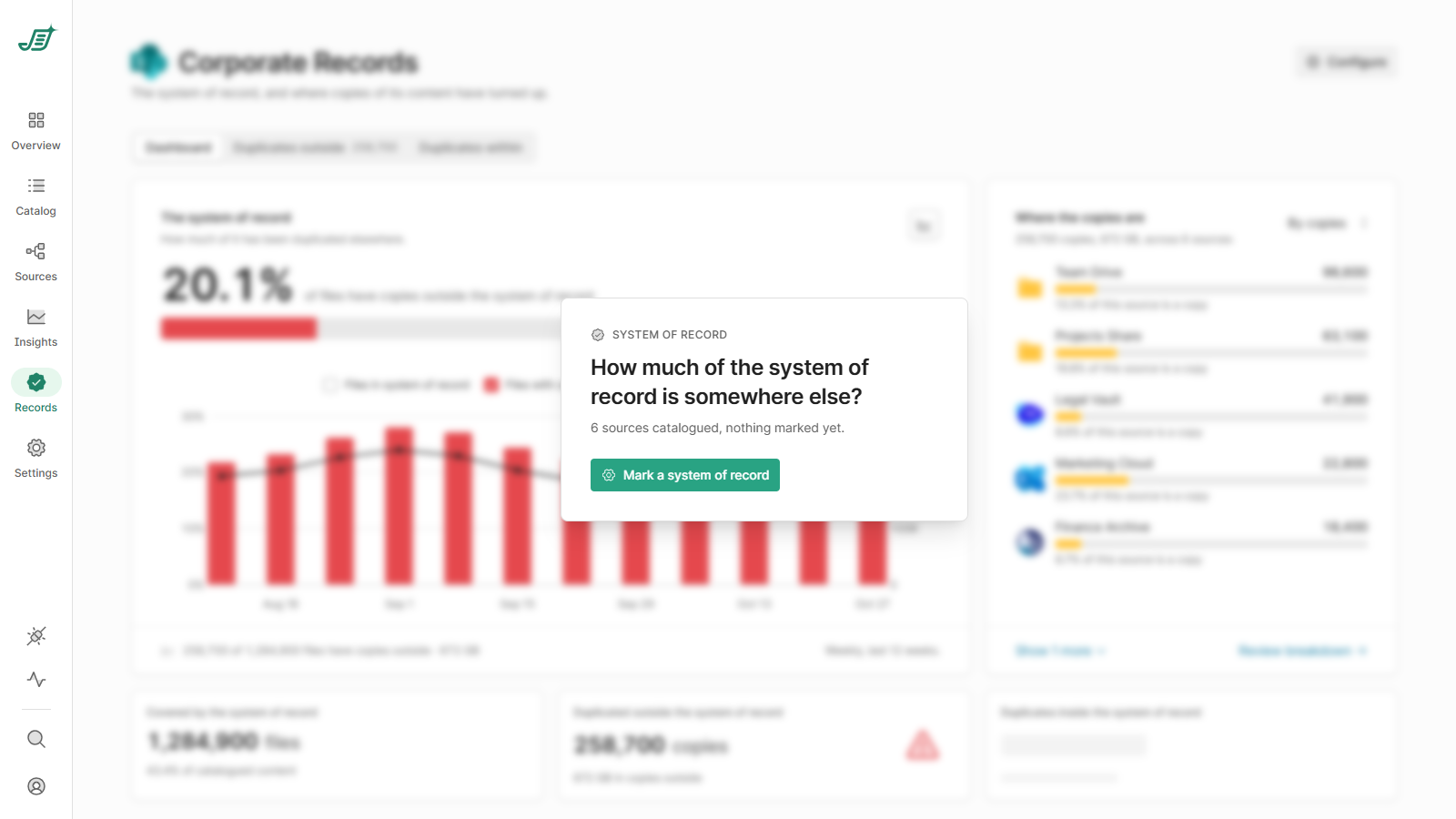
Records (System of Record) is a licensed add-on. Mark the source that holds your official records, and Records shows how much of it has been copied elsewhere, both outside and inside the system of record. Until a source is marked, the page shows a preview.
Settings
Settings is available to Control Center administrators. Its pages are grouped into four sections.
|
Page |
What it is for |
|---|---|
|
Content |
|
|
Analysis |
The analysis each source runs, set once as a default, per connector or per source. Tabs: General, Extraction, PII, ROT and AI. |
|
Intelligence |
Connect AI providers and choose which model handles each task. See Intelligence Configuration Guide (for Search and AI Enrichment). |
|
Keyword |
Which fields a typed search looks in, set separately for the Catalog and Shinydocs Search. |
|
Actions |
Where download jobs and action reports are stored, how long downloads are kept, and when to warn about low disk space. |
|
Connections |
Your connections by connector, and what each connector supports. |
|
Background tasks |
Ongoing background work, such as identifying copies across sources and cleaning up catalog items. |
|
System |
|
|
Server |
The Control Center URL, its certificate and the allowed hosts. |
|
Services |
Connection details for the Search Engine, Extraction service, Search Dashboards and Enterprise Search. |
|
Agents |
The agents that run crawls and analysis: status, load and version. Download the agent installer here. |
|
|
The mail server and the email notifications Control Center sends. |
|
Organization |
|
|
Access |
Set up an identity provider and choose which groups get access. See Access and Authentication in Shinydocs Pro. |
|
License |
Your license details and add-ons. Upload a new license with Update. |
|
Activity |
|
|
Audit |
Every change made in Control Center, searchable by keyword, user or source. |
|
Logs |
Control Center and agent logs, for troubleshooting. |
Resources, below the sections, has downloads such as the Content Server module.
Analysis
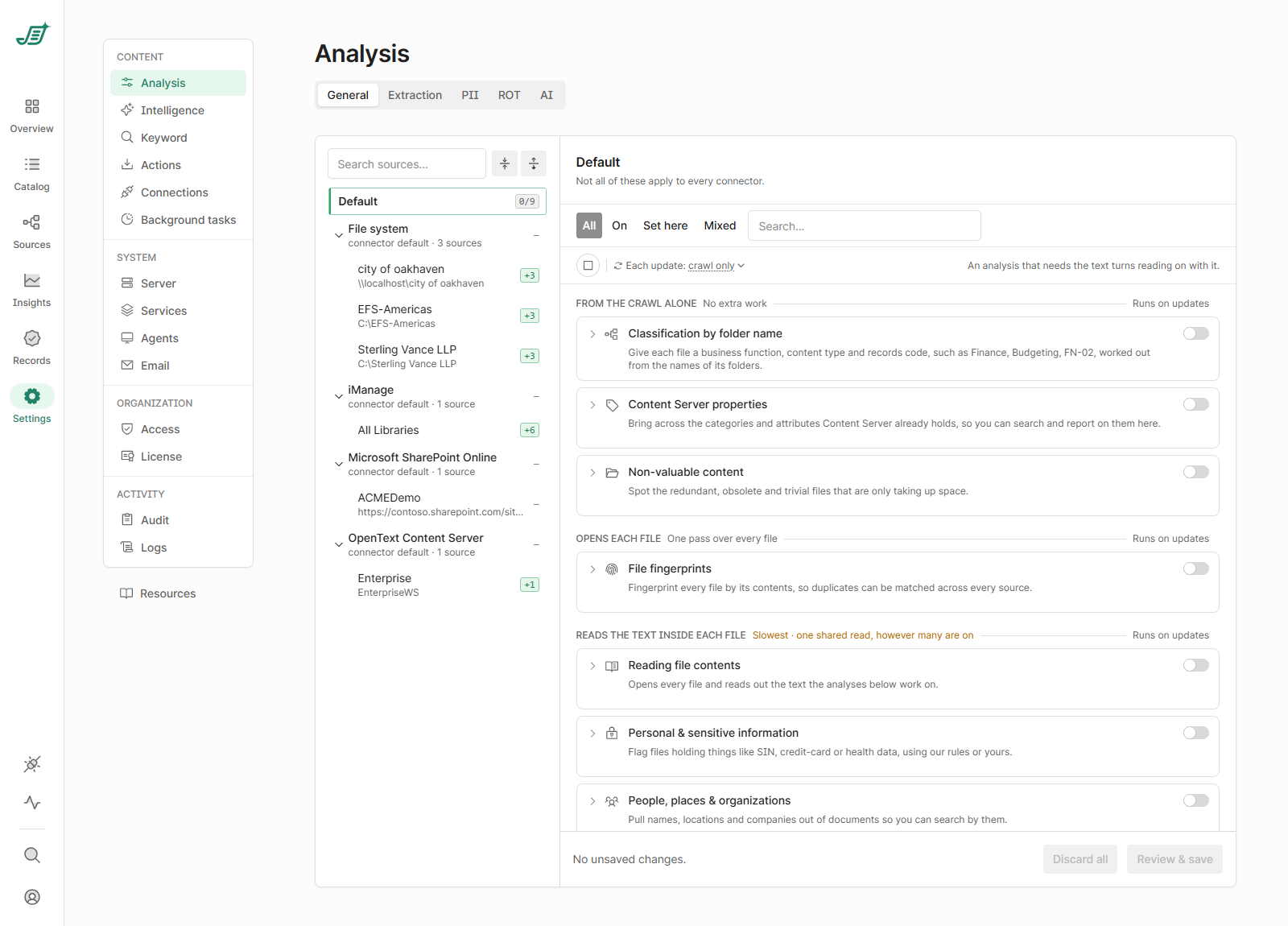
Set which analyses run for every source in one place. Select Default to set the default for all sources, a connector to set it for that connector’s sources, or a single source. A source shows how many of its settings differ from the default (for example +3). Use the filters (All, On, Set here, Mixed) to find settings, then select Review & save.
The other tabs apply to every source:
-
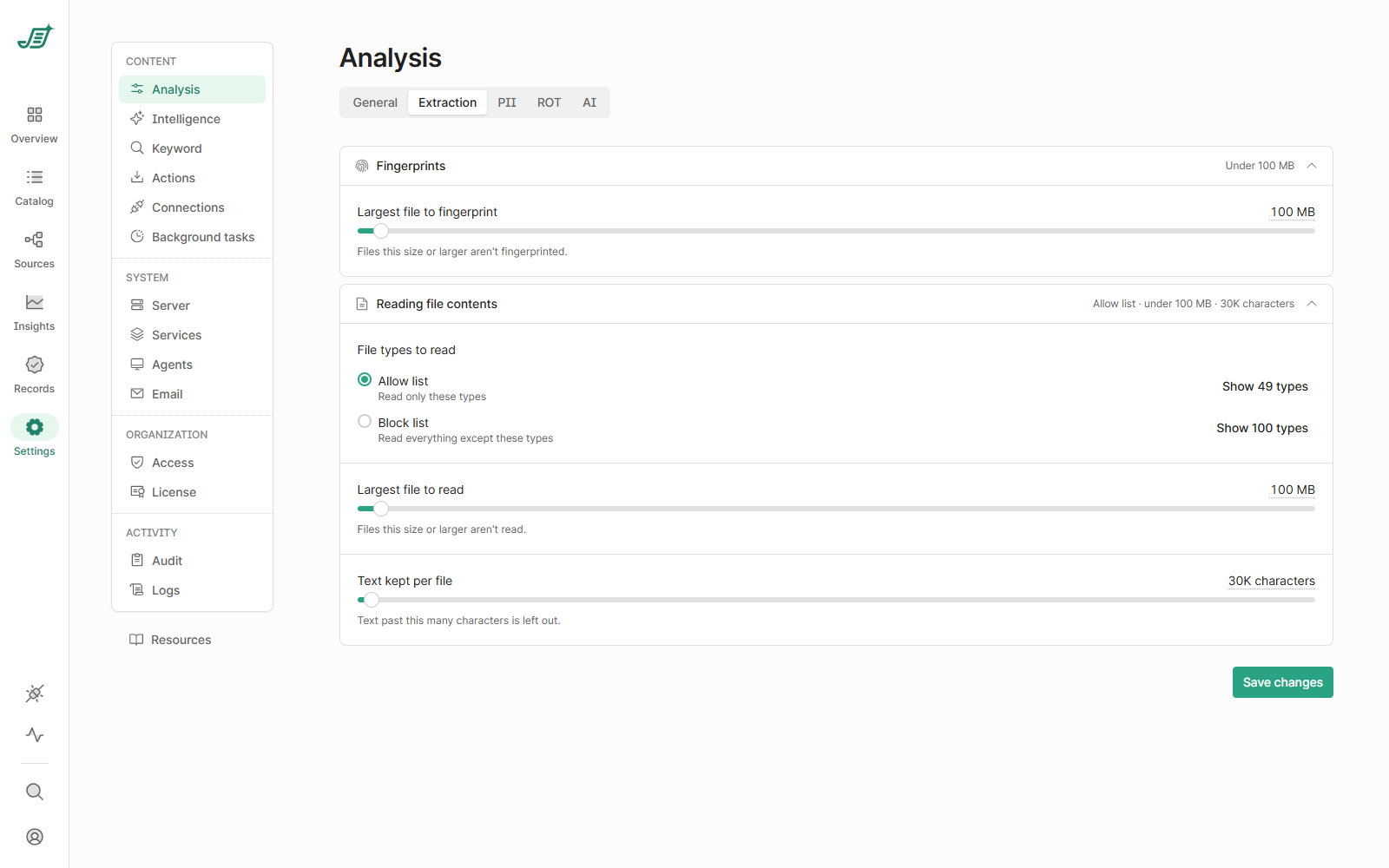
Extraction – the largest file to fingerprint, which file types to read (an allow list or a block list), the largest file to read, and how much text to keep per file.
-
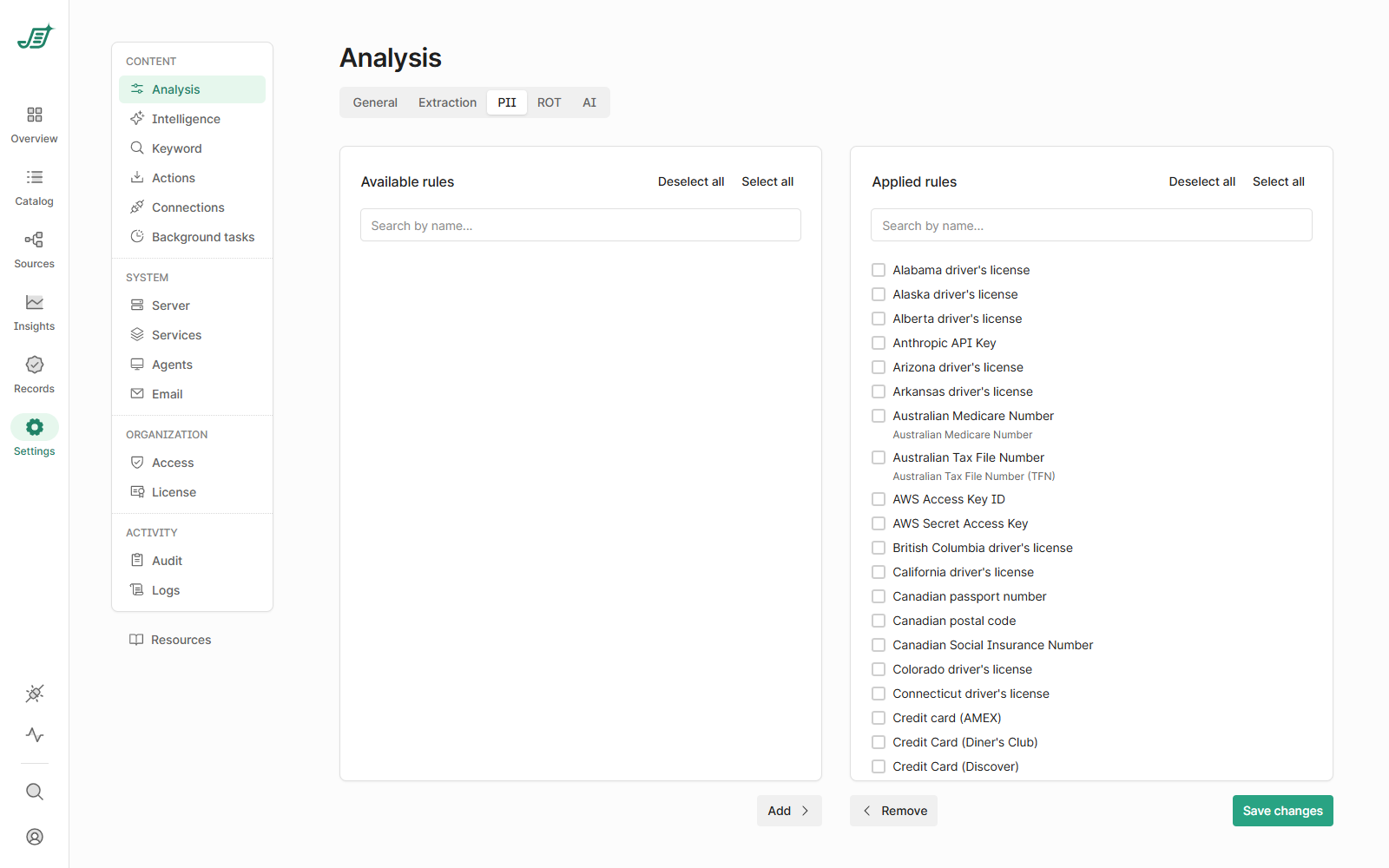
PII and ROT – the rules for personal and sensitive information and for redundant, obsolete and trivial content. Move rules between Available rules and Applied rules; only applied rules run. On the ROT tab, select Show descriptions to see what each rule finds. To add your own rules, see Adding custom PII and ROT rules to Shinydocs Pro Control Center.
-
AI – the prompts that AI analysis runs over each document. Select Add prompt to add one.
Background tasks
-
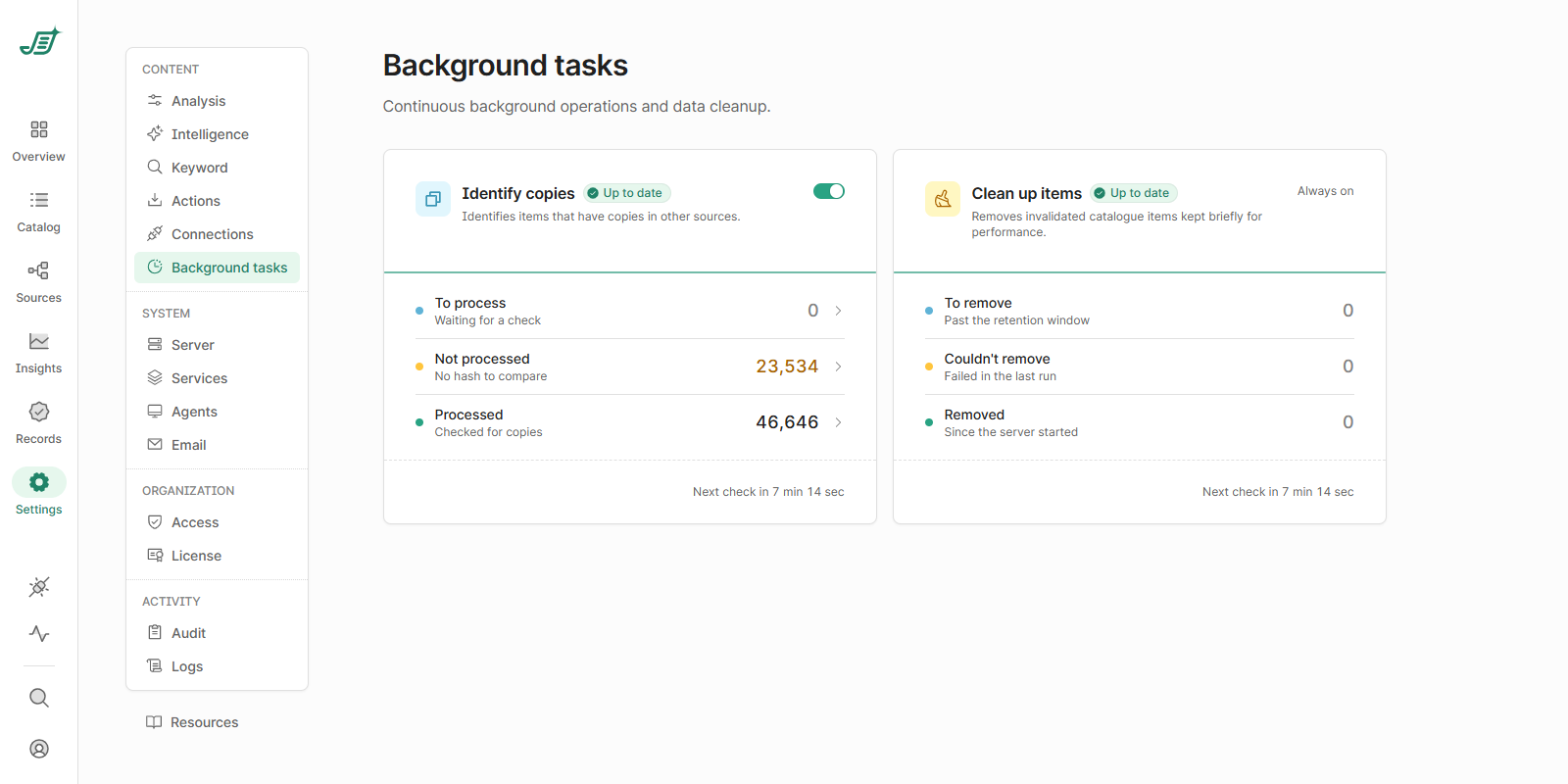
Identify copies – finds items that have copies in other sources. Shows how many items are waiting, how many have no fingerprint to compare, and how many have been checked.
-
Clean up items – removes catalog items that are no longer valid, after a short retention window. Always on.
Server
Set a custom URL for Control Center and choose its certificate. You can upload a certificate file or choose one from the Windows certificate store (local machine or current user). When you choose a certificate from the store, a certificate that renews automatically (for example, Let’s Encrypt through win-acme) needs no manual step after renewal. Under Additional allowed hosts, list any other host names Control Center answers to, separated by semicolons. localhost and the site host are added automatically, and wildcards (*) are allowed.
Services
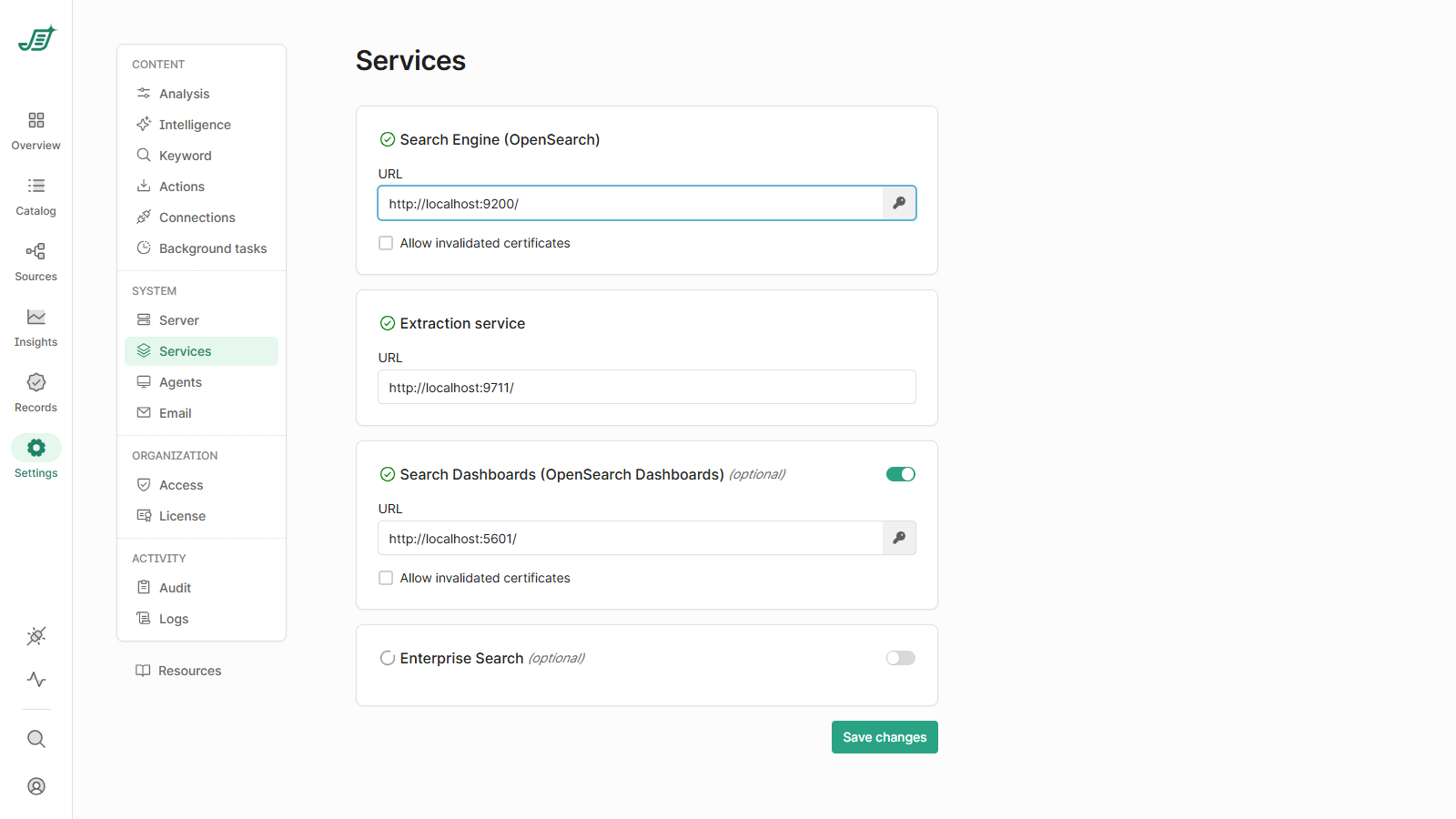
Caution: changing these values can stop the application from working. On a new installation, they should not need to change.
-
Search Engine (OpenSearch) – URL, and whether to accept a certificate that can’t be validated.
-
Extraction service – URL.
-
Search Dashboards (OpenSearch Dashboards) – optional. Turn it on, then set the URL and certificate option.
-
Enterprise Search – optional.
Email
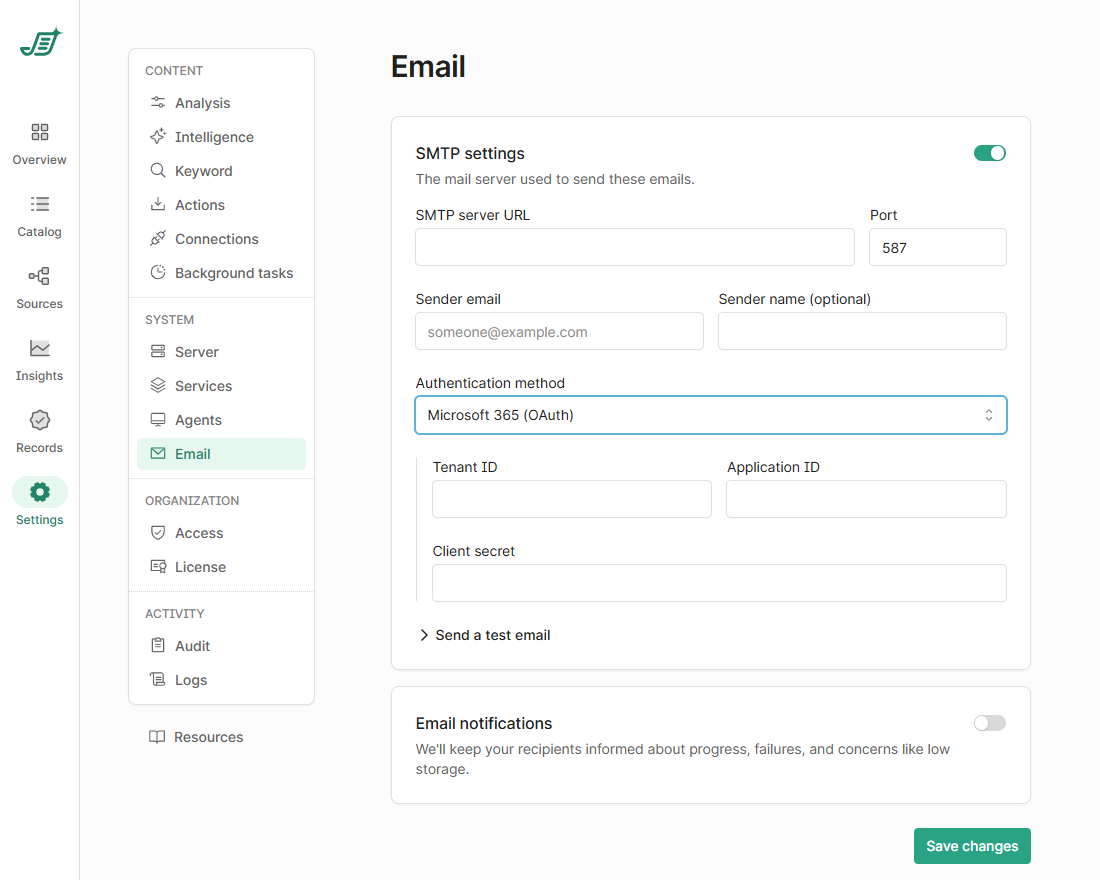
Turn on SMTP settings to set up the mail server, then turn on Email notifications to keep your recipients informed about progress, failures and problems such as low storage.
|
SMTP server URL |
The address of the mail server that sends the emails. |
|
Port |
The port the mail server uses. Default: 587. |
|
Sender email |
The address the emails come from. |
|
Sender name (optional) |
The name the emails come from. |
|
Authentication method |
Username & password: the account that signs in to the mail server.
|
|
Send a test email |
Sends a test message to check the settings. |
Before publishing: link to the Entra app registration steps for email (permissions the app needs), or add them here.
Logs
View Control Center logs for troubleshooting. Filter by level, by origin (Control Center or agent) and by time, or search the messages. Partial words match. If you open a ticket with Shinydocs Support, include the logs.
Search
Open Shinydocs Search from the navigation bar to search across your analyzed sources, including document content for supported file types. For Protected sources, results are permission-checked in real time with each source, so users see only what they are allowed to see.
For more information, see Configure Search.