
Enable “Enhanced catalogue search”
Go to https://localhost:9701/flags (or https://<custom-control-center-url>/flags)and make sure “Enhanced catalogue search” is set to “Enabled”.
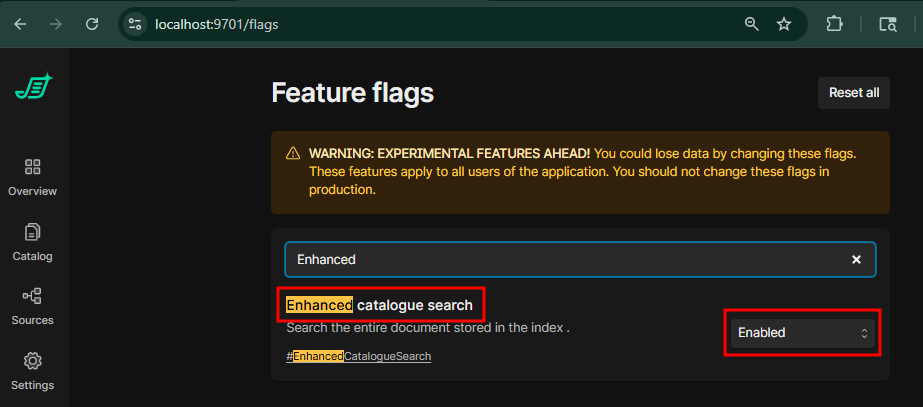
The change is applied automatically. You don’t need to save the change or restart services.
Toggle Advanced Query
Go to Control Center (https://localhost:9701 or https://<custom-control-center-url>) and select “Catalog”
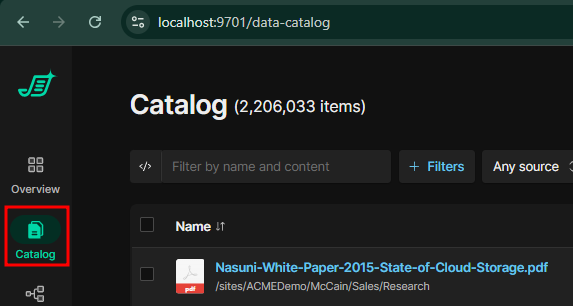
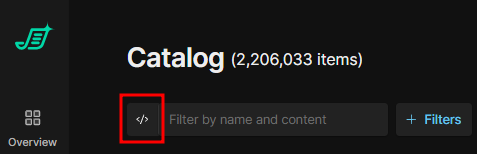
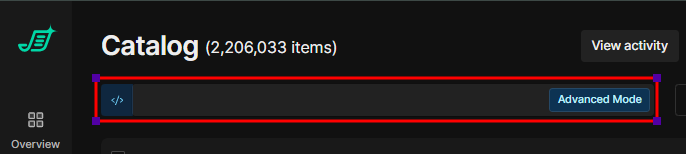
Select the </> icon to toggle on ‘advanced query'
Autocomplete Queries
While “Advanced Query” is toggled on, when you select in the search field, you will be presented with a drop down list of fields and operators.
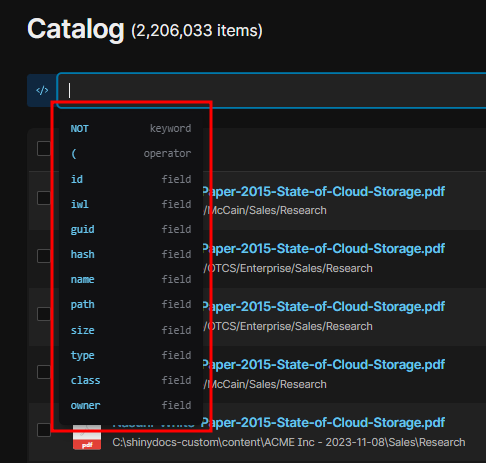
You can select one of the search operators or start typing in the name of the field you want to query against.
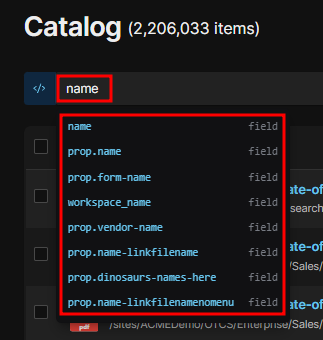
Search Term Formatting
Below is a list of the different fields types and examples of how they are formatted.
|
Field Type |
Description |
Example |
|---|---|---|
|
String |
A standard text field; like name, path, extension, etc. |
name:shinydocs or
|
|
Date |
A date field (like creationTimeUtc and lastWriteTimeUtc) where the query term has to follow a specific format; like YYYY-MM-DD or now-#d/w/M/y |
creationTimeUtc: >=2025-12-31 or
|
|
Number |
A number field (like length) where the query term has to be a number value. |
length: >1073741824 (1 GB) |
|
Boolean |
A boolean field (like meta-protected) will be a value of true or false. |
meta-protected:true |
Search Term Operators
Below is a list of the primary operators you can use to narrow and broaden your search.
|
Operator |
Usage |
Example |
|---|---|---|
|
AND |
Tells the system that all connected search terms must appear in your results. |
name:shinydocs AND extension:docx |
|
OR |
Tells the system to find any of the connected search terms. |
extension:docx OR extension:pdf |
|
NOT |
Tells the system to exclude specific search terms, removing unwanted concepts. |
name:shinydocs NOT extension:log |
Additional Search Term Operators for Number and Date Fields
Below is a list of additional operators used for date and number fields specifically.
|
Operator |
Usage |
Example |
|---|---|---|
|
> |
Greater than |
creationTimeUtc: >2025-12-31 |
|
>= |
Greater than or equal to |
length: >=1073741824 (1 GB) |
|
< |
Less than |
meta-pageCount: <10 |
|
<= |
Less than or equal to |
lastWriteTimeUtc: <=now-100d |
|
[date TO date] |
Value is between two date values |
datetime: [2026-01-01 TO now-7d] |
|
[# TO #] |
Value is between two number values |
length:[1048576 TO 10485760] (1MB to 10MB) |
Search Term Modifiers
Below is a list of modifiers that provide further options for your search terms.
|
Modifier |
Usage |
Example |
|---|---|---|
|
( ) |
Parentheses: Groups concepts together to control the order of operations. |
name:shinydocs AND (extension:docx OR extension:pdf) |
|
" " |
Quotation marks: Searches for an exact phrase in a search term. |
name:"shinydocs template" |
|
* |
Truncation/Wildcard: Finds variations of a search term. |
name:temp* would return results with temp, temporary, template, etc. rot_obsolete:* would return results with any value in that field; “log”, “old draft”, “unused”, etc. |
Unique and Hidden Fields
Below is a list of fields that have unique naming or are hidden from the autocomplete.
|
Field Name |
Usage |
Example |
|---|---|---|
|
creationTimeUtc |
This is the true name of the “Created” date field that displays in the Catalog by default. “Created” does not show up in the Advanced Search so you need to use “creationTimeUtc” instead. |
creationTimeUtc: >2025-12-31 |
|
lastWriteTimeUtc |
This is the true name of the “Modified” date field that displays in the Catalog by default. “Modified” does not show up in the Advanced Search so you need to use “lastWriteTimeUtc” instead. |
lastWriteTimeUtc: >2025-12-31 |
|
_index |
To filter down to a specific source (index) through the advanced search, you need to use the _index field. This field will not display in the autocomplete but the values will. 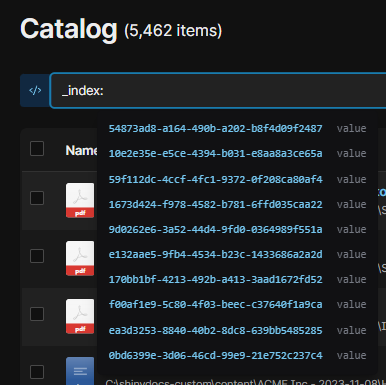
The index values can be found/confirmed on the individual source’s analytics page. 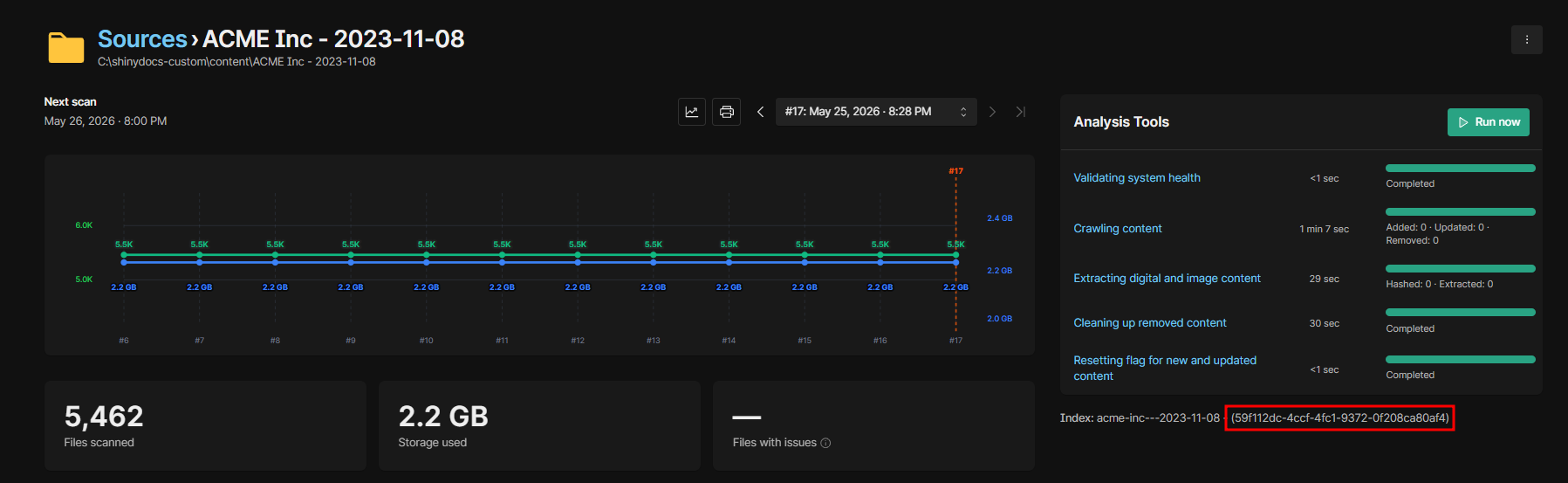
|
_index: 59f112dc-4ccf-4fc1-9372-0f208ca80af4 |
|
<string field>.keyword |
All string (text) fields also have an accompanying .keyword field. So the “name” field also has a “name.keyword” field. The .keyword field is helpful if you want to find a value of a field that is an exact match of your search term. These fields will not display in the autocomplete but the values will. 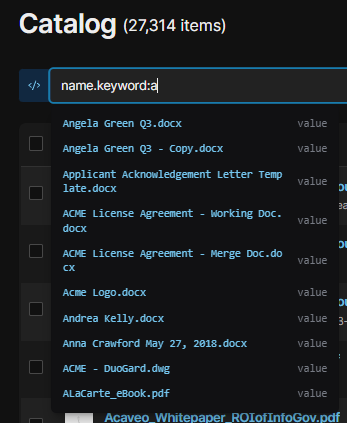
If the value contains spaces you need to use quotation marks. You can use a Truncation/Wildcard (*) but not combined with quotations. |
name.keyword: "shinydocs copy.docx" or name.keyword: *copy.docx or name.keyword: shinydocs* |