
When your Shinydocs Pro license is renewed, apply the new license in Shinydocs Pro Control Center. You need the new license file (.xml) from Shinydocs.
-
Open Shinydocs Pro Control Center, from the Windows Start menu (search for Shinydocs Pro) or in a browser on the server at
https://localhost:9701. -
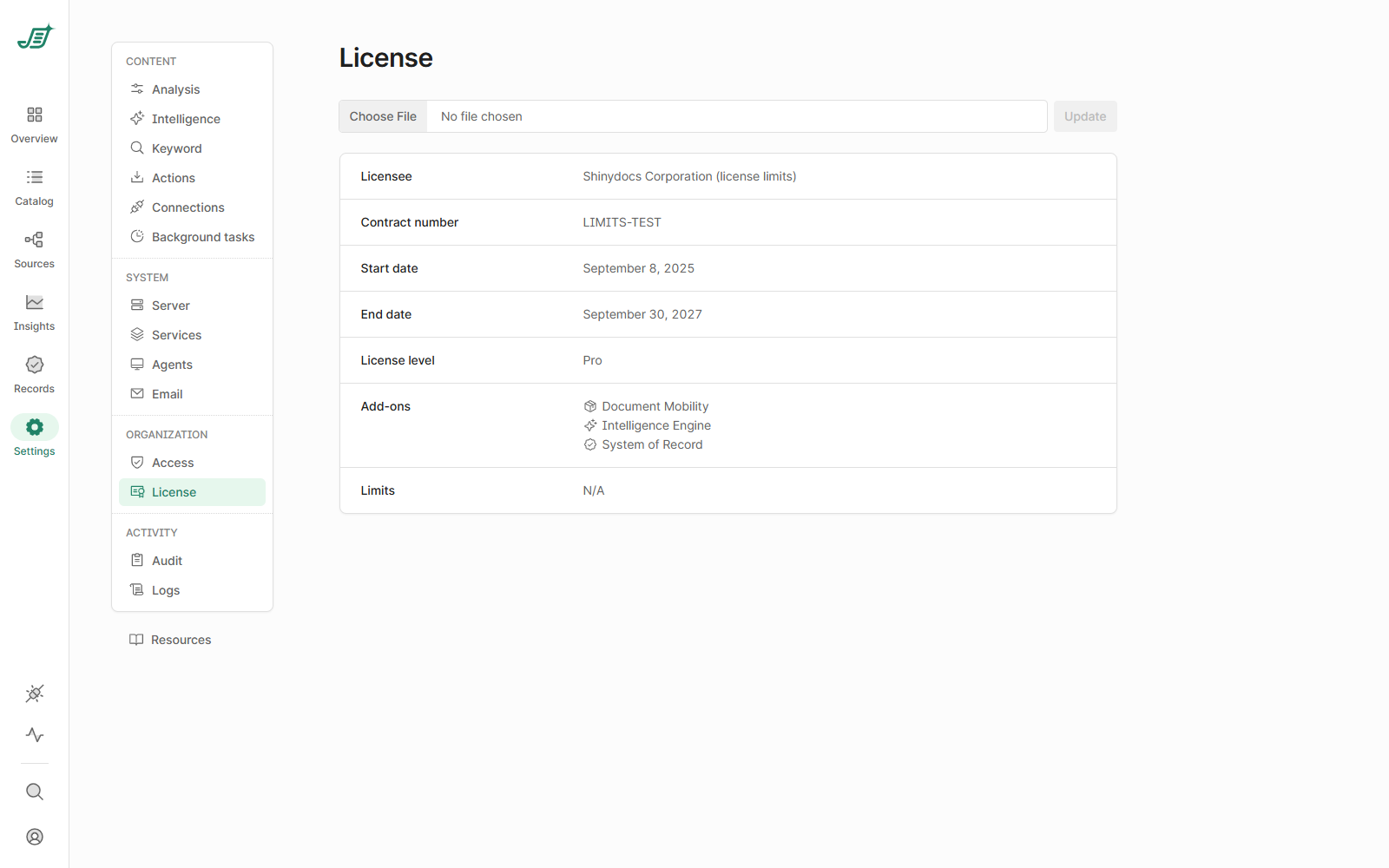
Go to Settings > License. The page shows your current licensee, contract number, start and end dates, license level, add-ons and limits.
-
Select Choose File, then find and open your new license file.
-
Select Update. It becomes available once a file is chosen.
Your new license is applied. If your license expired before you applied the new one, scheduled updates stopped; they resume at their next scheduled time once the new license is applied. Add-ons such as Document Mobility, Intelligence Engine and System of Record are listed under Add-ons only when your license includes them.