
The Intelligence settings connect Shinydocs Pro to AI providers and choose which model handles each job. Go to Settings > Intelligence. The page has three tabs:
-
Tasks: which model does each job.
-
Models: every model Shinydocs Pro can use, and its settings.
-
Providers: the servers or services the models run on.
Set them up in reverse order: add a provider, check its models, then assign models to tasks.
Providers
The Providers tab lists each provider with its address, whether Shinydocs Pro can reach it, and how many of its models are on and in use.
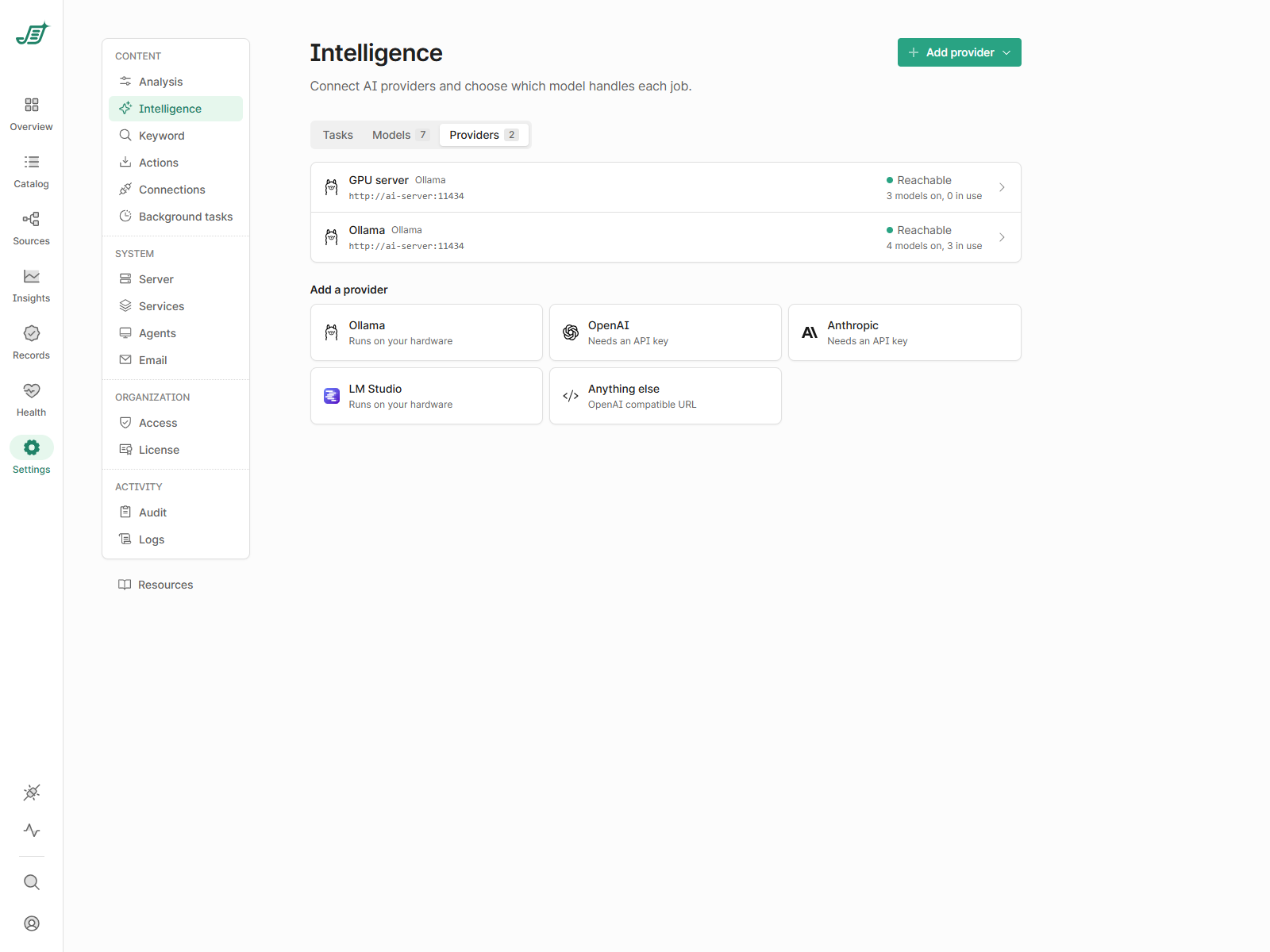
Add a provider
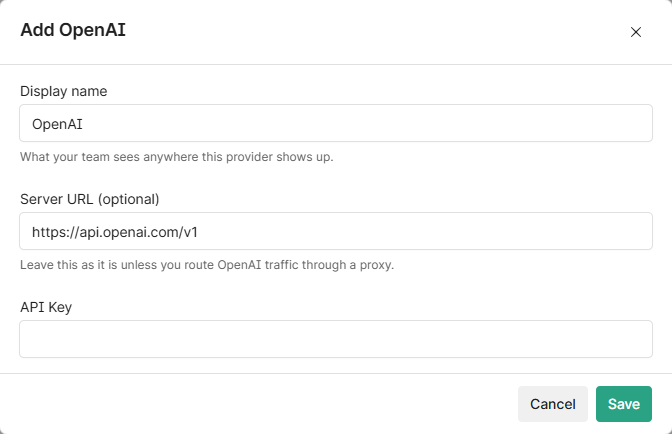
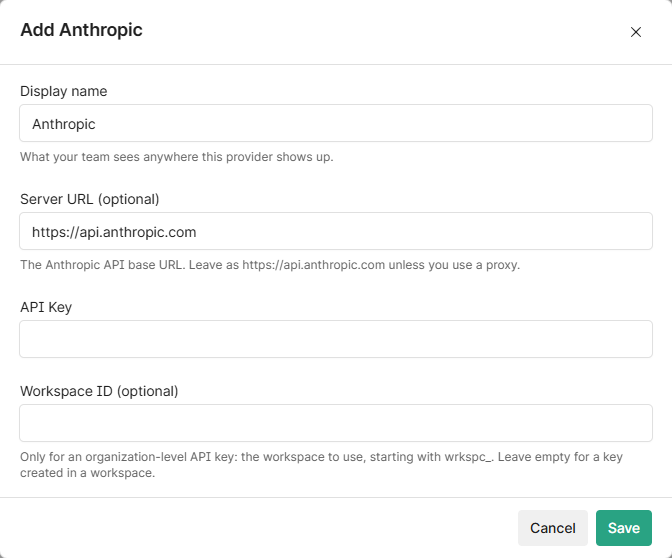
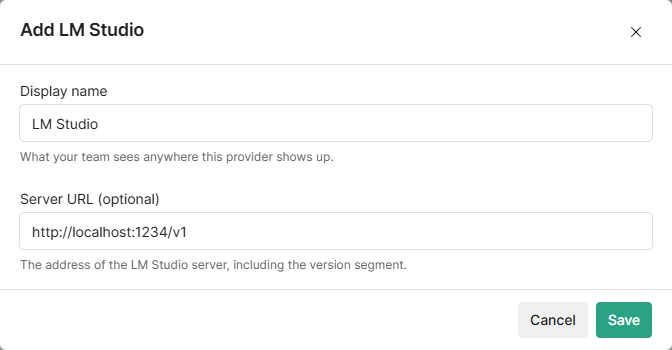
Select a type under Add a provider, or use Add provider at the top of the page. Every provider has a Display name, which is what your team sees wherever the provider shows up. The other fields depend on the type:
|
Type |
Fields |
|---|---|
|
Ollama
|
Server URL (optional): the Ollama server. Leave it empty for |
|
OpenAI
|
Server URL (optional): leave it empty ( |
|
Anthropic
|
Server URL (optional): leave as |
|
LM Studio
|
Server URL (optional): the address of the LM Studio server, including the version segment. Leave it empty for |
|
Anything else
|
Server URL: the full base URL of the service, including the version segment.
|
Provider forms
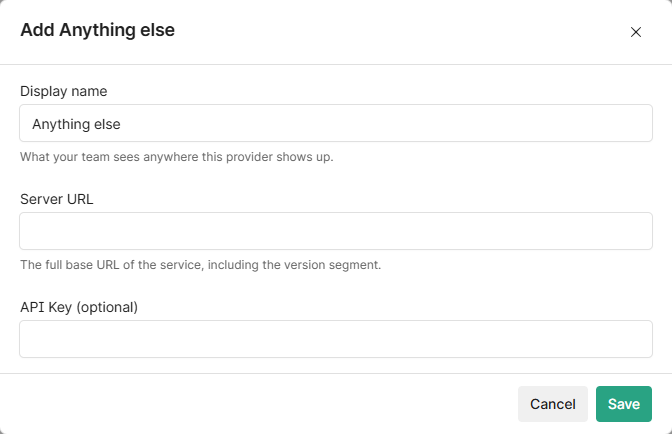
Shinydocs Pro stores API keys encrypted. Keep your own copy in your password manager, not in documents or tickets.
Edit or delete a provider
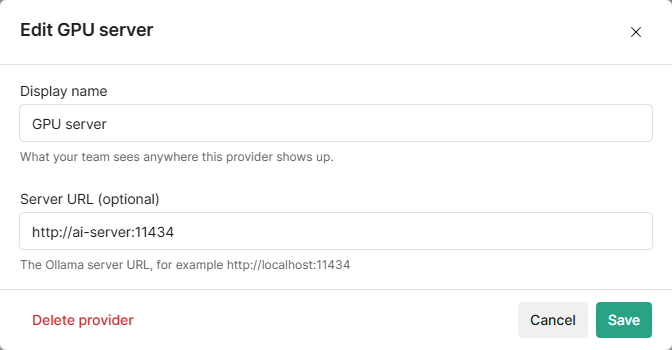
Select a provider on the Providers tab to change its name or address, or to Delete provider.
Models
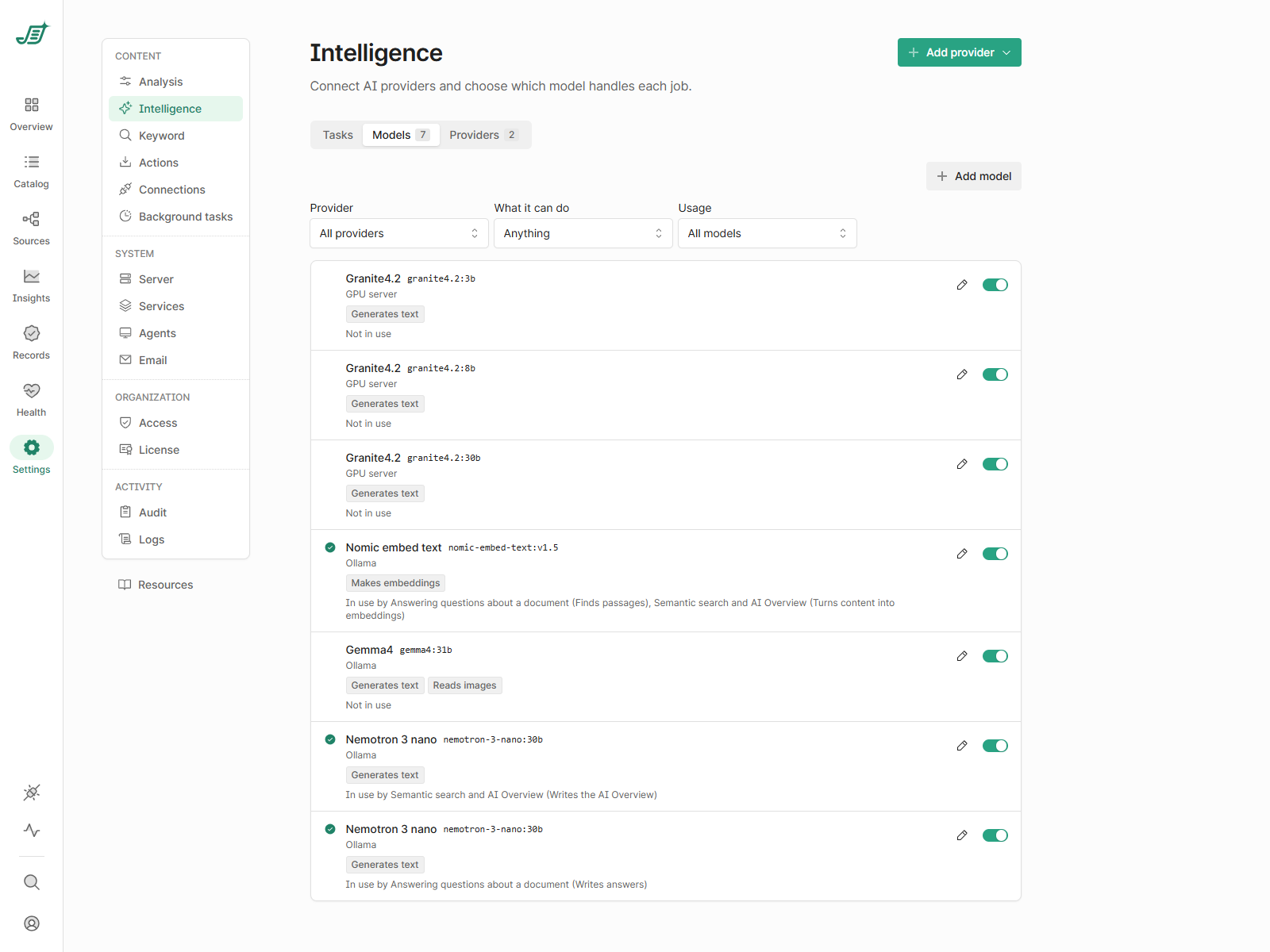
The Models tab lists the models from every provider, what each can do (Generates text, Reads images, Makes embeddings) and which tasks use it. Filter by Provider, What it can do or Usage. Use the switch to turn a model on or off. Models that are off can't be picked for a task or a prompt. Switching a model off removes it from every task that used it: those tasks show Not set up until you choose another model, and switching the model back on doesn't put it back. A prompt that still uses a switched-off model stops with an error when it runs.
Add a model
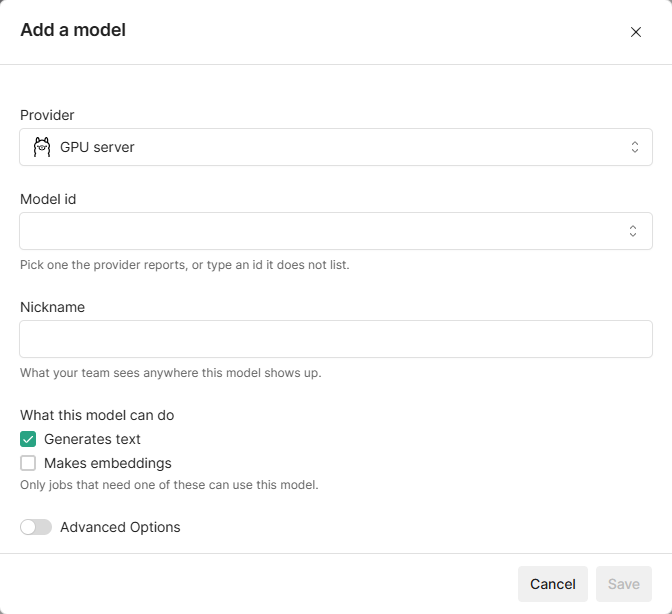
Select Add model to add a model the provider doesn't list on its own, or to add the same model again with different settings.
-
Provider: the provider that runs it.
-
Model id: pick one the provider reports, or type an id it doesn't list, such as
granite4.2:8b. -
Nickname: what your team sees anywhere this model shows up.
-
What this model can do: Generates text and/or Makes embeddings. Only jobs that need one of these can use the model.
Model settings
Select the pencil next to a model to edit it, or to Remove model. Open Advanced Options to tune it. All of these are optional; leave a field empty to use the default.
|
Option |
What it does |
|---|---|
|
Temperature |
Randomness of the output. Lower values give more predictable answers; use 0.2 to 0.5 for reliable results. |
|
Seed |
A fixed number makes the model give the same answer to the same prompt. Useful while testing. |
|
Max Supported Tokens |
How many tokens the model reads at once, prompt and answer together. New models start at 16,384. For Ollama it is sent with every request, so it overrides the server's |
|
Tokens To Predict |
The most tokens the model may write in an answer. -1 for no limit, -2 to fill the context window. |
|
Top K |
Higher values (such as 100) give more varied answers; lower values (such as 10) are more conservative. |
|
Min P |
The lowest probability a token may have, relative to the most likely token, to still be considered. |
|
Repeat Last N |
How far back the model looks to avoid repeating itself. 0 turns it off. |
|
Prompt batch size |
Ollama: how many prompt tokens are read at a time. Higher is faster for long documents but uses more GPU memory. |
|
Thinking |
Whether, and how hard, a reasoning model thinks before it answers: Auto, On, Off, Low, Medium, High or Extra high. Some models reject some values. |
|
Initial load timeout |
Minutes to wait for the server to load the model before the run stops. Auto waits 30 minutes. |
|
Response timeout |
Minutes to wait for one answer. Auto waits 5 minutes. |
|
Maximum threads |
How many documents a Generate embeddings or AI Enrichment run sends to the model at once. Auto uses 4 for embeddings and 1 for AI Enrichment. Higher finishes sooner but loads the provider more. |
Tasks
The Tasks tab shows each AI feature and the model behind each of its jobs. Each task shows a status:
-
Working: every job has a model that is switched on, and its provider is reachable.
-
Not set up: a job has no model.
-
Provider unreachable: Shinydocs Pro can't reach the provider of one of the models.
-
Checking: the check is still running.
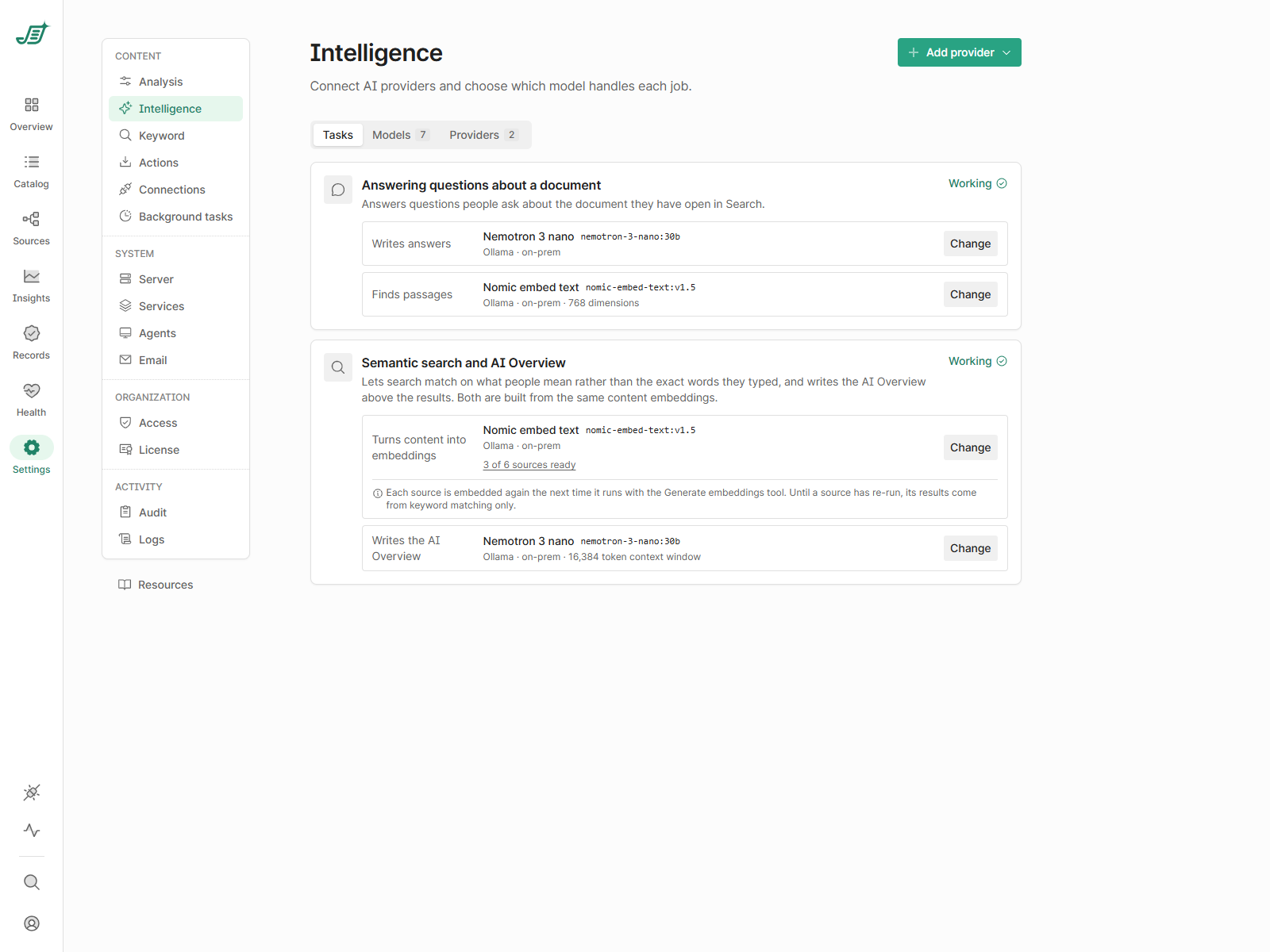
|
Task |
Job |
Needs a model that |
|---|---|---|
|
Answering questions about a document
|
Writes answers |
Generates text |
|
Finds passages |
Makes embeddings |
|
|
Semantic search and AI Overview
|
Turns content into embeddings |
Makes embeddings |
|
Writes the AI Overview |
Generates text |
To choose a model, select Change next to a job. Models that can't do the job are shown but can't be picked, and a recommended model is marked. You can also change the model's nickname here.
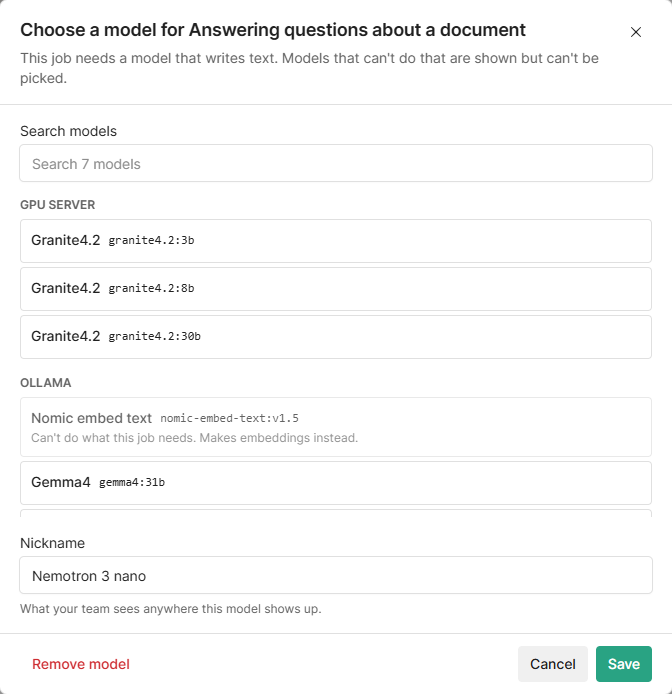
Changing the embedding model. Embeddings from different models can't be mixed. After a change, each source is embedded again the next time it runs with the Generate embeddings tool (the Semantic search step on the source page). Until a source has re-run, its results come from keyword matching only. The Tasks tab shows how many sources are ready.
The AI assistant in Shinydocs Search needs the Intelligence Engine add-on on your license. The Semantic search and AI Overview task appears when the Semantic search and AI Overview feature flag is on (https://<server>:9701/settings/flags). AI Enrichment prompts choose their own model; see AI Enrichment (Content Tagging).