
Role-Based Access Control (RBAC) is used to control access to Shinydocs Pro Control Center. This allows administrators to manage access by assigning roles to users or groups, ensuring that only authorized users can access the Control Center.
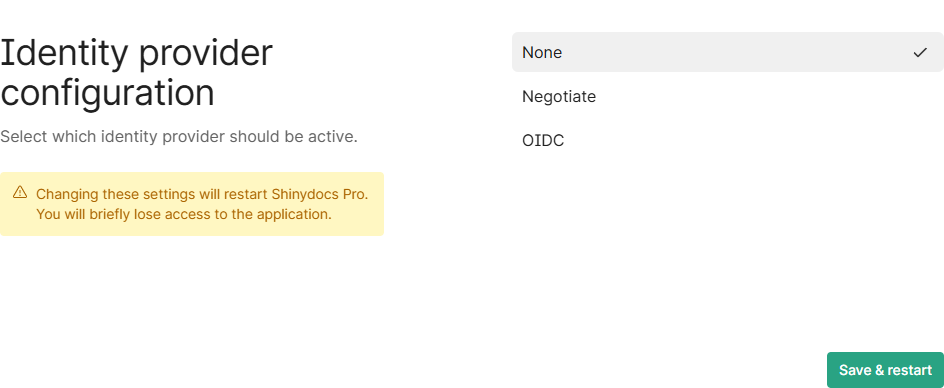
Shinydocs Pro Control Center supports the following identity providers to authenticate users and manage roles for access:
-
None (for testing and troubleshooting)
-
No authentication is required. Anyone who can reach Shinydocs Pro can access it without verifying their identity.
-
Because no user identity is established, audit entries in the Control Center will show actions as Anonymous. You will still see what happened, but not who did it.
-
This option is not secure and should only be used for local testing, demos, or short-term troubleshooting where authentication would get in the way.
-
-
Negotiate (Active Directory users & groups) - Default
Negotiate uses Windows Integrated Authentication and relies on Kerberos to automatically identify users who are already signed in to your Windows domain.-
If Shinydocs Pro and your users are part of the same Active Directory environment, authentication is seamless. Users are signed in automatically with their domain account and do not see a login prompt.
-
Audit entries will include user names, and access can be controlled using Active Directory users and groups.
-
Use this option when:
-
You have file system sources you want to appear in Search with permission checking
-
Shinydocs Pro is deployed on-premises or in a domain-joined environment
-
Users authenticate with Windows accounts
-
You want simple, frictionless sign-in and AD-based access control
-
You do not need external or cloud-based identity providers
-
-
-
OpenID Connect (OIDC) (Entra ID or similar providers)
OpenID Connect is a modern authentication standard built on OAuth 2.0. Shinydocs Pro trusts an external identity provider to authenticate users and confirm who they are.-
This option is commonly used with Microsoft Entra ID (formerly Azure AD), but it also works with other OIDC-compatible providers. Users sign in through the provider’s login page, and Shinydocs Pro receives verified identity and role information.
-
Audit entries include user identities, and access can be managed using roles or groups defined in the identity provider.
-
Use this option when:
-
Users are not domain-joined or are remote
-
You are using cloud or hybrid identity (Entra ID, SSO, MFA)
-
You want consistent authentication across multiple applications
-
You need modern security features like conditional access or multi-factor authentication
-
-
NEW!
Shinydocs Pro Control Center now includes an Analyst role. Analysts can access Control Center with non-destructive permissions and no access to settings. This role lets RMs, knowledge experts, and others use the Catalog for tagging and reporting without disposing records or changing settings. Map this role to a group or role in your provider as you do for the roles below.
Using Negotiate
Three access levels
-
Control Center (groups or roles): full access to Control Center and Search.
-
Control Center Analyst (groups or roles): full access to the Catalog except disposal, read-only access to the rest of Control Center, and no access to Settings.
-
Search (groups or roles): access to Shinydocs Search only.
After you choose an identity provider, set these under Settings > Access: Control Center groups, Control Center Analyst groups and Search groups for Negotiate, or Control Center roles, Control Center Analyst roles and Search roles for OIDC.
Using Negotiate
Important note!
During this setup, if you are creating groups/accounts in your active directory, you will need to restart the Shinydocs Pro machines. Windows requires this restart to cache the newly created groups.
Requirements
-
Shinydocs Pro Control Center is running on a domain-joined server
-
Administrative access to Active Directory with the ability to:
-
Create a new Security Group
-
Add users or groups
-
Access to Shinydocs Pro Control Center
-
Recommendations
If your server supports snapshots/checkpoint/etc. for quick backups, it is recommended that you take a snapshot before proceeding in case you lock your self out. There are built-in ways to unlock yourself, but restoring from a snapshot is MUCH easier.
Shinydocs recommends you start small and simple, adding complexity only as needed. Unless your organization has specific rules around Active Directory users and groups, you are welcome to use this recommended configuration.
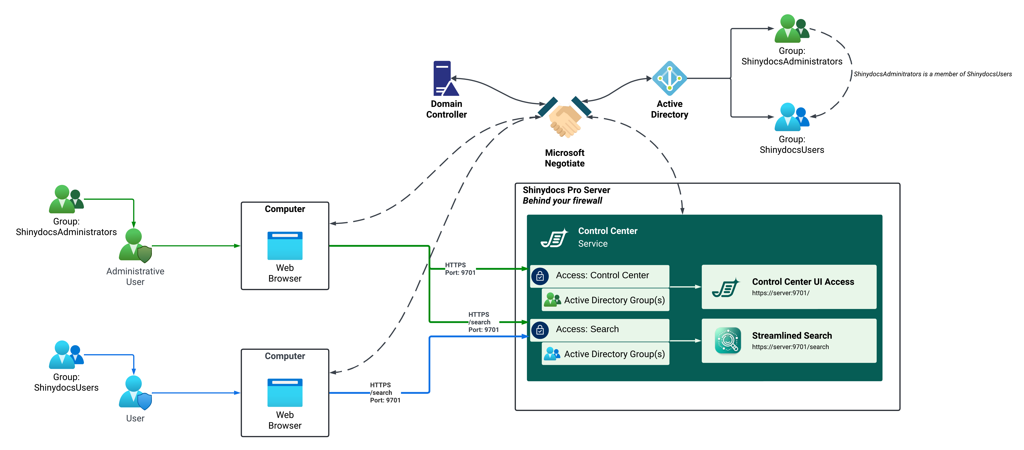
You will want two security groups in Active Directory:
-
ShinydocsAdministrators
-
The user you are logged into the Shinydocs server as MUST be in this group or you will be locked out!
-
-
ShinydocsUsers
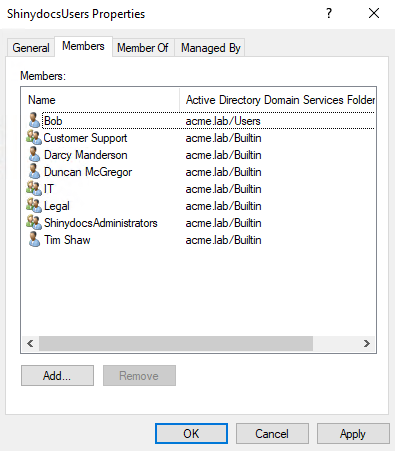
ShinydocsAdministrators should be a member of ShinydocsUsers
|
Group |
Access |
Considerations |
|---|---|---|
|
ShinydocsAdministrators |
The user you are logged into the Shinydocs server as MUST be in this group or you will be locked out! Will be able to access Control Center UI and Search. |
This group is for the most privileged users, the technical and business administrators of Shinydocs Pro. Users in this group will have access to all data in Shinydocs Pro. |
|
ShinydocsUsers |
ShinydocsAdministrators should be part of this group to give them access to Search as well! Will be able to access Streamlined Search only. |
This group is for your end-users, who will need access to the Search application. Ensure your sources in Shinydocs Pro are configured as Public or Protected to appear in Search. All results in Search are permission-checked in real-time. |
Instructions
IMPORTANT!
If you create the users and groups at this point, you MUST restart the Shinydocs Pro server. Windows will cache AD groups on logon, and if these groups are created while the server is on, the groups will not resolve properly.
-
On a domain-joined Windows server, open Active Directory Users and Computers
-
Windows Server does not come with this pre-installed. You will need access to a server (e.g. the domain controller) that can manage Active Directory users and groups
-
-
Create the administrators security group ← Skip if you already have groups set up
-
In the left-side pane, find the Organizational Unit (OU) or Users when you want to create the Security Group for Shinydocs Pro Control Center access
-
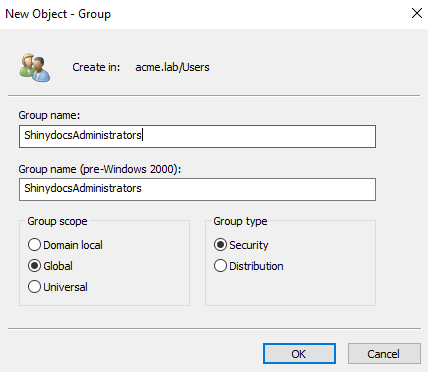
Right-click on the desired location (OU or Users) and select New > Group
-
In the new window, name your group(example:
ShinydocsAdministrators) -
Set Group Scope as Global
-
Set the Group Type as Security
-
Click OK to create the group
-
-
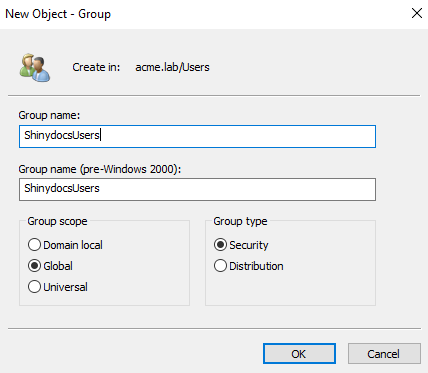
Create the users security group ← Skip if you already have groups set up
-
In the left-side pane, find the Organizational Unit (OU) or Users when you want to create the Security Group for Shinydocs Pro Control Center access
-
Right-click on the desired location (OU or Users) and select New > Group
-
In the new window, name your role (example:
ShinydocsUsers) -
Set Group Scope as Global
-
Set the Group Type as Security
-
Click OK to create the group
-
-
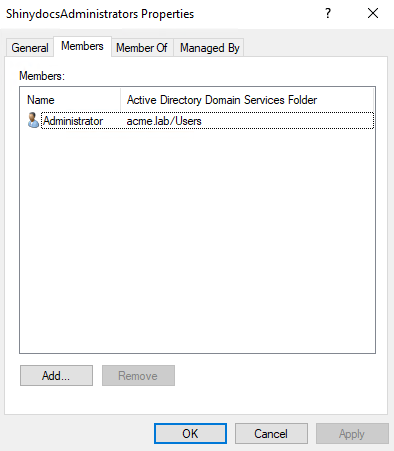
Add Users/Groups to the administrators security group
-
Find the group you created (
ShinydocsAdministrators) -
Right-click the group and select Properties
-
In the Members tab, click add
IMPORTANT: Make sure the account you use on the Shinydocs Pro server is also assigned this group, otherwise you will be locked out. -
In Enter the object names to select, enter the names of the users/groups you want to give access to Shinydocs Pro Control Center or use the find feature.
-
Click Check Names to ensure they are valid
-
Click OK to add them
-
-
Add Users/Groups to the users security group
-
Find the group you created (
ShinydocsUsers) -
Right-click the group and select Properties
-
In the Members tab, click add
-
In Enter the object names to select, enter the names of the users/groups you want to give access to Shinydocs Pro Streamlined Search or use the find feature.
-
Click Check Names to ensure they are valid
-
Click OK to add them
-
-
Select Negotiate as your provider and assign the Groups in Shinydocs Pro
-
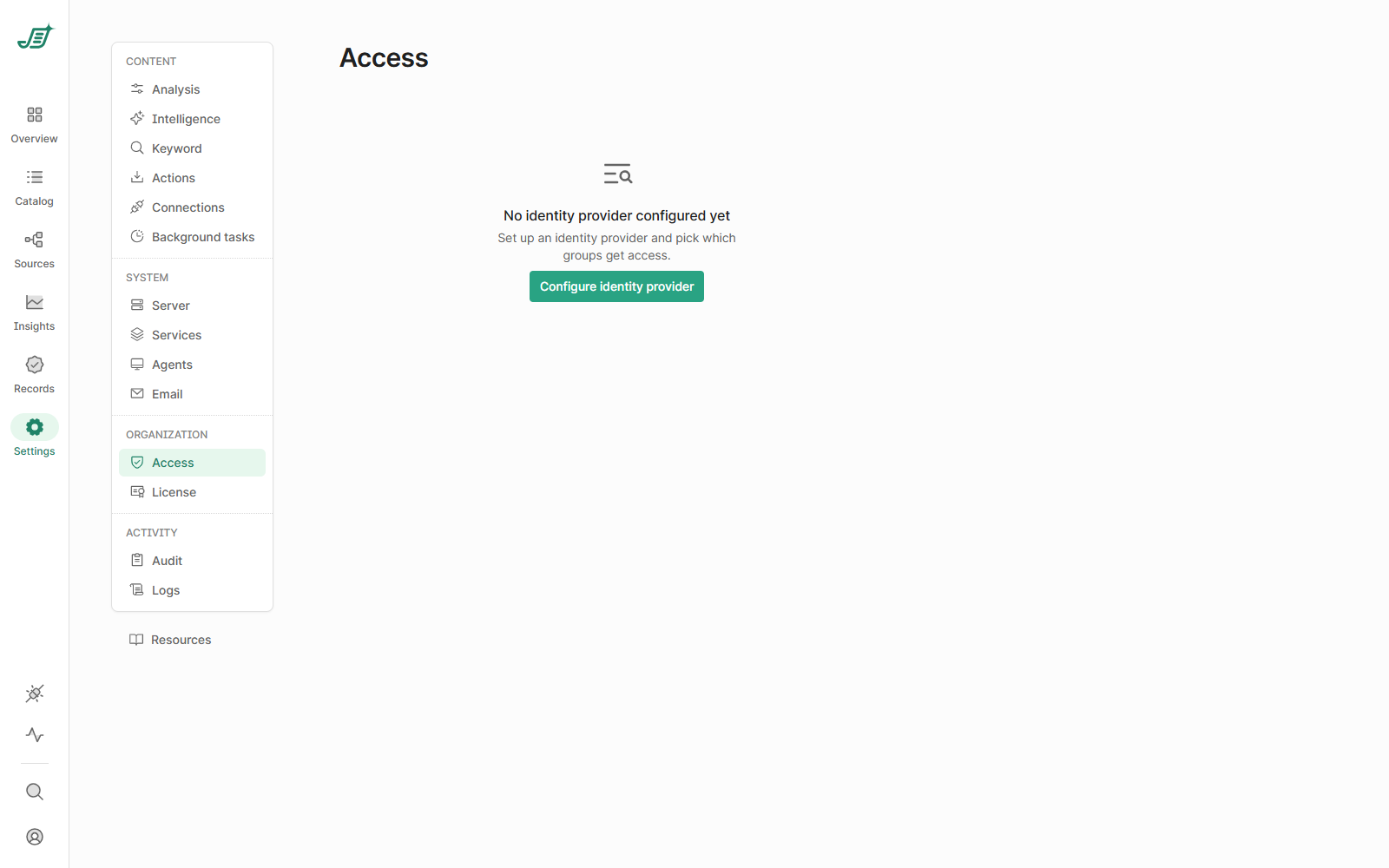
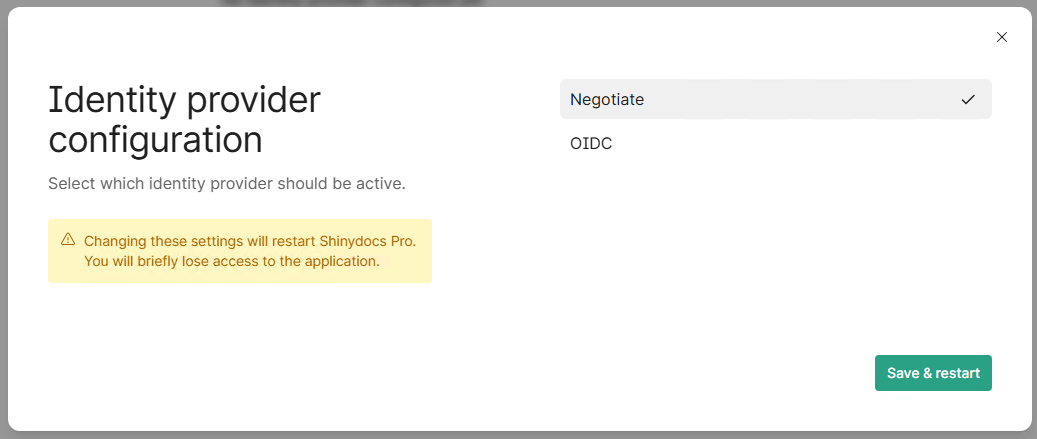
In Shinydocs Pro Control Center, go to Settings > Access
-
Select Configure identity provider
-
Select Negotiate, then select Save & restart
-
-
Wait for the service to restart. When you access the site next, you will be prompted for credentials. You need to enter a local account credentials, for example:
Username:.\administrator(.\ is short for local system instead of domain)
Password:the account password
Note: If your domain account is already a local administrator, you can use that account instead. -
Under Control Center groups, configure the group(s) with access to the Control Center
-
This will be the
ShinydocsAdministratorsgroup or another group you have in Active Directory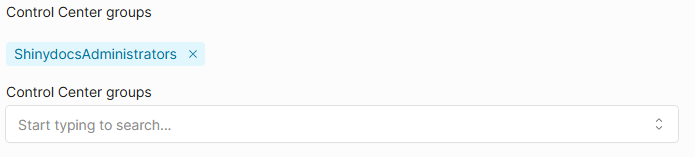
-
If your group is not appearing in the autocomplete field, you need to restart the server
-
-
Under Search groups, configure the group(s) with access to the Control Center
-
This will be the
ShinydocsUsersgroup or another group you have in Active Directory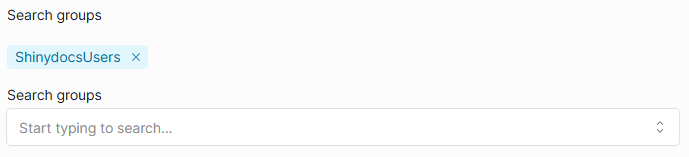
-
-
Your configuration should look similar to this
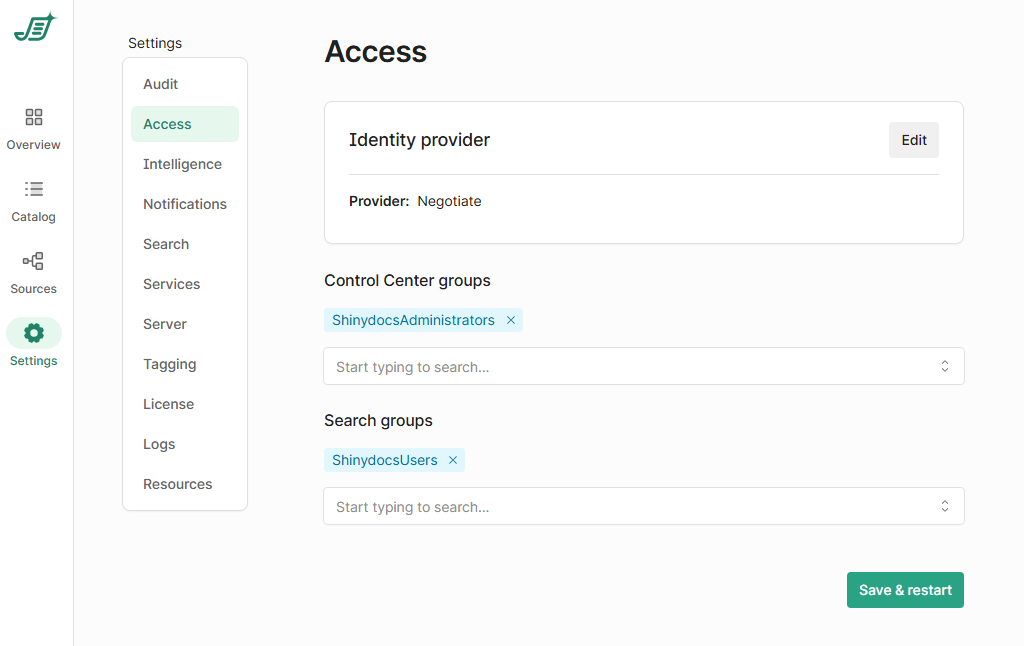
-
Click Save changes and Shinydocs Pro Control Center will restart.
-
Test the access by attempting to access the control center from another machine that can access the server. In your browser go to:
https://localhost:9701
-
If it is configured correctly, you should be authenticated automatically! If you cannot access the site, please review the steps above. Missing one step or having a typo could result in being locked out of the application. See the Recovery section of this article for recovering from a broken authentication state.
Using OpenID Connect in Entra/Azure
Using OpenID Connect in Entra/Azure
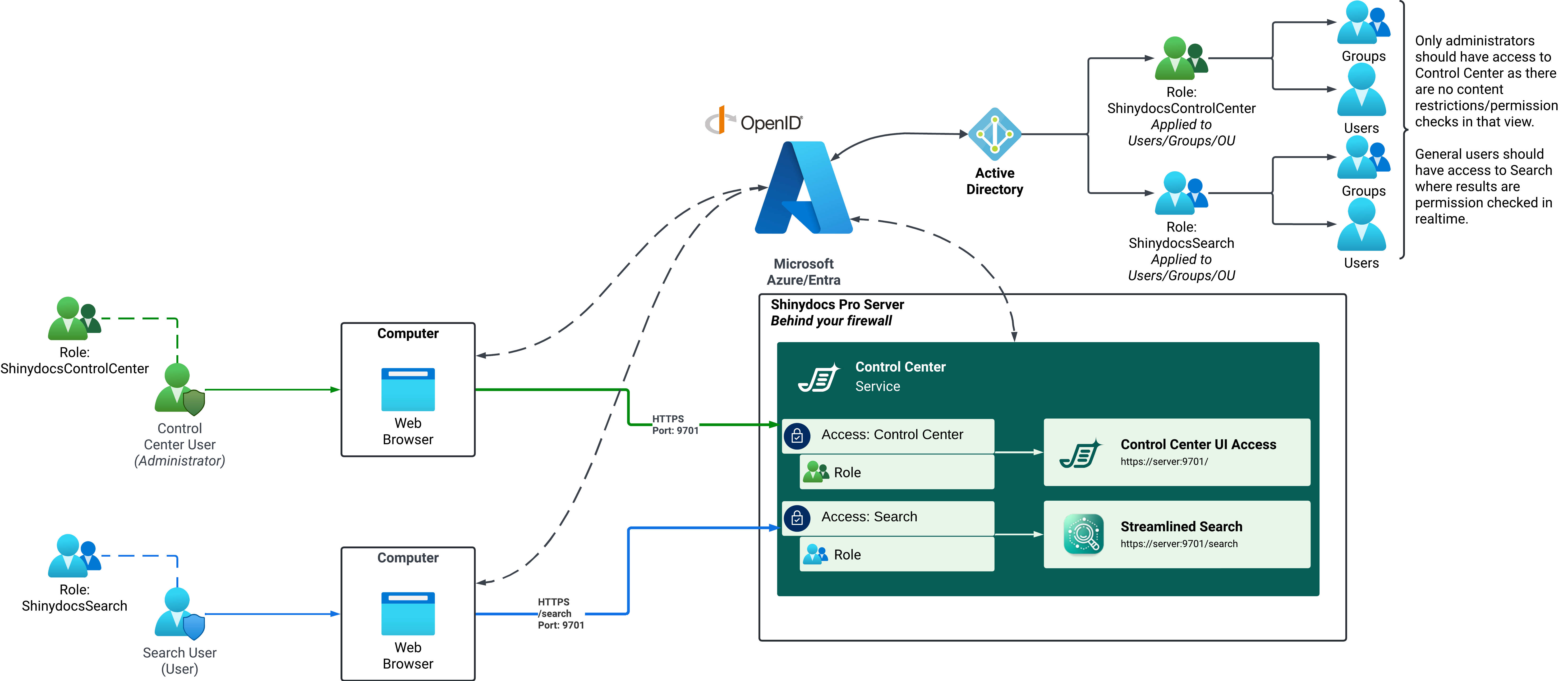
There are many ways to perform these actions within your organization. You can perform these actions in your preferred method, for this guide we will focus on using one method.
Requirements
-
Shinydocs Pro Control Center is set up and running
-
Access to Azure/Entra Portal with permissions to:
-
Create a new App Registration
-
Set API permissions and roles
-
Assign users and groups to the app
-
Instructions
-
Register an App in Azure
-
Go to portal.azure.com
-
Navigate to Microsoft Entra ID > App registrations
-
Click New Registration
-
Name your app (e.g., "Shinydocs Pro Control Center")
-
Redirect URI: Enter
https://[ShinydocsProServerName]/api/v1/oidc/signin-callback.
Replace[ShinydocsProServerName]with your actual server name
Note: If the Shinydocs Server has an FQDN, use that instead of[ShinydocsProServerName] -
Click Register to create the app
-
-
-
Configure OpenID Connect
-
In the new app registration, go to Authentication
-
Redirect URI should be set to:
https://[ShinydocsProServerName]/api/v1/oidc/signin-callback. -
Under Implicit grant, check both Access tokens and ID tokens
-
Click Save
-
-
-
Create a Client Secret
-
Go to Certificates & Secrets
-
Click New client secret
-
Description: Enter a name (e.g., "Shinydocs Pro Secret")
-
Expires: Set an expiry period following your organizations security practices
-
-
Click Add
-
Copy the secret key (save it securely - you’ll need this later).
-
-
Set App Roles
-
Go to App roles
-
Create the Control Center (admin) role:
These users will be able to access Control Center-
Click Create app role
-
Display Name:
ShinydocsControlCenter -
Allowed member types: Select Users/Groups
-
Value:
ShinydocsControlCenter
This is the value needed in Shinydocs Control Center -
Click Save
-
-
-
Create the Search (user) role:
These users will only be able to access Search-
Click Create app role
-
Display Name:
ShinydocsSearch -
Allowed member types: Select Users/Groups
-
Value:
ShinydocsSearch
This is the value needed in Shinydocs Control Center -
Click Save
-
-
-
Here is an example screenshot of a basic configuration:
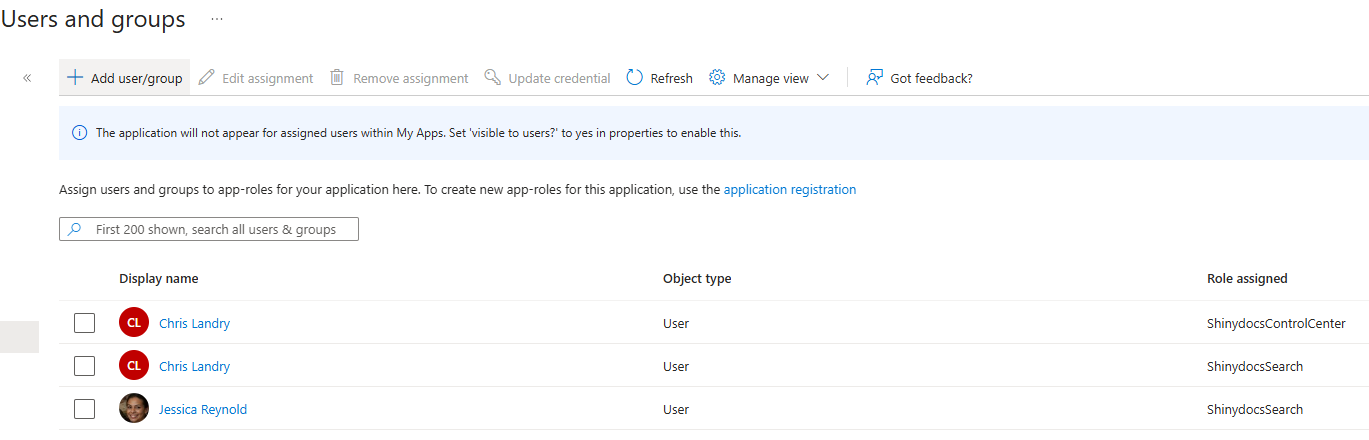
In this configuration, Chris Landry will be able to access Shinydocs Control Center and Search. Jessica Reynold will only be able to access Search.
-
-
Configure API Permissions
-
Go to API permissions
-
Click Add a permission > Microsoft Graph
-
Select Delegated permissions, and add:
-
openid -
profile -
email -
User.Read -
offline_access
-
-
Click Add permissions
-
-
Click Grant admin consent for <tenant name>
-
Why do I need to grant admin consent? The Azure portal says admin consent is not required for these permissions?
In Azure, an administrator must approve all application integrations into your Azure tenant during the process. Depending on your tenant’s Consent and permissions configuration, users may manually approve these when accessing the resource if allowed (with Azure permission classifications and 'Allow user consent for apps from verified publishers, for selected permissions'), or an administrator can grant them.
-
-
-
Assign Users and Groups to the App
-
Go to Microsoft Entra ID > Enterprise applications
-
Find and select your Shinydocs Pro Control Center app registration
-
Click Users and groups
-
First, assign the Shinydocs Control Center users
-
Click Add user/group
-
Users: Select the user or group to add to this role
-
Select a role:
ShinydocsControlCenter -
Click Assign to add
-
Repeat for any additional users/groups
-
-
-
Then, assign the Shinydocs Search users
-
Click Add user/group
-
Users: Select the user or group to add to this role
-
Select a role:
ShinydocsSearch -
Click Assign to add
-
Repeat for any additional users/groups
-
-
-
-
-
Configure OpenID in Shinydocs Pro Control Center
-
In Shinydocs Pro Control Center, go to Settings > Access
-
Select Configure identity provider
-
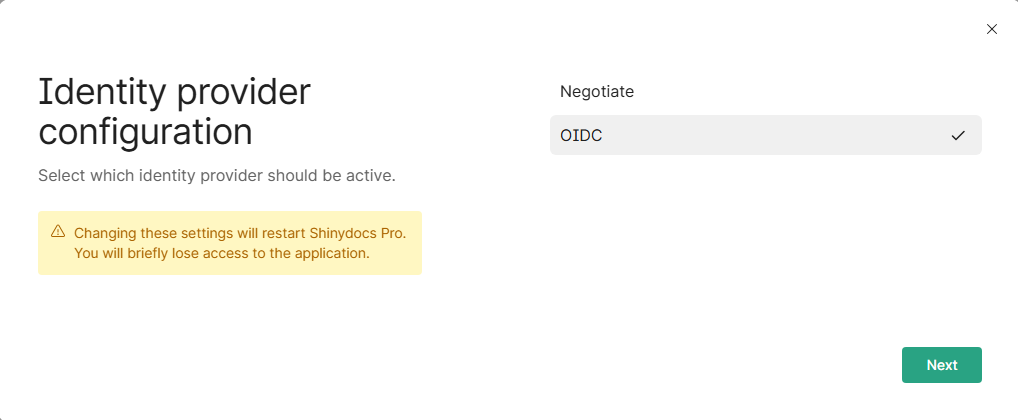
Select OIDC and click Next
-
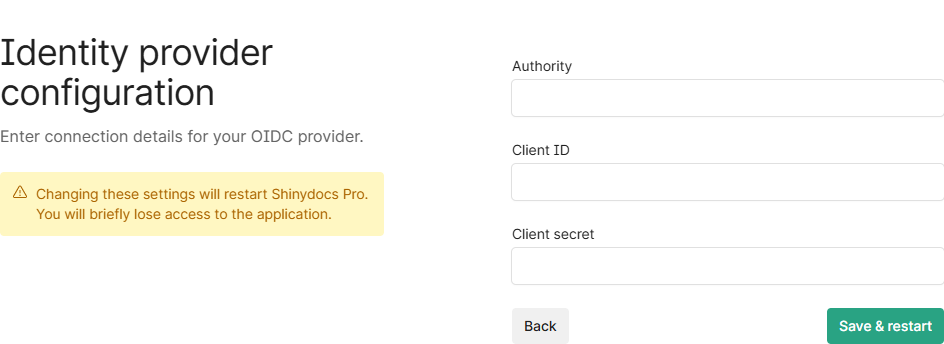
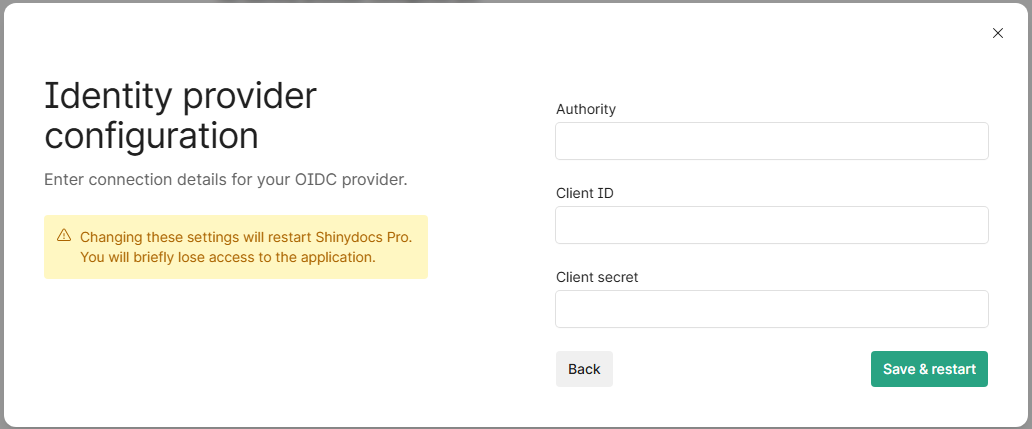
Fill out the following fields:
-
Authority:
The URL will vary depending on your authority (Entra/Azure, OKTA, etc.), please see their documentation for more information on which URL you should use.
For Entra/Azure:
https://login.microsoftonline.com/<tenantid>/v2.0
Replace[Azure Tenant ID]with your Azure tenant ID
For OKTA
https://[tenantURL].okta.com/oauth2/default
Replace[tenantURL]with your Okta tenant -
Client ID: The Client ID from your app registration
-
Client Secret: The secret key you created
-
-
Save & restart, Shinydocs Pro Control Center will restart automatically
-
-
Add a Role in Shinydocs Pro Control Center
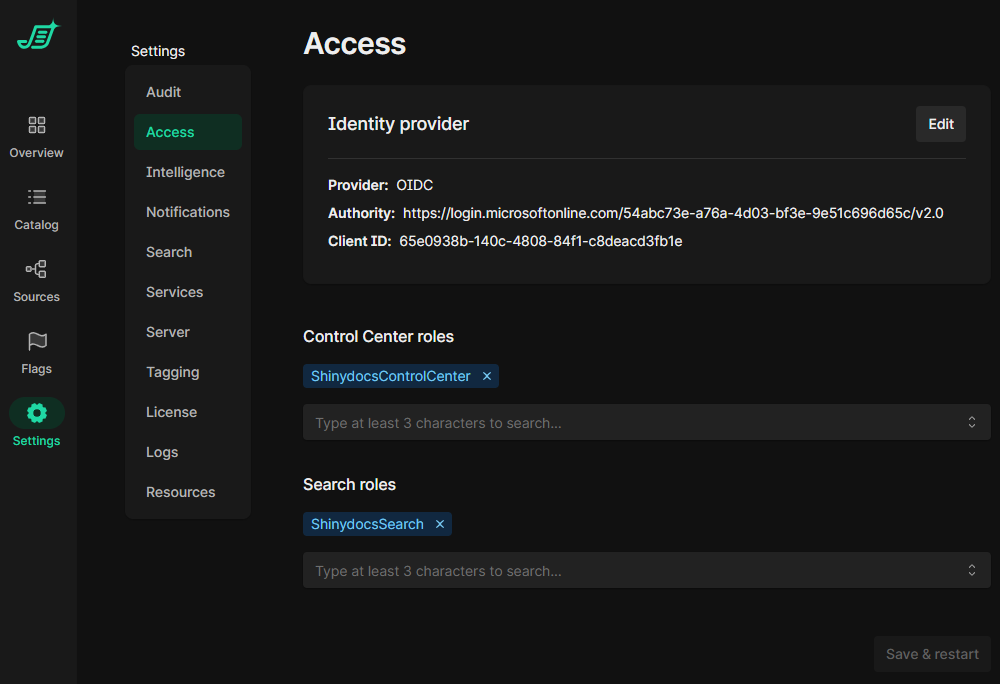
-
Go to Settings > Access
-
For Control Center roles:
-
In Add a role, type
ShinydocsControlCenter
IMPORTANT: Make sure the name matches exactly -
Press Enter to add the role.
-
-
For Search roles:
-
In Add a role, type
ShinydocsSearch
IMPORTANT: Make sure the name matches exactly -
Press Enter to add the role.
-
-
-
Save Changes and Test
-
Save changes and allow Shinydocs Pro Control Center to restart automatically
-
Test access by logging in with a user assigned to the
ShinydocsControlCenterrole.
-
If you use Azure/Entra for OpenID, you will be presented with the Microsoft sign-in page.
Recovery
If a configuration problem locks you out of Control Center, you can override the access settings with a configuration file. Use this only to recover, then fix the settings in Control Center.
Step 1: Open the override file
-
On the Control Center server, go to the Control Center config folder, for example
C:\ProgramData\Shinydocs\ControlCenter. -
Open
appsettings.jsonin a text editor such as Notepad. You can also put the same sections in a file namedappsettings-override.jsonin that folder; it takes priority overappsettings.json.
Step 2: Turn on the override you need
The recovery sections near the end of appsettings.json are commented out with /* and */. Remove the comment markers around the section you want. Each section includes "Overridden": true; keep it, or the section is ignored.
Turn authentication off entirely (anyone who can reach Control Center gets in, so use it only briefly):
,"IdentityProvider": {
  "Overridden": true,
  "Negotiate": {
    "Enabled": false
  },
  "Oidc": {
    "Enabled": false
  }
}
Use Negotiate:
,"IdentityProvider": {
  "Overridden": true,
  "Negotiate": {
    "Enabled": true
  }
}
Use OIDC (fill in your Authority, Client ID and Client secret):
,"IdentityProvider": {
  "Overridden": true,
  "Oidc": {
    "Enabled": true,
    "Authority": "",
    "ClientId": "",
    "ClientSecret": ""
  }
}
Change who has access (list Active Directory groups, or OIDC roles, in the brackets):
,"Access": {
  "Overridden": true,
  "AllowedRolesForControlCenter": [],
  "AllowedGroupsForControlCenter": [],
  "AllowedRolesForControlCenterAnalyst": [],
  "AllowedGroupsForControlCenterAnalyst": [],
  "AllowedRolesForSearch": [],
  "AllowedGroupsForSearch": []
}
For example, "AllowedGroupsForControlCenter": ["ShinydocsAdministrators"]. Use only one IdentityProvider section at a time.
Step 3: Save and restart
Save the file and restart the Shinydocs Control Center service. Then open Control Center; you may need to clear your browser’s cache. If you still can’t get in, check the Control Center logs.
Step 4: Fix your configuration and remove the override
While an override is in use, Settings > Access shows a warning, and saving on that page doesn’t change what is in use. Put the comment markers back (or delete appsettings-override.json), restart the service, then set up Negotiate or OIDC properly in Settings > Access.
Troubleshooting
401 Unauthorized after disabling negotiate due to being locked out.
This is a browser cache issue. Either close your browser and all windows completely or:
-
Press the F12 key in Edge or Chrome to bring up Dev Tools
-
Right-click the browser refresh icon and select Empty cache and hard refresh
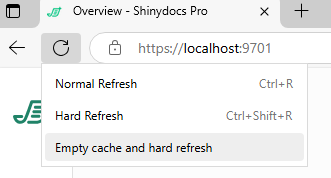
My Active Directory groups are not showing in the groups autocomplete field.
Windows will cache AD groups on logon, and if these groups are created while the server is on, the groups will not resolve properly. To fix this, simply restart the Shinydocs Pro server and the groups should appear in the dropdown. You may have to type in the first 3 letters to see it if you have many groups.
All of my settings and configuration are right but I’m still getting 403 unauthorized
-
First, make sure your current account (type
whoamiand press enter in CMD to see the account you are currently logged into Windows as. Make sure that account is in the group you assigned to Control Center access. -
Verify the server is still trusted by the domain
-
On the server running Shinydocs Pro, open PowerShell as administrator
-
Run Test-ComputerSecureChannel, if it responds with True the server is trusted and part of the domain

-
If it returns False, the server Shinydocs Pro Control Center is installed on is no longer trusted by the domain and will need to be resolved before proceeding
-
More information on this command and how to repair the connection can be found here: Test-ComputerSecureChannel (Microsoft.PowerShell.Management) - PowerShell | Microsoft Learn
-
-
-
Try restarting the server Shinydocs Pro Control Center is installed on