
Requirements
-
You must use an https connection.
-
If you are using a DNS name (FQDN) for the URL, you must create an
A recordin your DNS. CNAME will not work with Kerberos using Negotiate authentication for Shinydocs Pro Control Center. -
When generating your .pfx file, you must include the full certificate chain. This means the .pfx should contain your server (leaf) certificate, any intermediate certificate(s) from your Certificate Authority, and the private key. If the intermediate certificates are not included, browsers may report the connection as insecure or claim the site has no certificate, even though one is installed.
-
If your .pfx does not contain any intermediate certificate(s), manually adding them to the Windows certificate manager may be required.
-
You can check the contents of your .pfx file using PowerShell:
$pfx = New-Object System.Security.Cryptography.X509Certificates.X509Certificate2Collection
$pfx.Import("C:\path\to\yourcert.pfx", "yourpassword", "PersistKeySet")
$pfx | Format-List Subject, Issuer
You should see at least two certificates listed: your server certificate and the intermediate certificate from your CA. If you only see one, the intermediates are missing and the .pfx needs to be rebuilt.
Configure Control Center to allow connections outside of localhost
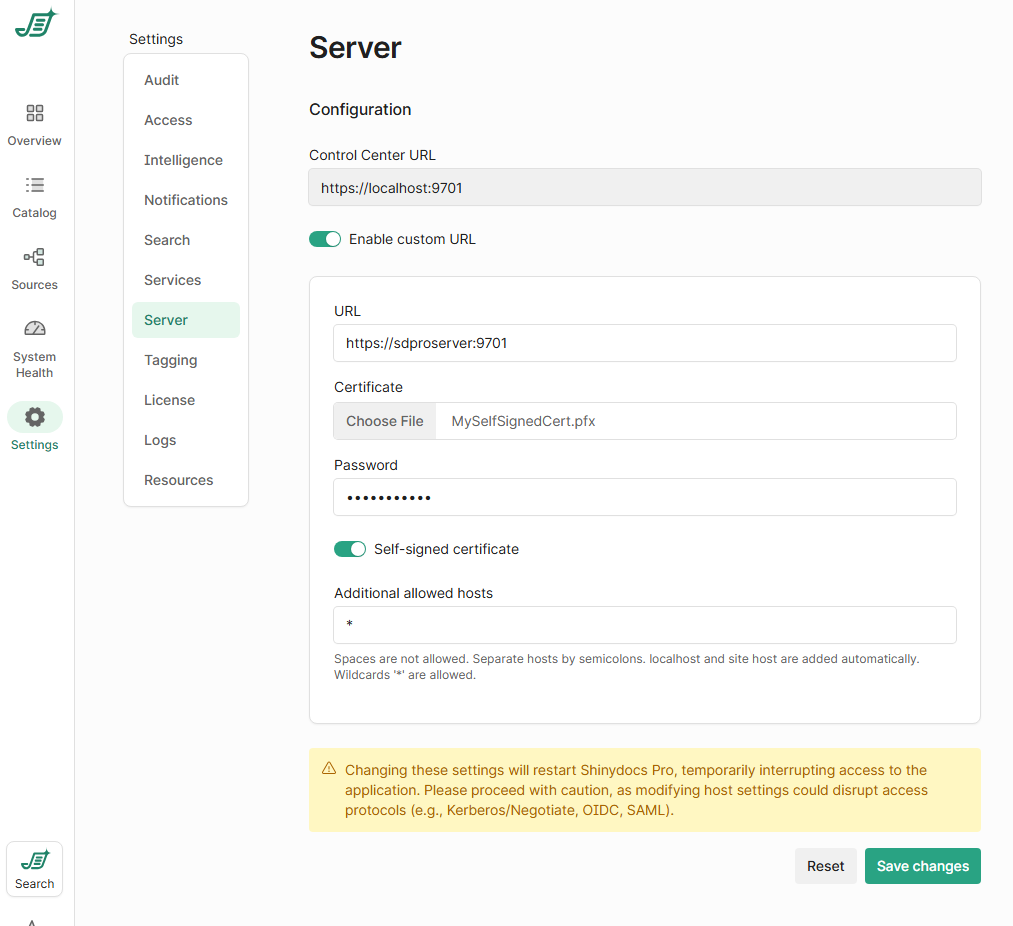
By default, Shinydocs Control Center is only accessible on localhost. To make it available to others on your network, you’ll need to configure the Server settings in the UI.
-
In Control Center, go to Settings > Server.
-
You'll see the current Control Center URL (e.g.
https://localhost:9701). -
Toggle Enable custom URL.
-
In the URL field, enter the full address you want to use, such as:
https://hostname:9701 -
If you’re using a certificate you created yourself (recommended for production):
-
Upload the certificate file (
.pfxor.p12). -
Enter the password if your certificate is password-protected.
-
If the certificate is self-signed, enable the Self-signed certificate option.
-
-
To allow connections from other machines, you must list the hostnames that users will use to access Control Center in Additional allowed hosts:
-
To allow all hosts, enter a wildcard:
* -
If you'd rather be specific, list individual hosts like this:
servername.local;192.168.1.100;cc.yourcompany.com
-
-
Click Save changes. Shinydocs Control Center will restart automatically.
If you wish to use a different address for the site, you are free to set that up yourself, e.g. using DNS.
Your browser may show a warning that the site is not safe. This is because the Control Center site uses a self-signed certificate, and the certificate will not be trusted by your computer or browser by default.