
Catalog Tagging lets you select one or more files in the Catalog and apply custom tags directly, without leaving the interface. Tags are flexible key-value pairs (a tag name paired with one or more values) that you define to fit your needs.
Once applied, tags travel with the file's record and can be used to filter, sort, and take action in the Catalog. They can also be removed at any time.
Enabling the Feature
This feature is available in Shinydocs Pro 26.2+
Catalog Tagging is available as a feature flag. To turn it on:

-
Sign in to Control Center as an administrator and go to
https://localhost:9701/settings/flags(or your custom Control Center address followed by/settings/flags). Feature flags isn’t in the Settings menu. -
Find Tagging in Catalog.
-
Set it to Enabled. The change saves straight away.
Before you change a feature flag. A flag applies to every user, and some flags can change or remove data. Turn on only the flags a Shinydocs guide or Shinydocs Support tells you to, and leave the rest at Default. Don’t select Reset all: it also switches off flags you turned on.
Once it’s on, Tag is added to the Catalog’s Action dialog for every Control Center user. The Action button at the top right is always there: with no files ticked, it covers every file that matches the Catalog’s current filters.
How to Add a Tag
-
In the Catalog, tick the files you want to tag, or filter it to them.
-
Click Action [X items] in the top right and choose Tag.
-
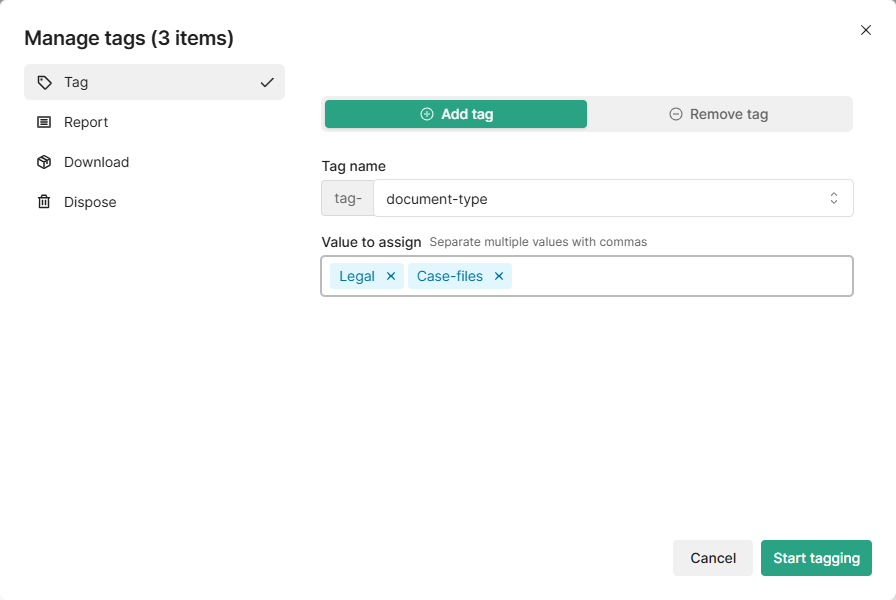
In the Manage tags dialog, make sure Add tag is selected.
-
Enter a Tag name — for example,
document-typeorExclude-from-ROT-detection. -
In Value to assign, enter one or more values, separated by commas.
-
Click Start tagging.
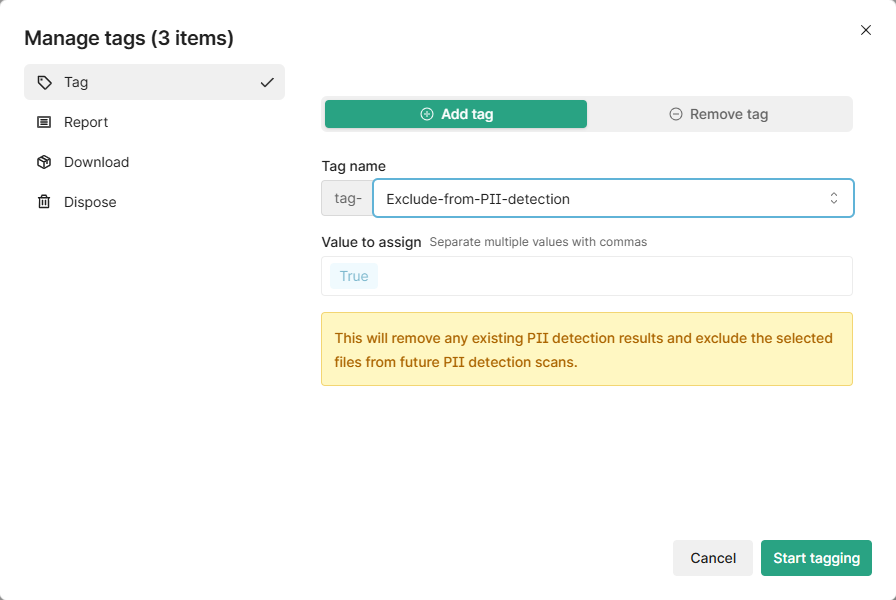
Tip: The tag name field shows suggestions for system tags as you type, including Exclude-from-PII-detection and Exclude-from-ROT-detection.
How to Remove a Tag
-
Select the files you want to update.
-
Click Action [X items] > Tag.
-
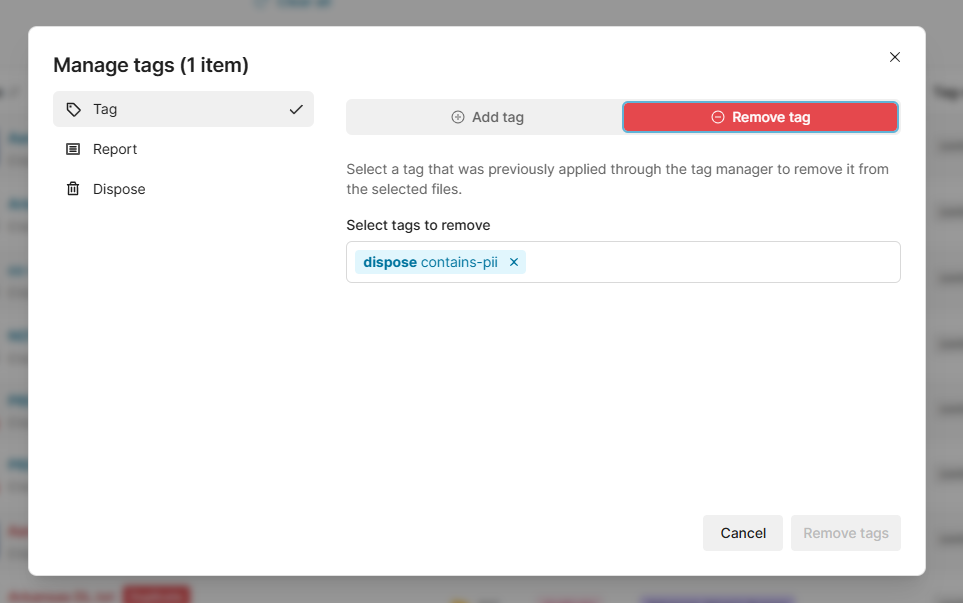
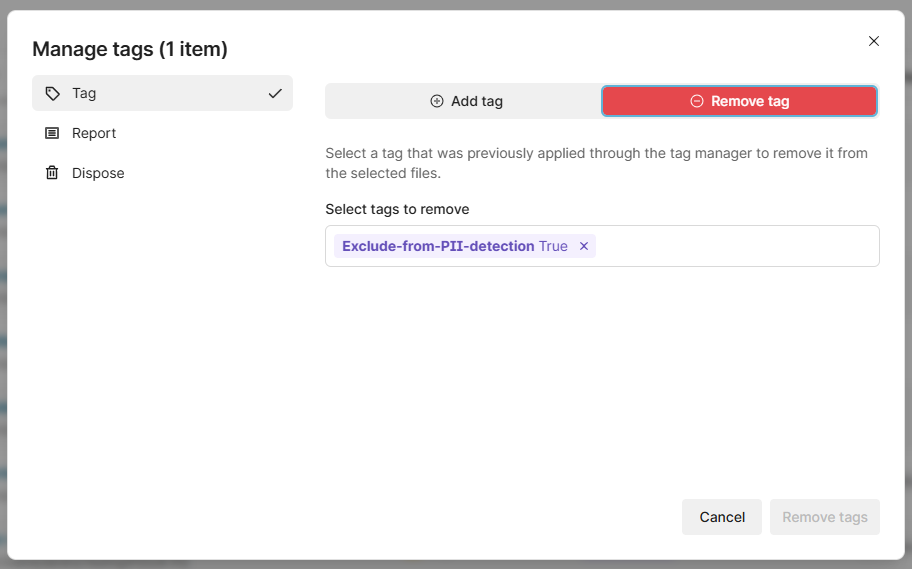
Switch to the Remove tag tab.
-
In Select tags to remove, choose the tags to remove.
-
Click Remove tags.
The list shows the tags on the selected files, plus any AI analysis fields, which are shown in green. Removing an AI analysis field removes all of its values, and the next AI analysis run fills it in again. A removal can’t be undone.
Key Use Cases
Exclude Files from PII Detection
Some files contain information that looks like personal data but isn't — template documents, test data, or training materials, for example. Rather than let them surface repeatedly in PII scans, you can exclude them.
Apply the system tag:
-
Tag name:
Exclude-from-PII-detection -
Value:
True
Applying the tag removes the files’ existing PII results straight away, and later PII detection runs skip them. If you remove the tag, the files are checked again on the next PII detection run.
Note: This will remove any existing PII detection results for those files and exclude them from future scans. If you change your mind later, simply remove the tag.
Exclude Files from ROT Detection
Similarly, some content may be flagged as Redundant, Obsolete, or Trivial when it genuinely isn't. Reference documents, regulatory archives, or intentional duplicates kept for business continuity are good examples.
Apply the system tag:
-
Tag name:
Exclude-from-ROT-detection -
Value:
True
Applying the tag removes the files’ existing ROT results straight away, and later ROT detection runs skip them. If you remove the tag, the files are checked again on the next ROT detection run.
Classify Files by Document Type
Use tagging to enrich your Catalog with classification metadata that your team actually understands.
Examples:
-
document-type→Legal,Case-files -
department→Finance,HR -
retention-class→7-year,Permanent
This is useful when preparing content for migration, disposal reviews, or compliance audits, providing reviewers clear, human-readable context at a glance.
Mark Files for Disposal Review
Flag a set of files for disposal consideration without immediately taking action. Tag them with something like:
-
disposition-status→review-for-disposal
Your team can then filter the Catalog by that tag, review the results, and proceed with a formal Dispose action when ready.
Support Records Management Workflows
If your organization manages records with defined retention schedules, tags can bridge the gap between Shinydocs Pro and your records management process:
-
record-type→Official,Draft,Transitory -
business-function→Finance,Legal,Operations -
vital-record→True
Things to Know
-
Each tag is stored as a field named
tag-followed by the tag name, for exampletag-document-type. You can add it as a column in the Catalog to see and filter its values. -
Multiple values can be assigned to a single tag at once by separating them with commas.
-
System tags like
Exclude-from-PII-detectiondisplay a warning when applied, so you know exactly what will change. -
Tags can be added or removed in bulk across as many files as your current filter and selection includes.
-
Tag names can use letters, numbers, hyphens and underscores. Any other character is changed to a hyphen.
-
Tagging runs in the background. To follow it, select View activity in the Catalog and open the Tagging tab.
-
All tagging activity is recorded in the Settings > Audit log.