
The Analysis settings decide what Shinydocs Pro works out about your content each time a source updates, and how much of each file it reads. Go to Settings > Analysis. This page covers the General and Extraction tabs. For the other tabs, see Detecting Potential PII and PSI, Default ROT Rules and AI Enrichment (Content Tagging).
General: choose the analyses for each source
The General tab sets which analyses run on every source at once, instead of opening each source in turn. The same switches appear in the Analysis panel of each source's page.
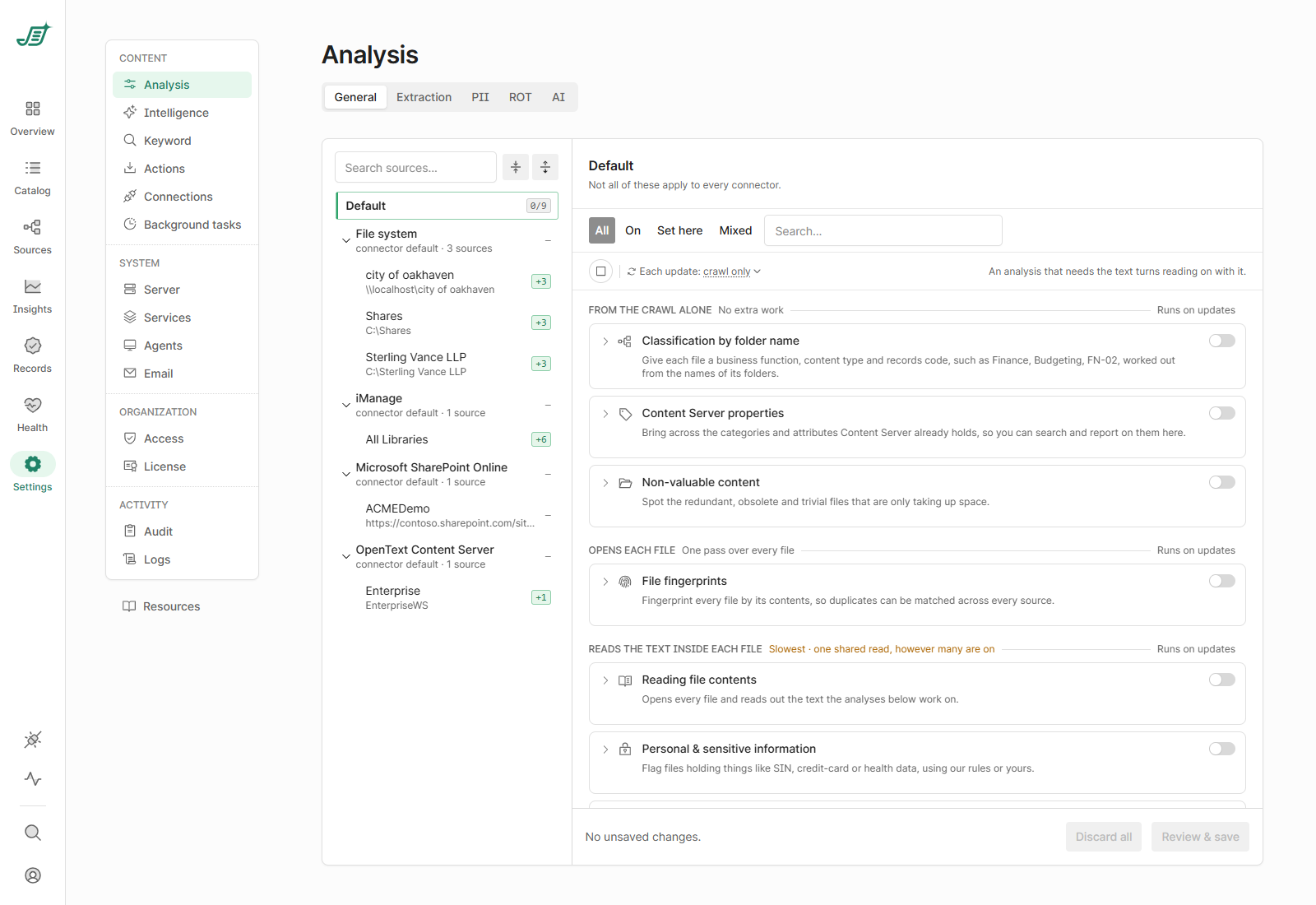
Scopes: Default, connector and source
The list on the left has three levels:
-
Default: applies to every source. Its badge shows how many analyses are on, out of how many there are (for example
0/9). -
Connector defaults, such as File system — connector default · 3 sources: apply to every source of that connector and override Default.
-
Sources: override their connector's default.
The lowest level that sets a switch wins; anything not set follows the level above. The badge on a connector or source shows how many switches it turns on (+3) or off (−1) compared with what it would inherit; — means it has no overrides of its own. New sources start from Default and their connector's default.
Select a scope to see and change its switches. A breadcrumb such as Default › File system › city of oakhaven shows where it sits. Reset clears the selected scope's own settings so it inherits everything again (Default has no Reset).
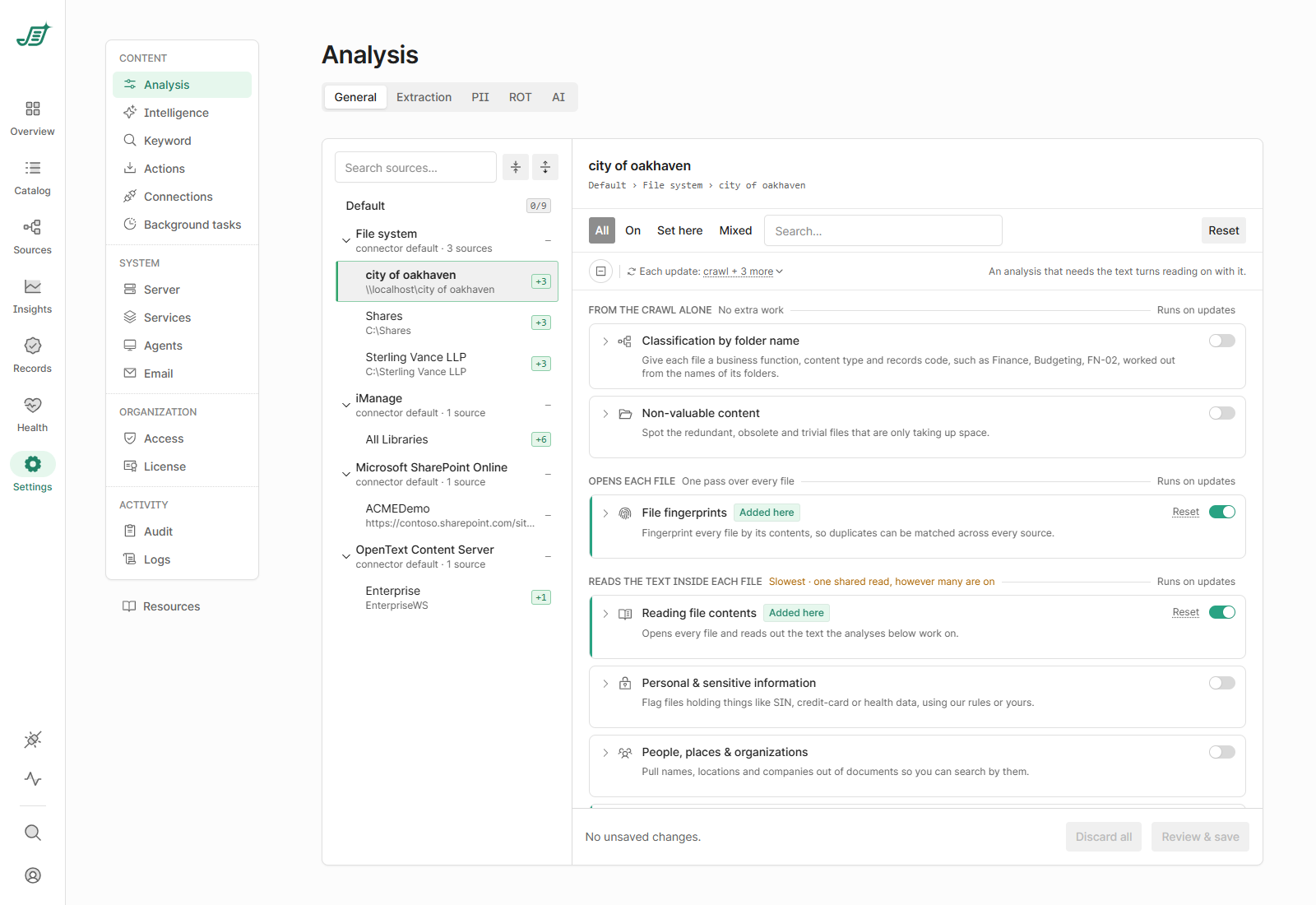
The analyses
Analyses are grouped by how much work they cost:
|
Group |
Analyses |
|---|---|
|
From the crawl alone
|
Classification by folder name (File system sources only), Content Server properties (Content Server sources only), Non-valuable content (ROT) |
|
Opens each file
|
File fingerprints (used to find duplicates) |
|
Reads the text inside each file
|
Reading file contents, Personal & sensitive information, People, places & organizations, Semantic search, AI analysis |
Semantic search appears when the Semantic search and AI Overview feature flag is on, and AI analysis when the AI Analysis Tool flag is on. At Default, every connector's analyses are listed ("Not all of these apply to every connector"); a source only runs the ones its connector supports.
Some analyses depend on others. Turning on an analysis that needs the text also turns on Reading file contents and File fingerprints, and turning off Reading file contents turns off every analysis that needs the text.
Find and change switches
-
Filter the list with All, On, Set here (set at the selected scope rather than inherited) or Mixed (on for some selected scopes and off for others), or search by name.
-
Use the box at the start of the bar to turn on or off every analysis shown.
-
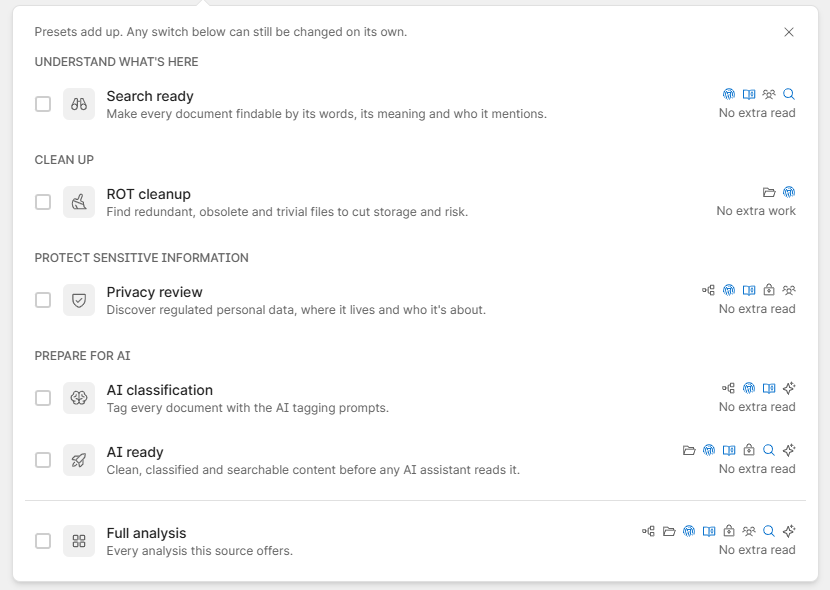
Each update: crawl + 3 more summarizes what each update runs. Select it to apply a preset, such as Search ready, ROT cleanup, Privacy review, AI classification, AI ready or Full analysis. Presets add up, and you can still change any switch on its own.
Save
-
Select Review & save. The dialog lists what is Turning on, Turning off and going Back to inherited, and for which scope.
-
Select Save changes.
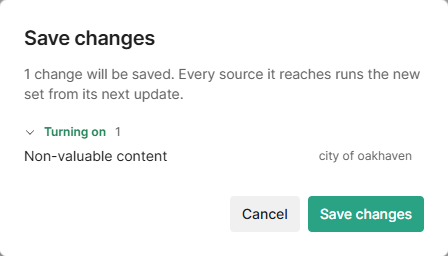
Saving doesn't start or stop anything that is running. Each source runs the new set from its next update. Discard all throws away changes you haven't saved. Changes are recorded in the audit log.
Extraction: how much of each file is read
The Extraction tab sets limits for File fingerprints and Reading file contents. They apply to every source.
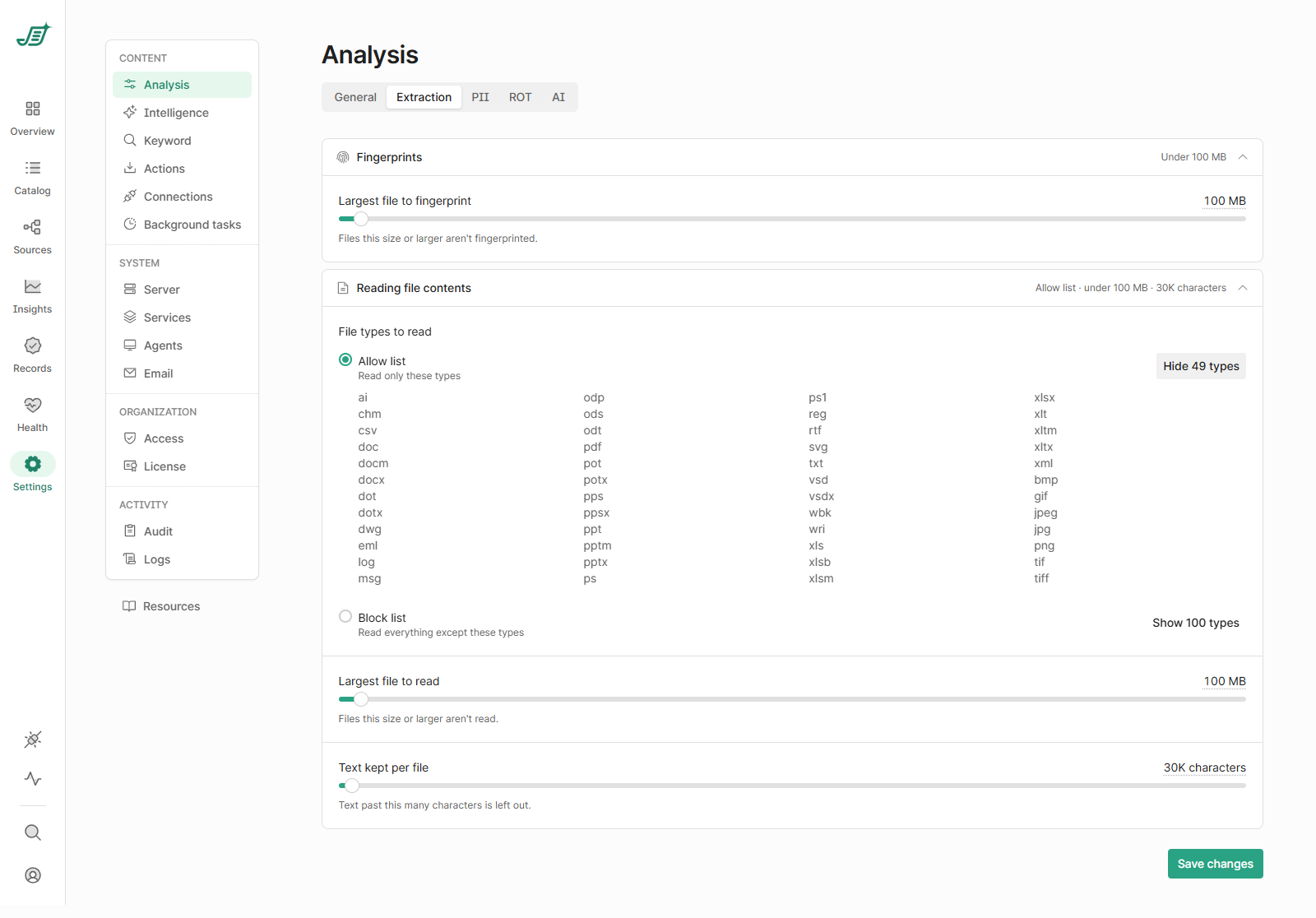
|
Setting |
Default |
What it does |
|---|---|---|
|
Largest file to fingerprint |
100 MB |
Files this size or larger aren't fingerprinted, so they can't be matched as duplicates. |
|
File types to read |
Allow list |
Allow list reads only the listed types (documents, email, text, and common image types). Block list reads everything except the listed types. Select Show … types to see each list. The lists themselves can't be edited here. |
|
Largest file to read |
100 MB |
Files this size or larger aren't read. |
|
Text kept per file |
30K characters |
Text past this many characters is left out. Analyses that work on the text, such as PII detection, only see what is kept. |
Sizes can be up to 4,000 MB, and text kept up to 2,000,000 characters. Select Save changes.
|
Text kept per file |
× default |
Max raw text per file |
Approx. index size per file at the limit |
Per 100,000 files at the limit |
|---|---|---|---|---|
|
30K (default) |
1× |
~30 KB |
~60–90 KB |
~6–9 GB |
|
60K |
2× |
~60 KB |
~120–180 KB |
~12–18 GB |
|
90K |
3× |
~90 KB |
~180–270 KB |
~18–27 GB |
|
150K |
5× |
~150 KB |
~300–450 KB |
~30–45 GB |
|
300K |
10× |
~300 KB |
~0.6–0.9 MB |
~60–90 GB |
|
1M |
~33× |
~1 MB |
~2–3 MB |
~200–300 GB |
|
2M (maximum) |
~67× |
~2 MB |
~4–6 MB |
~400–600 GB |
New limits apply to files read from then on; files already read aren't read again. Switching from Allow list to Block list makes files that were skipped as an unsupported type eligible to be read on the next update.