
From the Catalog, administrators can act on the files they select with Action N items, for example to download a copy of them. Downloads and the reports that actions produce are written to folders you choose under Settings > Actions. Set these up before anyone downloads files.
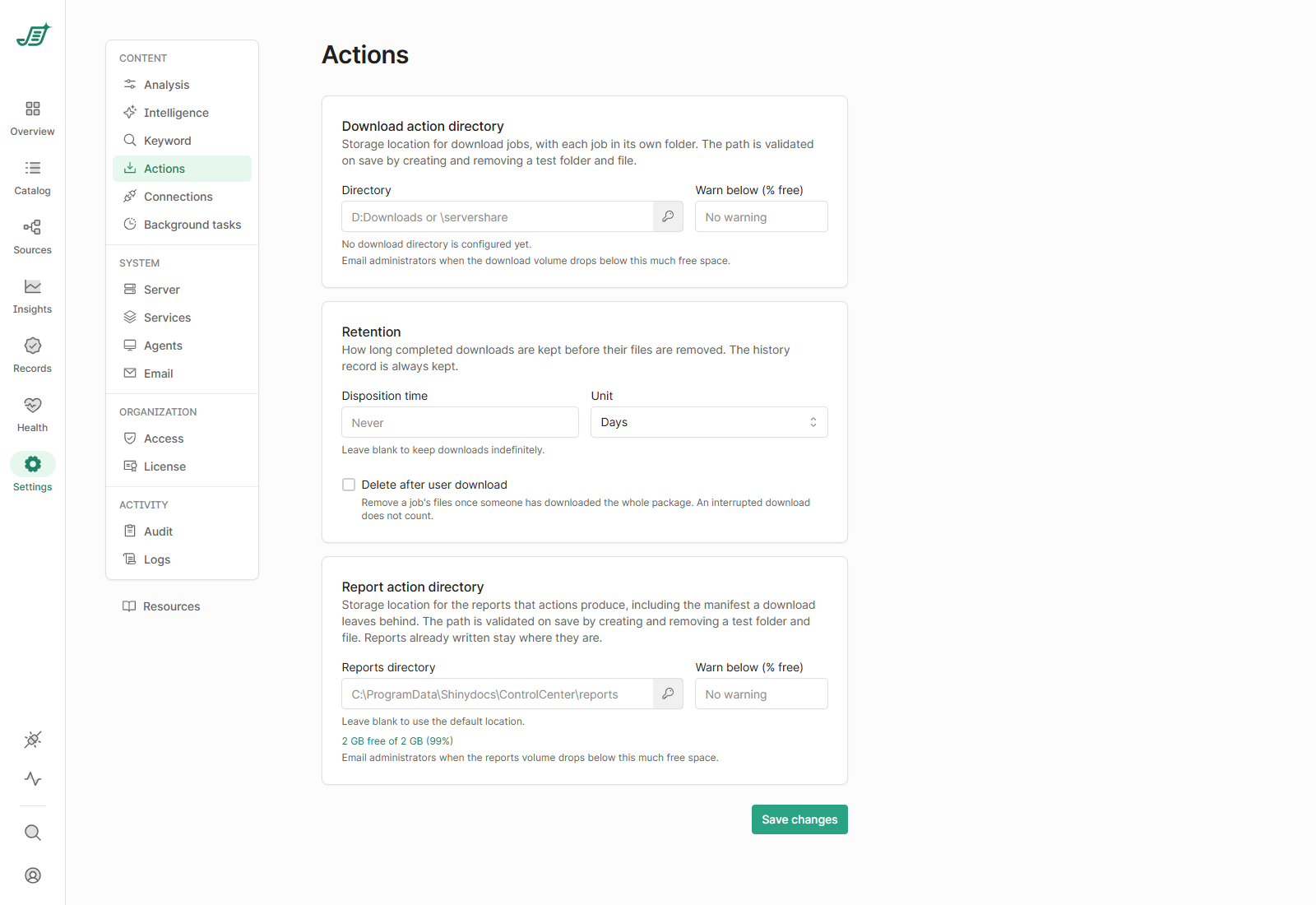
Download action directory
Where download jobs are saved, each in its own folder. Files are saved as {source}\{original folder path}\{file name}, with a manifest CSV in the root of the job's folder.
-
Directory: a local path, such as
D:\Downloads, or a network share, such as\\server\share. -
Enter credentials: a Username and Password for the folder, if the Shinydocs Pro service account can't write to it. Enter both together. Leave the password blank to keep the one already saved; clear the username to remove the saved credentials. The password is stored encrypted and is never shown again.
-
Warn below (% free): email administrators when the folder's drive drops below this much free space (0 to 99). Leave it blank for no warning.
Retention
How long completed downloads are kept before their files are removed. The history record of each download is always kept.
-
Disposition time and Unit (Hours, Days or Weeks): leave the time blank to keep downloads indefinitely.
-
Delete after user download: remove a job's files once someone has downloaded the whole package. An interrupted download doesn't count.
Report action directory
Where the reports that actions produce are saved, including a copy of each download's manifest. Leave Reports directory blank to use the default location, shown in the box (by default C:\ProgramData\Shinydocs\ControlCenter\reports). It has the same credentials and Warn below settings as the download directory. Reports already written stay where they are when you change it.
Save
Select Save changes. Shinydocs Pro checks each folder by creating and removing a test folder and file in it. If a folder can't be used, nothing is saved and the message names the folder.