This article documents how to configure OpenSearch Dashboards to use OTDS OAuth.
📘 Configure OpenSearch Dashboards to use OTDS OAuth
-
Edit the file opensearch_dashboards located at <OpenSearch Dashboards Home>\config\opensearch_dashboards.yml and add the following to the bottom of the file and fill in the following details.
-
client_id: the name of the OAuth client from OTDS
-
client_secret: the secret generated by OTDS when the OAuth client was saved.
-
base_redirect_url: the url to the opensearch dashboards instance (e.g: https://lab-opensearch-01.lab.shinydocs.local:5601)
-
openid_connect_url: the url to the OTDS server with /otdsws/.well-known/openid-configuration on the end. (e.g: https://lab-opensearch-01.lab.shinydocs.local:8443/otdsws/.well-known/openid-configuration)
# uncomment to enable multi auth support of openid and basic auth (internal database)
#opensearch_security.auth.type: ["basicauth","openid"]
#opensearch_security.auth.multiple_auth_enabled: true
opensearch_security.auth.type: ["openid"]
opensearch_security.auth.multiple_auth_enabled: false
opensearch_security.openid.client_id: <clientname from OTDS>
opensearch_security.openid.scope: openid
opensearch_security.openid.client_secret: <client secret from OTDS>
opensearch_security.openid.base_redirect_url: <fqdn to open search>
opensearch_security.openid.connect_url: <fqdn to otds>/otdsws/.well-known/openid-configuration
-
-
Restart OpenSearch Dashboards for the settings to take effect.
-
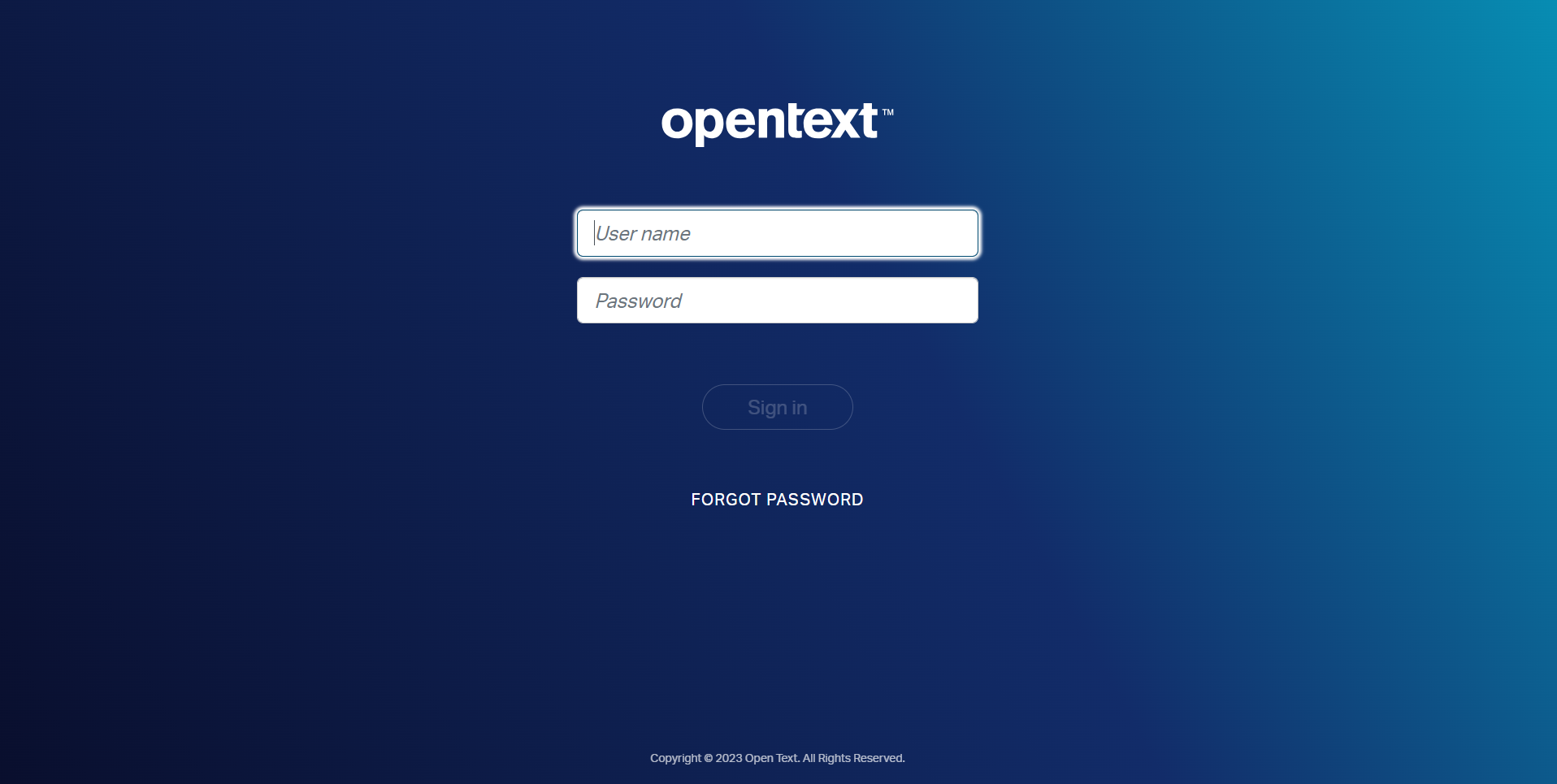
Try to login to opensearch by navigating to the url of open search. You should be shown an OTDS login screen.
-
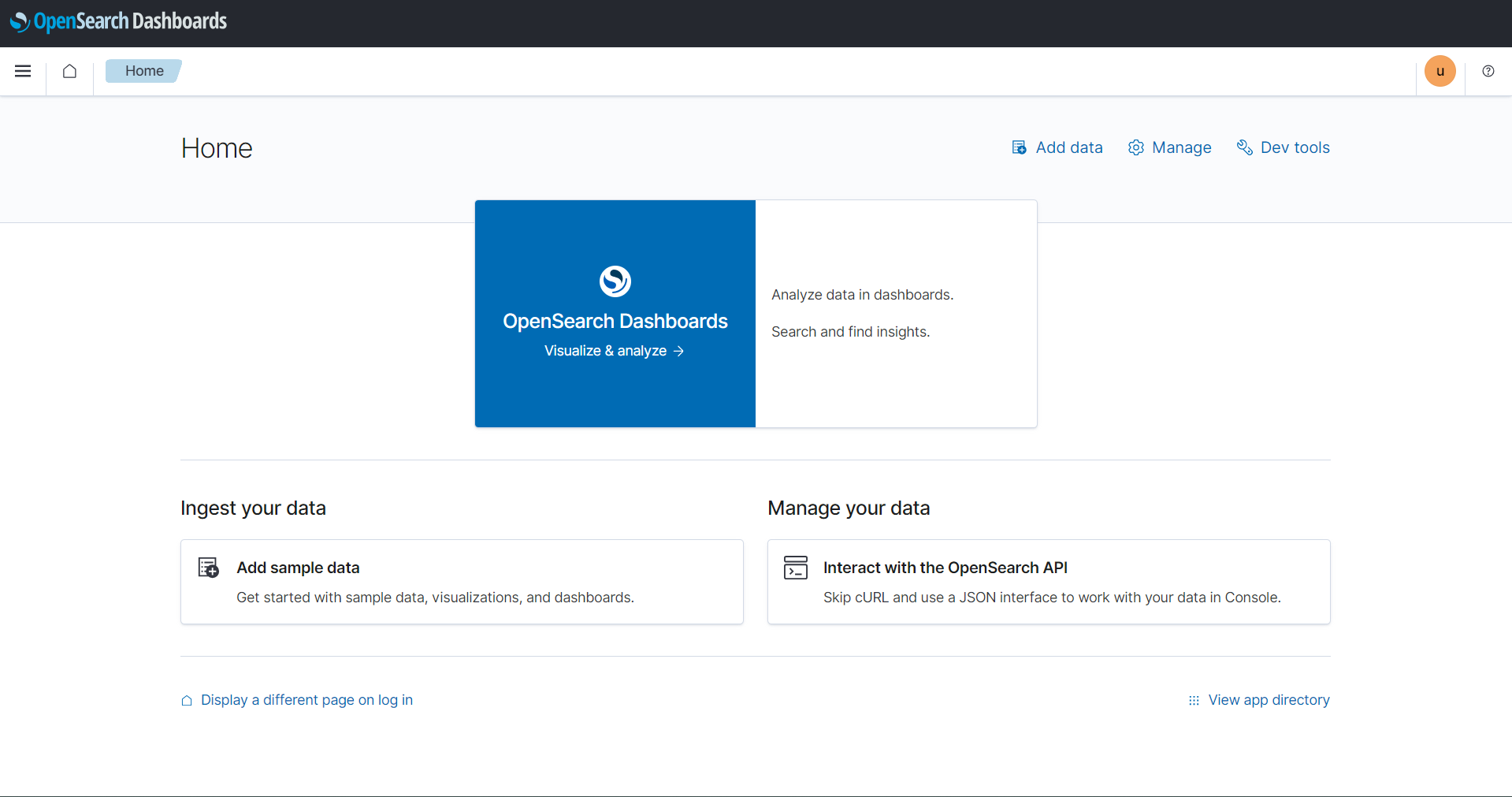
provide OTDS login credentials and you should be logged in:
📘 Role Management (Optional)
If you need to manage user roles, you will need to be able to login as a user with admin rights in OpenSearch Dashboards. This can be accomplished a couple of ways, but the easiest is to enable mutli-auth within opensearch dashboards. The code snippet above has commented out lines that allow multi-auth to be enabled and to login as the opensearch admin user.
-
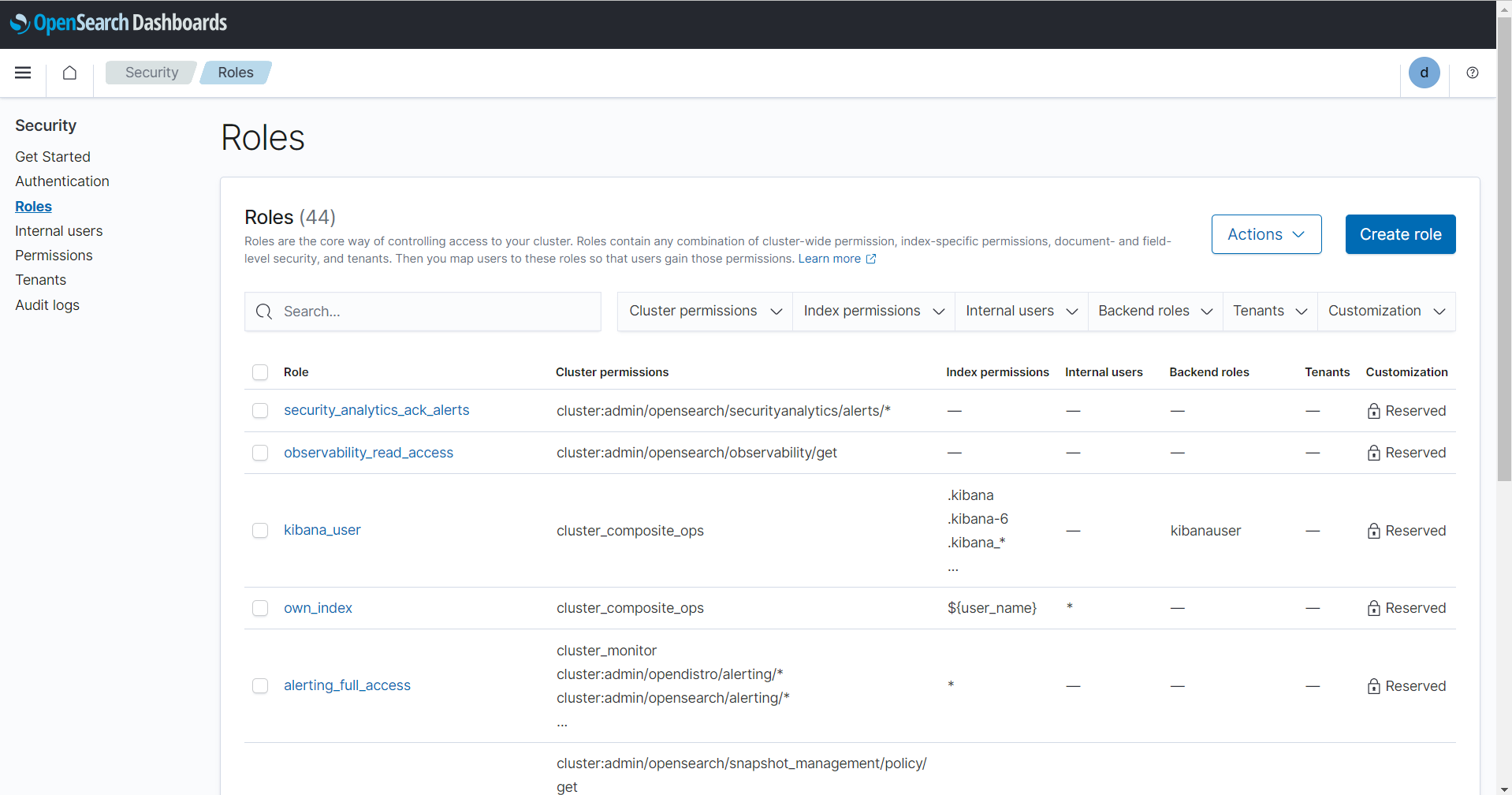
Once logged in, you can navigate Security → Roles section.
-
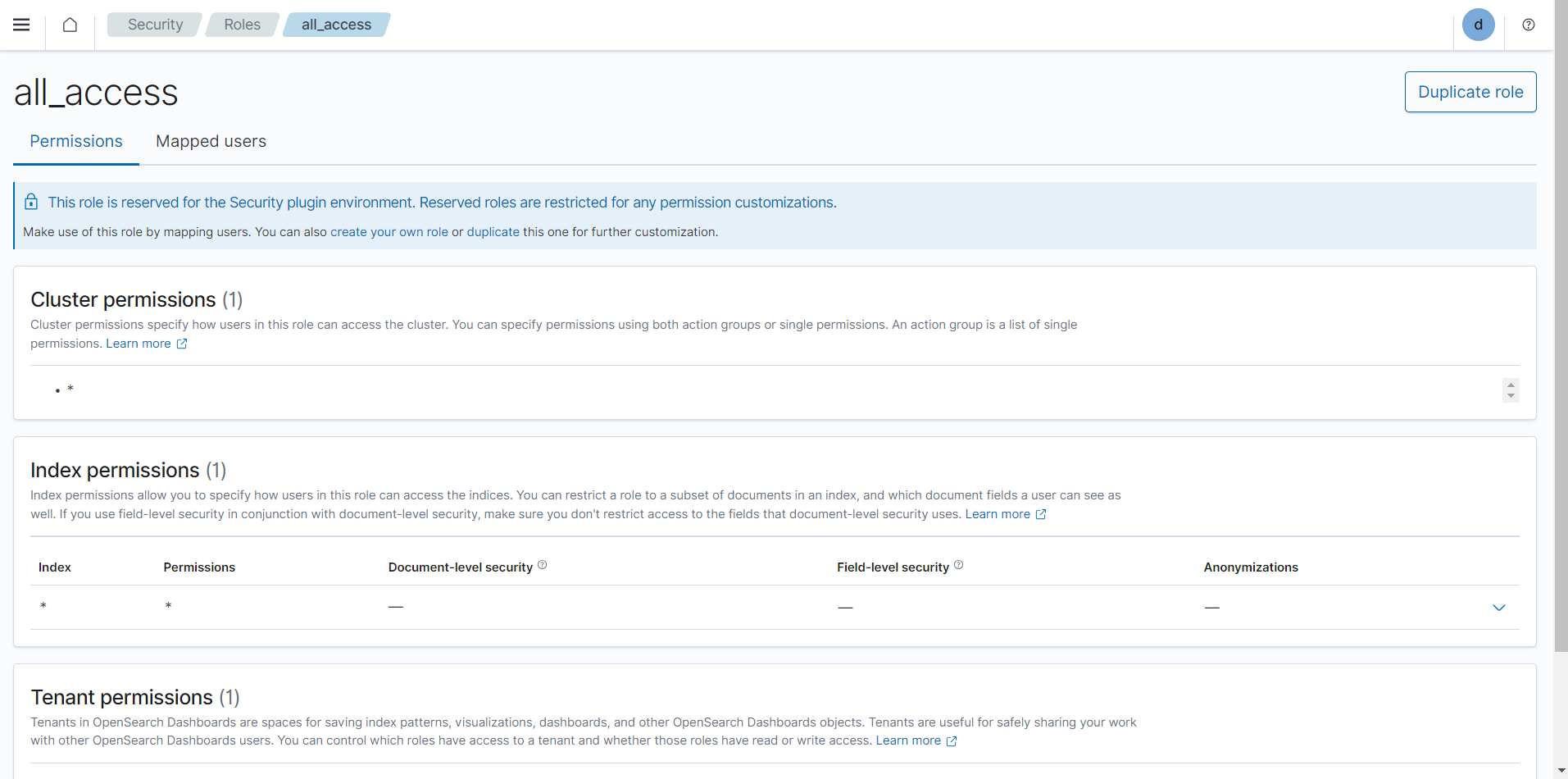
Click on a Role you want to grant access.
-
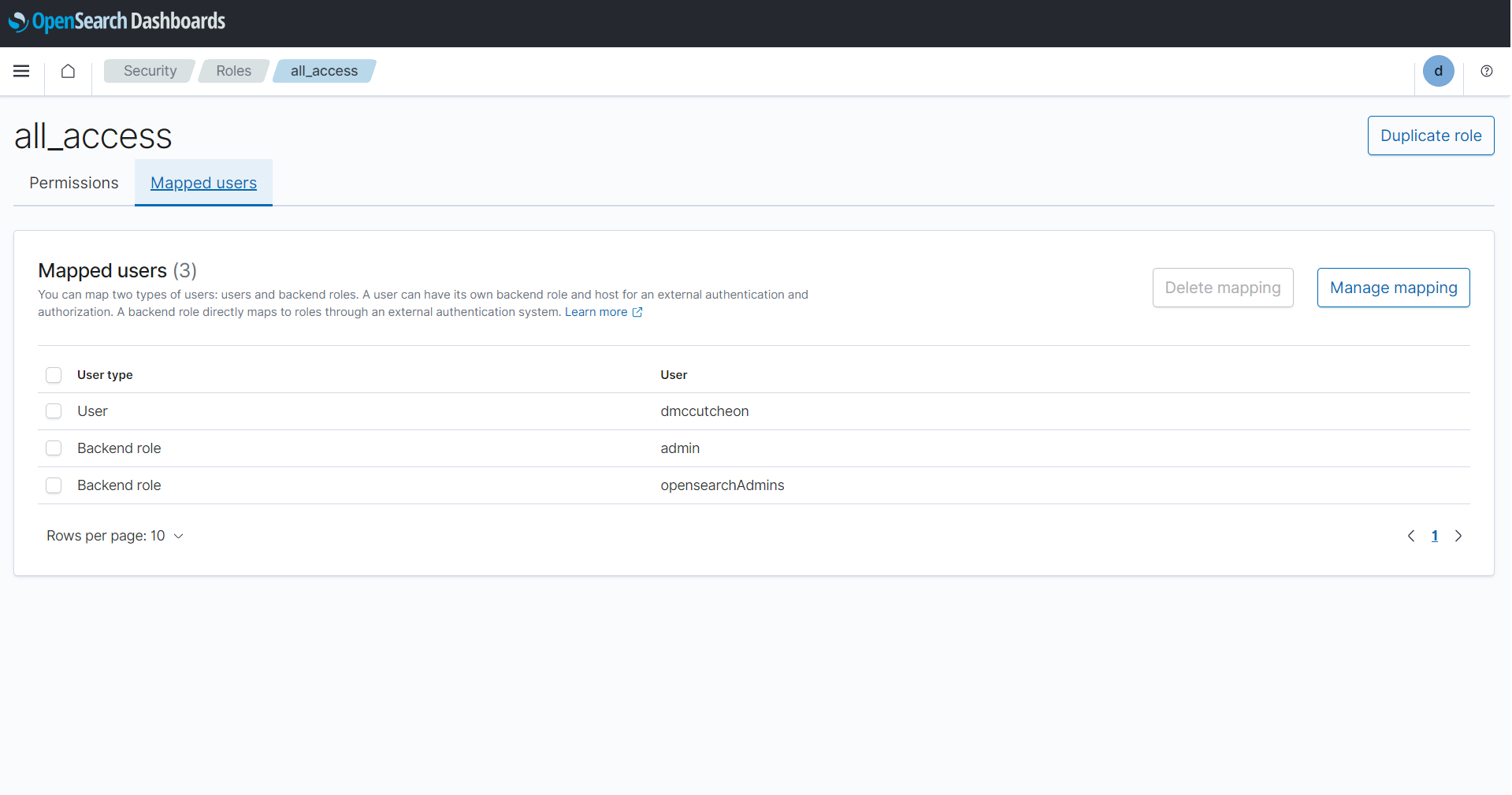
Click on the Mapped Users
-
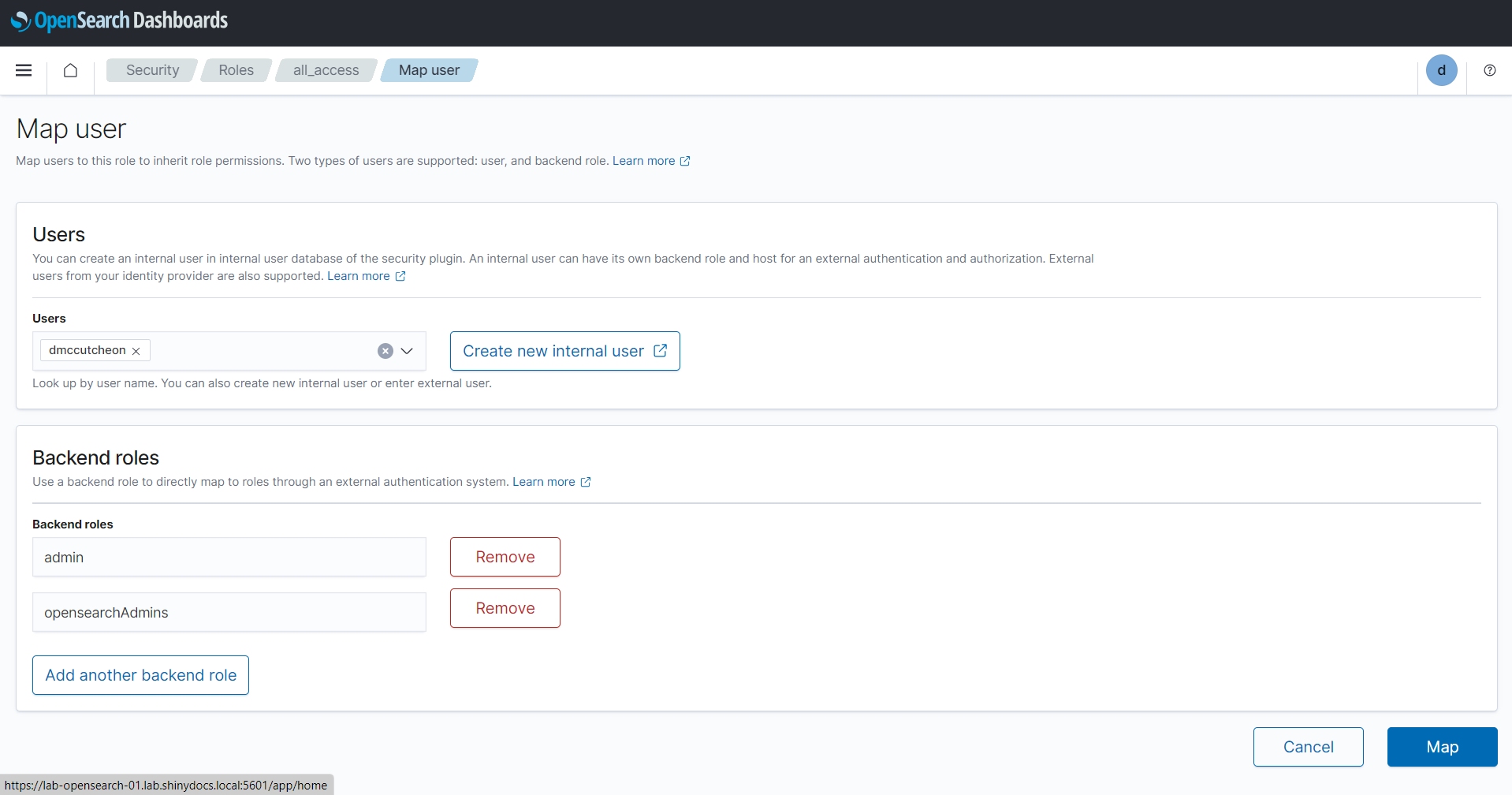
Click on Manage Mapping
-
You can add users to the list (either from the internal database, or type in a name that matches a user coming from OTDS)
-
Click Map to save the changes. The next time the user logs in, if there name matches the mapping in the role, they will be granted the role.
-
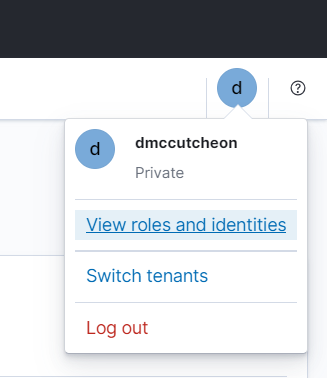
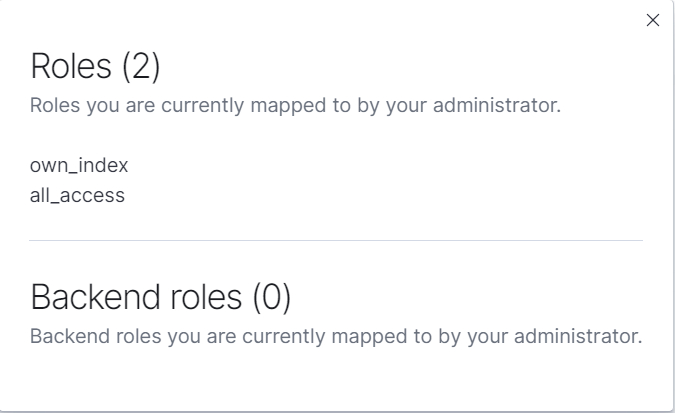
Once logged in as the user, you can check if the mapping worked by selecting the user icon in the top right corner and selecting View roles and identities.