
Applies to:
Cognitive Suite version 2.7 and later
Situation:
You may encounter the following error when using the Cognitive Toolkit AddHashAndExtractedText operation:
There was an error contacting the extraction service @ 'http://localhost:55555;. Call failed. No connection could be made because the target machine actively refused it. (localhost:55555): GET http://localhost:55555
Solution:
This error will occur if the Shinydocs Extraction Service is not running when using the AddHashAndExtractedText tool with the --action-keyword text or --action-keyword both parameters. To prevent the error from occurring, ensure the Shinydocs Extraction Service is running when utilizing these parameters.
Note: This error will not occur with --action-keyword hash since it does not use the extraction service.
Ensure the Shinydocs Extraction Service is running:
-
Open services.msc
-
Locate the “shinydocs-extraction” service
If the service is Running, submit a ticket to Shinydocs' support team to investigate this issue further.
-
If the service is not Running, start the service (right-click on the service and select “Start”)
-
If the service starts, run the
AddHashAndExtractedTextcommand again. If the command works, then the issue is resolved. -
If the service does not start, note the message/error and proceed to the next steps
-
Check Windows Event Logs:
-
If the “shinydocs-extraction” service fails to start from service.msc, you may receive an error message similar to this:
Windows could not start the shinydocs-extraction on Local Computer. For more information, review the System Even Log. If this is a non-microsoft service, contact the service vendor, and refer to the service-specific error code 3.
If you received a different error message from above, submit a ticket to Shinydocs Support to investigate the issue further.
-
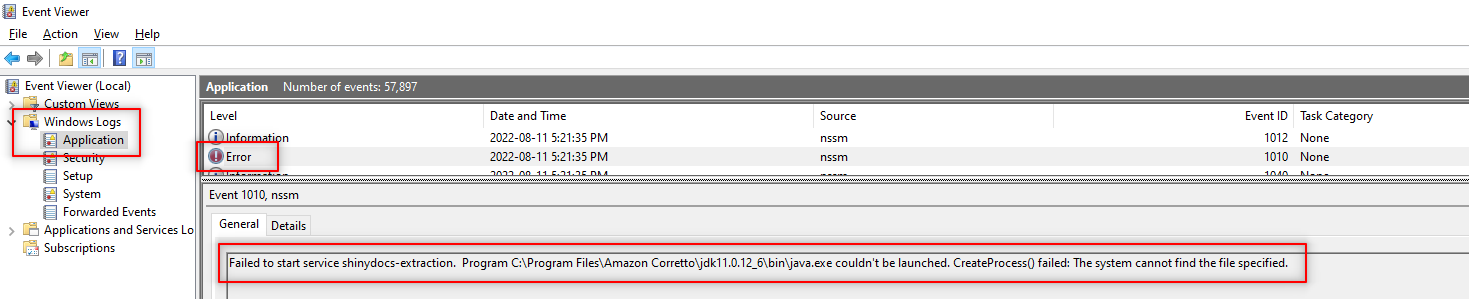
Open eventvwr.msc (Event Viewer)
-
Go to Windows Logs > Applications
-
Locate the error log that matches the timestamp of the message you received
-
The message in the error log should be similar to the one below:
Failed to start service shinydocs-extraction. Program C:\Program Files\Amazon Corretto\jdk11.0.12_6\bin\java.exe couldn't be launched. CreateProcess() failed: The system cannot find the file specified.
If you received a different message from above, submit a ticket to Shinydocs Support to investigate the issue further.
-
The above error suggests that the configuration of the Shinydocs Extraction Service is pointed to an incorrect location for java
-
This can occur if java was updated and the installation path changed.
-
Update shinydocs-extraction service java path:
-
Open cmd (Commmand Prompt)
-
Navigate to the extraction service location in cmd
-
Example:
cd c:\Shinydocs\extraction-service
-
-
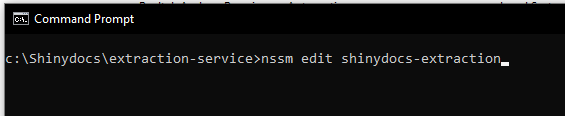
Enter the following command;
nssm edit shinydocs-extractionand press ENTER
-
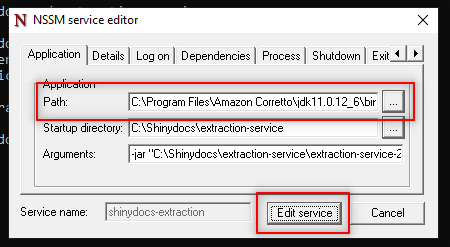
This will open the NSSM service editor
-
Under the “Application” tab, note the “Path” field, which should be the location of your current installation of java
-
If the current path is not the location for your current installation of java, select the Horizontal Ellipsis […] to edit the path
-
Navigate the the correct/current java path, select the java.exe and “Open”
-
Select “Edit service” to apply the change
-
If the path is already correct; submit a ticket to Shinydocs Support to investigate the issue further.
-
After the change has been applied, open services.msc
-
Right-click on the “shinydocs-extraction” service and select “Start”
-
If the service starts, try try running the
AddHashAndExtractedTextcommand again -
If the
AddHashAndExtractedTextcommand works, the issue is resolved
If the service doesn’t start or the command doesn’t work, submit a ticket to Shinydocs Support to investigate the issue further.
Related Articles: