
Requirements
-
A NetDocuments account with administrator rights
-
Internet connection
-
Shinydocs Pro installed
Creating a Shinydocs Service Account in NetDocuments
Creating and Mapping the Service Account
NetDocuments requires an internal service account that is mapped to the Shinydocs application.
-
In the NetDocuments Admin Console, select Users & Groups.
-
Click Add User.
-
In the Add User popup, enter the email address for the new service account user and click OK.
-
In the Details tab, enter the required details and any additional details you would like to add to the account. Then, select these options near the bottom of the window:
-
User type: Internal
-
Repository admin type: Full
-
Other options: Non-Interactive Application Service Account
-
-
Click the Save button.
-
Navigate to the Service Accounts tab in Users & Groups and click the Create Service Account button.
-
Enter the email address you provided in Step 3, and click the Create button.
-
Enter the Client ID:
AP-MT00CP73and click the Create Mapping button. -
Click the Save button.
-
On the NetDocuments Cabinets page, select the cabinet to map to the service account
-
You will need to repeat this process for each cabinet you want to analyze
-
-
Go to the Cabinet Administrators and add the service account you created as a cabinet administrator.
-
Ensure the created service account has DEFAULT rights to your selected cabinet.
Gather your NetDocuments Repository ID
With the application registered and the service account created and mapped, you will need to gather your NetDocuments Repository ID. This ID will be used in the Shinydocs Pro NetDocuments configuration.
-
In the NetDocuments Admin Console, go to Information and Settings
-
In the General section, copy the ID displayed (ex. AB-CDE1FGH2), which is your NetDocuments Repository ID.
Shinydocs Pro can analyze all cabinets it has access to or you can provide specific Cabinet IDs. If you want to use Cabinet IDs, gather those now.
NetDocuments Search App Registration
To register the Search application with OAuth support, you will need to add a new application to your NetDocuments Support account. NetDocuments needs to manually approve the application which can take 15-20 minutes.
-
Login to NetDocuments Support and go to the developed applications section (Developed Applications)
-
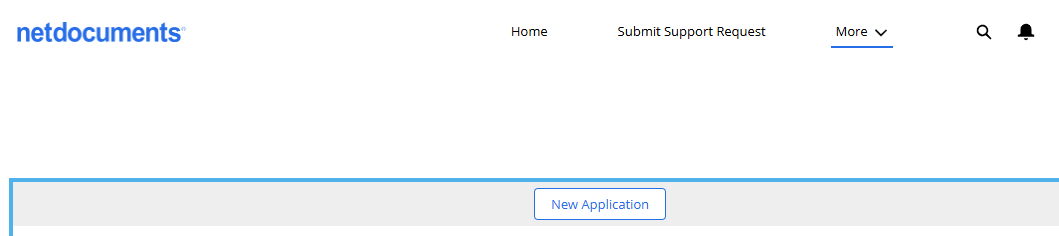
Click New Application.
-
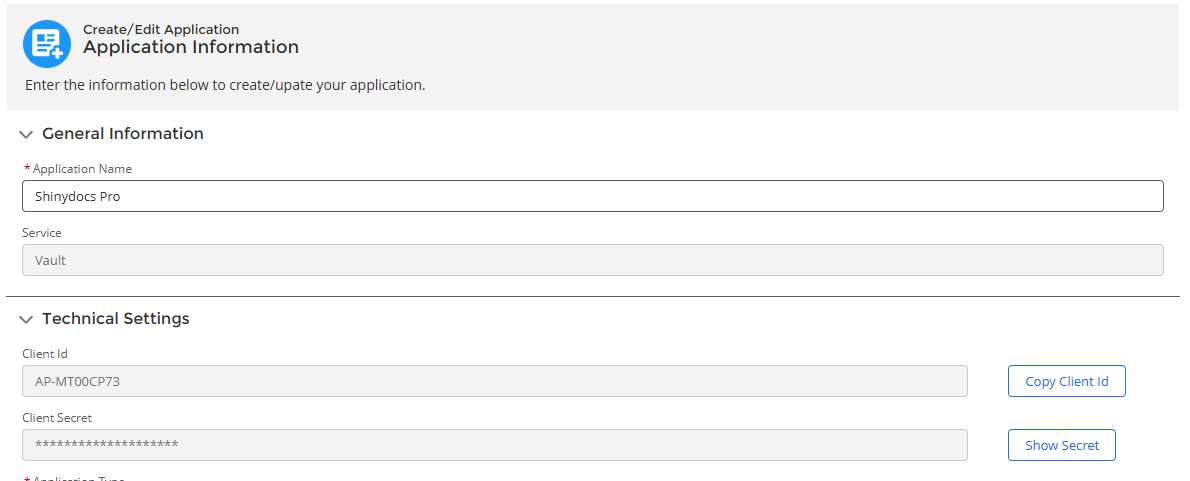
Fill out the following information in the Application Information fields:
-
Application Name:
Shinydocs Search -
Service:
Vault -
Application Type:
Rest -
Client Type:
Confidential (Supports Authorized Code Grant flow) -
Description:
Shinydocs Search application -
Redirect URI: Replace
<ShinydocsServerHostname>with your Shinydocs Server hostname or FQDN
https://<ShinydocsServerHostname>:9701/oauth/netdocuments/authorized -
Additional Redirect URIs:
-
urn:ietf:wg:oauth:2.0:oob -
ndoffice://OAuthCallback -
https://oauth.pstmn.io/v1/browser-callback -
https://localhost:9701/oauth/authorize -
Replace
<ShinydocsServerHostname>with your Shinydocs Server hostname or FQDN
https://<ShinydocsServerHostname>:9701/oauth/authorized
-
-
-
Click Submit for Approval.
-
You will need to wait for the application to be approved by NetDocuments. Once approved, you will be able retrieve the Client Id and Client Secret.

Add NetDocuments to Shinydocs Pro
-
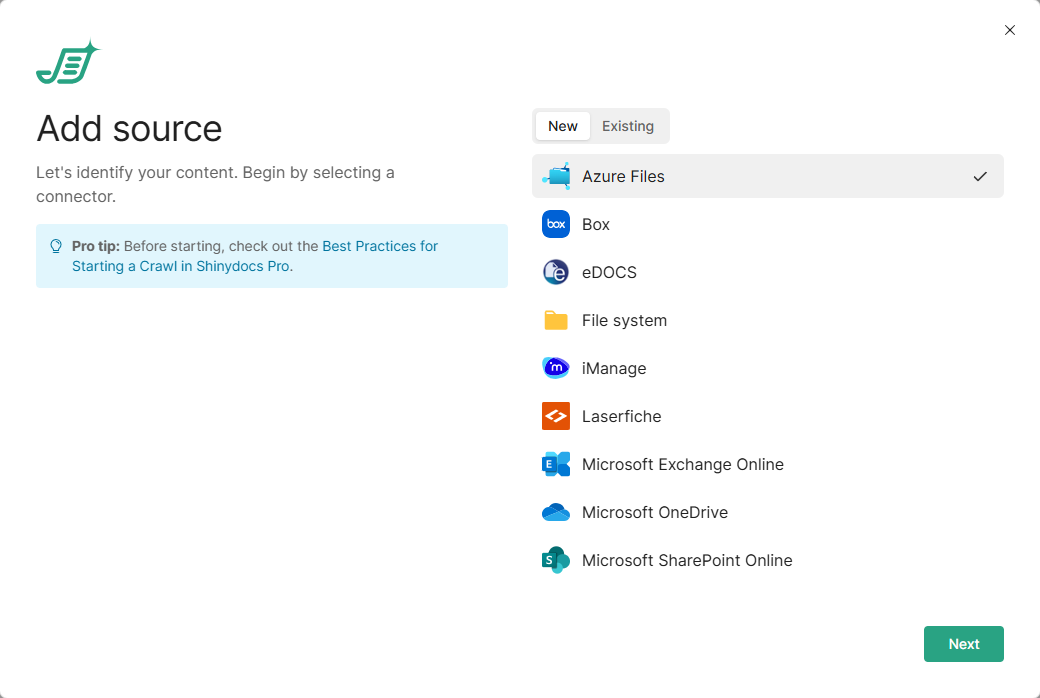
In Shinydocs Pro Control Center, select Add source. It is on the Overview page and the Sources page.
-
On the New tab, select NetDocuments, then select Next. To add another source to a NetDocuments connection you already set up, use the Existing tab instead.
-
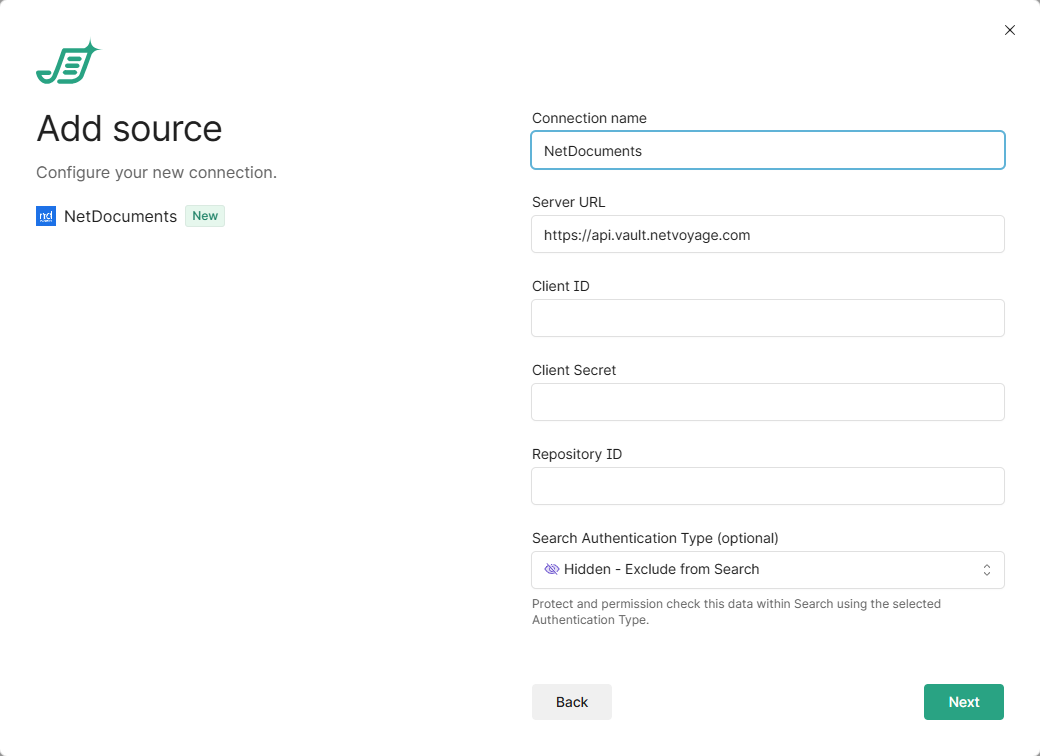
Enter the connection details:
-
Connection name: leave as is, or enter a name of your own.
-
Server URL: typically
https://api.vault.netvoyage.com(filled in for you). -
Client ID:
AP-MT00CP73, the Client ID you mapped the service account to. -
Client Secret: the secret for that Client ID.
-
Repository ID: the Repository ID you gathered, for example
AB-CDE1FGH2.
-
-
Under Search Authentication Type, select Protected - OAuth2, then enter:
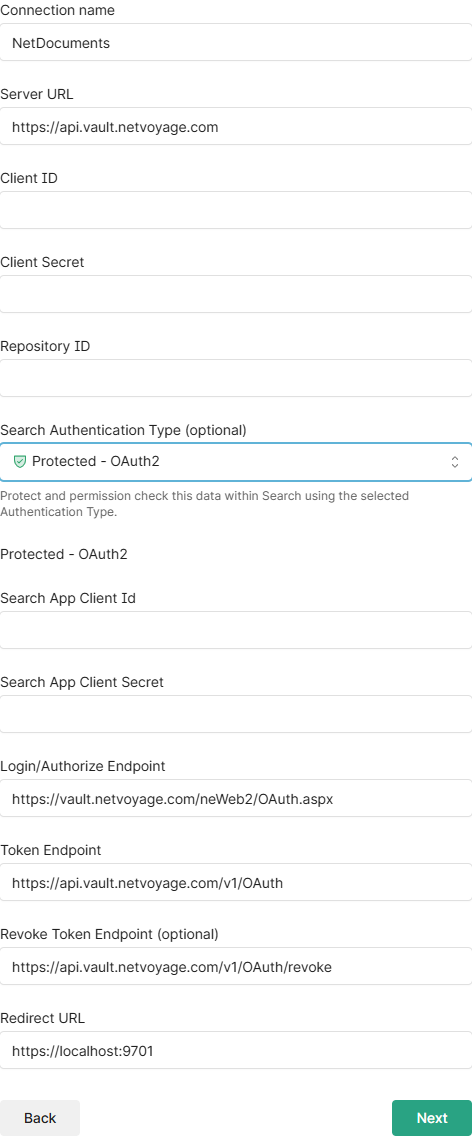
-
Search App Client Id and Search App Client Secret: from your Shinydocs Search app registration.
-
Login/Authorize Endpoint (
https://vault.netvoyage.com/neWeb2/OAuth.aspx), Token Endpoint (https://api.vault.netvoyage.com/v1/OAuth) and Revoke Token Endpoint (optional) (https://api.vault.netvoyage.com/v1/OAuth/revoke): these are filled in for you. -
Redirect URL: the same Redirect URL you gave the app registration, as domain and port only.
-
-
Select Next. Control Center checks the connection before you continue. If something is wrong, the error says which setting to fix. A source can only be added while an agent is online.
-
Optionally, enter the Cabinet ID of each NetDocuments cabinet you want to crawl. If you don’t enter any, every cabinet the Shinydocs service account has permission to is crawled.
-
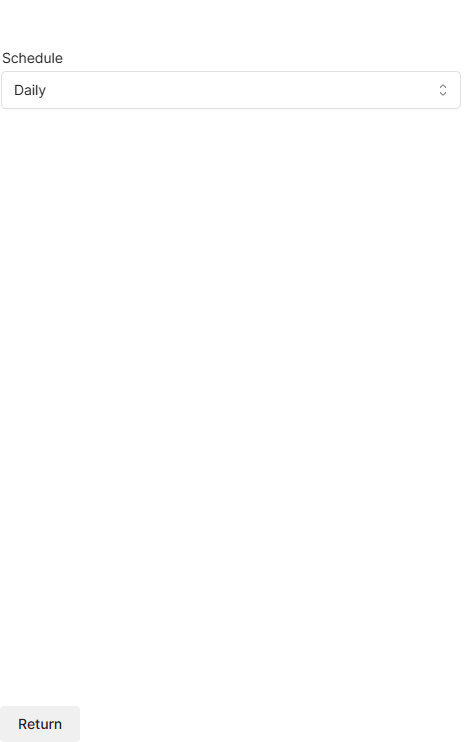
Optionally, select More options to set the Schedule (Daily or None), then select Return.
-
Select Start analysis.
The new source runs the analysis set for NetDocuments connections under Settings > Analysis. To change what runs for this source, or its schedule, open it from the Sources page. See Shinydocs Pro Control Center Guide.