
Box™ by Box Inc. has API limits that can incur costs to your organization. While the Shinydocs Pro uses these API calls efficiently, depending on the volume of your data, you may go over your API limit. Please consult with your Box representative for more information.
To analyze content from your organization's Box repository, you will need to create two new application in your Box tenant for Shinydocs Pro. This guide will show you how to add the application and get the following details required for Shinydocs Pro to connect to Box:
-
Analysis Client ID
-
Analysis Client Secret
-
Search Client ID
-
Search Client Secret
-
Search Redirect URL
-
Enterprise ID
Requirements
-
Access to Box URL from server running Shinydocs Pro (internet connection required)
-
Example:
http://box.com
-
-
Access to your organization’s Box Dev Console
-
Your account must have MFA enabled in Box to use client secret authentication
Analysis Setup - Box
-
Log in to Box at Box Developer Console.
-
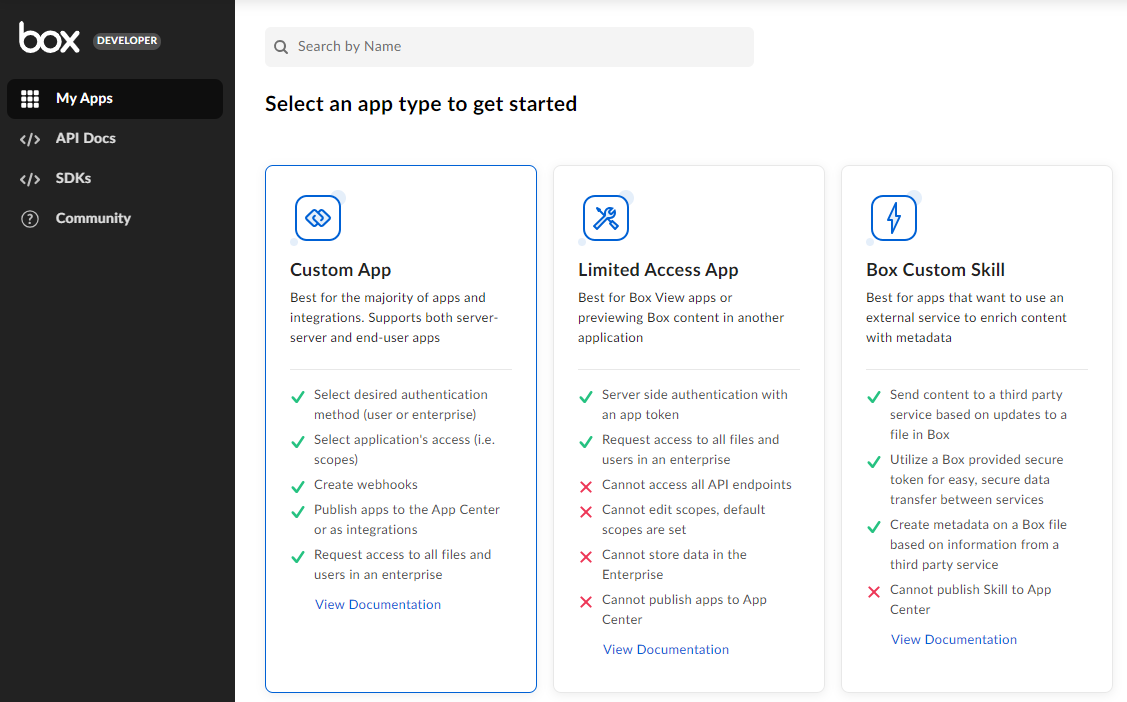
Create a Custom App:
-
Select Custom App and choose
-
App Name: Shinydocs Pro Control Center
-
Description: (optional)
-
Purpose: Other
-
Please specify: Analyzing content
-
Who is building this application? (optional): Partner
-
Please specify: Shinydocs
-
-
Click Next.
-
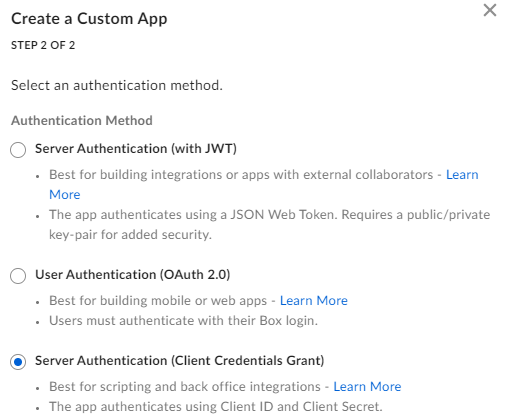
Authentication Method: Server Authentication (Client Credentials Grant)
-
Click Create App.
-
-
Configure your app and get connection details:
-
Box Dev Console should automatically take you to your new application’s Configuration page. If not, find your newly created app in My Apps and click on the Configuration tab.
-
Scroll down to the App Access Level section and change the access level to App + Enterprise Access.
-
Scroll down to the Advanced Features section and enable:
-
Make API calls using the as-user header
-
Generate user access tokens

-
-
Save your changes.
-
While on the Configuration page, check the OAuth 2.0 Credentials section for your Client ID and Client Secret (you may have to click the Fetch code button).
-
-
Approve the application (requires Admin)
-
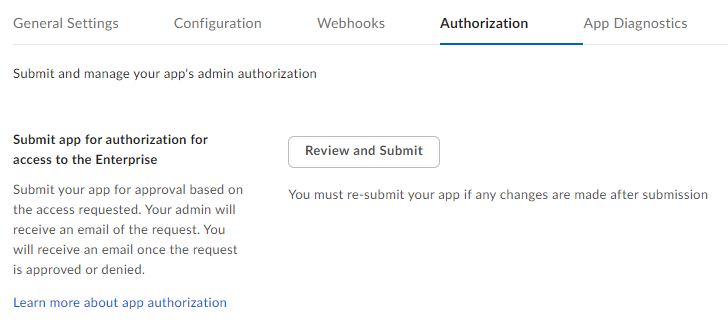
Within the app details (https://app.box.com/developers/console/app/#######), click on the Authorization tab.
-
Click on Review and Submit.
-
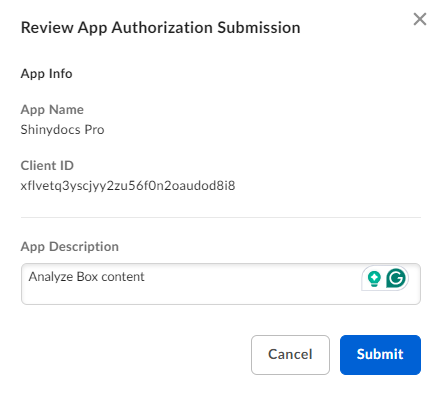
Review the app details and provide a description, then click submit
-
Navigate to https://app.box.com/master (you should also receive an email if you are the administrator with a link to the approval).
-
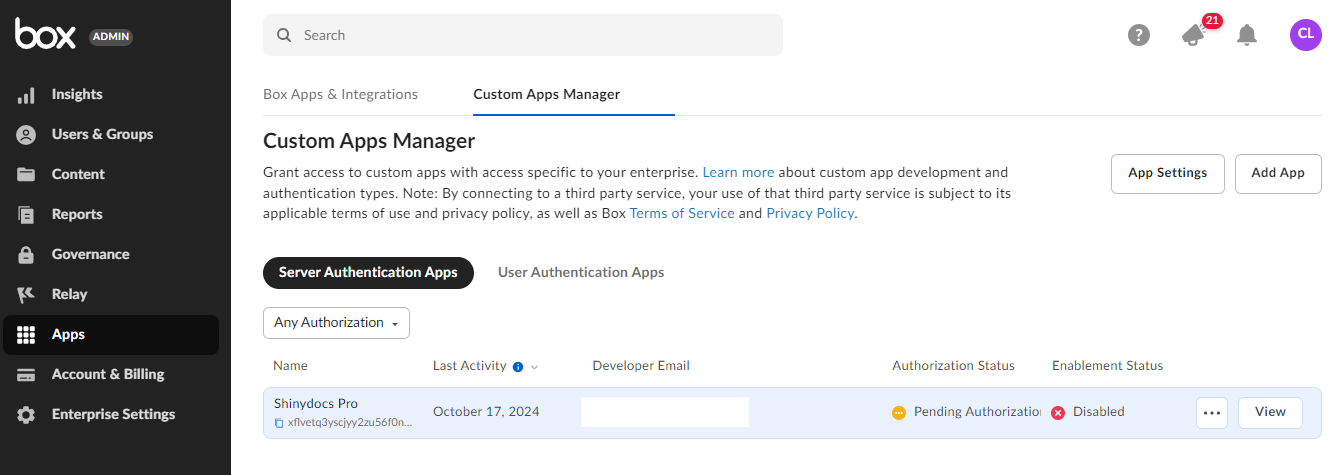
Click on Apps on the left > Custom Apps Manager.
-
Find your newly created app in the list of apps, hover your mouse over the entry and click View.
-
Click the Authorize button and confirm the authorization.
-
-
Get your Enterprise ID:
-
You will find your Enterprise ID under Account Information.
Search Setup - Box
Still in the Box Developer Console:
-
Go to My Platform Apps.
-
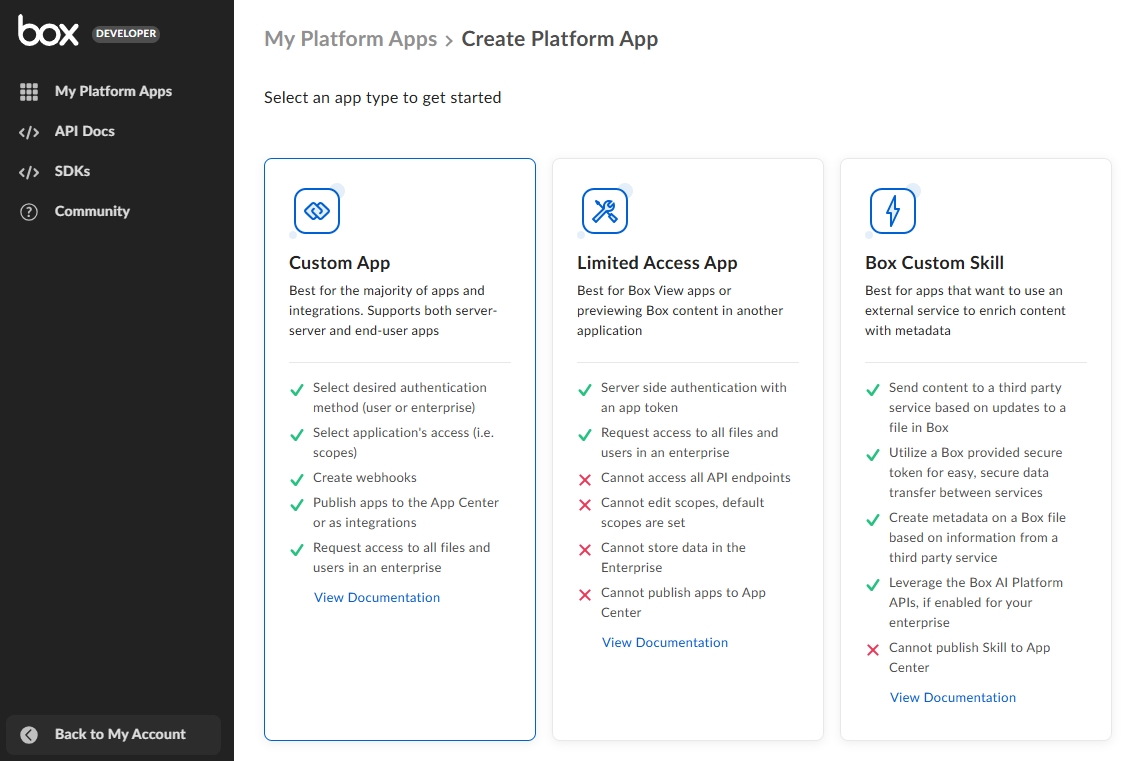
Click Create Platform App.
-
Select Custom App:
-
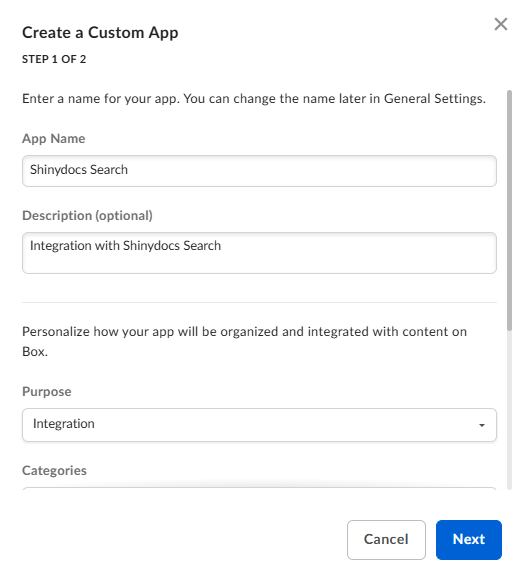
Fill out the custom app details:
-
App Name: Shinydocs Search
-
Description: Integration with Shinydocs Search
-
Purpose: Integration
-
Categories: Productivity
-
Which external systems are you integrating with?: Shinydocs Search
-
Who is building this application: Partner
-
Please specify: Shinydocs
-
-
Click Next.
-
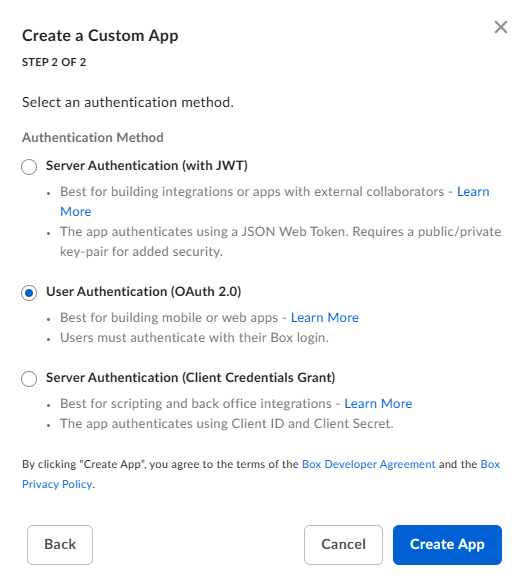
In Step 2 of 2, select User Authentication (OAuth 2.0):
-
Click Create App.
-
You will now be in the Shinydocs Search app configuration
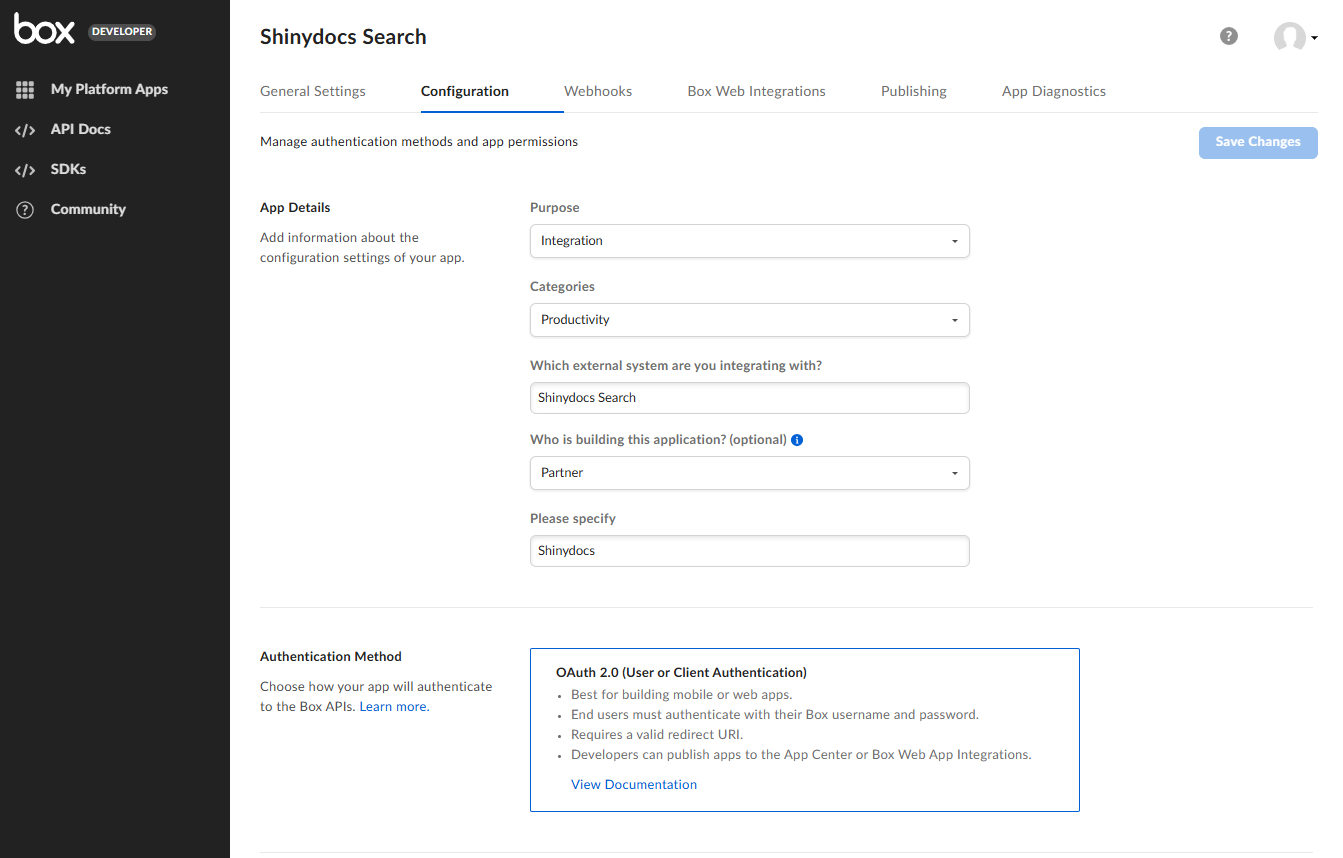
-
Scroll down to the OAuth 2.0 Credentials section
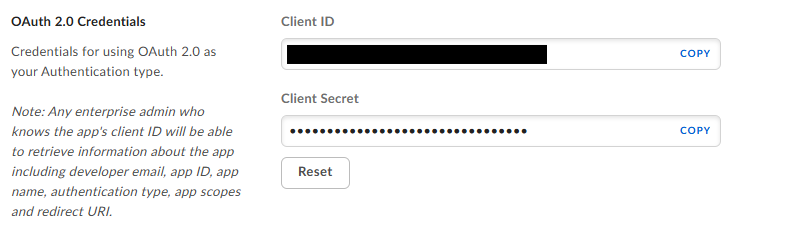
-
Note the Client ID and Client Secret, you will need these later.
-
-
Scroll down further to OAuth 2.0 Redirect URIs
-
Add the following URIs:
-
https://localhost:9701/oauth/authorized -
https://<hostname>:9701/oauth/authorized
Replace<hostname>with the machine name Shinydocs Pro is installed on. -
(optional)
https://<FullyQualifiedDomainName>/oauth/authorized
Replace<FullyQualifiedDomainName>with the machine name Shinydocs Pro is installed on.
-
-
-
Click Save Changes in the top-right of the page.
Configure Shinydocs Pro Control Center
-
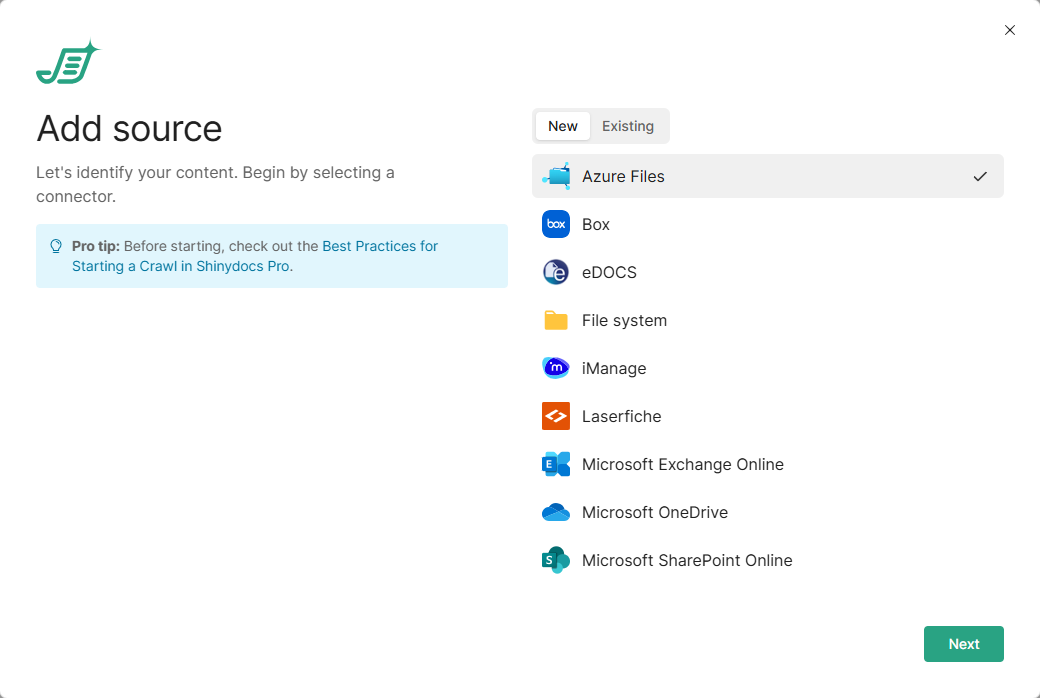
In Shinydocs Pro Control Center, select Add source. It is on the Overview page and the Sources page.
-
On the New tab, select Box, then select Next. To add another source to a Box connection you already set up, use the Existing tab instead.
-
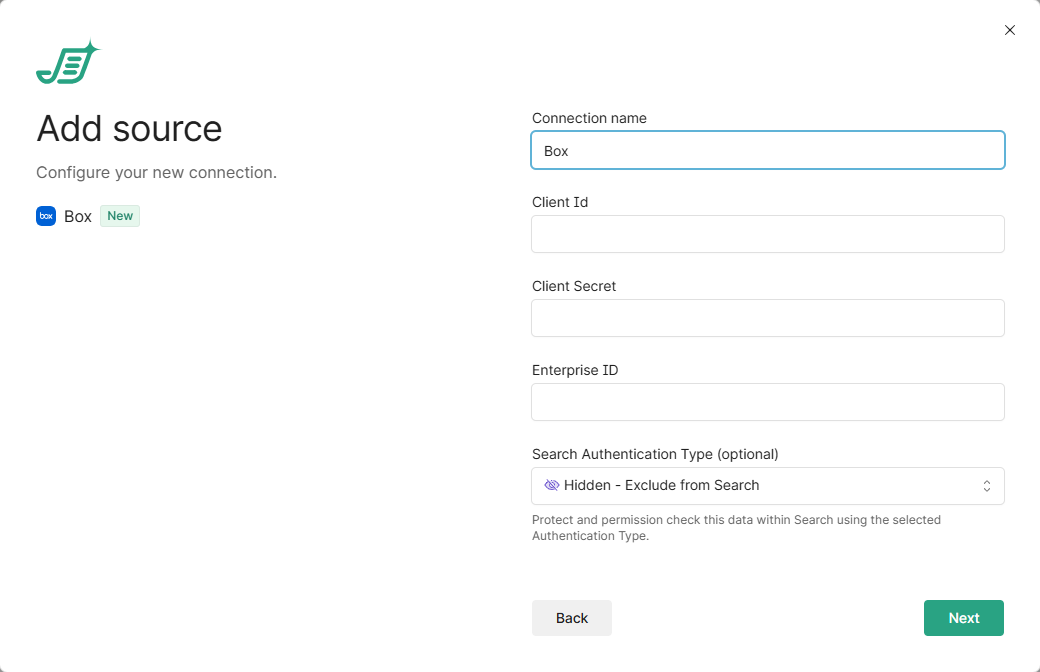
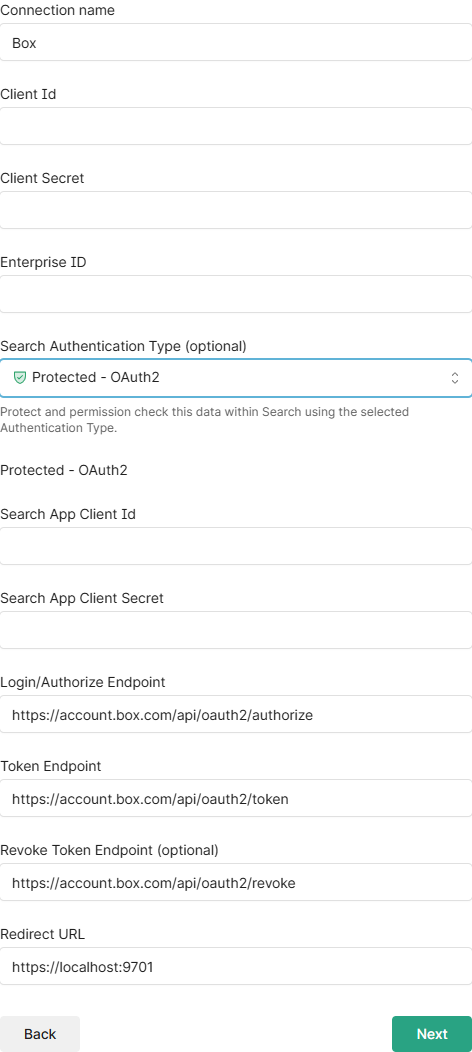
Enter the details from your Shinydocs Pro Control Center (analysis) app:
-
Connection name: leave as is, or enter a name of your own.
-
Client Id and Client Secret: from the analysis app’s configuration.
-
Enterprise ID: your Box Enterprise ID.
-
-
Under Search Authentication Type, select Protected - OAuth2, then enter the details from your Shinydocs Search app:
-
Search App Client Id and Search App Client Secret: from the Search app’s OAuth 2.0 credentials.
-
Login/Authorize Endpoint, Token Endpoint and Revoke Token Endpoint (optional): leave the Box defaults.
-
Redirect URL: the address users reach Shinydocs Search on, as domain and port only, for example
https://<hostname>:9701. It must match a redirect URI you added to the Search app.
-
-
Select Next. Control Center checks the connection before you continue. If something is wrong, the error says which setting to fix. A source can only be added while an agent is online.
-
Optionally, enter the User ID of each Box user you want to analyze. Box user IDs are the users’ email addresses. If you don’t enter any, all users are analyzed.
-
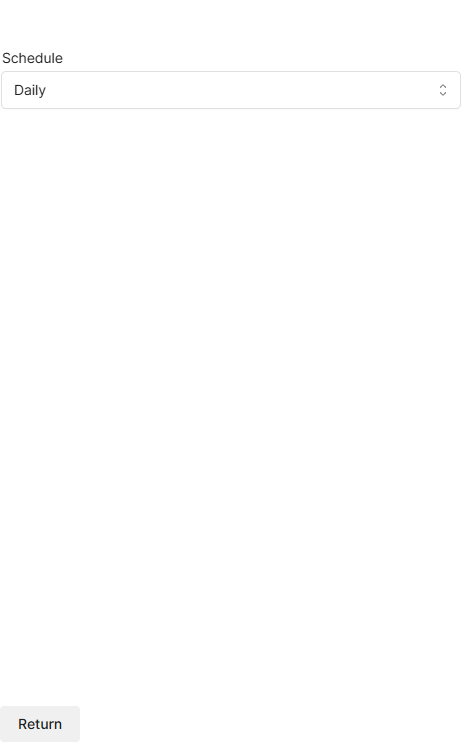
Optionally, select More options to set the Schedule (Daily or None), then select Return.
-
Select Start analysis.
The new source runs the analysis set for Box connections under Settings > Analysis. To change what runs for this source, or its schedule, open it from the Sources page. See Shinydocs Pro Control Center Guide.