
Overview
Shinydocs Pro reads OneDrive, Teams, SharePoint Online and Exchange Online through a Microsoft Entra ID app registration that you create in your tenant. This guide covers Shinydocs Pro 26.5 and later; the last section lists what differs in 26.4 and earlier.
The app registration uses two credentials:
-
Certificate: Shinydocs Pro uses it to read your content. Every source needs it.
-
Client secret: only used when a source's Search authentication type is Protected - OAuth2. Each person then signs in to Microsoft from Search, and sees only results they have access to.
One app registration can serve all four sources. The permissions table lists what each source needs; if you connect several sources, add each permission once.
Requirements
-
Network: HTTPS (port 443) from the Shinydocs Pro server to:
-
login.microsoftonline.com -
graph.microsoft.com -
<tenant>.sharepoint.com(SharePoint Online sources) -
*.sharepoint.com, including<tenant>-my.sharepoint.com, where Microsoft serves file downloads [Confirm C4]
-
-
Browsers: users who sign in from Search need to reach
login.microsoftonline.com. -
Entra roles: a role that can create app registrations (for example Application Administrator). Granting admin consent for Microsoft Graph application permissions needs Privileged Role Administrator or Global Administrator (Microsoft: grant admin consent).
-
Certificate: a
.cerfile (public key) for Entra and a.pfxfile (with the private key) for Shinydocs Pro. Your IT or network team may issue one; otherwise create one as described in the next section. -
Control Center address (Protected - OAuth2 only): the exact address users type to reach Control Center, for example
https://shinydocs.contoso.com, orhttps://shinyvm:9701if they include a port. You enter it in Entra and in each source, and it must match in both places.
Create a certificate
If your organization already issues certificates, follow its process; Microsoft recommends a certificate from a trusted certificate authority for production use. Otherwise, create a self-signed certificate with PowerShell, as Microsoft describes in Create a self-signed public certificate to authenticate your application.
-
Open PowerShell on any Windows computer.
-
Run the following, changing the name and validity to suit your policy:
$certName = "ShinydocsPro"
$cert = New-SelfSignedCertificate -Subject "CN=$certName" -CertStoreLocation "Cert:\CurrentUser\My" -KeyExportPolicy Exportable -KeySpec Signature -KeyLength 2048 -KeyAlgorithm RSA -HashAlgorithm SHA256 -NotAfter (Get-Date).AddYears(2)
Export-Certificate -Cert $cert -FilePath ".\$certName.cer"
$pfxPassword = Read-Host -Prompt "Enter a password to protect the .pfx file" -AsSecureString
Export-PfxCertificate -Cert $cert -FilePath ".\$certName.pfx" -Password $pfxPassword
-
The current folder now holds
ShinydocsPro.cer(upload it to Entra) andShinydocsPro.pfx(upload it to Shinydocs Pro). -
Optional: remove the certificate from this computer's store once both files are saved:
Remove-Item "Cert:\CurrentUser\My\$($cert.Thumbprint)".
Anyone with the .pfx file and its password can use the app's permissions. Keep both in your organization's password manager or secret store, and note the expiry date so you can renew in time (see Renew the certificate and client secret).
Register the app in Microsoft Entra ID
-
Sign in to the Microsoft Entra admin center.
-
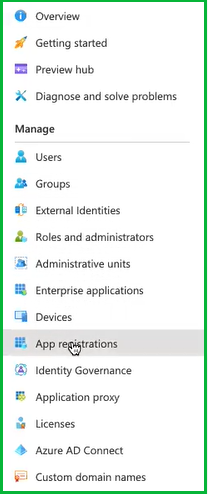
Go to Entra ID > App registrations > New registration.

-
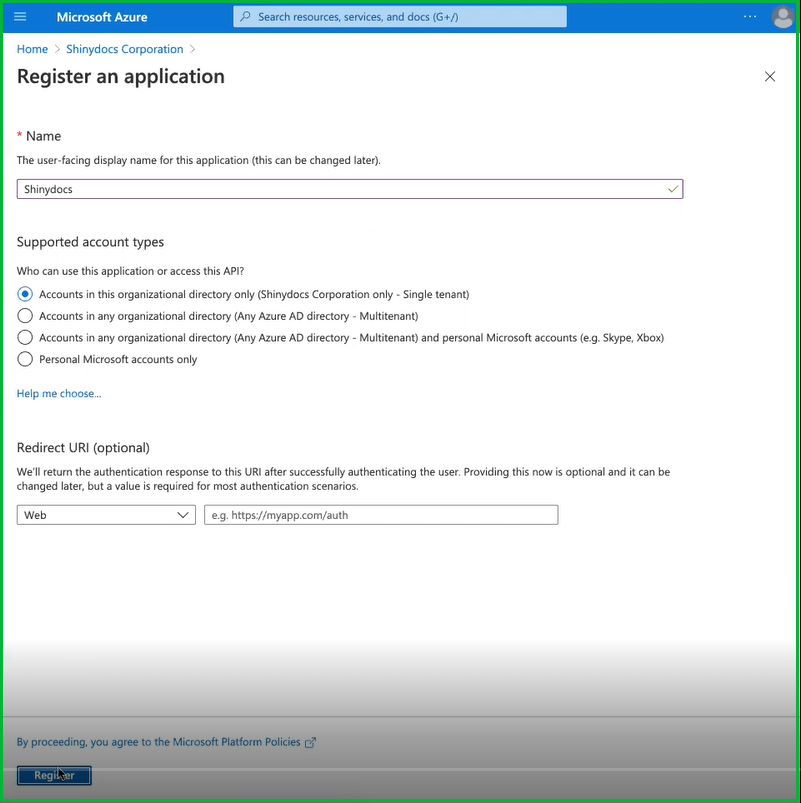
Enter a name, for example
Shinydocs Pro. -
Under Supported account types, select Single tenant only.
-
Leave the redirect URI empty; you add redirect URIs later, under Authentication.
-
Select Register.
-
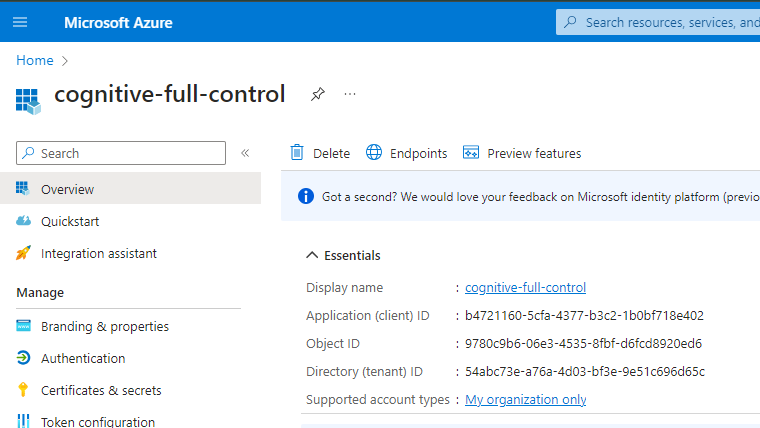
On the Overview page, note the Application (client) ID and the Directory (tenant) ID. You need both in Control Center.
Upload the certificate
-
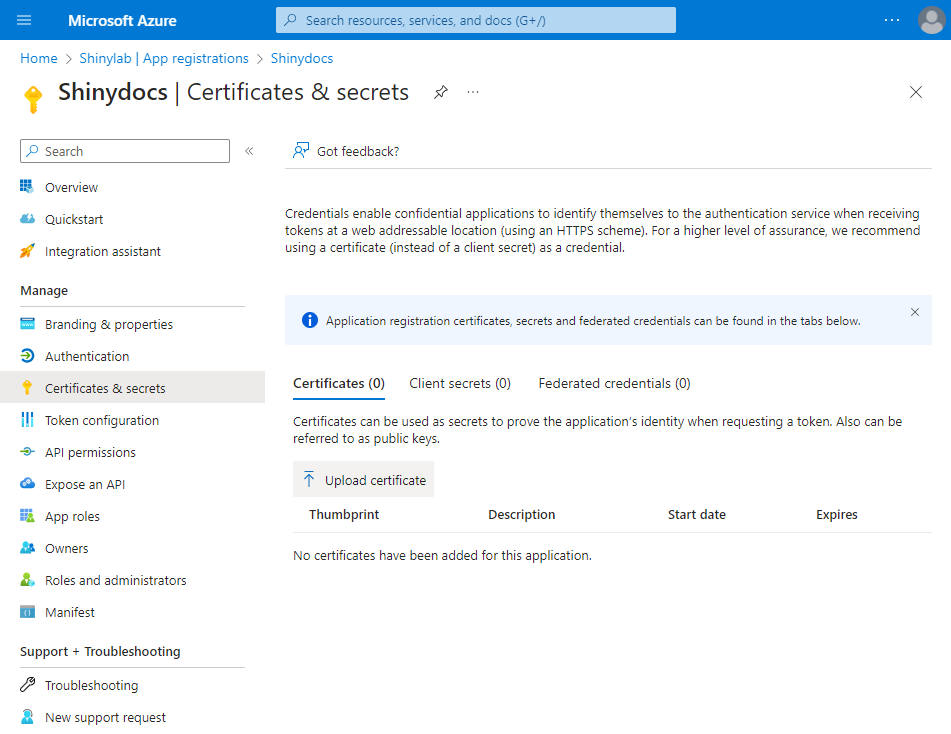
Open Certificates & secrets > Certificates > Upload certificate.
-
Select your
.cerfile (Entra also accepts.pemand.crt), add a description if you like, and select Add.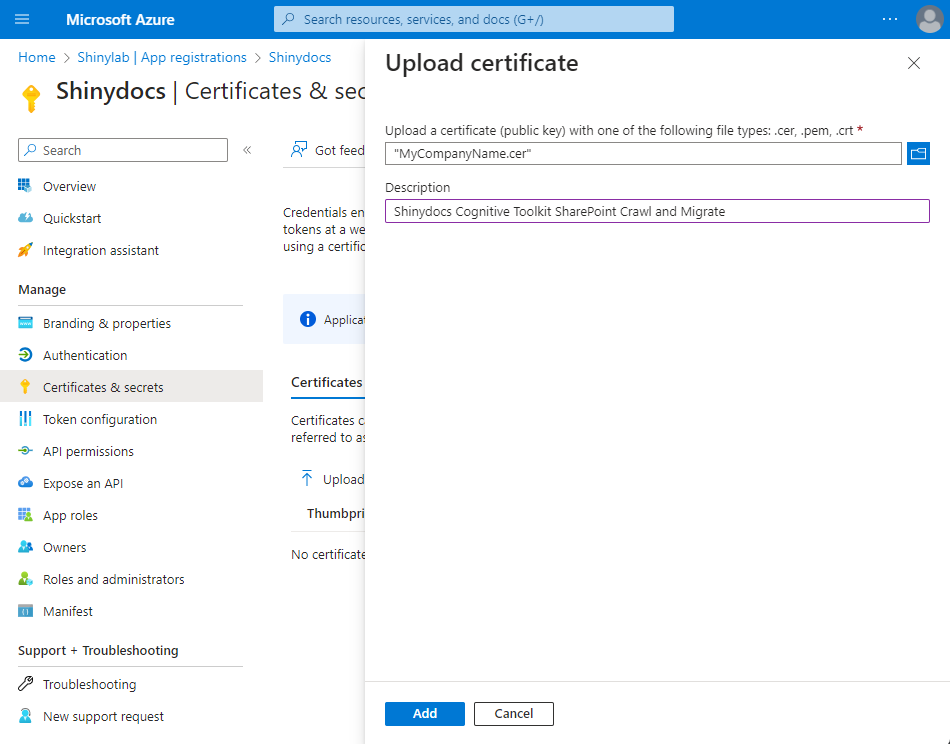
-
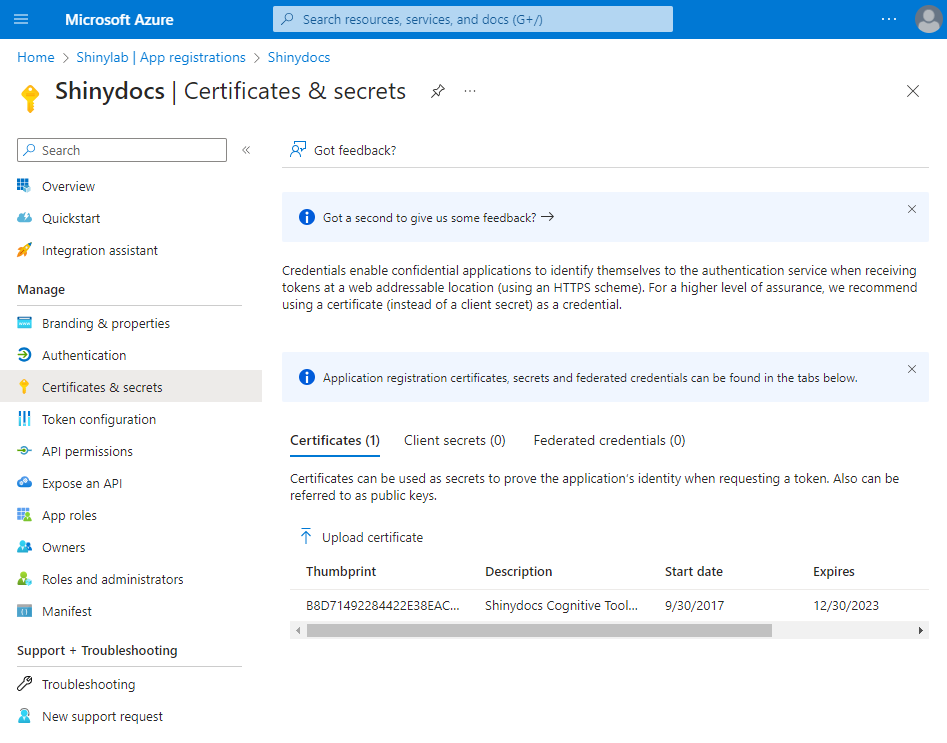
Check that the certificate is listed, and note its expiry date.
Create a client secret (Protected - OAuth2 only)
Skip this if no source will use Protected - OAuth2 for Search.
-
Open Certificates & secrets > Client secrets > New client secret.
-
Add a description and choose an expiry. Microsoft recommends less than 12 months, and the maximum is 24 months (Microsoft: add credentials).
-
Select Add.
-
Copy the Value column right away, not the Secret ID. Entra never shows the value again.
-
Store the value in your organization's password manager, not in a document or email.
-
Set a reminder before the expiry date. When the secret expires, Search sign-in for these sources stops working until you add a new secret to each source.
Add redirect URIs
Redirect URIs are needed only if a source uses Protected - OAuth2 for Search, or if Control Center sign-in uses this app registration. Entra sends a user back only to an address registered here, and the match must be exact: scheme, host name, port and path. A mismatch shows error AADSTS50011.
Choose one Control Center address and use it in three places: here, in each source's Redirect URL field, and in users' browsers.
-
Port: include it if users type one (Control Center's default is 9701). Leave it out only if your DNS or proxy serves Control Center without a port.
-
Host name:
https://shinyvm:9701andhttps://shinyvm.contoso.com:9701are different addresses. Register the one users actually type; the sign-in is tied to their Control Center session, so it can't complete on a different host name.
-
In the app registration, open Authentication.
-
Add a redirect URI and choose the Web platform, not Single-page application.
-
Add the URIs from the table that apply to you, replacing
<address>with your Control Center address, with no trailing slash. -
Save. Changes can take a few minutes to apply.
-
Leave ID tokens and Access tokens (implicit grant) unchecked; Shinydocs Pro doesn't use them.
|
Redirect URI |
Needed for |
|---|---|
|
|
Search sign-in for sources set to Protected - OAuth2 |
|
|
Control Center sign-in with OIDC, if it uses this app registration (see Access and Authentication in Shinydocs Pro) |
|
|
Control Center sign-out, with the sign-in above |
|
|
Optional: signing in from a browser on the Shinydocs Pro server itself |
For example, if users reach Control Center at https://shinydocs.contoso.com, register https://shinydocs.contoso.com/oauth/authorized, and enter https://shinydocs.contoso.com as each source's Redirect URL.
Add API permissions
Add the permissions for each source you connect. Sources share some permissions; if you connect several, add each permission once.
-
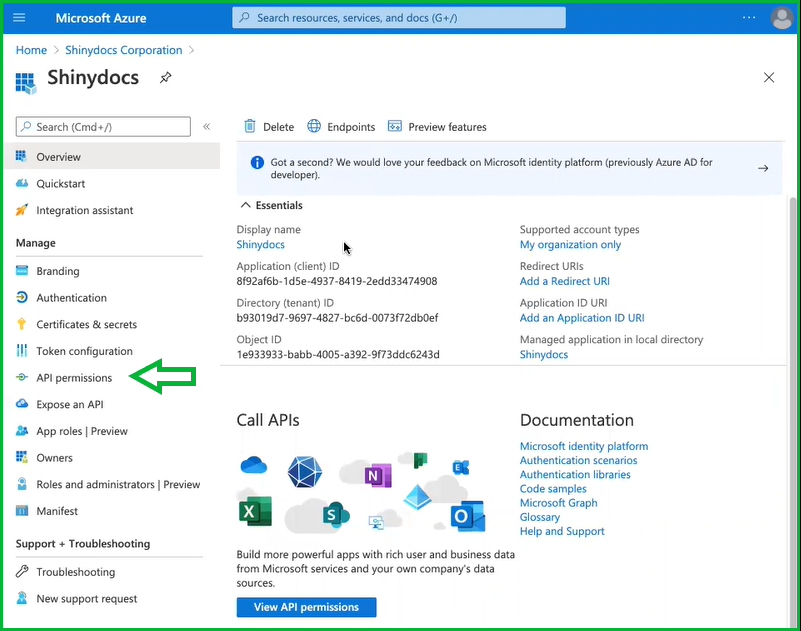
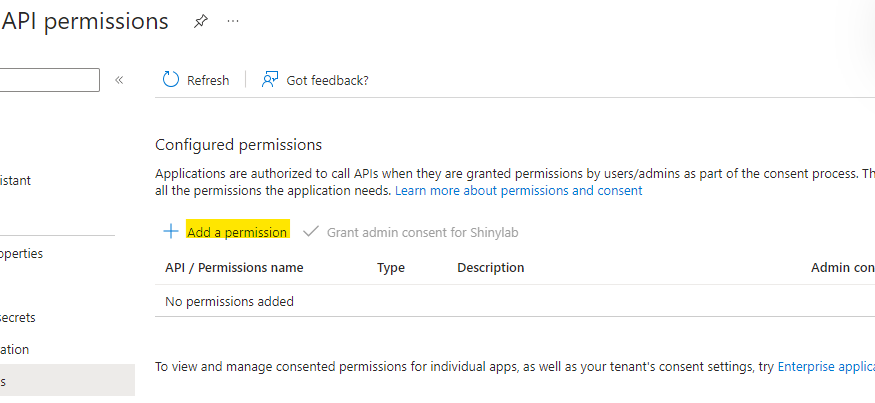
In the app registration, open API permissions > Add a permission.
-
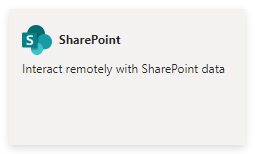
Choose the API from the table: Microsoft Graph or SharePoint.

-
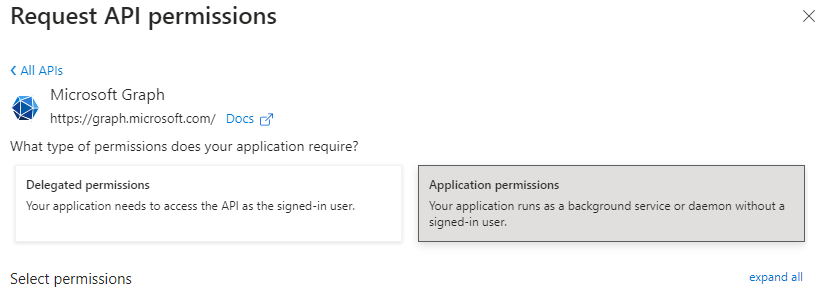
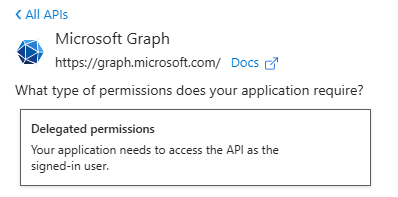
Choose Application permissions or Delegated permissions, select the permissions, and select Add permissions.
-
Repeat for each row, then grant admin consent (below).
|
Source |
API |
Type |
Permissions |
|---|---|---|---|
|
SharePoint Online |
Microsoft Graph |
Delegated |
|
|
SharePoint Online |
SharePoint |
Delegated |
|
|
SharePoint Online |
SharePoint |
Application |
|
|
Exchange Online |
Microsoft Graph |
Application |
|
|
Exchange Online |
Microsoft Graph |
Delegated |
|
|
Teams |
Microsoft Graph |
Application |
|
|
Teams |
Microsoft Graph |
Delegated |
|
|
OneDrive |
Microsoft Graph |
Application |
|
|
OneDrive |
Microsoft Graph |
Delegated |
|
SharePoint Online's Sites.Read.All application permission goes under the SharePoint API, not Microsoft Graph. To limit Shinydocs Pro to specific sites instead, see the next section.
This guide covers analysis. To delete content with Dispose, also give the app permission to delete content in that source.
Grant admin consent
-
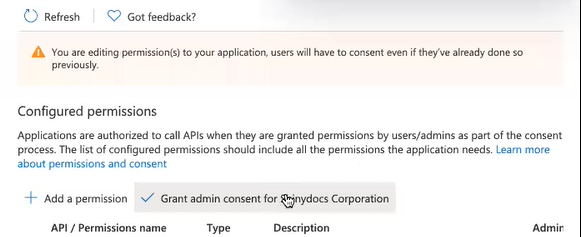
On the API permissions page, select Grant admin consent for your tenant, then Yes.

-
Check that every permission shows Granted for your tenant in the Status column.
This step is required. Application permissions always need admin consent. Microsoft's default user consent setting also stops users from consenting to Files.Read.All, Sites.Read.All or Mail.Read themselves, so without admin consent users see "Need admin approval" when they sign in from Search (Microsoft: app consent policies). If you add permissions later, grant consent again.
Optional: limit SharePoint Online to specific sites
Sites.Selected gives Shinydocs Pro access only to the sites you choose, instead of every site. Shinydocs recommends Sites.Read.All and AllSites.Read for simplicity and complete coverage; use Sites.Selected if your organization doesn't allow that level of access.
-
In the app registration, open API permissions and add these instead of the SharePoint Online permissions above:
|
API |
Type |
Permissions |
|---|---|---|
|
Microsoft Graph |
Delegated |
|
|
SharePoint |
Application |
|
-
Grant admin consent.
-
Give the app access to each site, with Read, or Write if you use Dispose. Use PnP PowerShell (below) or the Microsoft Graph API (Microsoft: create permission on a site).
-
When you add the source, enter each of these sites in the Site field. Leaving Site empty, to analyze all sites, needs
Sites.Read.All.
Grant site access with PnP PowerShell
PnP PowerShell needs PowerShell 7.4 or later. It also needs an app registration of your own to sign you in, because the shared PnP app was retired in September 2024. That app needs the Microsoft Graph delegated permission Sites.FullControl.All to change site permissions.
-
If you don't have a PnP app registration yet, install PnP PowerShell and create one:
Install-Module PnP.PowerShell -Scope CurrentUser
Register-PnPEntraIDAppForInteractiveLogin -ApplicationName "PnP PowerShell" -Tenant contoso.onmicrosoft.com -GraphDelegatePermissions "Sites.FullControl.All"
-
Note the client ID it returns. If you create the PnP app by hand instead, add the Mobile and desktop applications platform with the redirect URI
http://localhost. -
Sign in as a SharePoint Administrator or Global Administrator, and grant the Shinydocs Pro app access to each site:
Connect-PnPOnline -Url "https://contoso.sharepoint.com" -ClientId "<PnP app client ID>" -Interactive
Grant-PnPEntraIDAppSitePermission -AppId "<Shinydocs Pro app client ID>" -DisplayName "Shinydocs Pro" -Permissions Read -Site "https://contoso.sharepoint.com/sites/<site name>"
-
If no error is shown, the grant worked. Repeat the second command for each site.
Older PnP versions call the cmdlet Grant-PnPAzureADAppSitePermission; that name still works (PnP: Grant-PnPEntraIDAppSitePermission).
Optional: limit Exchange Online to specific mailboxes
The application permission Mail.Read lets the app read every mailbox in your tenant. To limit it to certain mailboxes, use Exchange Online's RBAC for Applications, which replaces application access policies (Microsoft: RBAC for Applications in Exchange Online).
-
In Exchange Online PowerShell, as an Exchange Administrator, follow Microsoft's steps to register the app's service principal and assign it the Application Mail.Read role scoped to your mailboxes. Use Application Mail.ReadWrite if you use Dispose.
-
Check the assignment with
Test-ServicePrincipalAuthorization. -
Remove
Mail.Read(application) from the app registration in Entra. Entra and Exchange grants add together, so leaving it in place keeps access to every mailbox. -
Enter each in-scope mailbox in the source's Email address field, rather than leaving it empty.
Changes can take 30 minutes to 2 hours to apply.
Add the source in Control Center
Have these ready: the Application (client) ID, the Directory (tenant) ID, the .pfx file and its password, and, for Protected - OAuth2, the client secret value and your Control Center address. The steps are the same for all four sources, except where noted.
Connection
-
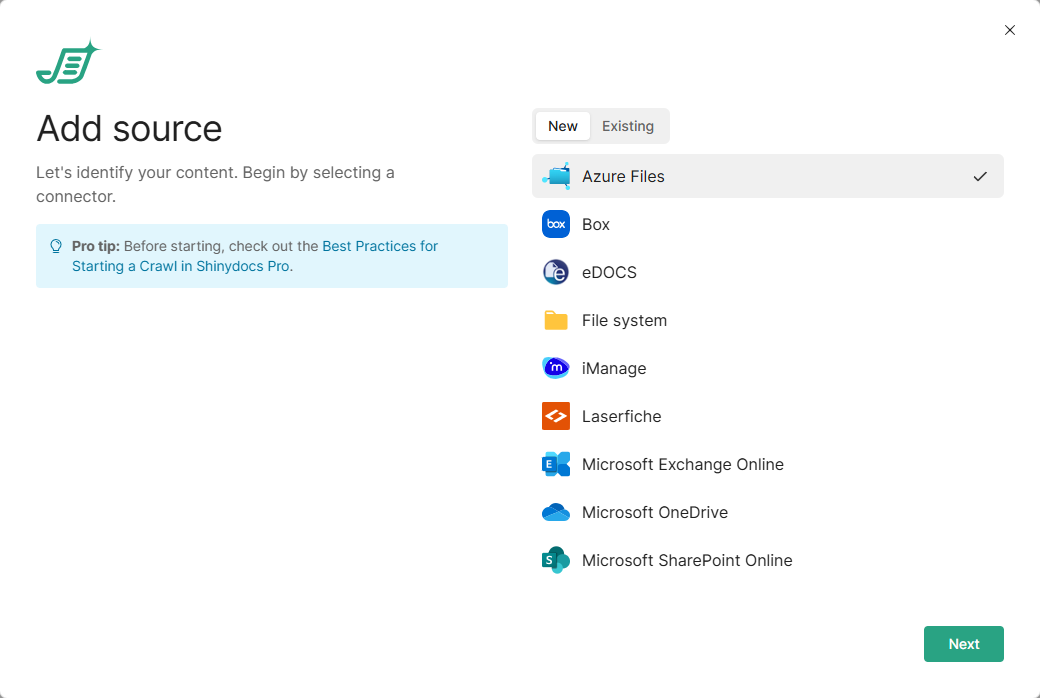
On the Sources page, select Add source. On first run, the quick-start wizard shows the same form.
-
Select Microsoft SharePoint Online, Microsoft Exchange Online, Microsoft Teams or Microsoft OneDrive, then Next.
-
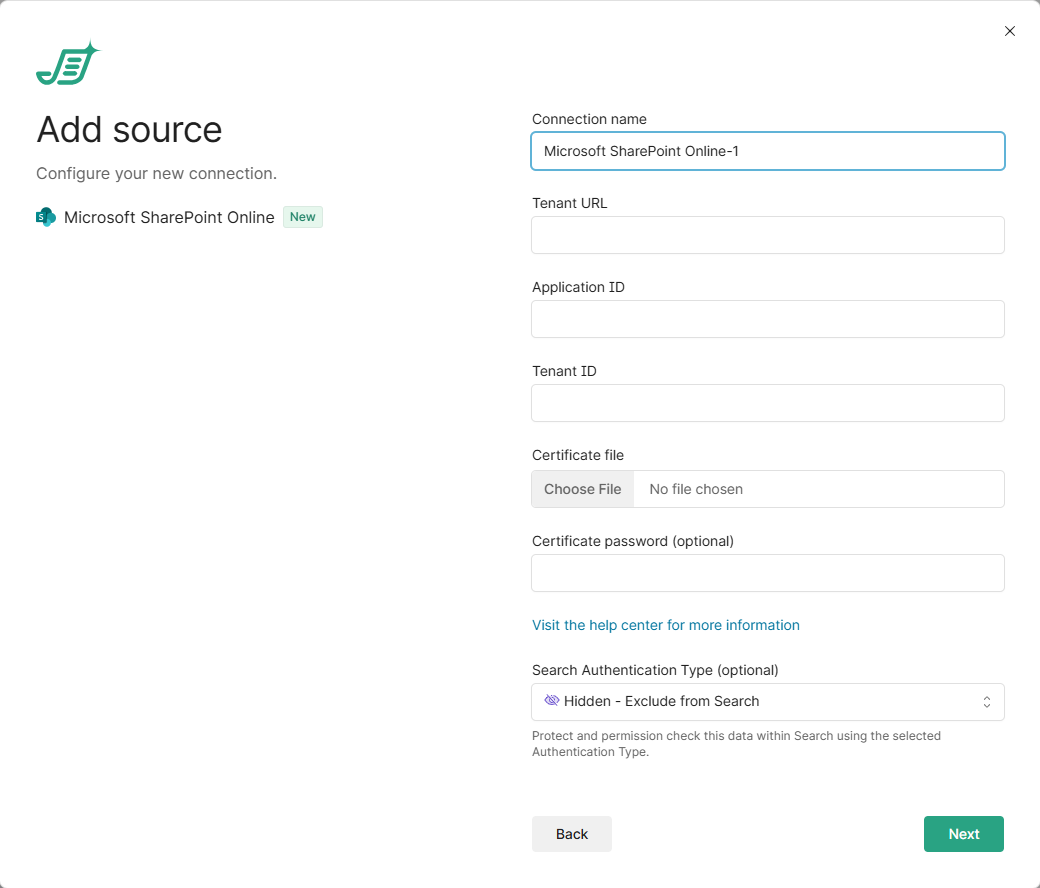
Fill in the connection:
-
Connection name: a name you'll recognize later.
-
Tenant URL (SharePoint Online only): the root address, for example
https://contoso.sharepoint.com. A site address is rejected here; you add sites in a later step. -
Application ID: the Application (client) ID.
-
Tenant ID: the Directory (tenant) ID.
-
Certificate file: upload the
.pfxfile. -
Certificate password: leave it empty if the
.pfxhas no password. -
Search authentication type: how this source appears in Search. Hidden - Exclude from Search (the default) leaves it out. Public - No authentication required shows its results to everyone who uses Search. Protected - OAuth2 has each person sign in to Microsoft from Search and shows only what they can access. Protected - OIDC uses the person's Control Center sign-in instead of a separate one. It needs Control Center sign-in set up with OIDC, as described in Access and Authentication in Shinydocs Pro, and that app registration needs this source's delegated permissions with admin consent [Confirm C11].
-
-
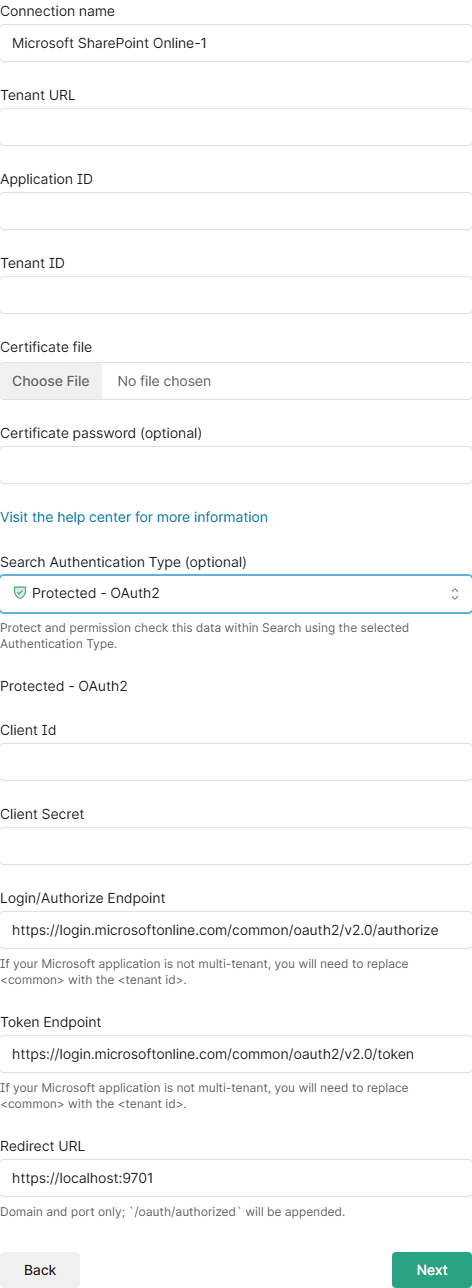
For Protected - OAuth2, also fill in:
-
Client ID: the Application (client) ID again.
-
Client secret: the secret's value.
-
Login/Authorize endpoint: replace
commonwith your Directory (tenant) ID, for examplehttps://login.microsoftonline.com/<tenant ID>/oauth2/v2.0/authorize. A single-tenant app left oncommonfails with error AADSTS50194. -
Token endpoint: the same change:
https://login.microsoftonline.com/<tenant ID>/oauth2/v2.0/token. -
Redirect URL: your Control Center address with no path, for example
https://shinydocs.contoso.comorhttps://shinyvm:9701. Shinydocs Pro adds/oauth/authorized, and the result must match the redirect URI registered in Entra. The default,https://localhost:9701, only works in a browser on the server itself.
-
-
Select Next. Shinydocs Pro checks the certificate, Application ID and Tenant ID; for SharePoint Online it also checks the Tenant URL, and for OneDrive it lists users. It does not check the redirect URI, the client secret or admin consent; those show up only when someone signs in from Search, so test that after setup.
What to analyze
-
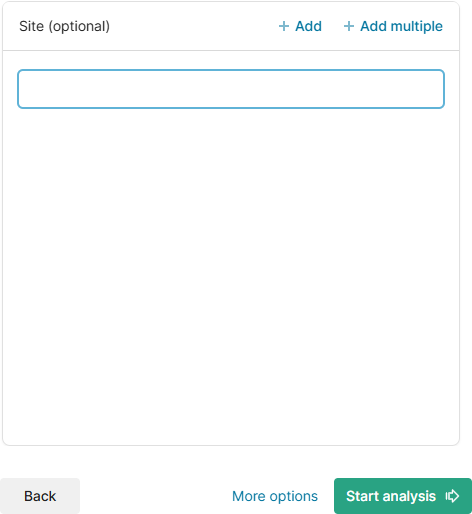
Optionally, enter what to analyze; leave the field empty to analyze everything the app can read. Each entry becomes its own source, and Add multiple takes one entry per line.
|
Source |
Field |
What to enter |
|---|---|---|
|
SharePoint Online |
Site |
A site address, for example |
|
Exchange Online |
Email address |
A mailbox's user principal name (UPN), for example |
|
Teams |
User Ids or Teams Ids |
A user's UPN or object ID, or a team's ID or exact name. Type it exactly as it appears in Entra; matching is case-sensitive. |
|
OneDrive |
User Id |
The user's UPN. Email aliases and object IDs aren't accepted. |
-
Exchange Online only: three options, all off by default.
-
Index inline images: indexes images embedded in message bodies, such as signature logos and pasted screenshots, as documents of their own. Other attachments are indexed either way.
-
Index extended message properties: adds each message's conversation topic, sensitivity and size on the server. It adds a request for every page of messages, so analysis takes longer.
-
Use immutable message IDs: keeps a message's ID when it moves between folders, so filing an email updates the existing document instead of creating a second one. Choose it before the first analysis; it can't be changed afterwards.
-
-
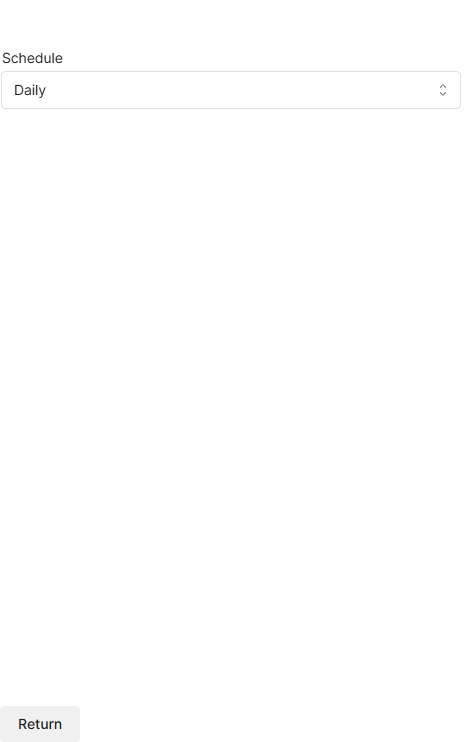
Under More options, choose a Schedule: Daily runs now and then every day at 8:00 PM server time; None runs once, now.
-
Select Start analysis.
Test Search sign-in
If a source uses Protected - OAuth2, test it as a regular user before rolling out:
-
Open Control Center at the address you registered, and go to Search.
-
Sign in to Microsoft for the source when prompted.
-
Search for something that user can access in the source, and check that it appears.
The sign-in lasts for the person's Control Center session. They sign in again after signing out of Control Center, or after the Shinydocs Pro service restarts.
|
Error or symptom |
Cause |
Fix |
|---|---|---|
|
AADSTS50011: redirect URI doesn't match |
The source's Redirect URL plus |
Register the exact URI, or correct the Redirect URL |
|
AADSTS50194 |
|
Replace |
|
AADSTS65001, or "Need admin approval" |
Admin consent hasn't been granted for a delegated permission |
Grant admin consent on the API permissions page |
|
AADSTS7000215 |
The client secret is wrong, often the Secret ID copied instead of the value |
Enter the secret's value |
|
AADSTS7000222 |
The client secret has expired |
Create a new secret and update each source |
|
AADSTS700016 |
The app isn't found in that tenant |
Check the Client ID and the tenant ID in both endpoints |
|
Sign-in completes, but the source stays signed out or shows no results |
Control Center was opened at a different address from the Redirect URL, or a delegated permission is missing |
Use the registered address, and check the delegated permissions and consent |
The Control Center log records failed sign-ins: "Could not authenticate user" means the token exchange failed, usually the secret or token endpoint; "Could not authorize user" means Microsoft returned an error to Control Center, usually consent.
Renew the certificate and client secret
Renew both before they expire. Entra allows more than one certificate and secret at a time, so you can switch without downtime.
Certificate
-
Create or obtain a new certificate.
-
In Entra, upload the new
.cerunder Certificates & secrets, and keep the old certificate for now. -
In Control Center, open Edit connection for each Microsoft connection, and upload the new
.pfxand its password. -
Once every connection uses the new certificate, delete the old one in Entra.
Client secret
-
In Entra, create a new client secret and copy its value.
-
In Control Center, open Edit connection for each source that uses Protected - OAuth2, and replace the Client secret.
-
Delete the old secret in Entra.
Differences in 26.4 and earlier
-
Certificate: the field is Certificate file location, a path to the
.pfxfile on the computer where the Shinydocs Pro agent runs. Don't put quotes around the path. If the file moves, update the path, or analysis fails. -
More options (26.1 to 26.4): also lists the analysis tools to run on the source, each with a switch, above Schedule. 26.0 has no More options.
-
Exchange Online: the three options (inline images, extended message properties, immutable message IDs) were added in 26.5.