
Requirements
-
The server Shinydocs is installed on will require internet access to reach Laserfiche.
-
You must be a Laserfiche administrator to configure this connector
Step 1 - Laserfiche Set Up
Before connecting Shinydocs Pro to Laserfiche, you must configure the required identities and applications in your Laserfiche Cloud account. This includes creating a service principal, granting it full rights, creating a service application for Shinydocs Pro, and creating a Web App for signed in Laserfiche users.
You will collect four values during this process.
-
Service principal key
-
Access key
-
Web App Client ID
-
Web App Client Secret
You will enter these in Control Center later.
1. Create the Service Principles group
-
You can skip this step if you already have a service account type group with the below permissions.
-
Sign in to your Laserfiche Cloud administration portal.
-
Open the App picker

-
Click Users on the left nav-bar.
-
Select the Groups tab.
-
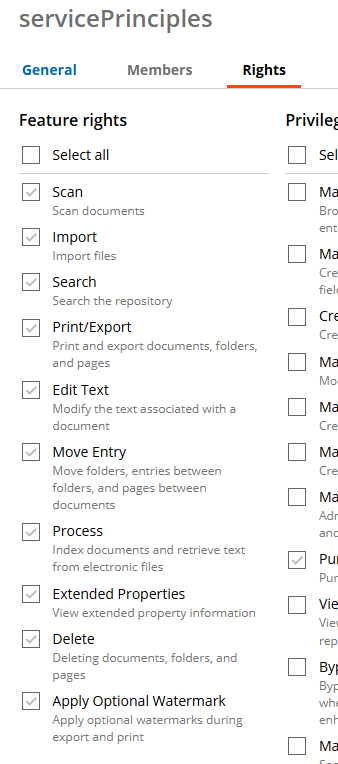
Create the group servicePrinciples, and provide it all Feature rights
2. Create the ShinydocsPro service principal in Laserfiche
-
Open the App picker
-
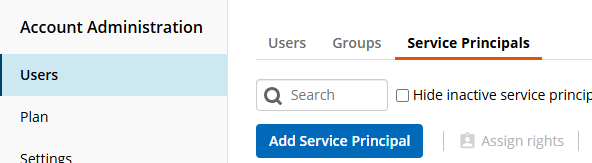
Select Users on the left-nav bar, then select the Service Principals tab.
-
Click Add Service Principal.
-
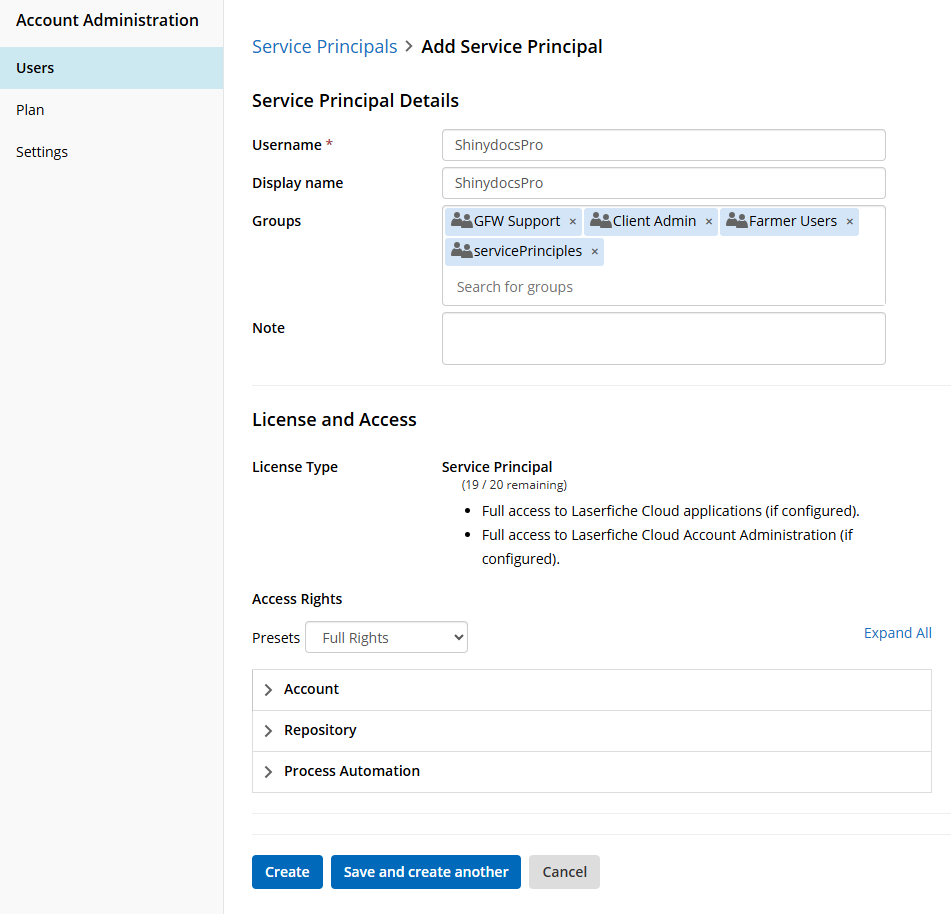
Create a new service principal:
• Username: ShinydocsPro
• Display name: ShinydocsPro -
Assign the service principal to all groups that require repository access (generally, add it to all of your existing groups for full coverage), make sure servicePrinciples group (or your permission equivalent group) is in the list.
-
Select Rights and apply the Full Rights preset. This gives the service principal full access needed for crawling and enrichment.
-
Click Create.
-
You will now be back at the list of Service Principals, select the ShinydocsPro principal from the list
-
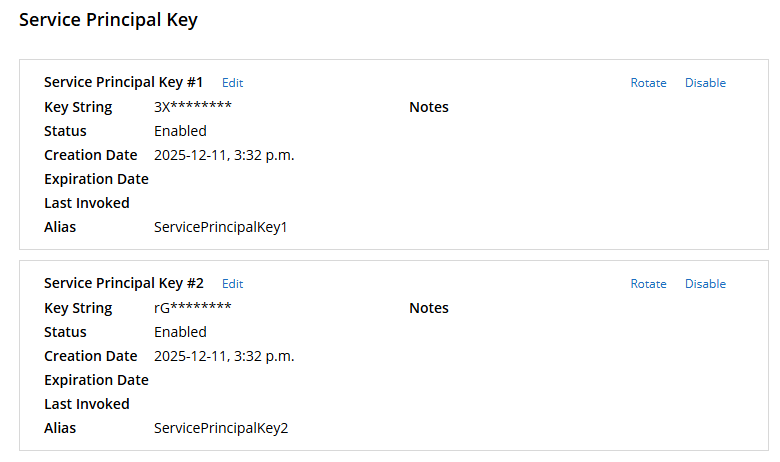
Click Create Service Principal Key(s) to generate the service principal key.
-
✏️You can only view this key once, store this securely. You will need to enter it in Control Center.
-
Laserfiche automatically generates two, though you only need one.
-
3. Create the ShinydocsServices service in the Laserfiche Developer Console
-
Open the Laserfiche Developer Console in App picker
-
Click the New button to create a new application.
-
Select Create a new app.
-
Select Service and provide it a name like ShinydocsServices. Click Create.
-
On the service configuration page, set Service Account to the service principal you created earlier (ShinydocsPro). Laserfiche calls this the service account field in the UI.
-
Open the Authentication tab.
-
Generate a new access key for ShinydocsServices.
-
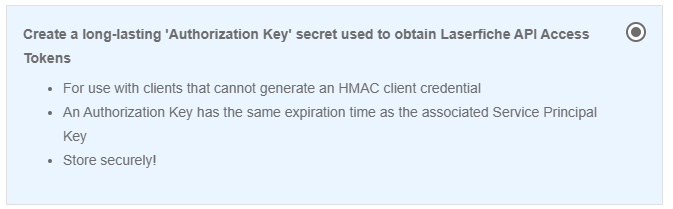
Select Create a long-lasting ‘Authorization Key’ secrect used to obtain Laserfiche API Access Tokens.
-
Click Next.
-
Enter one of the Service Principal Keys generated when the Shinydocs Pro service principal was created.
-
It may take some time for the Service Principal Key to be available, if it cannot be found please wait for an hour.
-
-
Click Create key.
-
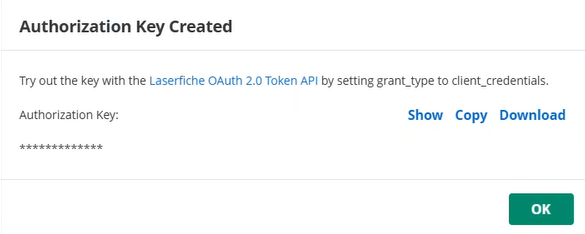
Click Download when the Authorization key has been created
-
Open the downloaded JSON file in Notepad or Notepad++
-
✏️ You will want to copy the value for
accessKeyBase64String-
The key will be long, approx. 589 characters
-
-
-
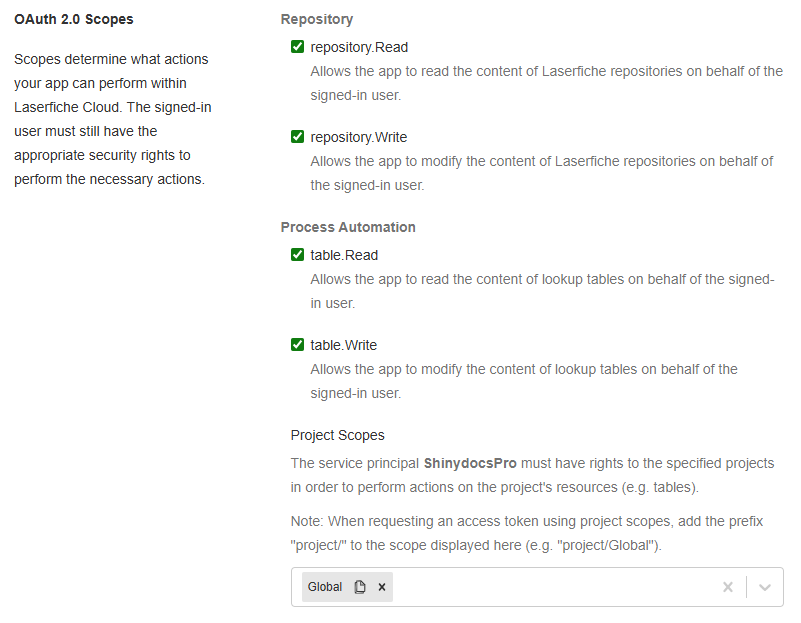
Near the bottom of the page, select all OAuth 2.0 Scopes & ensure all projects or Global is selected
-
Click Save.
-
3. Create the ShinydocsUsers Web App in the Laserfiche Developer Console
Next, we are going to add a Web App application, go back to the root of the Developer Console and click the New button.
-
Select Create a new app.
-
Select Web App and provide it a name like ShinydocsUsers, click Create.
-
In the App Configuration, select the Authentication tab.
-
Set the redirect URIs. At a minimum include:
https://localhost:9701/oauth/authorized
Note: localhost will only work on the server Shinydocs Pro is installed on. When you deploy Shinydocs Pro Control Center access, you will need to add additional URIs with your DNS/hostname instead of localhost! Setting up Shinydocs Control Center for Intranet AccessIf you have already set up Shinydocs Control Center Access, then Shinydocs Pro Control Center is running on port 443, meaning your redirect URI would look like this:
https://search.acmecorp.com:443 -
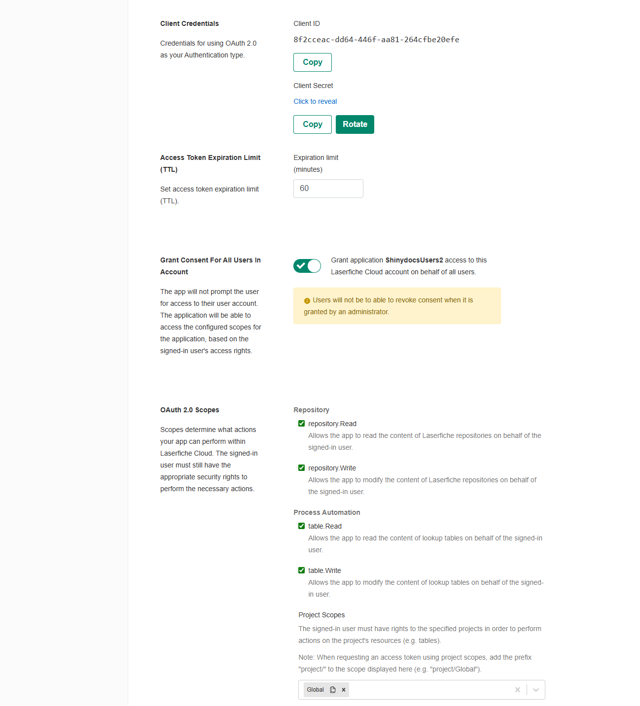
In the Client Credentials section, click Click to reveal to see the Client Secret, ✏️ you will need this secret and the Client ID later.

-
Enable the option labeled:
Grant application ShinydocsUsers access to this Laserfiche Cloud account on behalf of all users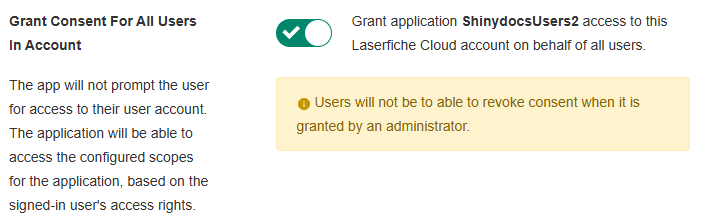
-
Select all OAuth 2.0 scopes again (same as your service application).
-
Click Save. Your configuration should look similar to this
You should now have everything required to analyze your Laserfiche environment:
-
✏️Service Principal Key
-
✏️Access key
-
✏️Client ID
-
✏️Client Secret
Step 2: Set up Laserfiche Source in Shinydocs Pro
By default, Shinydocs Pro captures a standard set of Laserfiche fields. To capture all fields, turn on the Add all Laserfiche fields flag on the Control Center flags page (https://localhost:9701/flags). This makes crawls at least 10 times longer, with more timeouts.
-
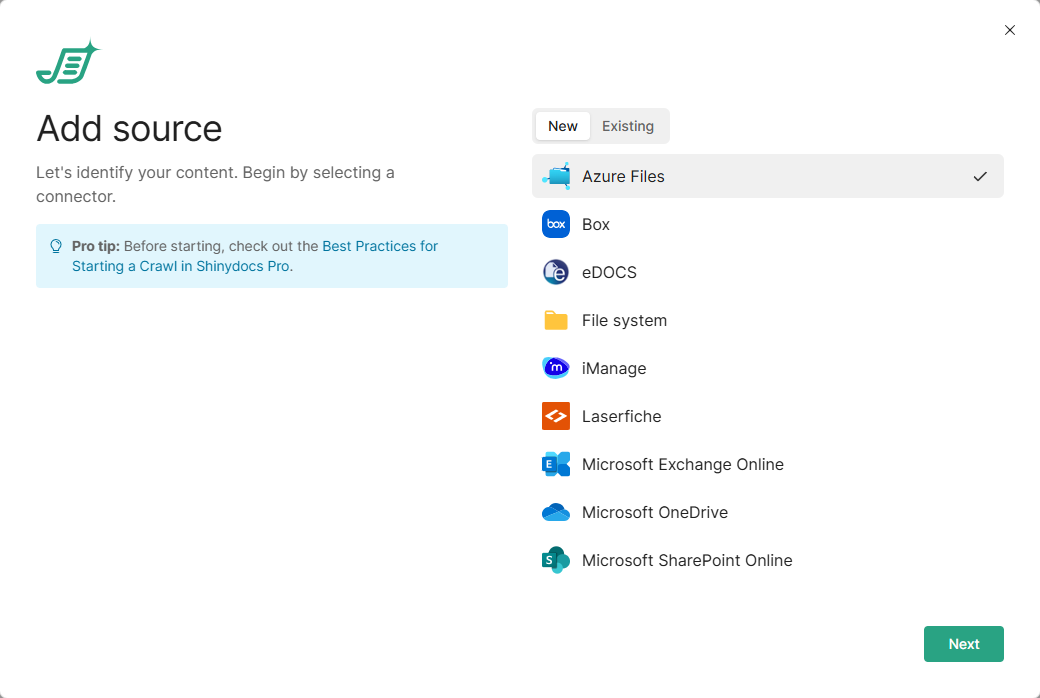
In Shinydocs Pro Control Center, select Add source. It is on the Overview page and the Sources page.
-
On the New tab, select Laserfiche, then select Next. To add another source to a Laserfiche connection you already set up, use the Existing tab instead.
-
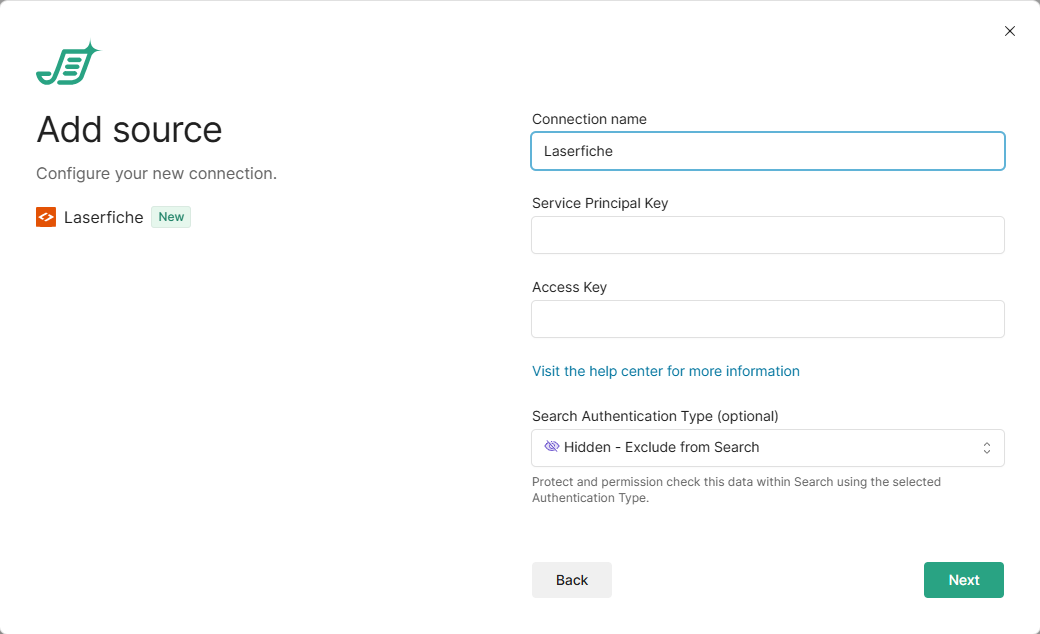
Enter the values you created in Laserfiche:
-
Connection name: leave as is, or enter a name of your own.
-
Service Principal Key: the key you created for the ShinydocsPro service principal.
-
Access Key: the
accessKeyBase64Stringvalue from the ShinydocsServices authorization key. It is very long.
-
-
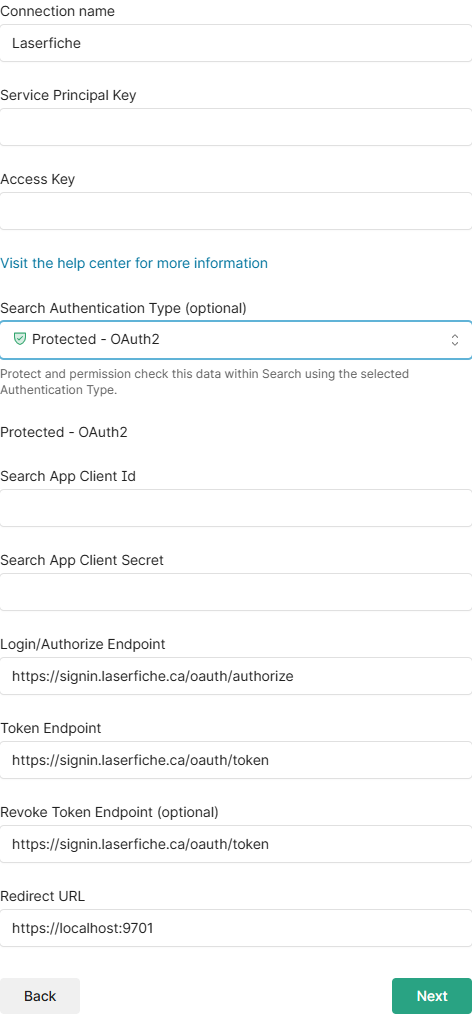
Under Search Authentication Type, select Protected - OAuth2, then enter:
-
Search App Client Id and Search App Client Secret: from the ShinydocsUsers Web App.
-
Login/Authorize Endpoint, Token Endpoint and Revoke Token Endpoint (optional): filled in for
laserfiche.ca. If your account uses another region, for examplelaserfiche.com, update them. -
Redirect URL:
https://localhost:9701works on the server itself. If users reach Control Center from other machines, use that address instead, for examplehttps://search.acmecorp.com:443, and add the matching redirect URI to the Web App. See Setting up Shinydocs Control Center for Internal Access.
-
-
Select Next. Control Center checks the connection before you continue. If something is wrong, the error says which setting to fix. A source can only be added while an agent is online.
-
Choose what to analyze in Laserfiche:
-
Leave it blank to analyze all repositories.
-
Enter a repository name or ID, for example
Shinydocs Corporationorr-0001464db7c. The ID appears in the browser URL when you open the repository.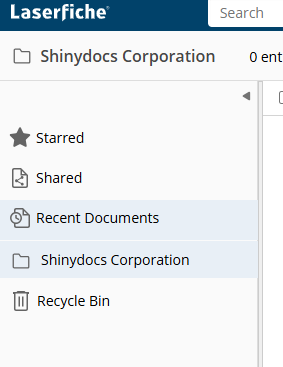
-
Enter
Repository, folderIDto analyze one folder, for exampleShinydocs Corporation, 185.
Select Add or Add multiple for more entries.
-
-
Optionally, select More options to set the Schedule (Daily or None), then select Return.

-
Select Start analysis.
Your Laserfiche content is also searchable in Shinydocs Search.
The new source runs the analysis set for Laserfiche connections under Settings > Analysis. To change what runs for this source, or its schedule, open it from the Sources page. See Shinydocs Pro Control Center Guide.