
What you are setting up
In this guide, you will be setting up a file system source in Shinydocs Pro (e.g. your file share) for analysis and setting up the connection for permission checking of Search results for your source.
Once complete:
-
Your file system source will be analyzed by Shinydocs Pro
-
Files are immediately searchable via Search, enforcing file system permissions on all search results.
Requirements
Using a Group Managed Service Account (gMSA)
-
Service account with at least read access to the file shares to be analyzed.
-
The service account must be a local administrator on the server Shinydocs Pro Control Center is installed on.
-
-
Access to a domain controller OR the ability to run
Get-ADComputer(Active Directory PowerShell module).-
To install the AD PowerShell module, run (as administrator)
Get-WindowsCapability -Name RSAT.ActiveDirectory* -Online | Add-WindowsCapability -Online
-
-
The server Shinydocs Pro is installed on is part of the same domain as the source file system/file shares
-
UNC path(s) of the file share(s) you want to analyze (\\server\share).
The service account requires interactive logon enabled (Group Policy dependent)
Windows Clustered File Shares
If your organization uses Windows Clustered File Shares, Shinydocs Pro supports connecting via a service account or Group Managed Service Account (gMSA). Running Shinydocs Control Center under the default Local System scope is insufficient due to the need for a Kerberos ticket. In this setup:
-
Shinydocs Control Center must run as the service/gMSA account
-
gMSA accounts have no password; leave the password field blank when configuring the Shinydocs Control Center service account in the Log On tab.
-
-
Add the service account as a local administrator on the server running Shinydocs Control Center
-
Run lusrmgr.msc > Groups > Administrators > Add the service account to the group
-
-
Add the service account to the SSL certificate used by Shinydocs Pro
-
Default installed certificate: (requires Admin rights) Run
certlm.msc> Personal > right-clicklocalhost.localdomain> All tasks > Manage private keys > Add > Add your service account -
Custom certificate in use: (requires Admin rights) Run
certlm.msc> Personal > right-click your custom certificate (import if unavailable) > All tasks > Manage private keys > Add > Add your service account
-
When adding file system sources to Shinydocs Pro Control Center this way, you don't need to enter a username or password in the UI for the source.
Steps
Getting things ready
-
Set Shinydocs Control Center service to start as the service account
-
In Windows, open Services
-
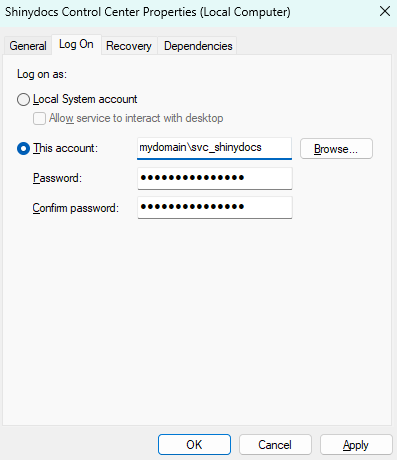
Right-click on the Shinydocs Control Center service > Properties > Log On
-
Select This account. Then browse for the Shinydocs service account and enter the password
-
Click OK when complete
-
-
(New in 26.3.1+) If you are using a gMSA account to access file shares, repeat this step for the Shinydocs Agent service.
-
Give the service account local permissions to the default certificate that comes with Shinydocs Pro
-
On the Shinydocs Pro server, open certlm.msc.
-
In the left panel, expand Certificates (Local Computer).
-
Navigate to Personal > Certificates.
-
Right-click the certificate named localhost.localdomain.
-
Choose All Tasks > Manage Private Keys.
-
In the dialog, select Add.
-
Find and select your service account.
-
Under the Allow column, check Read.
-
Click Apply, then OK to save.
-
-
Register SPNs to allow permission checking
-
Open CMD as administrator
-
Run the following command
Replace<hostname>with your server’s hostname.
Replace<domain>\<serviceAccount>with your domain and the name of the Shinydocs service account.setspn -S HTTP/<hostname> <domain>\<serviceAccount> -
Verify that the SPNs were set correctly by running the command
setspn -l <domain>\<serviceAccount>
-
-
Authorize your file share(s) for Kerberos double-hop. On one of your domain controllers or a computer with
Get-ADComputerPowerShell module installed (included in Active Directory installation). If you have multiple file shares, this will need to be configured for each:-
On the computer with
Get-ADComputer, open PowerShell -
Check if there are existing authorizations:
Get-ADComputer <FileShareServerName> -Properties PrincipalsAllowedToDelegateToAccount-
If there are existing entries in the
PrincipalsAllowedToDelegateToAccountkey, copy the hostnames for the next step.
-
-
Run the following command:
$Server1 = Get-ADComputer -Identity <ShinydocsSearchServerName OR valid FQDN>-
IF there were existing authorizations with
Get-ADComputer, add them separately and one at a time like this, run each on its own:$Server2 = Get-ADComputer -Identity <ExistingAuthorizationHostName1>$Server3 = Get-ADComputer -Identity <ExistingAuthorizationHostName2> -
IF Shinydocs Search is load balanced on additional machines, you will need to also add the other Shinydocs Search hostnames or FQDNs:
$Server4 = Get-ADComputer -Identity <<ShinydocsSearchServer2Name OR valid FQDN>>
-
-
Now you’re ready to submit the request to set the
PrincipalsAllowedToDelegateToAccounton all of the above machines via PowerShell. Note that the$Server1variable you set previously is used in the command:-
Scenario 1:
1 Shinydocs Search instance, no existing authorizationsSet-ADComputer <FileShareHostName or FQDN> -PrincipalsAllowedToDelegateToAccount $Server1 -
Scenario 2:
Multiple Shinydocs Search instances (load balanced) and/or existing authorizations
Note: You need to change the list of$Servervariables in this command to match how many you have set up in the previous stepsSet-ADComputer FILESHARE-01 -PrincipalsAllowedToDelegateToAccount @($Server1, $Server2, $Server3, $Server4)
-
-
Verify it was set by running the following in PowerShell:
Get-ADComputer <FileShareServerName> -Properties PrincipalsAllowedToDelegateToAccountYou will see the Shinydocs servers listed in
principalsAllowedToDelegateToAccount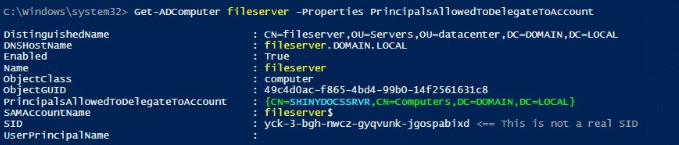
-
The Set-ADComputer example commands above overwrite the current PrincipalsAllowedToDelegateToAccount values on a FileShareServerName. To remove a PrincipalsAllowedToDelegateToAccount value from a FileShareServerName, you can re-run one of the above commands and exclude the value you wish to remove.
Alternatively; to remove all values from PrincipalsAllowedToDelegateToAccount from a FileShareServerName, you can run the below command (replacingFileShareServerName with the actual fileshare hostname):
Set-ADComputer FileShareServerName -PrincipalsAllowedToDelegateToAccount $null
Adding your source
-
In Shinydocs Pro Control Center, select Add source. It is on the Overview page and the Sources page.
-
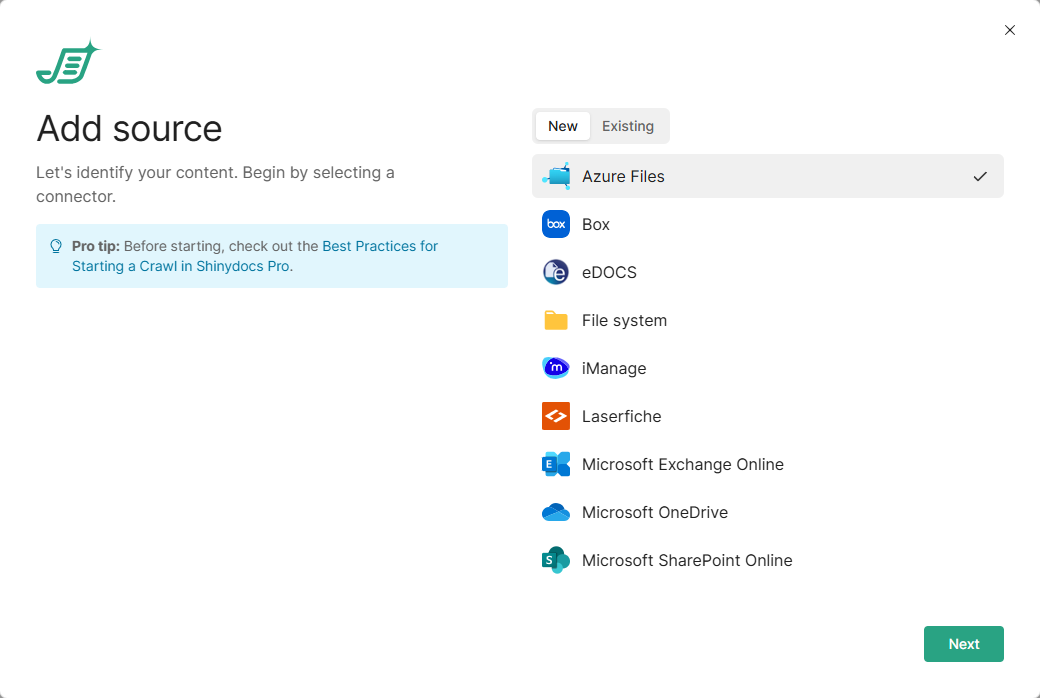
On the New tab, select File system, then select Next. To add another source to a File system connection you already set up, use the Existing tab instead.
-
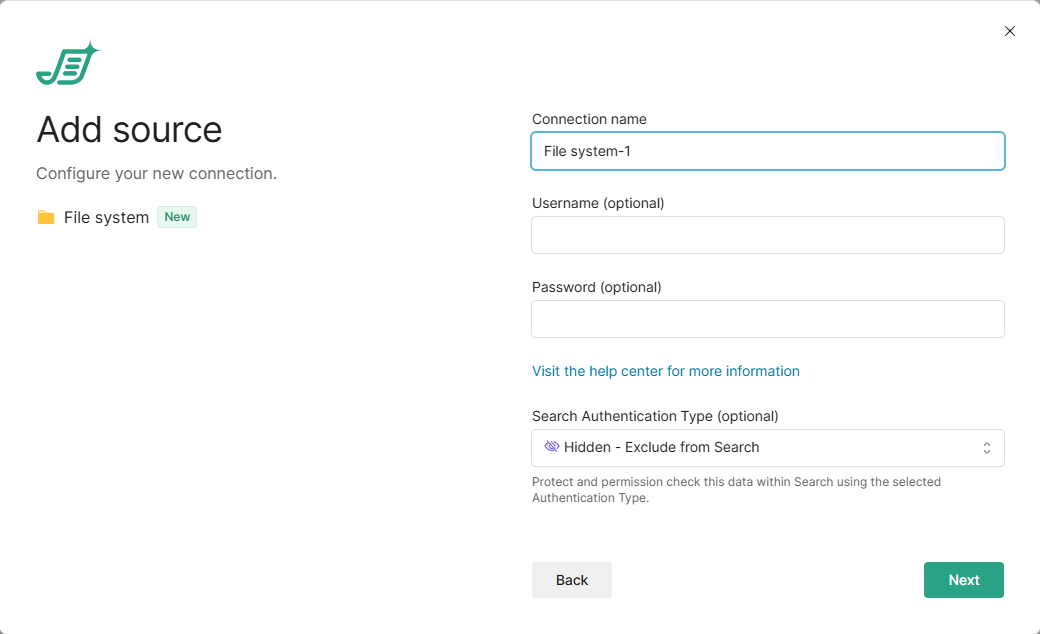
Enter the connection details:
-
Connection name: leave as is, or enter a name of your own.
-
Username (optional) and Password (optional): the account used to analyze your file system. This is typically a service account with read access to everything you want to analyze. If you leave them blank, Shinydocs Pro analyzes the paths you give it if it has permission to access them. For a gMSA or clustered file shares, leave them blank (see above).
-
Search Authentication Type: select Protected - Negotiate/Kerberos so Shinydocs Search checks file system permissions. The other options are Hidden - Exclude from Search and Public - No Authentication Required.
-
-
Select Next. Control Center checks the connection before you continue. If something is wrong, the error says which setting to fix. A source can only be added while an agent is online.
-
Under Path, enter the path you want to analyze. A UNC path (
\\server\share) is preferred. Select Add for another path, or Add multiple to paste several paths at once, one per line. We recommend starting with a small file share; see Best Practices for Starting a Crawl in Shinydocs Pro.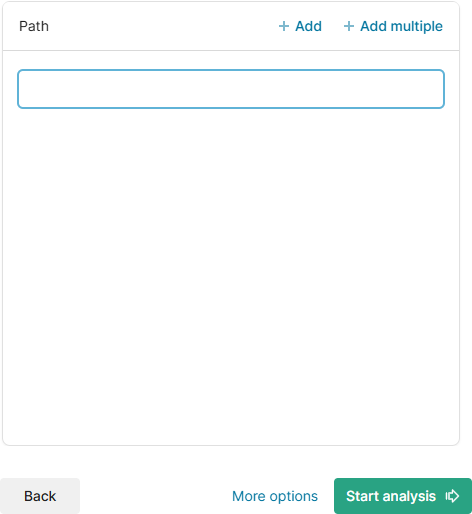
-
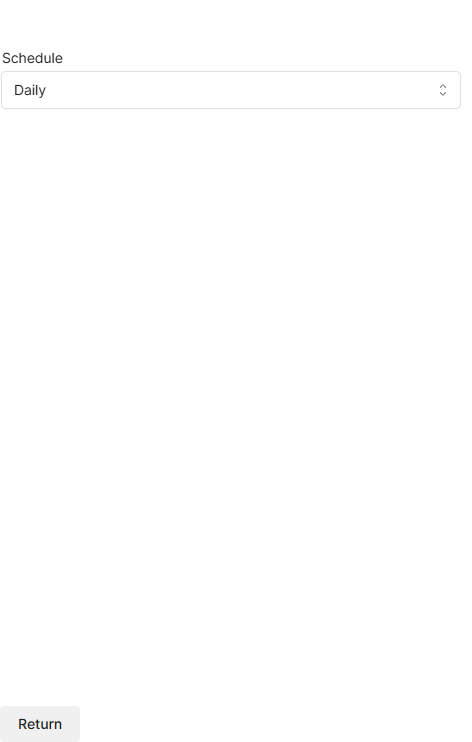
Optionally, select More options to set the Schedule (Daily or None), then select Return.
-
Select Start analysis.
The new source runs the analysis set for file system connections under Settings > Analysis. To change what runs for this source, or its schedule, open it from the Sources page. See Shinydocs Pro Control Center Guide.
Helpful tips
To remove an SPN, you can run the below commands (replacing each of the placeholder values similar to the above examples):
setspn -d HTTP/<hostname> <domain>\<serviceAccount>
setspn -d HTTP/<fqdn> <domain>\<serviceAccount>
Kerberos logging can be enabled by editing the following registry key:
HKEY_LOCAL_MACHINE\SYSTEM\CurrentControlSet\Control\Lsa\Kerberos\Parameters
Registry Value: LogLevel
Value Type: REG_DWORD
Value Data: 0x1
If the Parameters subkey does not exist, create it.
-
Further details at:https://docs.microsoft.com/en-us/troubleshoot/windows-server/identity/enable-kerberos-event-logging
-
The logging events will show in the System event log, in the Windows event viewer.
-
Ensure the SPNs have been replicated through the domain.